Upload a Custom Background Image for Virtual Try-On#
Quick Answer#
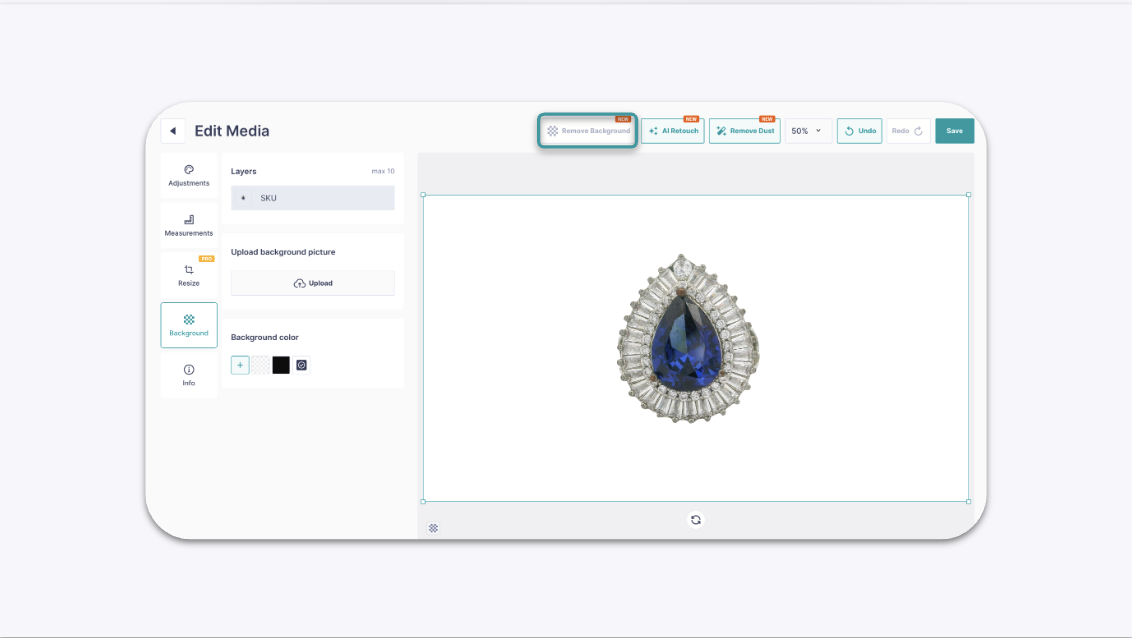
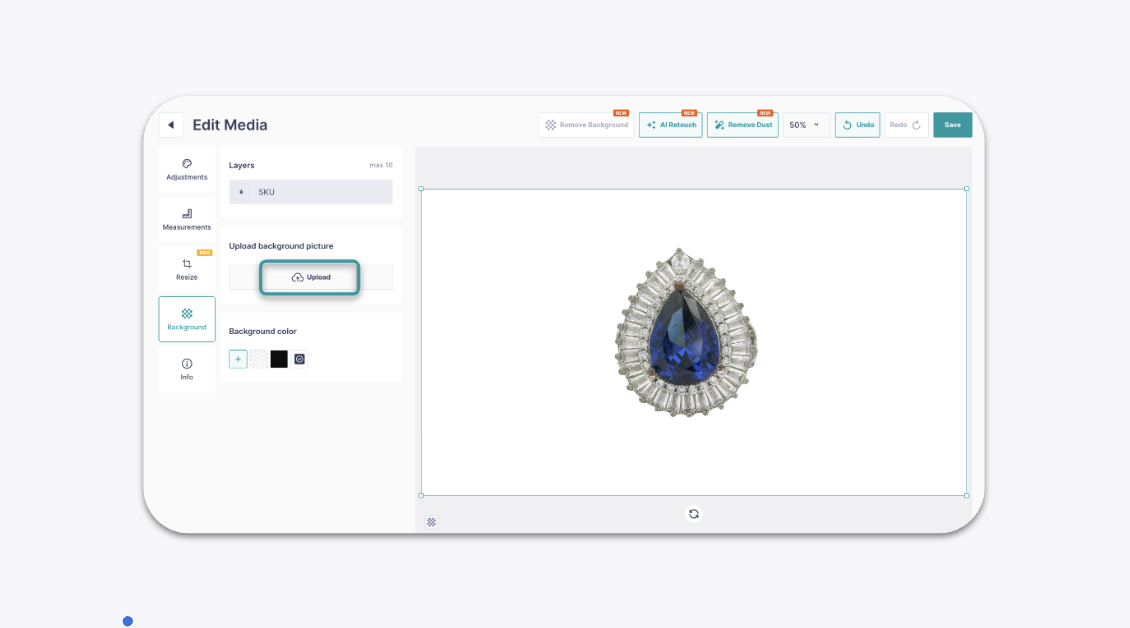
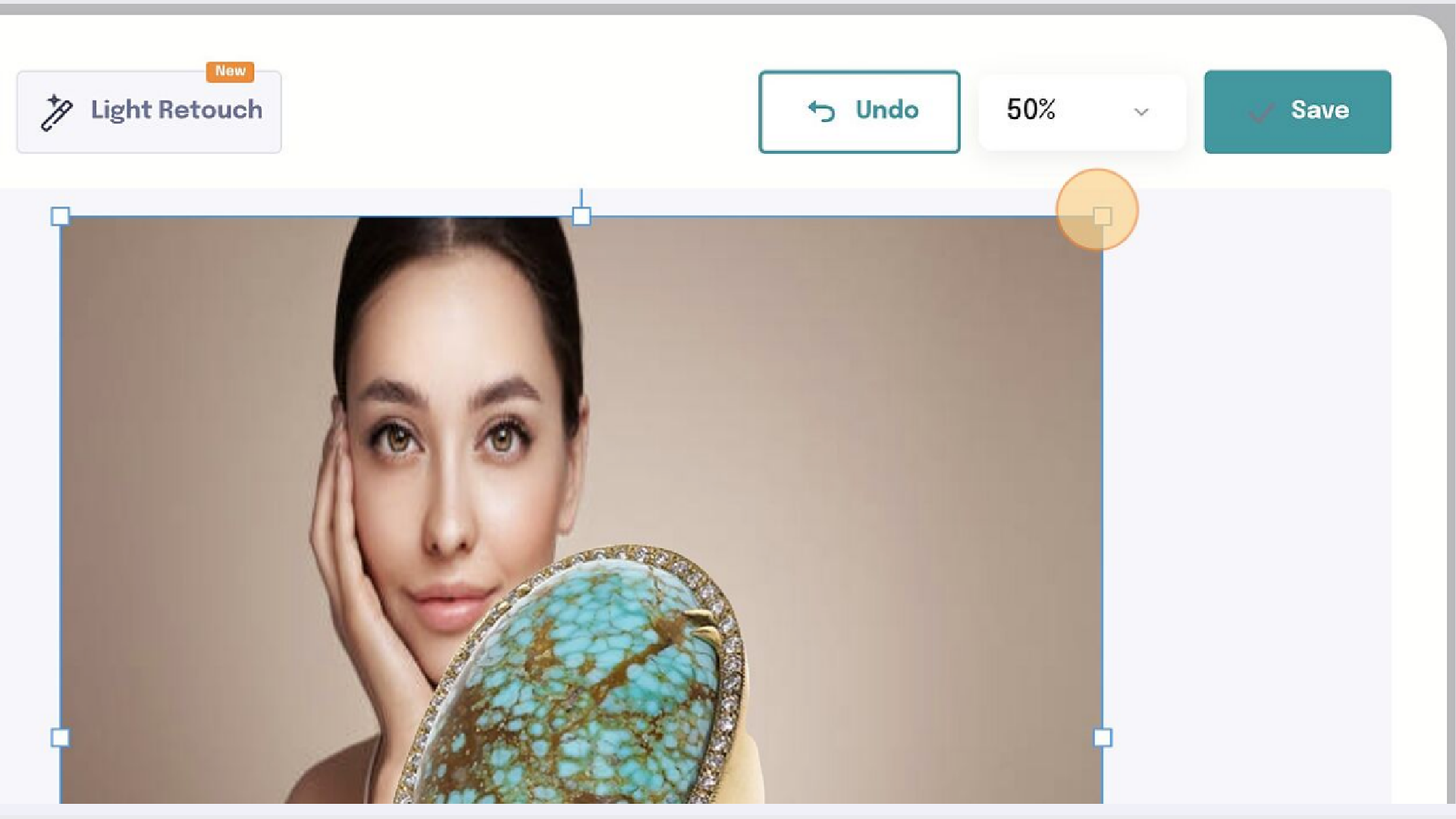
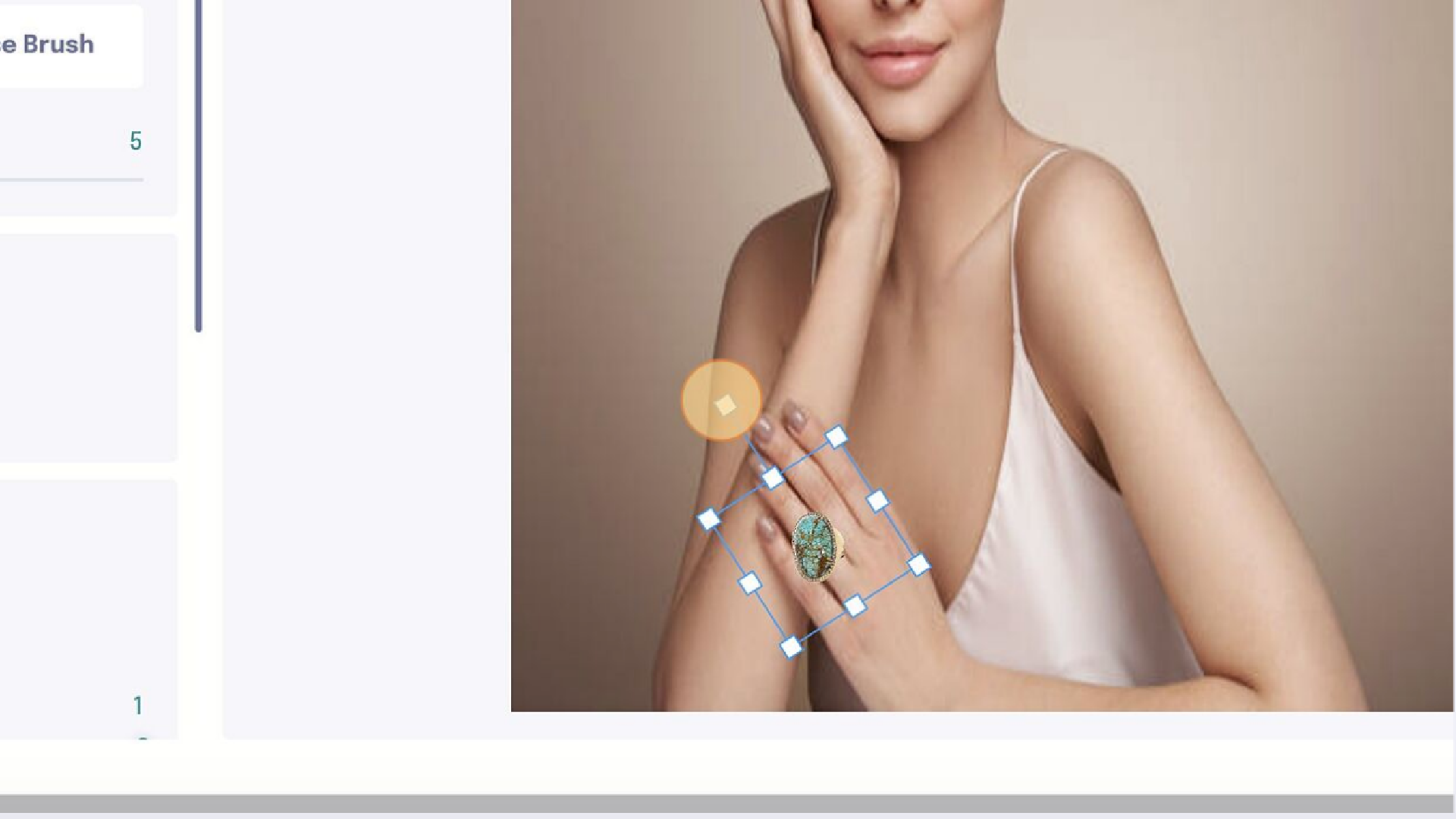
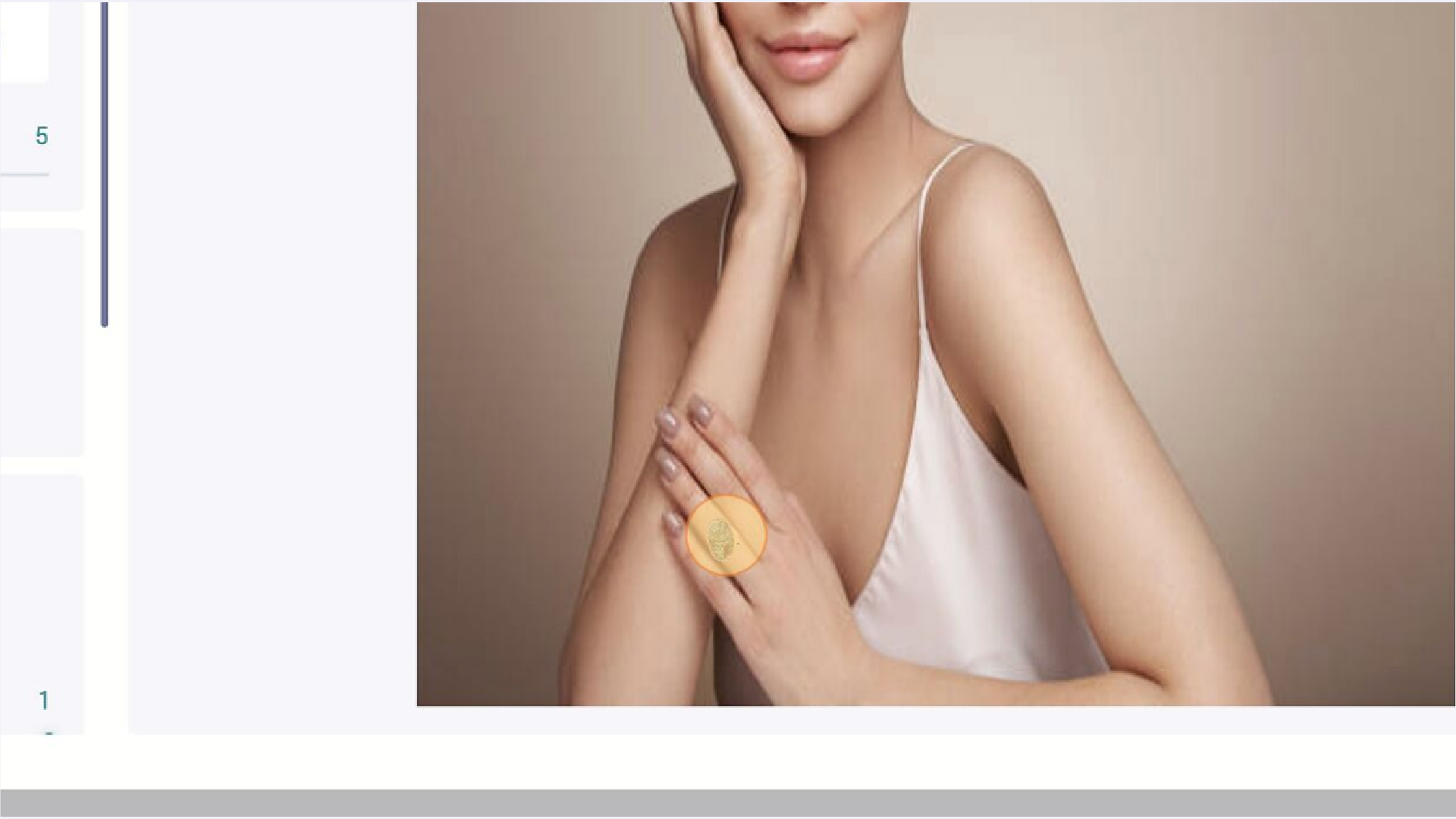
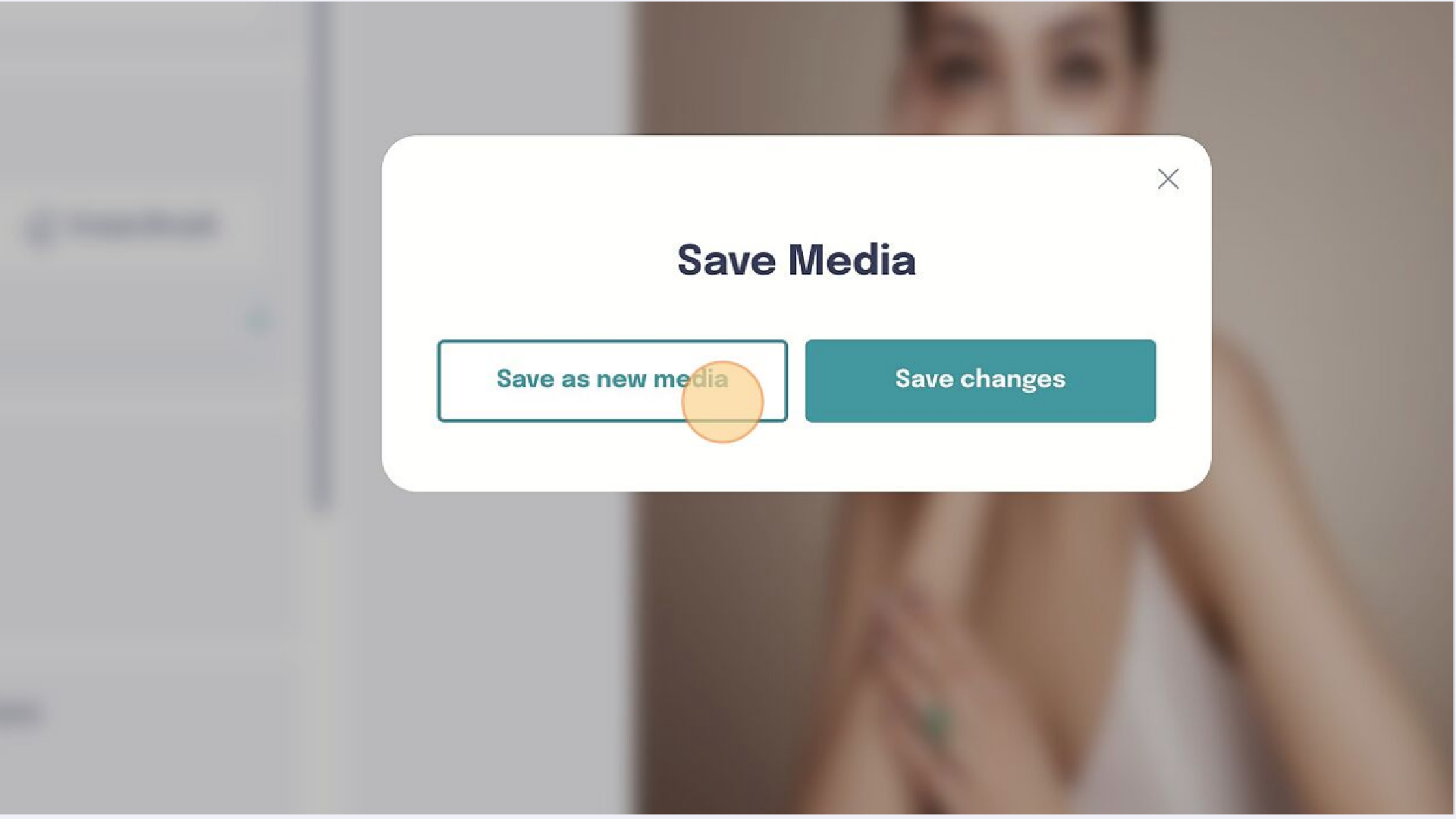
You can use any image — a model photo, stock image, or branded background — as the background for a jewelry piece in GemIQ. Remove the jewelry's original background, upload your custom image, resize and position the piece, then save it to your Virtual Try-On gallery.
Before You Start#
Have the jewelry image already captured and saved in your GemIQ Gallery.
Prepare the background image you want to use (e.g., a model photo, lifestyle shot, or branded background).
Steps#
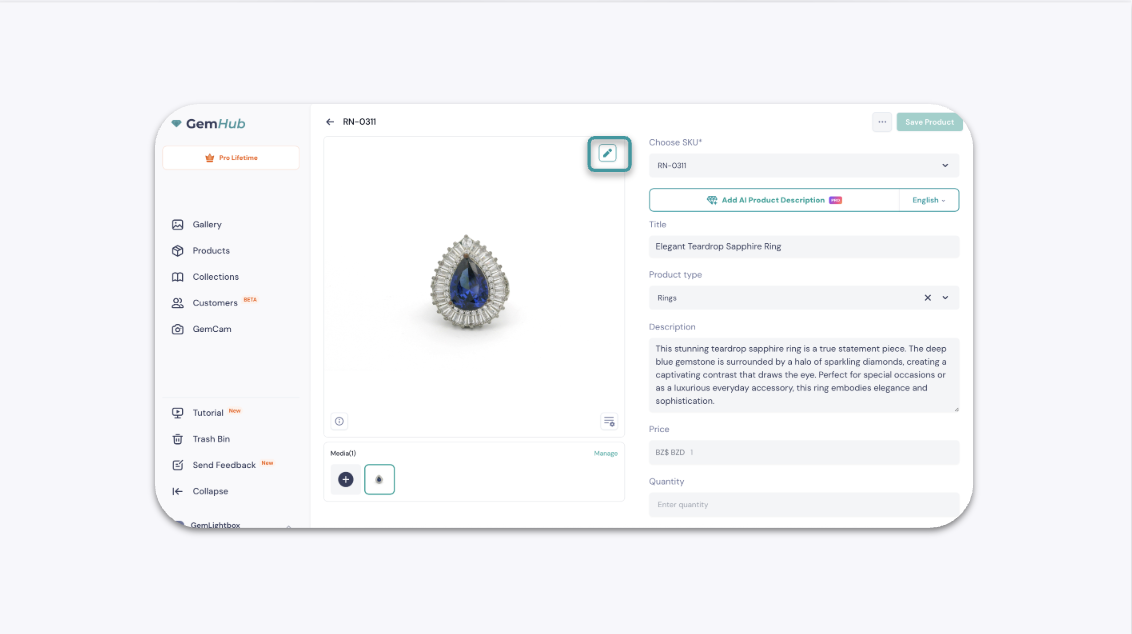
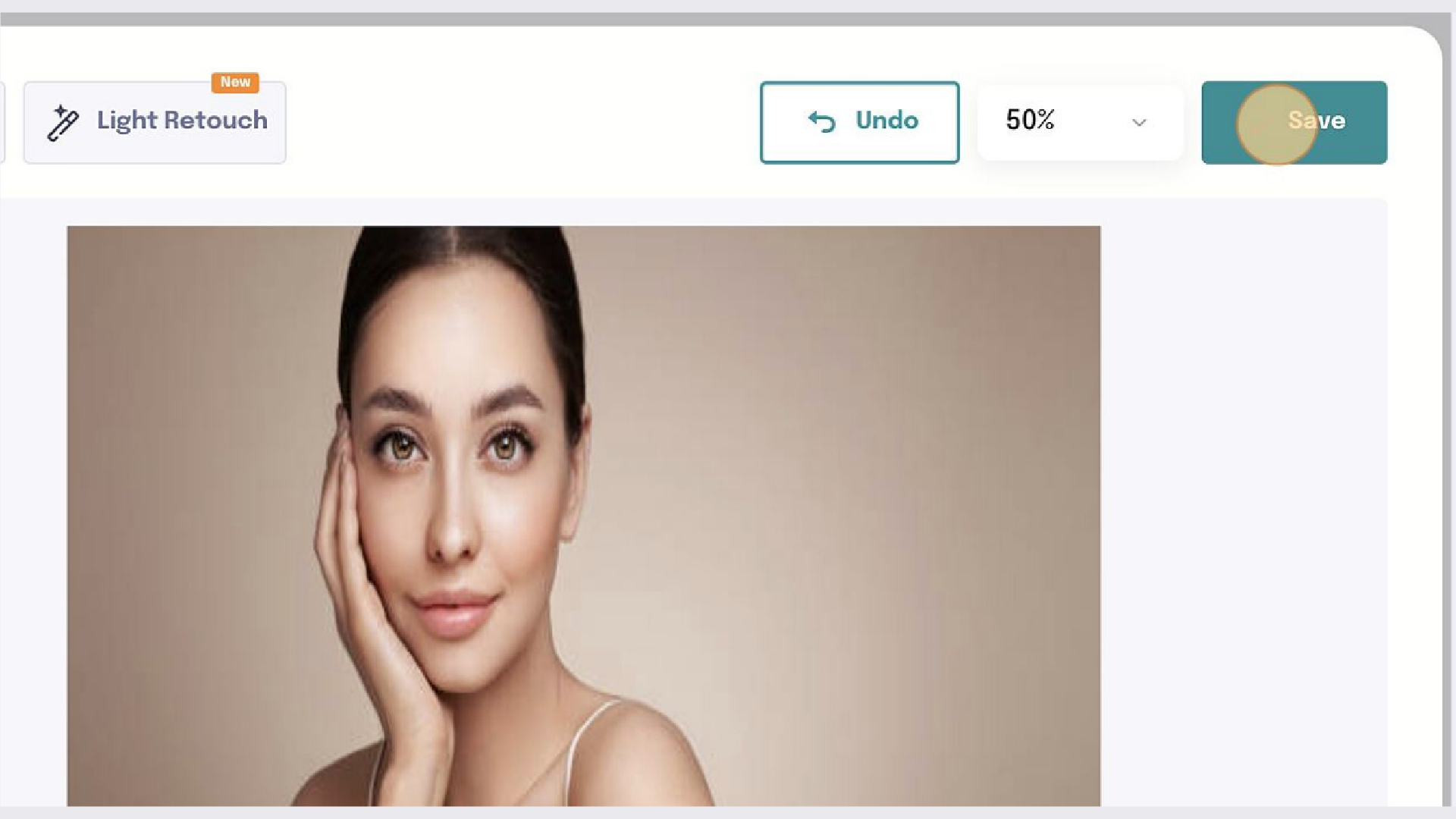
Open the image editor. Select your jewelry piece from the gallery, then open the image editor.