

Quick answer#
You can download photos and videos directly from Media, Products, or Collections section in GemIQ. Downloaded files are automatically named using the SKU you assigned, making them easy to organize. For the best video quality, always download directly from your GemIQ account rather than from a shared link.
Before you start#
Log in to your GemIQ account.
Confirm your media files have been captured and are available in your Media, Products, or Collections.
Assign SKUs to your products so downloaded files are labeled correctly.
Steps#
Download Photos or Videos#
Navigate to the Media, Products, or Collections tab.
Select the media files you want to download.
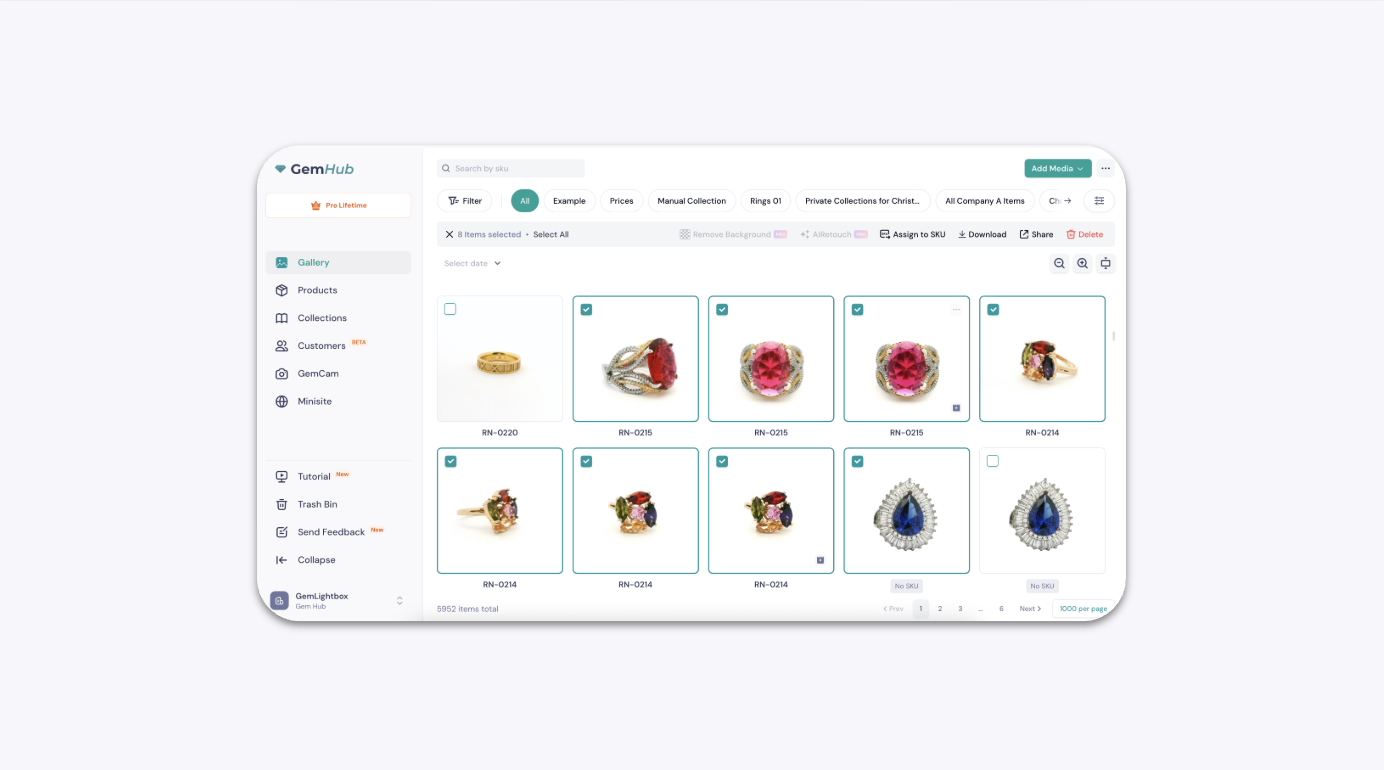
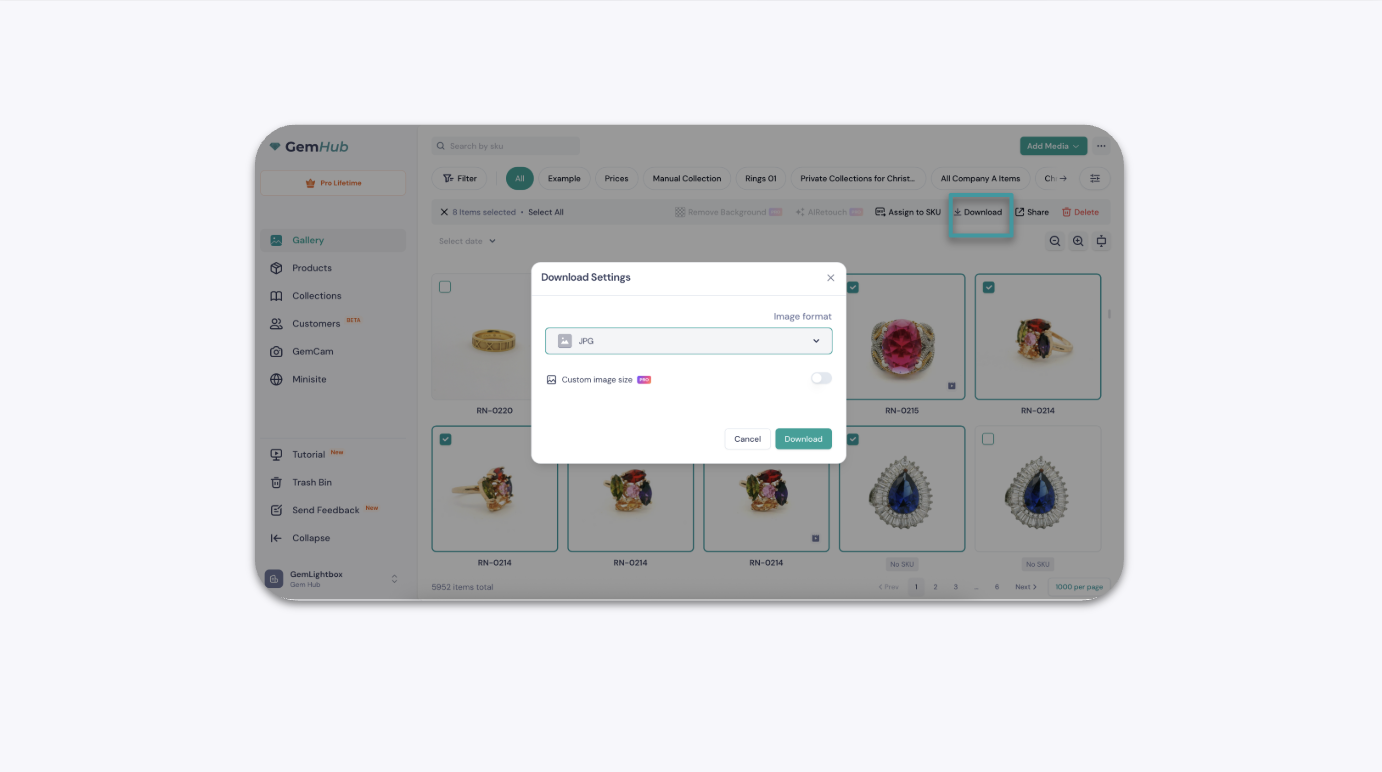
Click Download and choose your preferred file type.
To set a custom size, enable the Custom Image Size option and enter your desired width and height.
Confirm your selection to start the download.
Download High-Quality Videos#
Navigate to the video you want to download in your GemIQ account.
Click Download — videos save in MP4 format, compatible with most editing software.
Do not use shared links to download videos. Shared links are optimized for quick viewing and may reduce quality.
Expected result#
Files download to your device named with the SKU you assigned. Photos are saved in your chosen format and dimensions. Videos are saved as MP4 at the highest available quality.
If this does not work#
Download does not start: Check your browser's pop-up blocker settings and allow downloads from GemIQ.
Files have generic names: Confirm you assigned a SKU to the product before downloading. Files are labeled using the SKU at the time of download.
Video quality is low: Make sure you are downloading directly from your GemIQ account, not from a shared link.
Custom Image Size option is greyed out or unavailable: Ensure you have selected a file and that the option is toggled on before entering dimensions.
Common Mistakes#
Downloading from a shared link instead of directly from GemIQ, which reduces video quality.
Not assigning SKUs before downloading, resulting in files that are difficult to identify and organize.
Trying to enter custom dimensions without first enabling the Custom Image Size toggle.