Quick Answer#
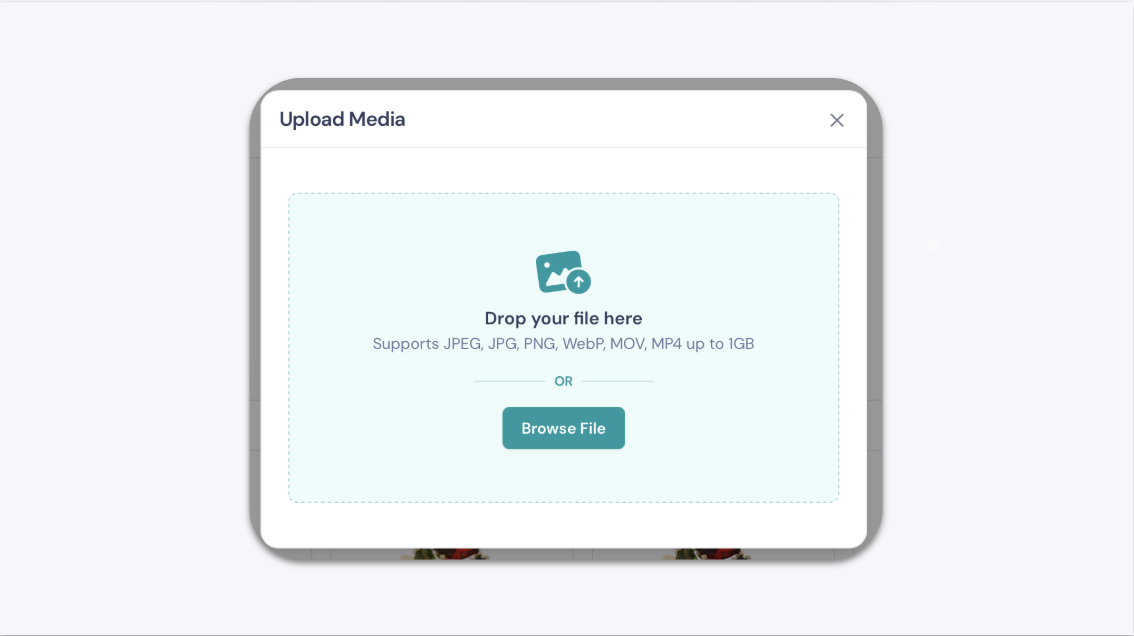
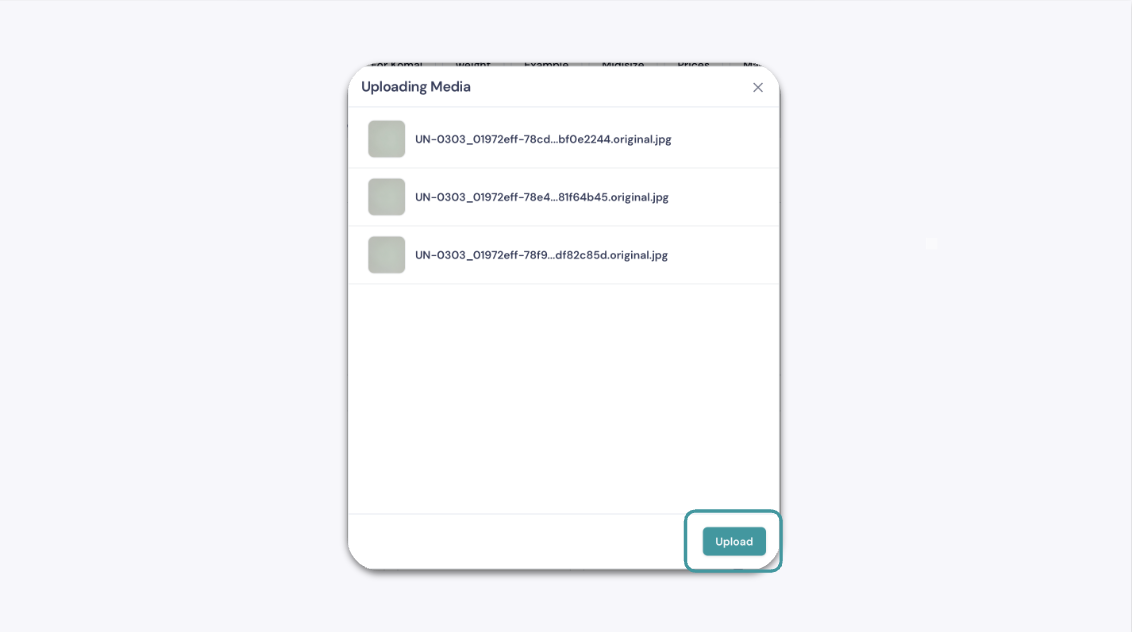
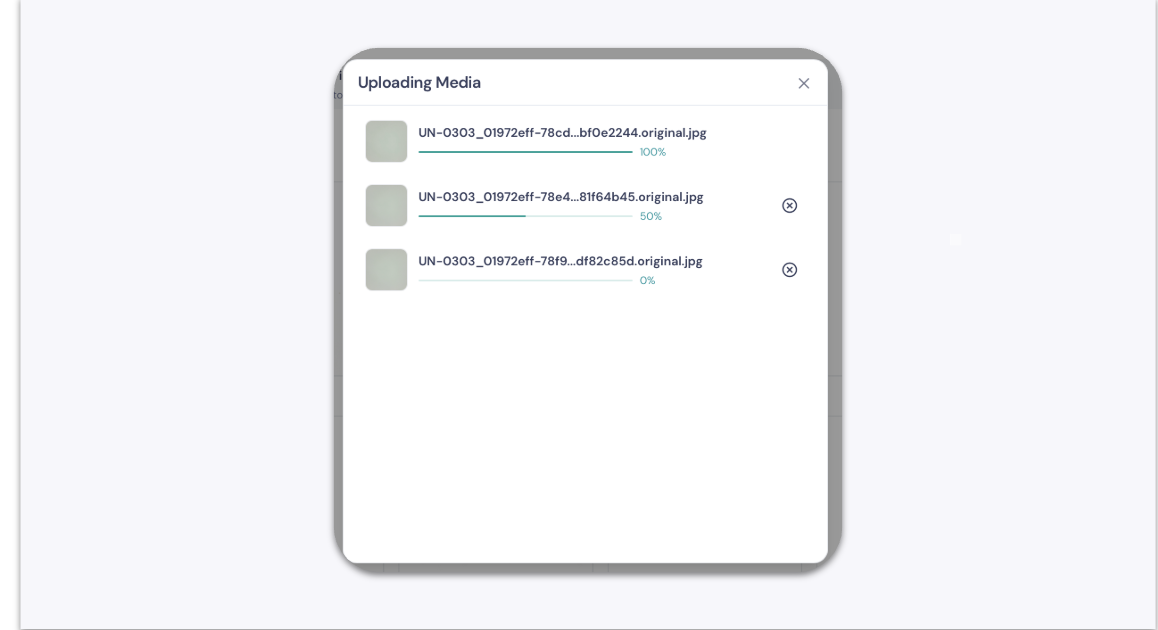
Open the Gallery in GemIQ, click Add Media, then drag and drop your files or use Browse File to select them. Confirm the preview and click Upload — your files sync to GemIQ cloud storage immediately.
Important: original file names are not retained. All uploaded files appear as No SKU until you manually assign a SKU.
Before You Start#
Log in to GemIQ on your desktop.
Have the image or video files you want to upload ready and accessible on your computer.
Steps#
Open GemIQ and navigate to Gallery. Click Add Media.
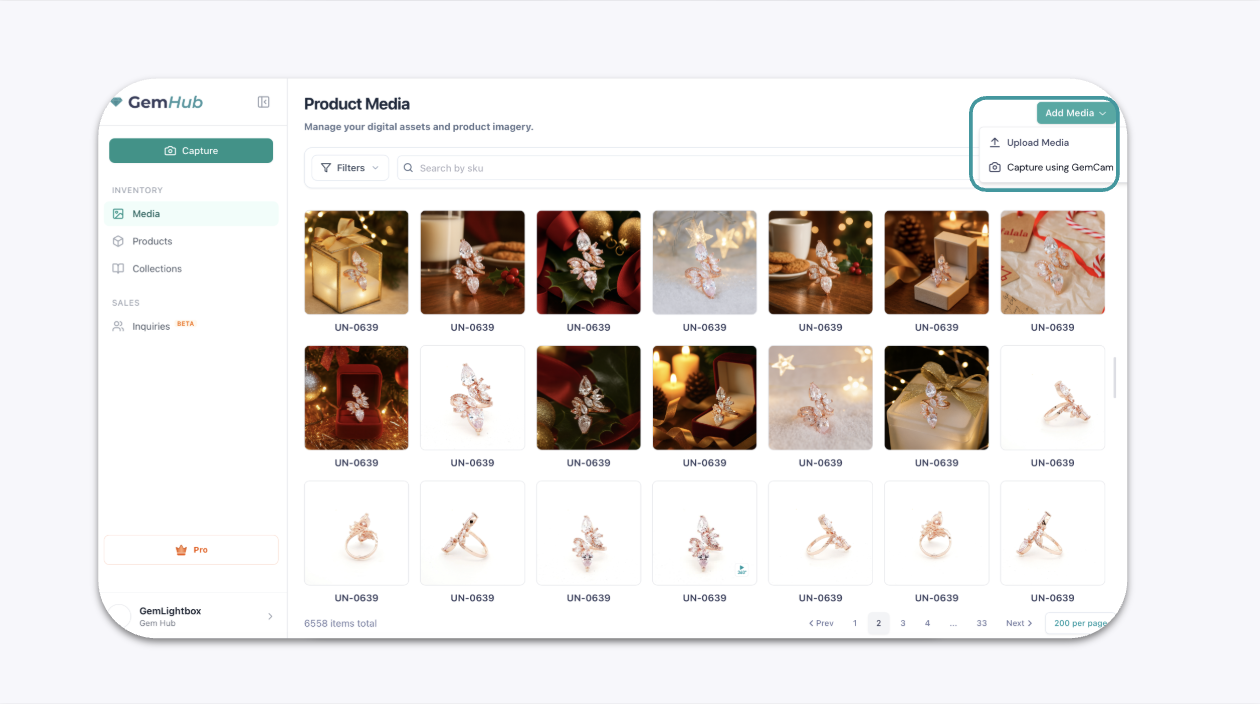
Click