

GemIQ's desktop app shows a handful of common prompts — Bluetooth connection, GemCam connection, browser version, and camera settings — each with a simple fix, covered below.
Main Content#
Connection with Bluetooth Prompt#
This appears while GemIQ is trying to connect to your GemLightbox device over Bluetooth.
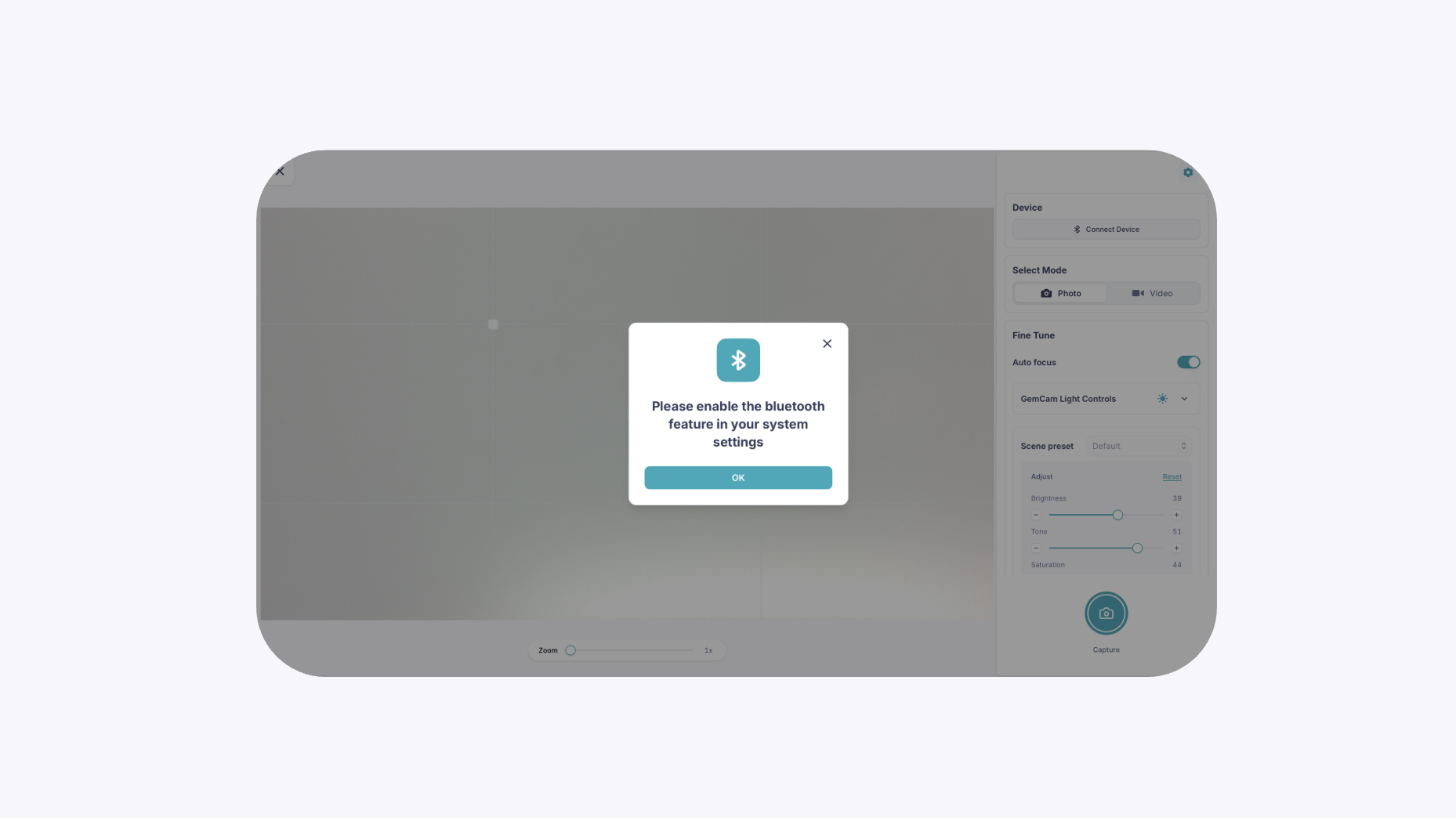
To resolve it:
Confirm your computer's Bluetooth (version 4.0 or above) is turned on.
Turn off Bluetooth on any other previously connected devices as only one device should be actively paired at a time.
Switch Bluetooth off and back on, then try reconnecting.
Restart GemIQ, then restart your computer if the issue continues.
Restart your GemLightbox device (press the black button on the side twice for the Turntable; unplug and replug the Aerial; toggle the mode switch for GemLightbox Pro).
Reinstall the GemIQ application on your desktop
Connection with GemCam Prompt#
This appears while GemIQ is trying to connect to your GemCam or GemCam Pro.
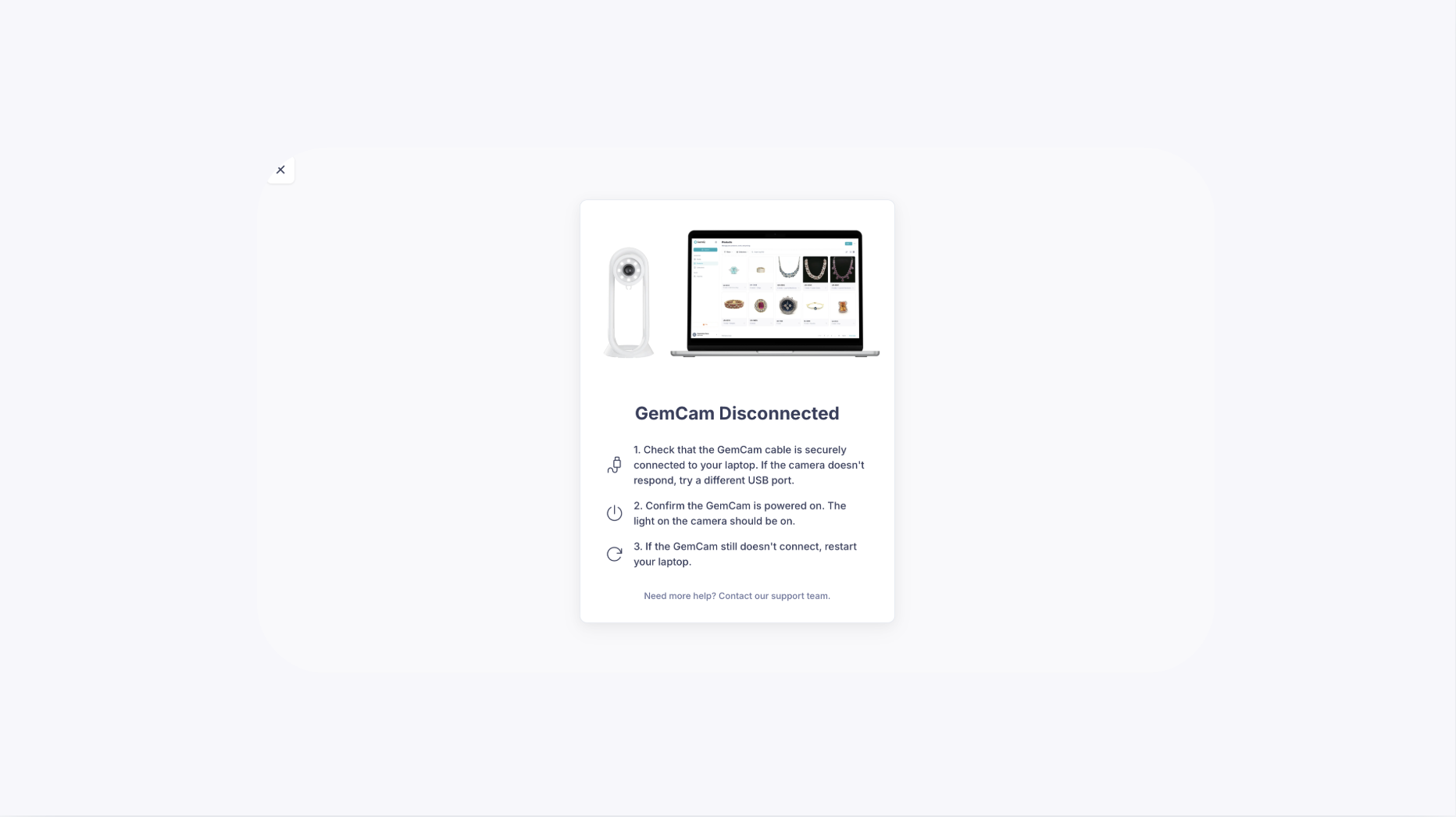
To resolve it:
Confirm the GemCam is connected with a high-speed USB-C data transfer cable (use the included USB-A adapter if your computer doesn't have a USB-C port).
Check that the GemCam's indicator light is green, confirming it's powered on.
In GemIQ, open the Device panel and confirm the correct device and serial number are selected.
Try a different USB port or cable if it still won't connect.
Reinstall the GemIQ application on your desktop
If the issue continues, contact our support team, this prompt can sometimes mean the unit needs a firmware update.
Browser Version Prompt#
This appears when GemIQ detects an outdated or unsupported browser.
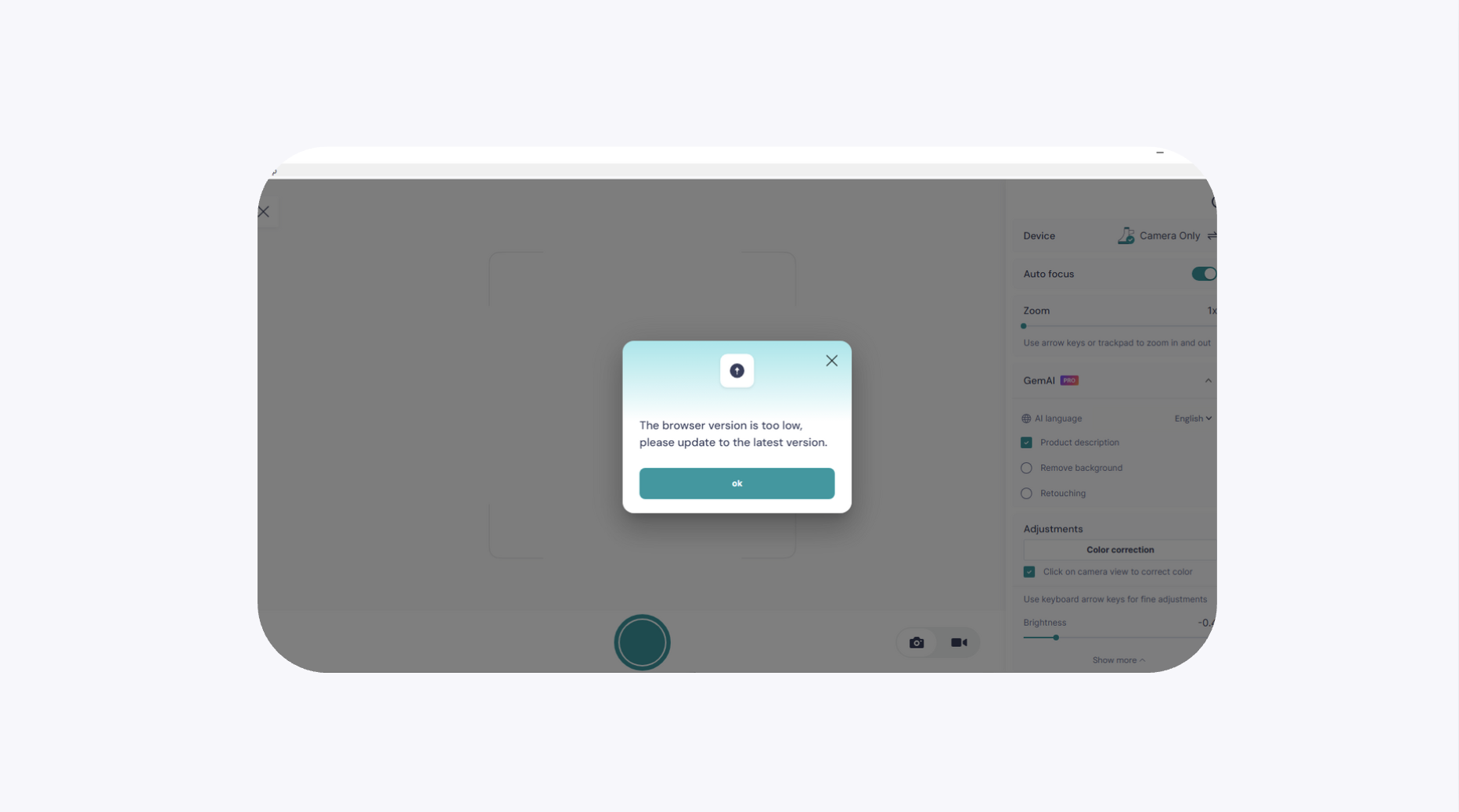
To resolve it:
Update your browser to its latest version, then relaunch GemIQ.
Clear your browser's cache and cookies, then log back in.
If the issue continues, try an alternate supported browser (such as Chrome, Microsoft Edge ) to see if it's specific to your current browser.
Expected Result#
You'll know what triggers each of these common GemIQ prompts and have a clear set of steps to resolve it without needing to contact support.
Common Questions#
Why does GemIQ keep asking me to connect via Bluetooth? This usually means Bluetooth needs to be re-enabled, or another device is still paired — see the Bluetooth steps above.
Why won't my GemCam connect to GemIQ? Check your USB-C cable connection and confirm the correct device is selected in the Device panel; if it still won't connect, reach out to support.
Why am I seeing a browser version warning? Your browser may be out of date, or its cache needs clearing — update your browser or try clearing cache and cookies.
Why is GemIQ asking me to check my camera settings? GemIQ may not have permission to access your camera, or another app may be using it — check your system's camera permissions first.
What if none of these steps fix the issue? Reach out to our support team with a description (and ideally a screenshot) of the prompt you're seeing.