

Before you start#
AI Shadow uses AI to add a realistic studio shadow under the jewelry in your photo, so the piece looks like it’s resting on a surface instead of floating on the background. It works inside the Media Editor, so you need a photo in your Media library first.
Opening the Media Editor#
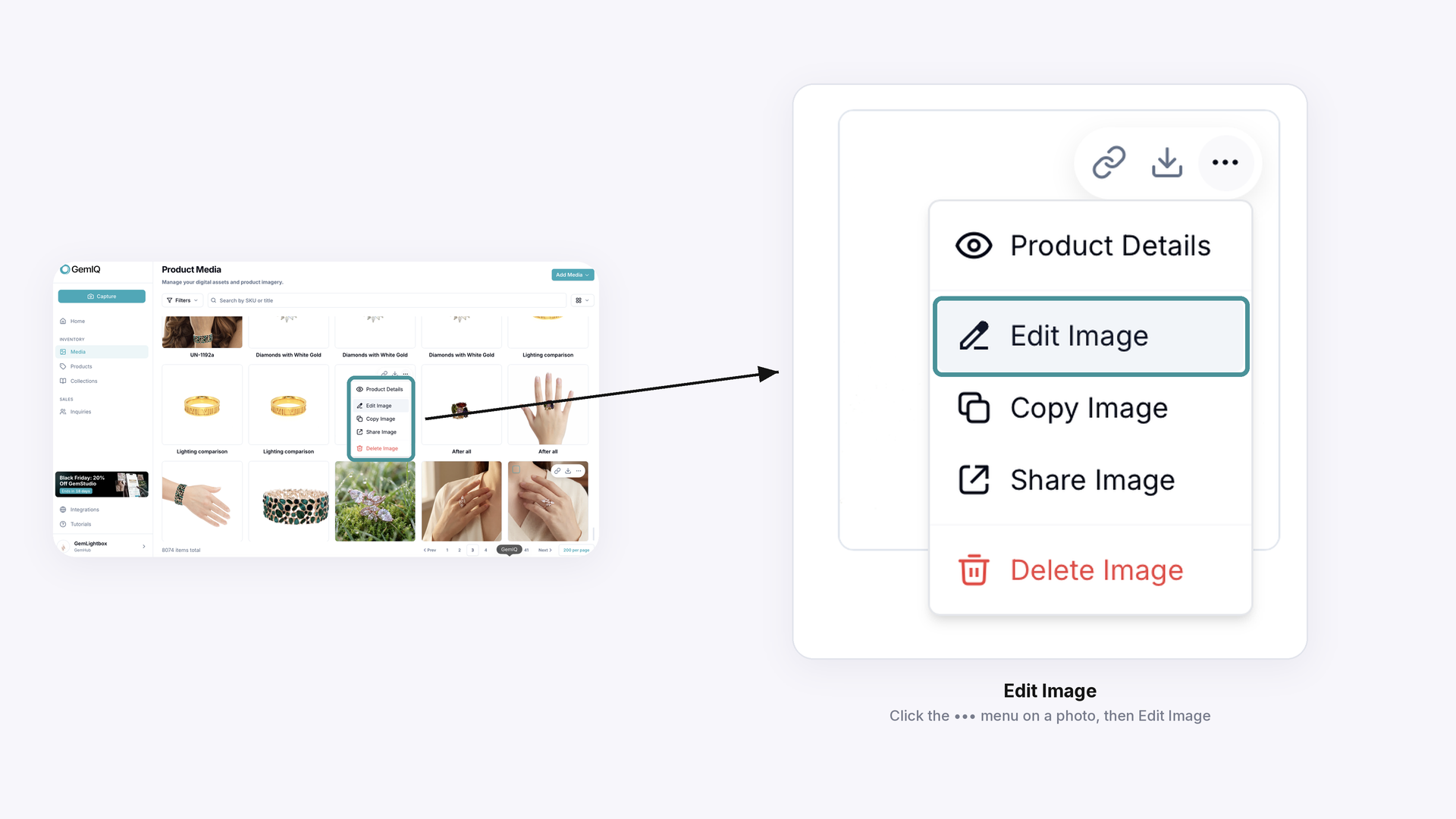
In the left sidebar, under Inventory, click Media. Hover over the photo you want to edit, click the ••• menu, and select Edit Image. The Media Editor opens with your photo on the canvas.
Adding the shadow#
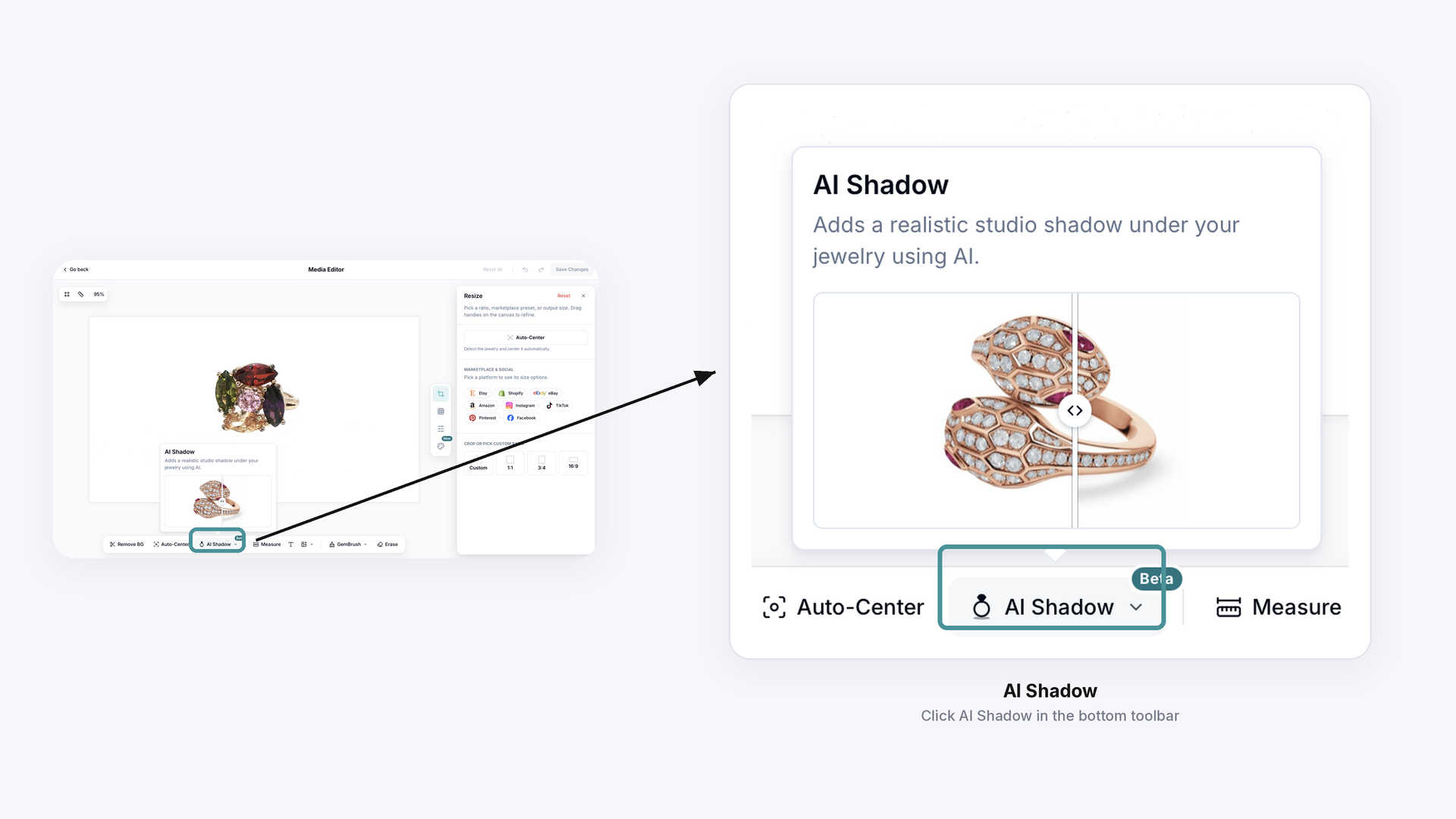
In the toolbar at the bottom of the editor, click AI Shadow.
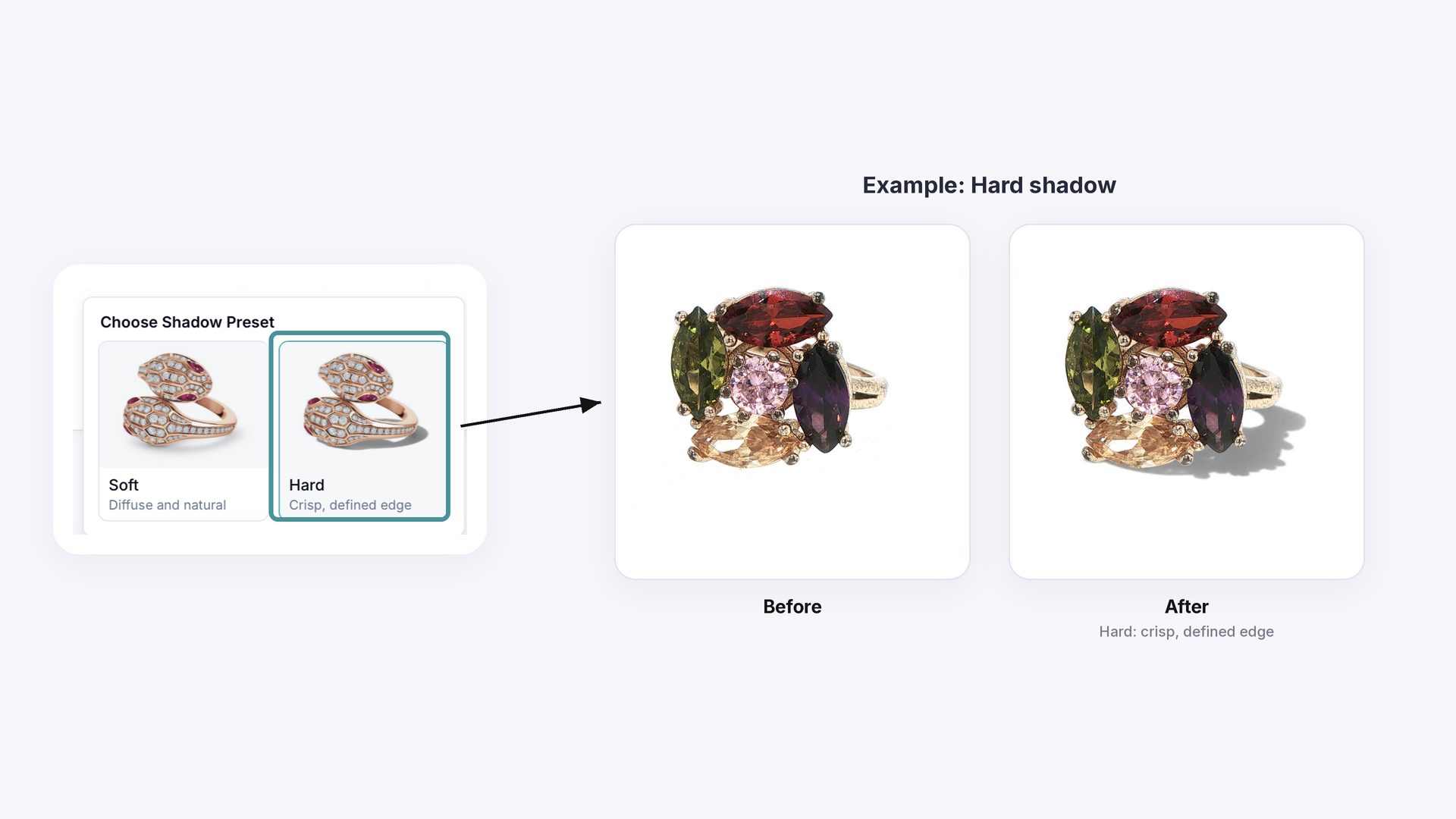
The Choose Shadow Preset window opens. Pick the preset that suits your photo.
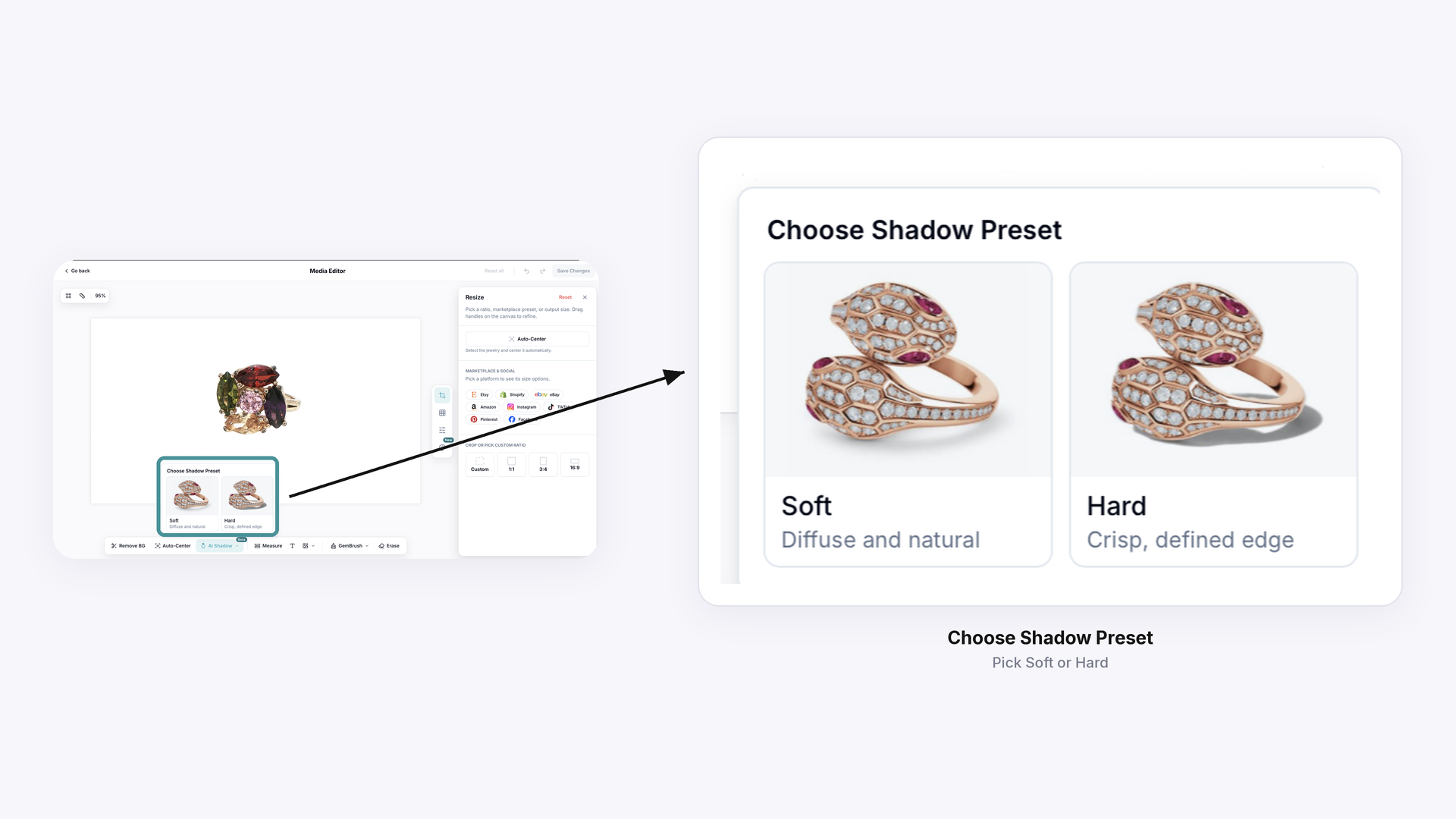
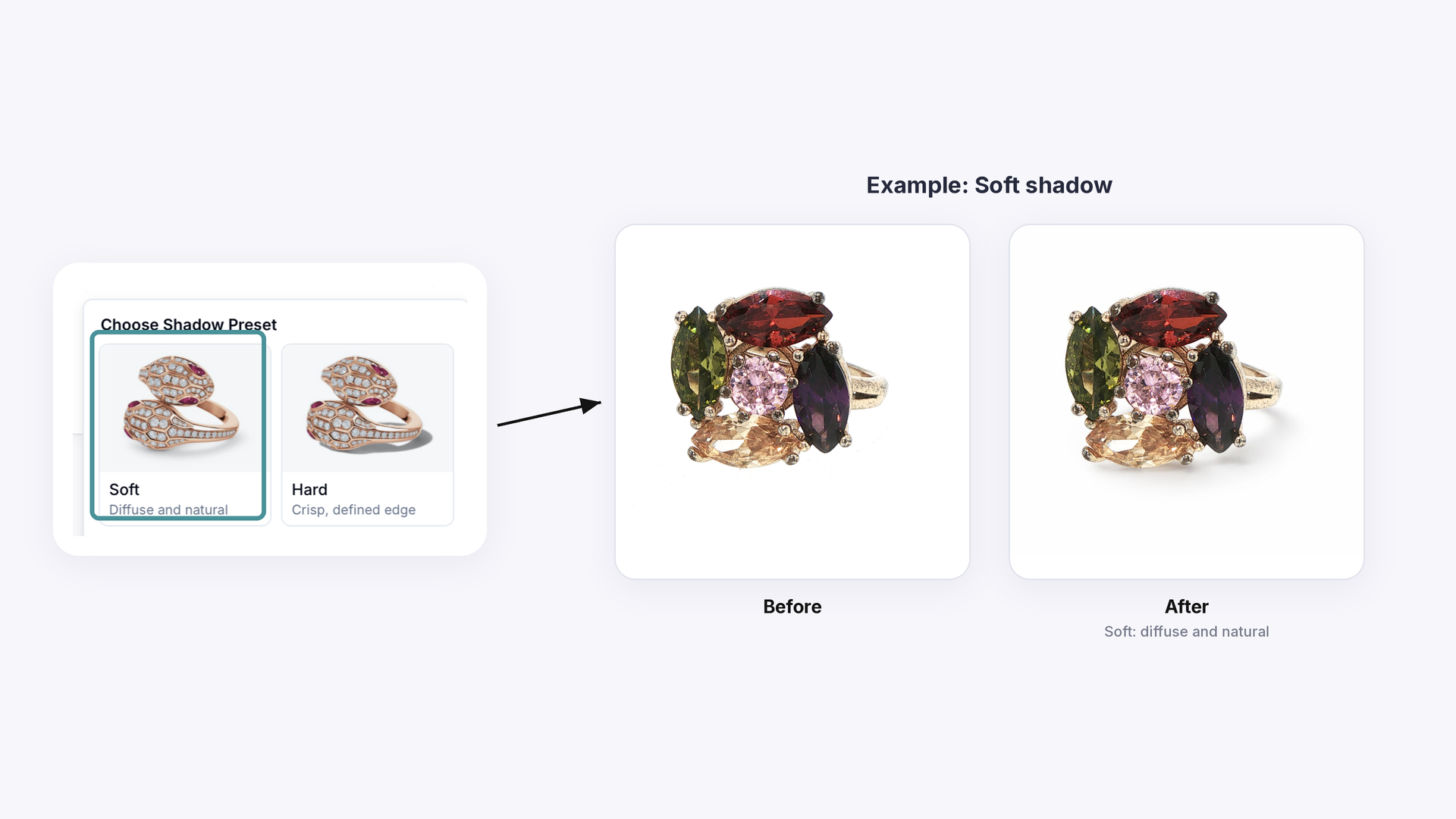
Soft: a diffuse, natural shadow that fades gently under the piece.
Hard: a crisp shadow with a clearly defined edge.
Saving your edit#
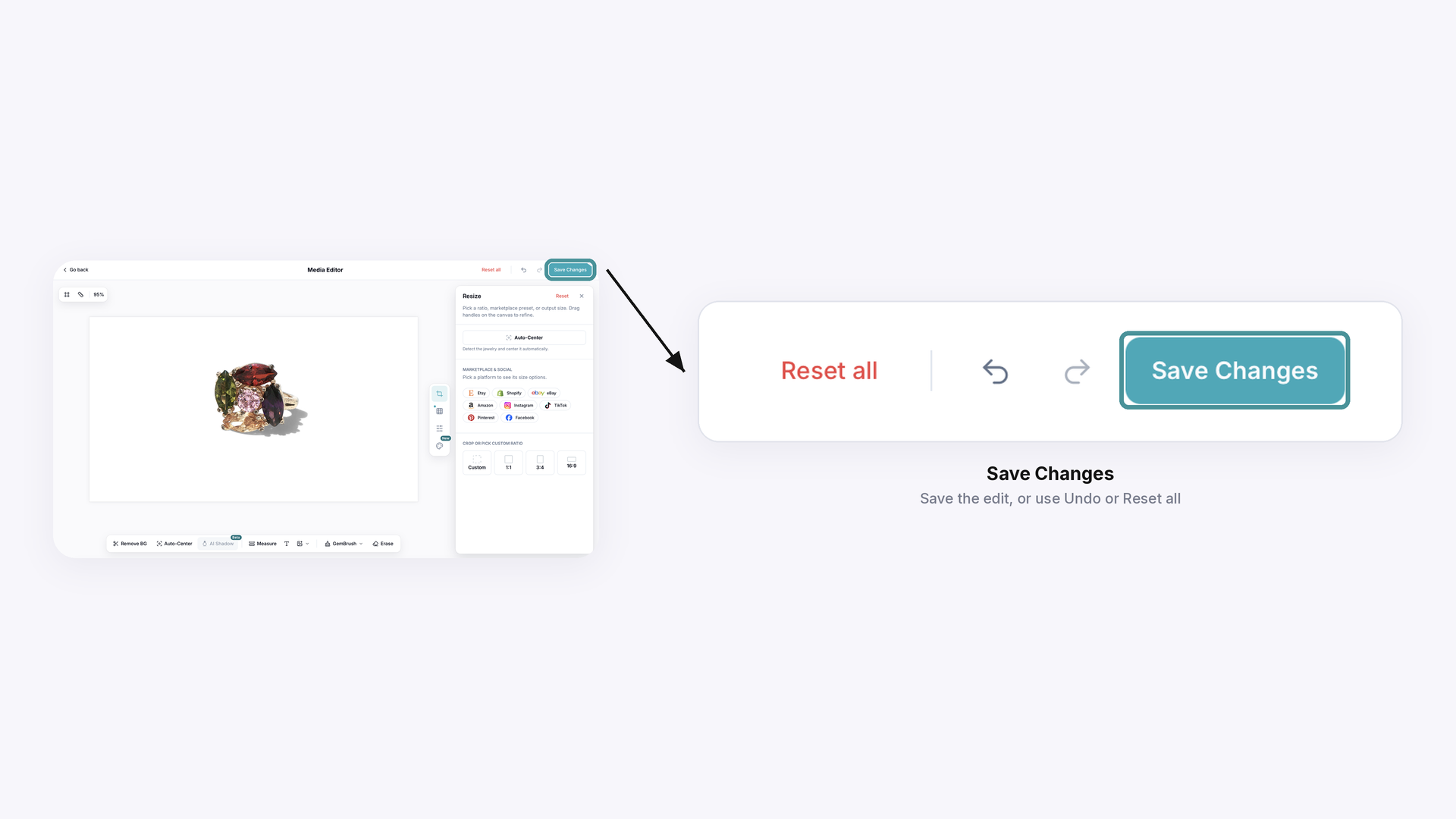
Once the shadow is added, Save Changes and Reset all become active at the top right. Click Save Changes to keep the shadow. If you don’t want it, use Undo to step back, or Reset all to clear your edits.
Common Questions#
Q: How do I add a shadow to my jewelry photo in the GemIQ web app?
A: Open the photo with Edit Image, click AI Shadow in the Media Editor toolbar, choose Soft or Hard, then click Save Changes.
Q: What’s the difference between the Soft and Hard presets?
A: Soft gives a diffuse, natural shadow. Hard gives a crisp shadow with a defined edge.
Q: Can I remove the shadow if I don’t like it?
A: Yes. Before saving, use Undo to step back or Reset all to clear your edits.
Q: Why does AI Shadow say Beta?
A: AI Shadow is a newer feature that is still in Beta, so its results and options may change as it’s improved.