

Quick Answer#
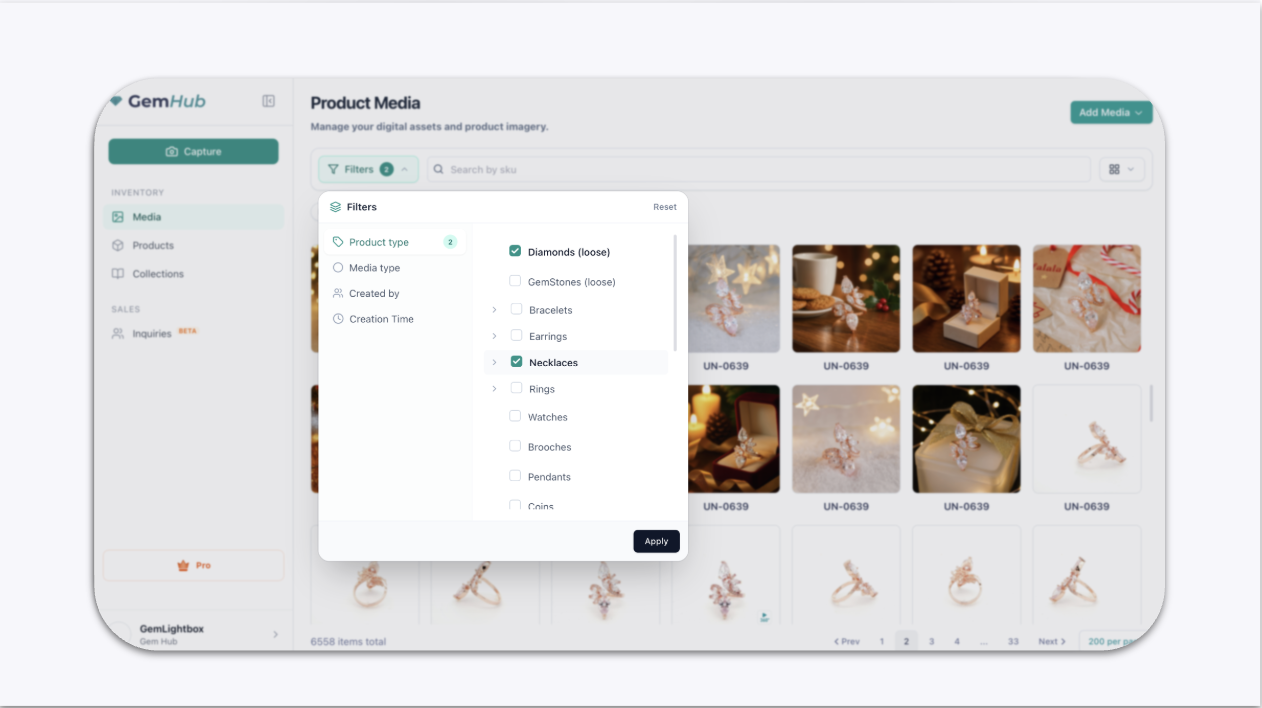
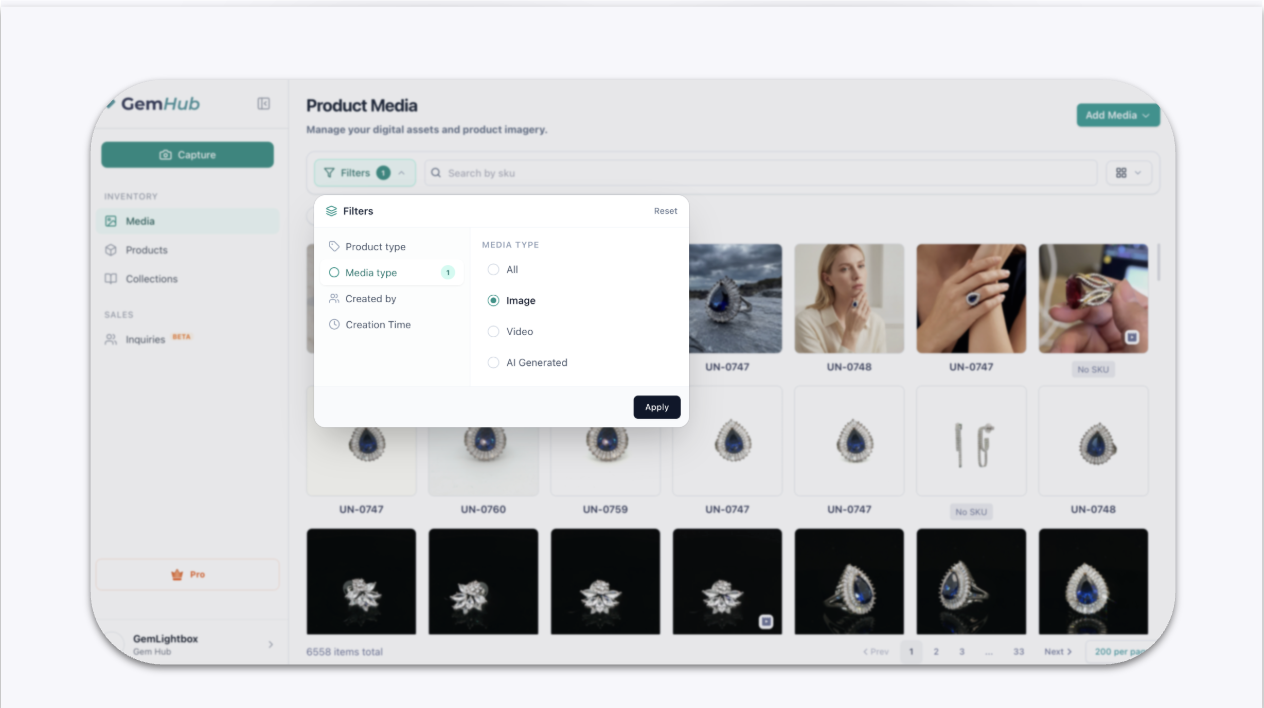
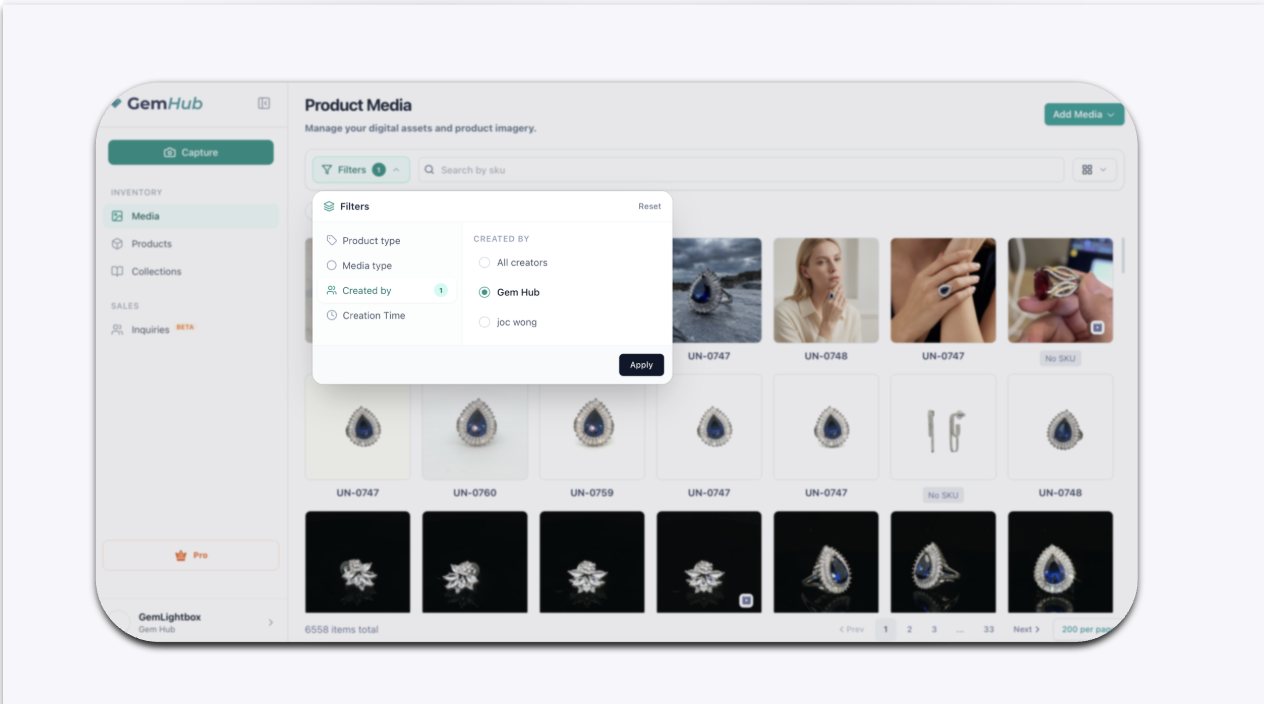
Use the filter options at the top of the GemIQ Media Tab to find specific images and videos. You can filter your media by product type, media type (image, video, or AI-edited), the team member who created it, and a specific date range. Filters can be combined for more specific searches.
Before You Start#
Ensure you have uploaded images or videos to your GemIQ media.
If you want to filter by creator, your team members must be part of your GemIQ account.
Steps#
Open the GemIQ app on your desktop or mobile device and navigate to the Media tab.
Locate the filter dropdown menus at the top of the media view.
Select a filter to apply:
Product Type: Choose one or more jewelry types (e.g., Ring, Pendant) to show only media associated with them.
Media Type: Select from options like Raw Images, Videos, or AI Generated Images to narrow down the file format.
Created By: If you work in a team, select a user's name to see only the media they have uploaded to your shared GemIQ account.
Creation Time: Use the calendar to select a start and end date. This will show only media uploaded within that specific time frame.
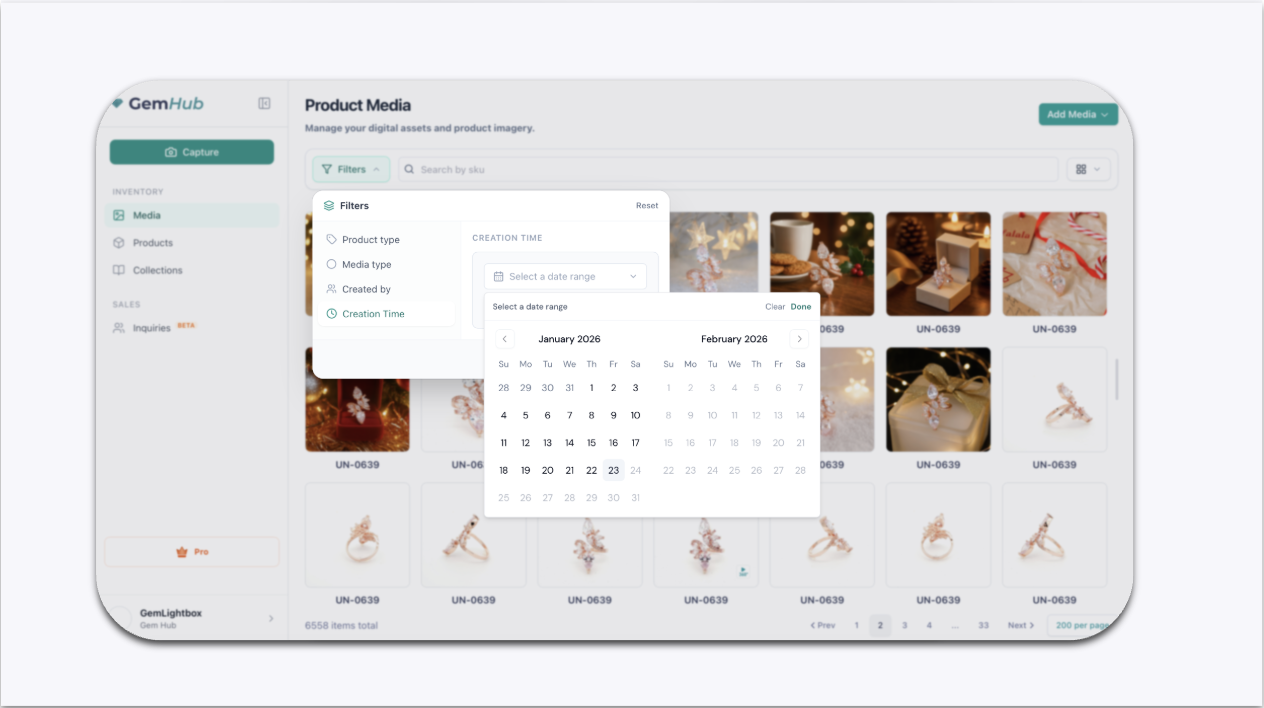
You can apply multiple filters at once to further refine your search (for example, all rings photographed by a specific user last week).
To remove a filter, either clear the selection in the specific dropdown menu or use a "Clear All" option if available.
Expected Result#
After applying one or more filters, the Media view will instantly update to display only the images and videos that match your criteria. The active filters will be indicated at the top of the media.
If This Does Not Work#
If no images appear, double-check that you have media that matches your selected filters. For example, ensure images were uploaded during the date range you selected.
Clear all active filters and try applying them one by one to identify the issue.
Close and reopen the GemIQ to refresh the media.
Common Mistakes#
Forgetting that a filter is still active from a previous search, which can make it seem like images are missing.
Selecting a start and end date where no media was uploaded.
Confusing raw images with AI-edited images when using the "Media Type" filter.