

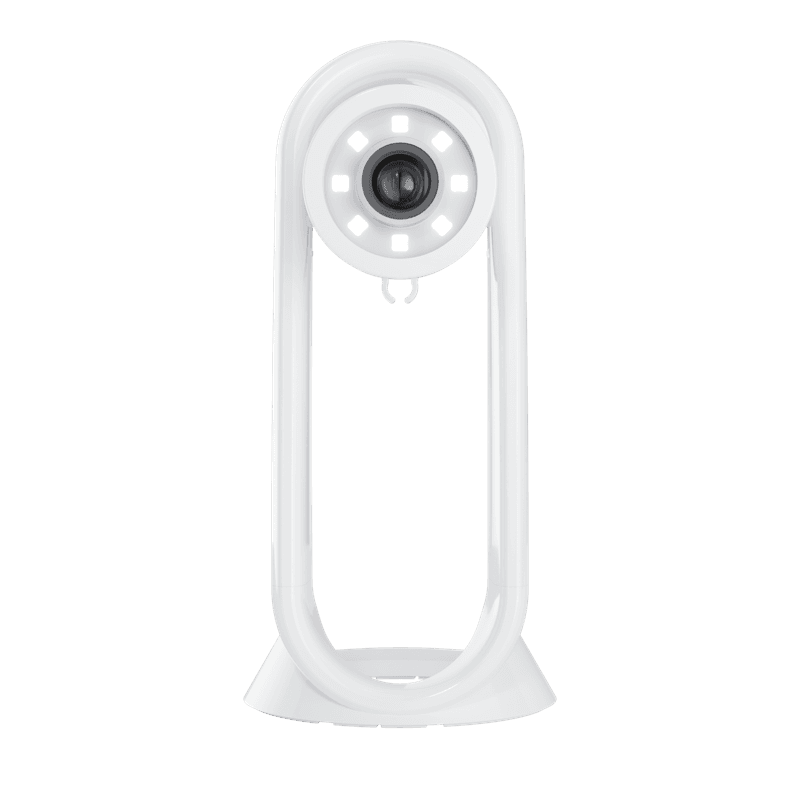
Let's unlock your GemCam Pro. This guide gets you from unboxing to your first studio-quality capture, with no manual adjustments needed.
What's in the Box#
GemCam Pro Camera
USB-C cable
Connect GemCam Pro to Your Computer#
Plug the provided USB-C cable into the back of the GemCam Pro.
Connect the other end to your desktop or laptop.
Your computer recognizes the GemCam Pro automatically.
Your GemCam Pro is now connected and ready to use.
Start Capturing with GemCam Pro#
Power on GemCam Pro — the control panel launches automatically in GemIQ.
Position your jewelry on the turntable, or use a holder (ring clip, necklace holder, or earring holder).
Use Live View — preview your shot in real time. The camera auto-focuses to keep your jewelry sharp.
Click to capture. With one click you'll get sharp, studio-quality images — no manual adjustments needed.
Pro tip: position the camera as close as possible to the jewelry, then slowly pull back until it comes into perfect focus.
Download the GemIQ Desktop App#
To use your GemCam Pro you'll need the GemIQ desktop app.
Once installed, open GemIQ and click Capture to launch the control panel.
GemCam Pro in Action#
Next Steps#
Your hardware is ready. Here's where most jewelers go from here:
Open GemIQ and capture your first piece — most users get there in under 5 minutes.
Try GemStudio to turn your captures into model and lifestyle imagery without reshooting.
Join the Digital Jewelers Community to swap tips with 20,000+ jewelers worldwide.
Need a Hand?#
Book a one-on-one onboarding session with our team, or email us anytime.