

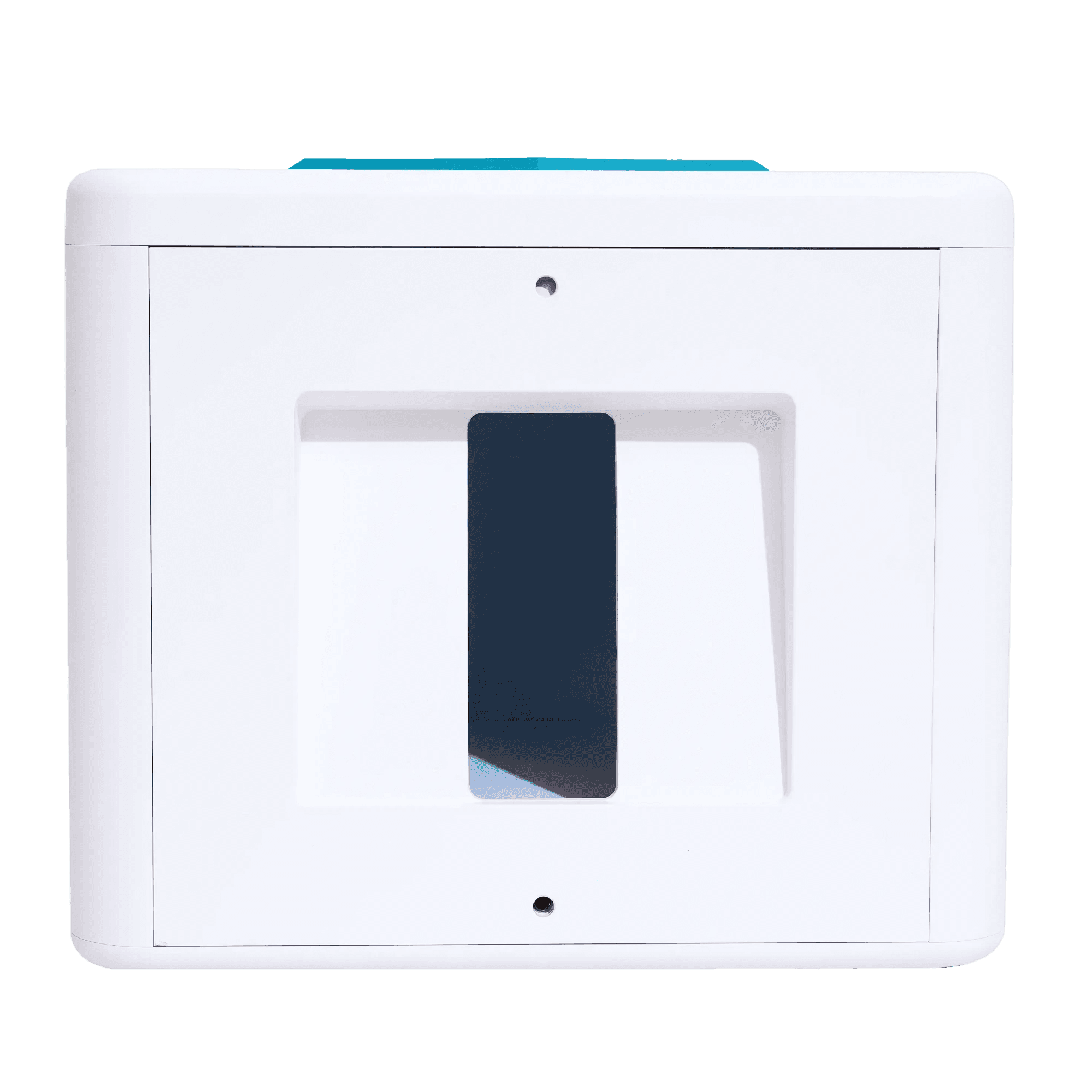
Welcome to the Elite Kit Pro. This bundle pairs GemLightbox Pro with GemCam Pro for the fastest path from unboxing to studio-grade jewelry photography. This guide walks you through both pieces, in order.
What's in the Box#
GemLightbox Pro
GemCam Pro
Sparkle Lights
Pro Eclipse
Ring Clip
Necklace & Earring Holders
Phone Stand
USB-C cable
Universal power adapter
Set Up Your GemLightbox Pro#
Plug the universal power adapter into the port on the back.
Plug it into a wall outlet.
Press the power button on the side of the box.
Connect Your GemCam Pro#
Plug the USB-C cable into the back of the GemCam Pro.
Connect the other end to your desktop or laptop.
GemCam Pro is detected automatically — the GemIQ control panel launches.
Download GemIQ#
Both products work with the same GemIQ app. Install whichever version you'll be shooting on — most Elite Kit Pro owners use both.
Connect & Capture#
GemLightbox Pro pairs over Bluetooth (4.0+); GemCam Pro connects over USB-C. Once connected, both appear in GemIQ and you can switch between them per shoot.

Elite Kit Pro in Action#
Next Steps#
Your hardware is ready. Here's where most jewelers go from here:
Open GemIQ and capture your first piece — most users get there in under 5 minutes.
Try GemStudio to turn your captures into model and lifestyle imagery without reshooting.
Join the Digital Jewelers Community to swap tips with 20,000+ jewelers worldwide.
Need a Hand?#
Book a one-on-one onboarding session with our team, or email us anytime.