Quick Answer#
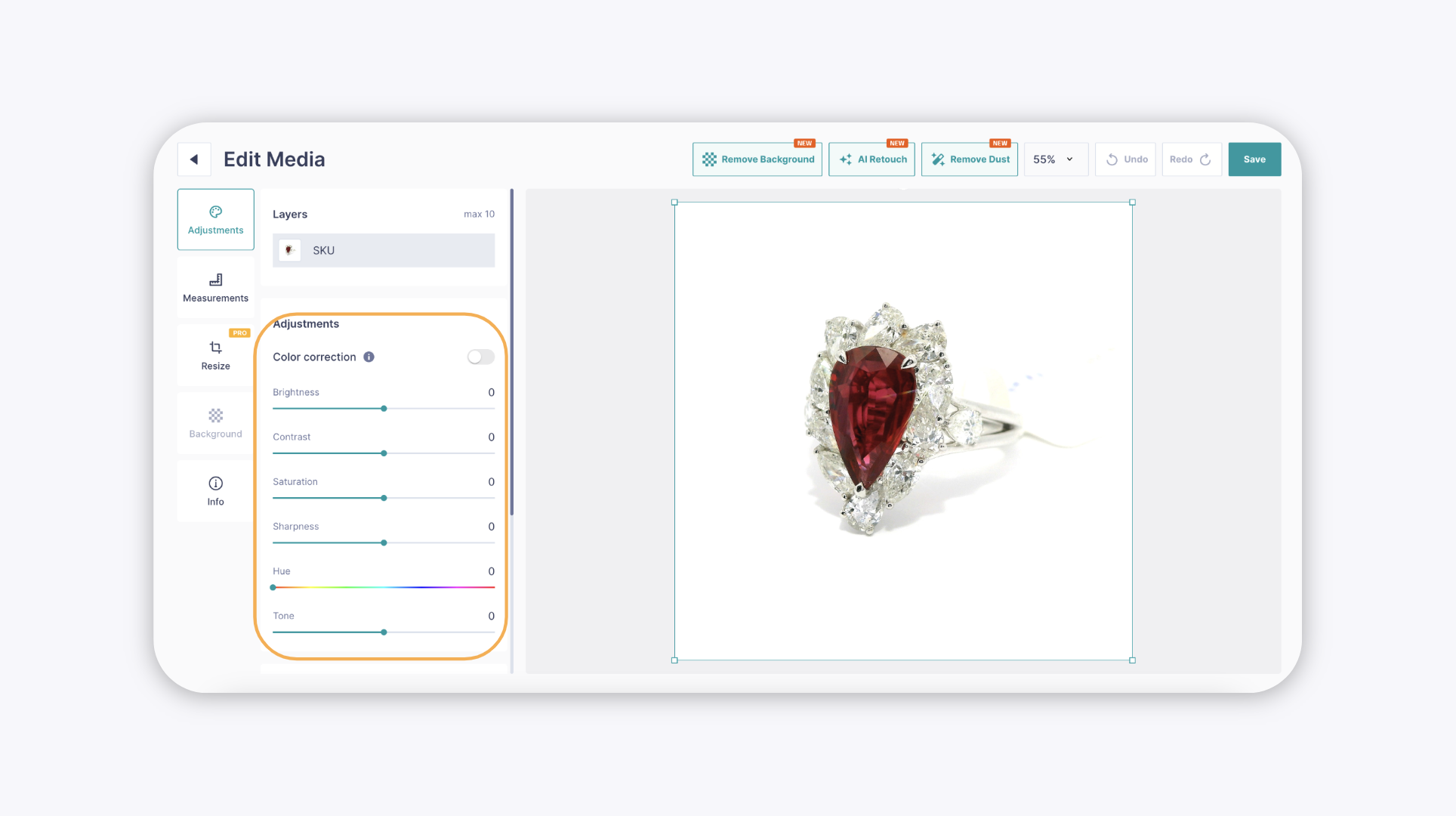
GemIQ includes an image editor with tools to manually adjust the colors and tones of your photos. You can modify brightness, contrast, saturation, sharpness, and hue to ensure your jewelry images are accurate and vibrant.
Before You Start#
Ensure you have GemIQ Desktop App installed on your computer.
Have an image saved to your GemIQ media that you wish to edit.
Steps#
Open GemiQ and navigate to your media.
Select the image you want to modify to open it in the viewer.
Tap the Edit icon to launch the image editor.
Locate the Color Adjustments tool in the editing panel.

Use the sliders to fine-tune the following settings: