

Quick Answer#
To remove shadows from your product photos, start by achieving a fully white background before capturing, then use the Remove BG feature in the GemIQ app to eliminate any remaining shadows after the shot.
Step 1: Get a Clean White Background Before Capturing#
The most effective way to prevent shadows is to set up a clean, fully white background before you take the photo. Proper lighting and the correct scene preset will minimize shadows at the source.
For a full walkthrough on achieving a pure white background, see: [How Do I Get a Pure White Background?]
Step 2: Remove the Background After Capture#
After capturing your image, use the Remove BG feature to eliminate any remaining shadows:
Tap the edit icon in the top right corner of the image
Click Remove BG
The background, including any remaining shadows, will be removed and replaced with a clean white.
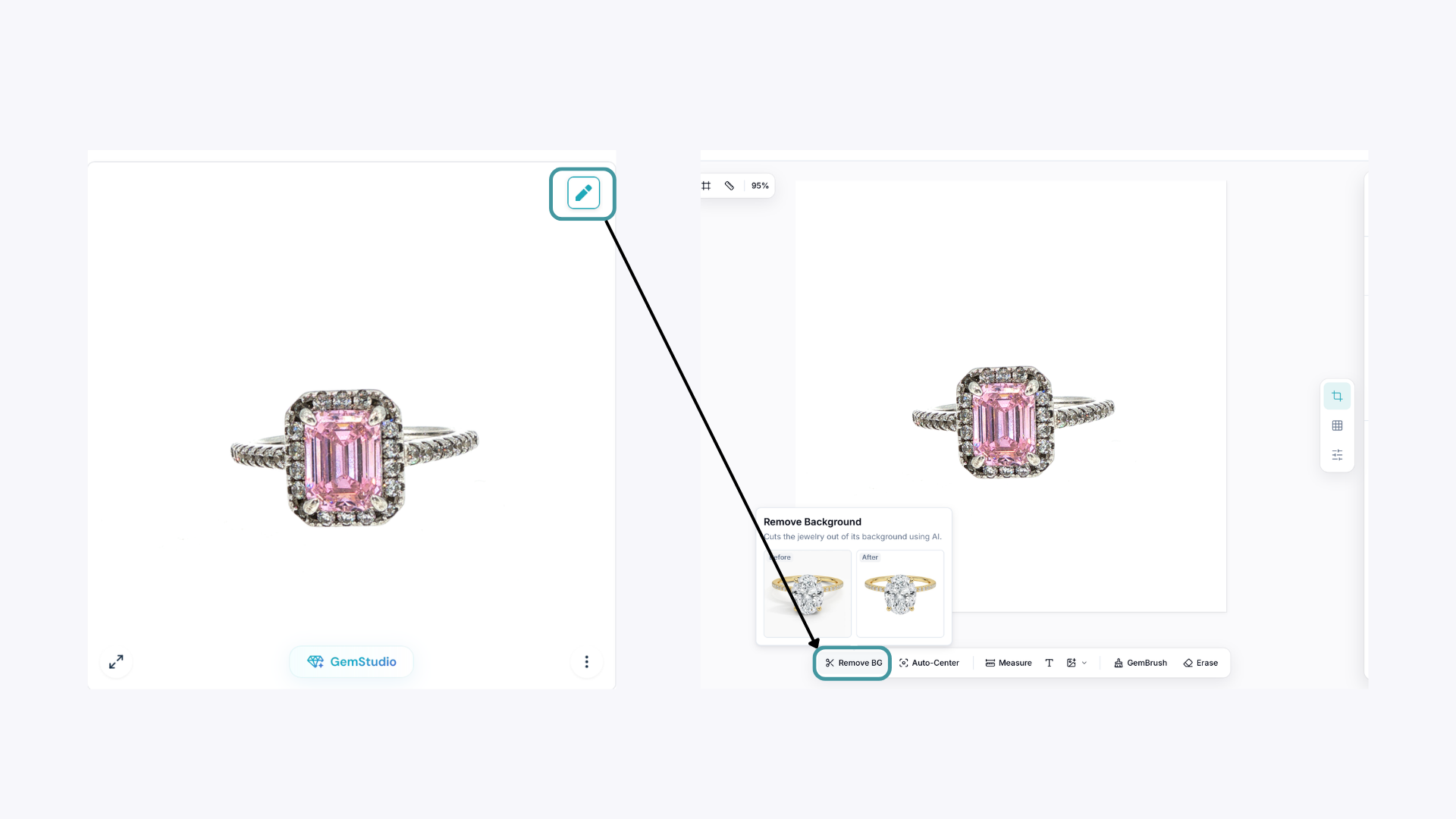
Note: Remove BG works best with pieces captured on a white background. It is not recommended for images captured in Eclipse Mode (dark background), as the tool is optimized for white background shots.
Expected Result#
After setting up a clean white background before capture and applying Remove BG, your jewelry images should appear with no shadows and a clean, pure white background — ready for product listings, catalogues, and marketing materials.
Common Questions#
Why does Remove BG work better on white backgrounds? The Remove BG tool is optimized to detect and separate jewelry from a white background. On dark backgrounds, the contrast between the jewelry and background can vary significantly depending on the piece, making accurate separation more difficult.
What if shadows are still visible after using Remove BG? Make sure your lighting and scene preset were set up correctly before capturing. If shadows are still appearing after Remove BG, revisit your white background setup and recapture the image.
Can I use Remove BG on images captured in Eclipse Mode? Remove BG is not recommended for Eclipse Mode captures. For the best results, always use it with images shot on a white background.