Quick Answer#
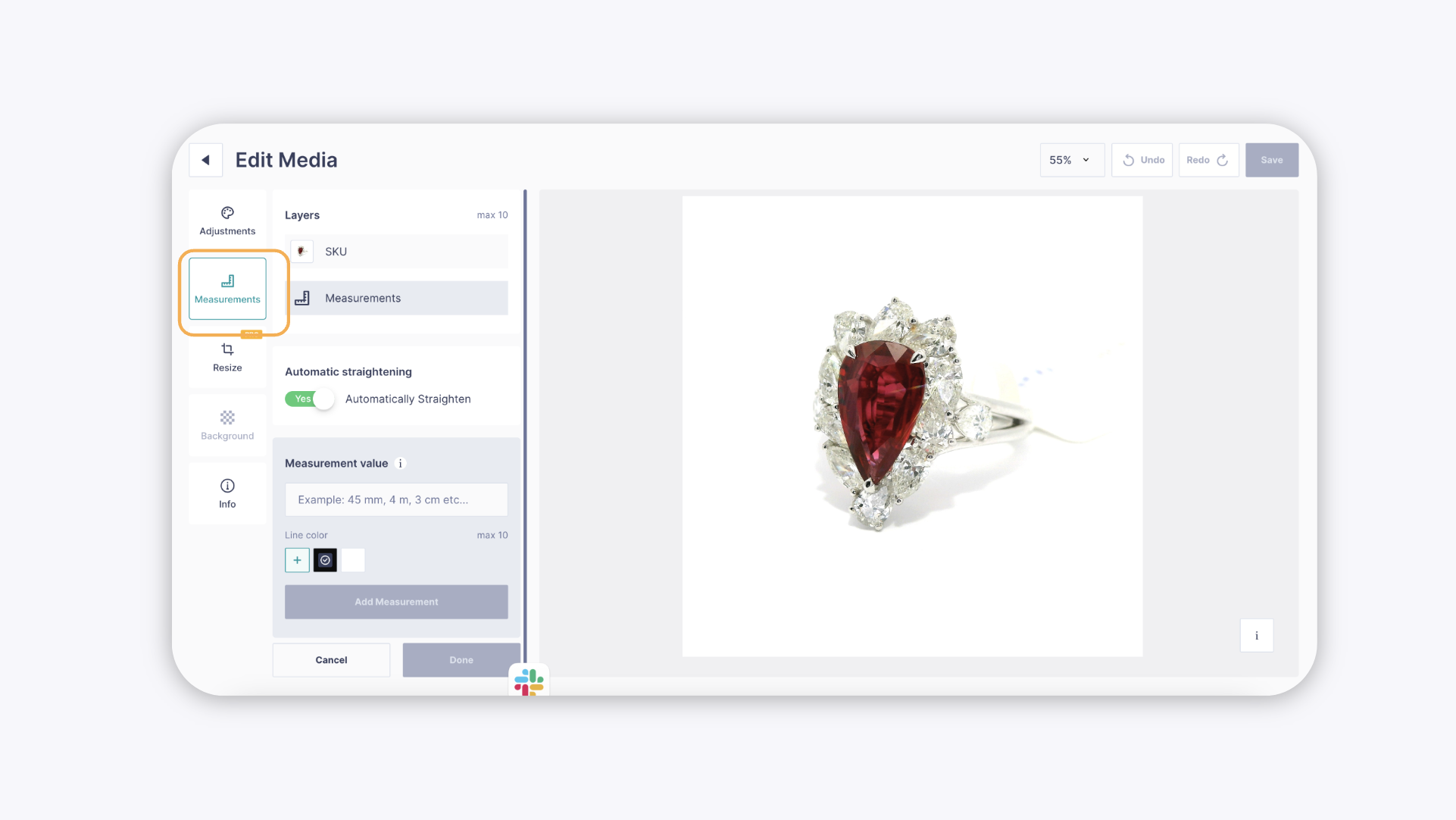
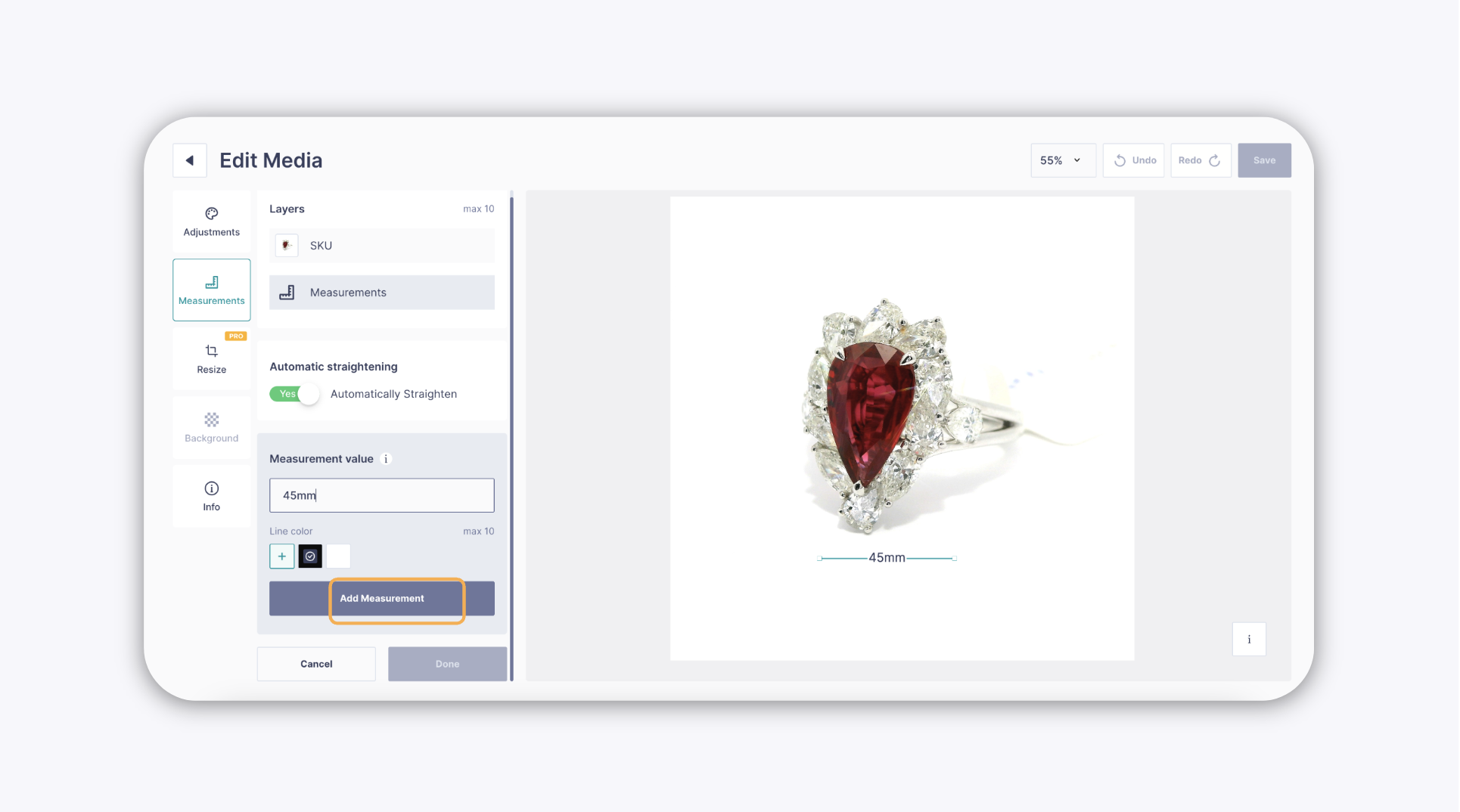
Use the Measurements tool in the GemIQ Image Editor to draw a labeled dimension line directly onto your jewelry image. Enter the value, choose a line color, place the line, and click Add Measurements to save.
Before You Start#
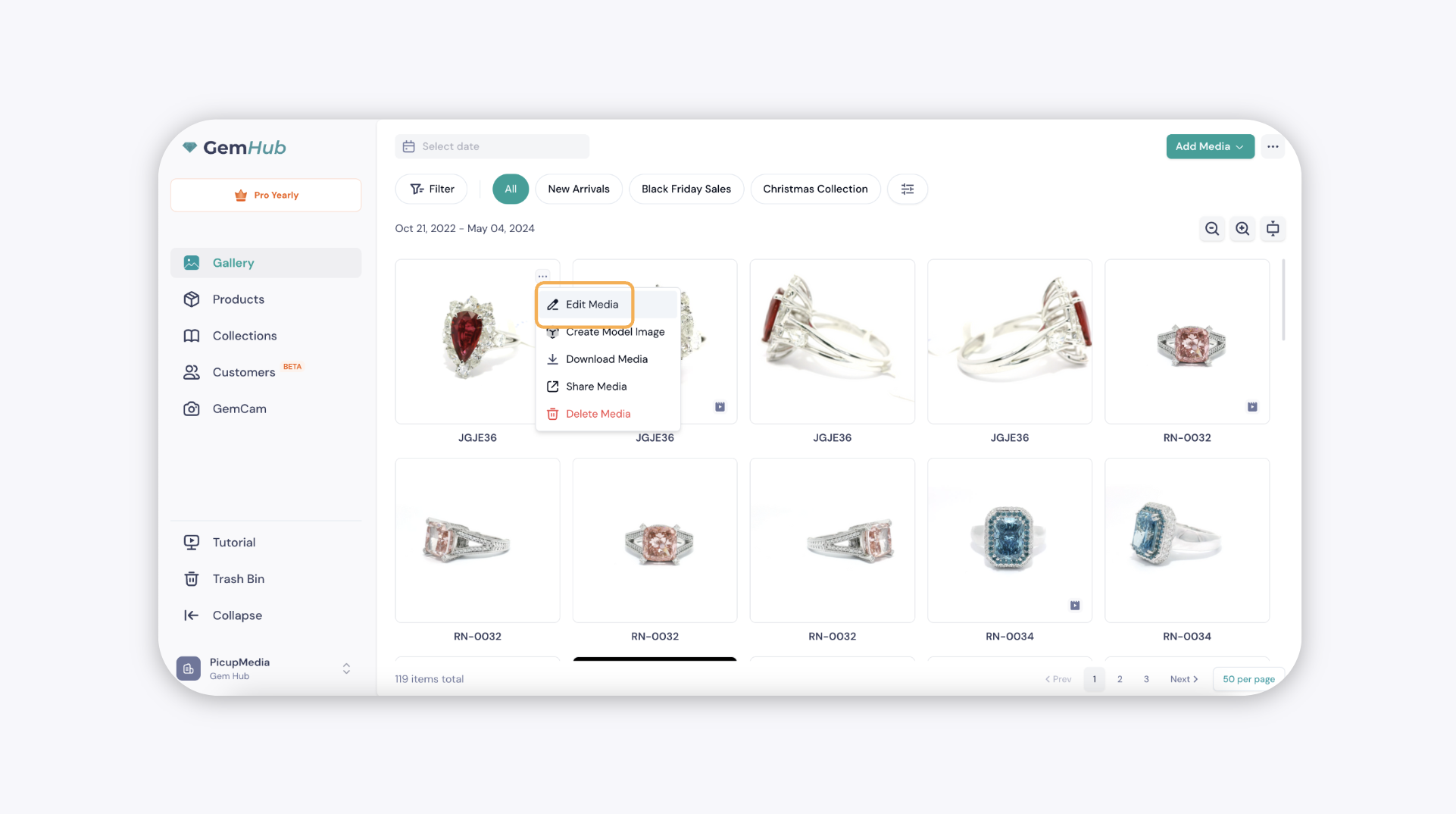
Your image must already be uploaded or captured in GemIQ.
Open the image in the GemIQ Image Editor before following these steps.
Steps#
Open your image in the GemIQ Image Editor.
Click Measurements in the editor toolbar to enable the tool.
In the Measurements panel, enter the dimension value for your piece.
Select a line color that will contrast clearly against your jewelry image.