

Quick Answer#
If the Manual Retouching Service dashboard is not loading, clearing your browser cache and cookies will often resolve the issue.
The Manual Retouching Service uses a separate web-based dashboard from the GemIQ App and GemStudio. Follow the steps below, then log in to the Manual Retouching Service dashboard again.
Before You Start#
Make sure you are accessing the Manual Retouching Service dashboard, not the GemIQ App.
Google Chrome is recommended for the troubleshooting steps below.
Have your Manual Retouching Service dashboard login credentials ready.
Clear Your Cache and Cookies#
Open Google Chrome.
Click the three-dot menu (⋮) in the top-right corner.
Click Settings.
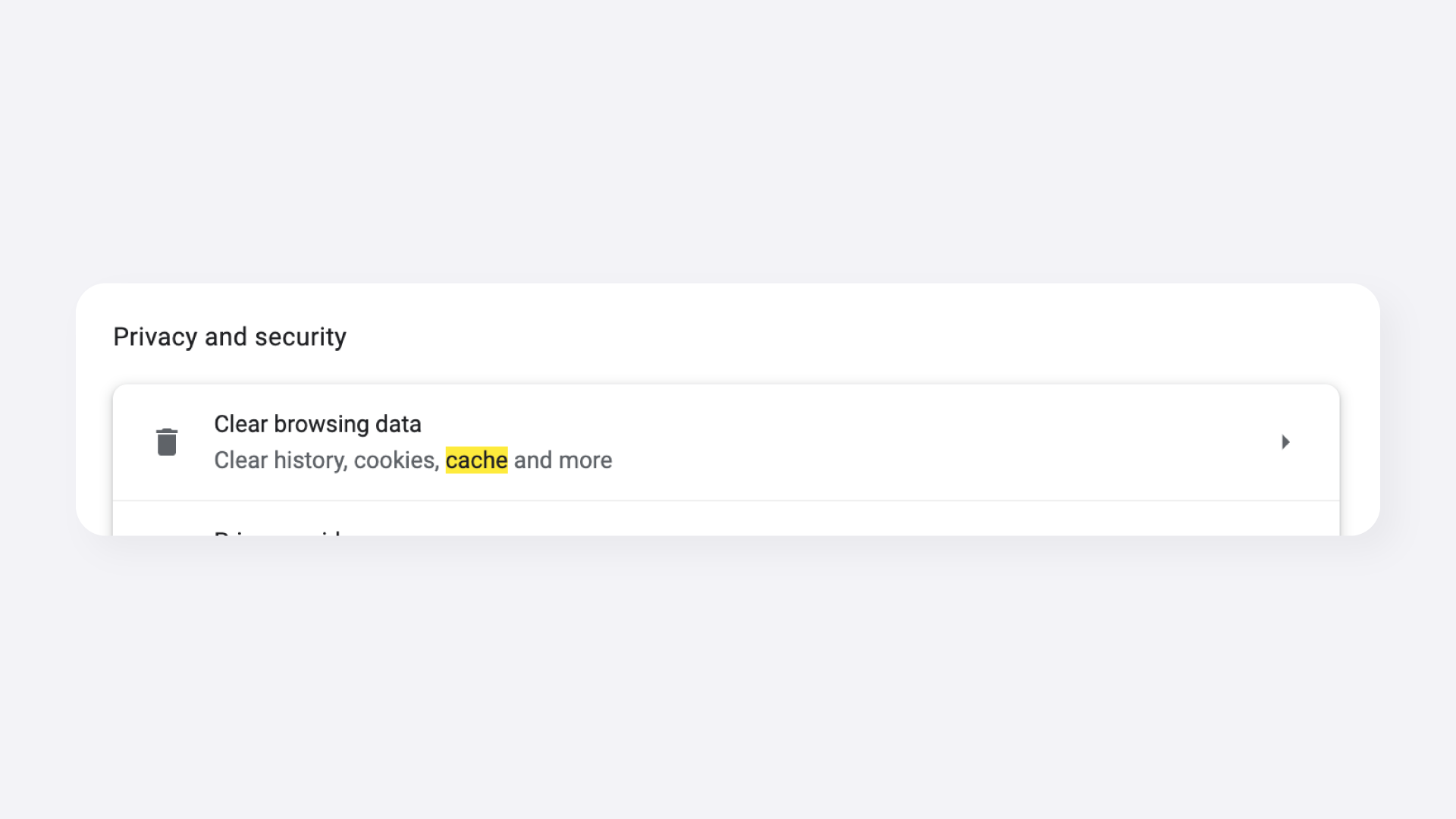
In the Settings search bar, type Cache.
Select Clear Browsing Data.
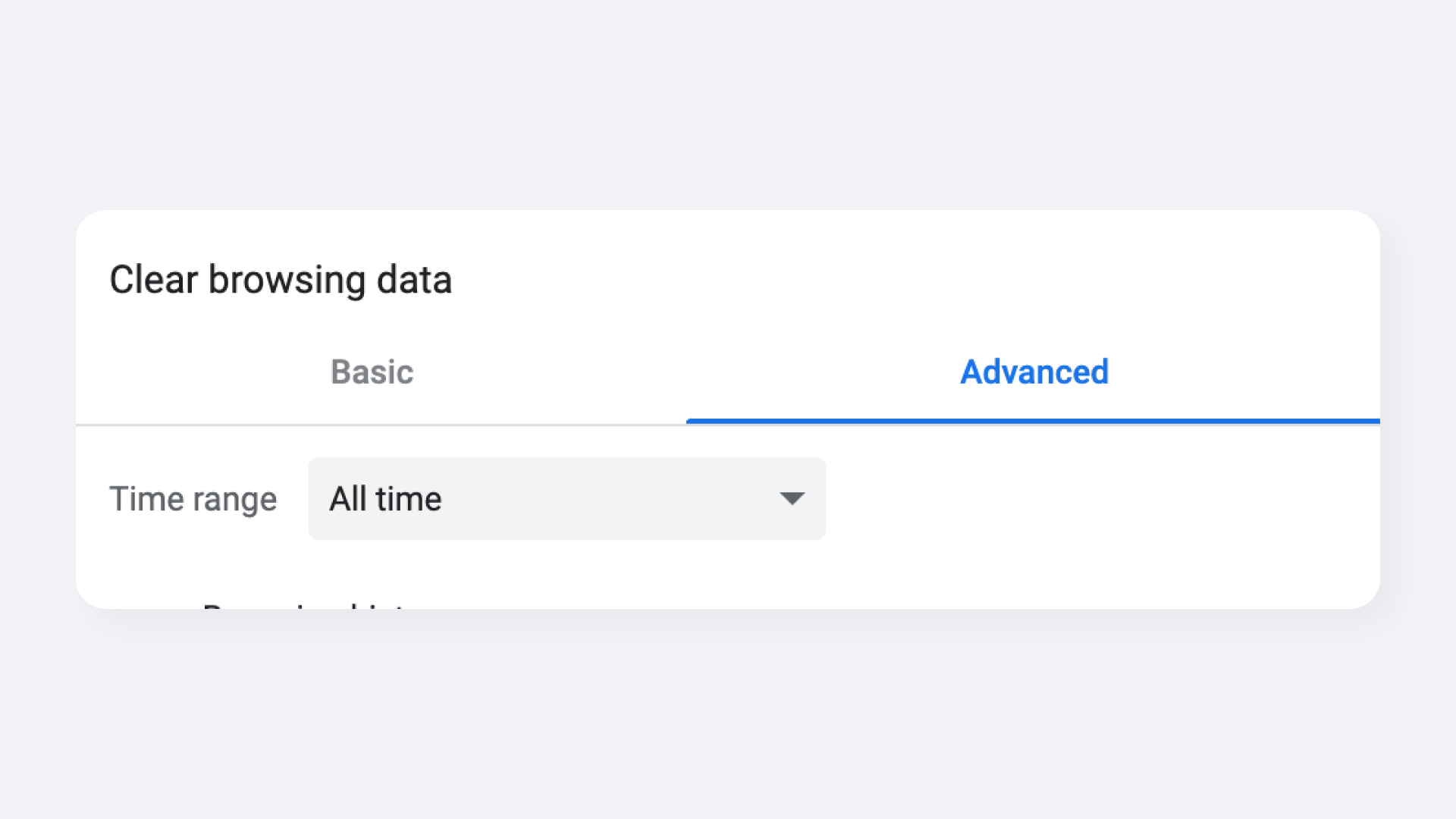
Select the Advanced tab.
Set the time range to All Time.
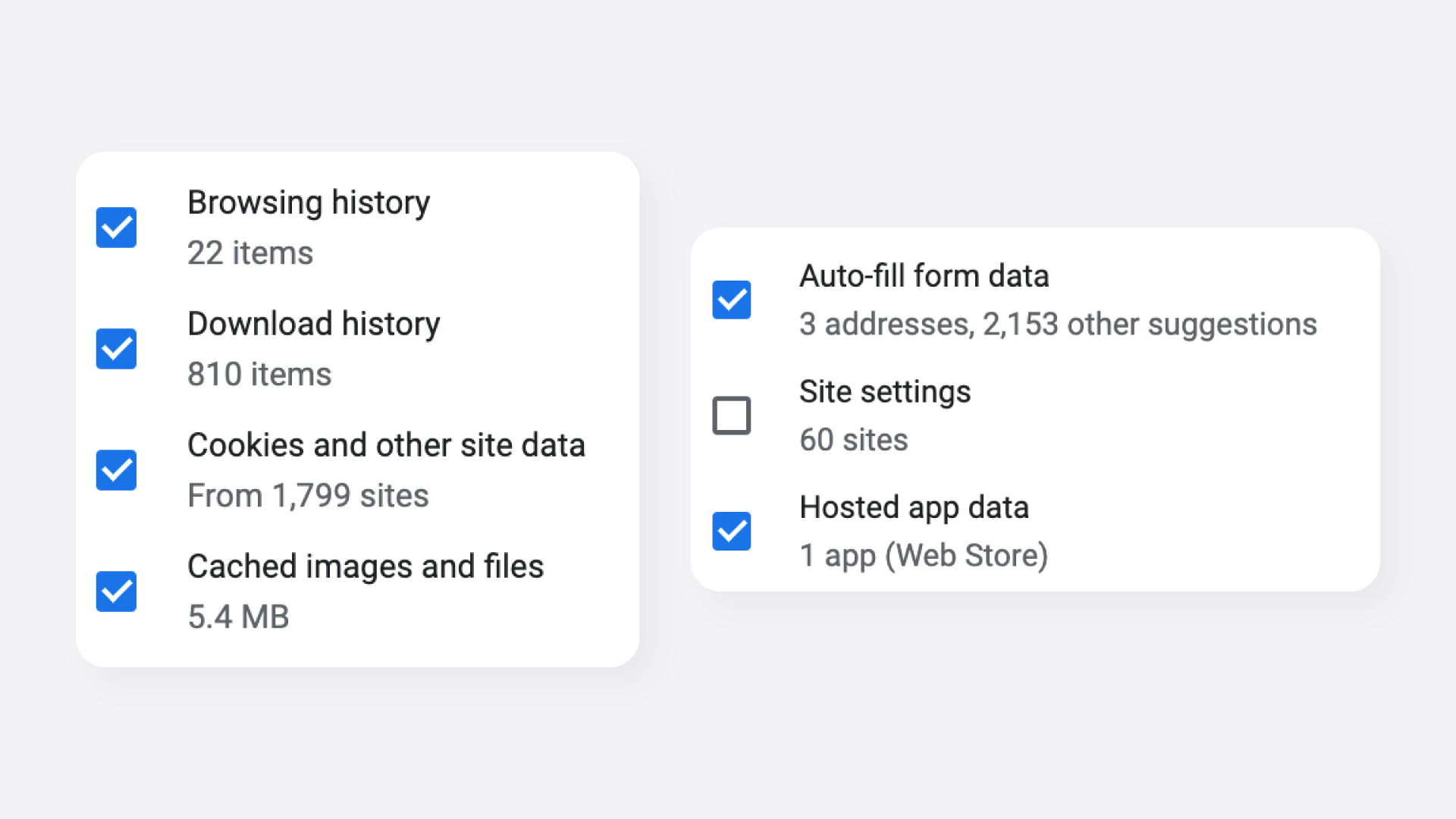
Make sure the following options are selected:
Browsing history
Download history
Cookies and other site data
Cached images and files
Click Clear Data.
Close your browser completely.
Reopen the browser and log in to the Manual Retouching Service dashboard again.
Expected Result#
The Manual Retouching Service dashboard should load successfully and display your retouching orders after you log in.
If the Dashboard Still Does Not Load#
Try the following:
Use Incognito mode
Use the Incognito mode function on your browser and try logging in againTry another browser
Open the Manual Retouching Service dashboard in Safari, Firefox, or Microsoft Edge to check whether the issue is specific to Chrome.Disable browser extensions temporarily
Ad blockers, privacy extensions, or VPN extensions may interfere with the dashboard.Check your internet connection
Open another website to confirm that your internet connection is working normally.Confirm that you are using the correct dashboard link
The Manual Retouching Service dashboard is separate from GemIQ App and GemStudio, so make sure you are logging in through the correct portal.Wait and try again
If the dashboard does not load in multiple browsers, it may be temporarily unavailable.Contact GemIQ Support
If the issue continues after completing the steps above, contact GemIQ Support for assistance.
Common Mistakes#
Logging in to GemIQ App or GemStudio instead of the Manual Retouching Service dashboard.
Setting the cache time range to less than All Time.
Forgetting to select Cookies and other site data.
Not fully closing Chrome before reopening it.
Using an old or incorrect Manual Retouching Service dashboard link.