Before You Start#
GemLightbox is powered on
GemIQ app is installed and up to date
GemCam Pro is plugged into your computer
Bluetooth is enabled on your computer
Your jewelry piece is placed in the GemLightbox
Steps#
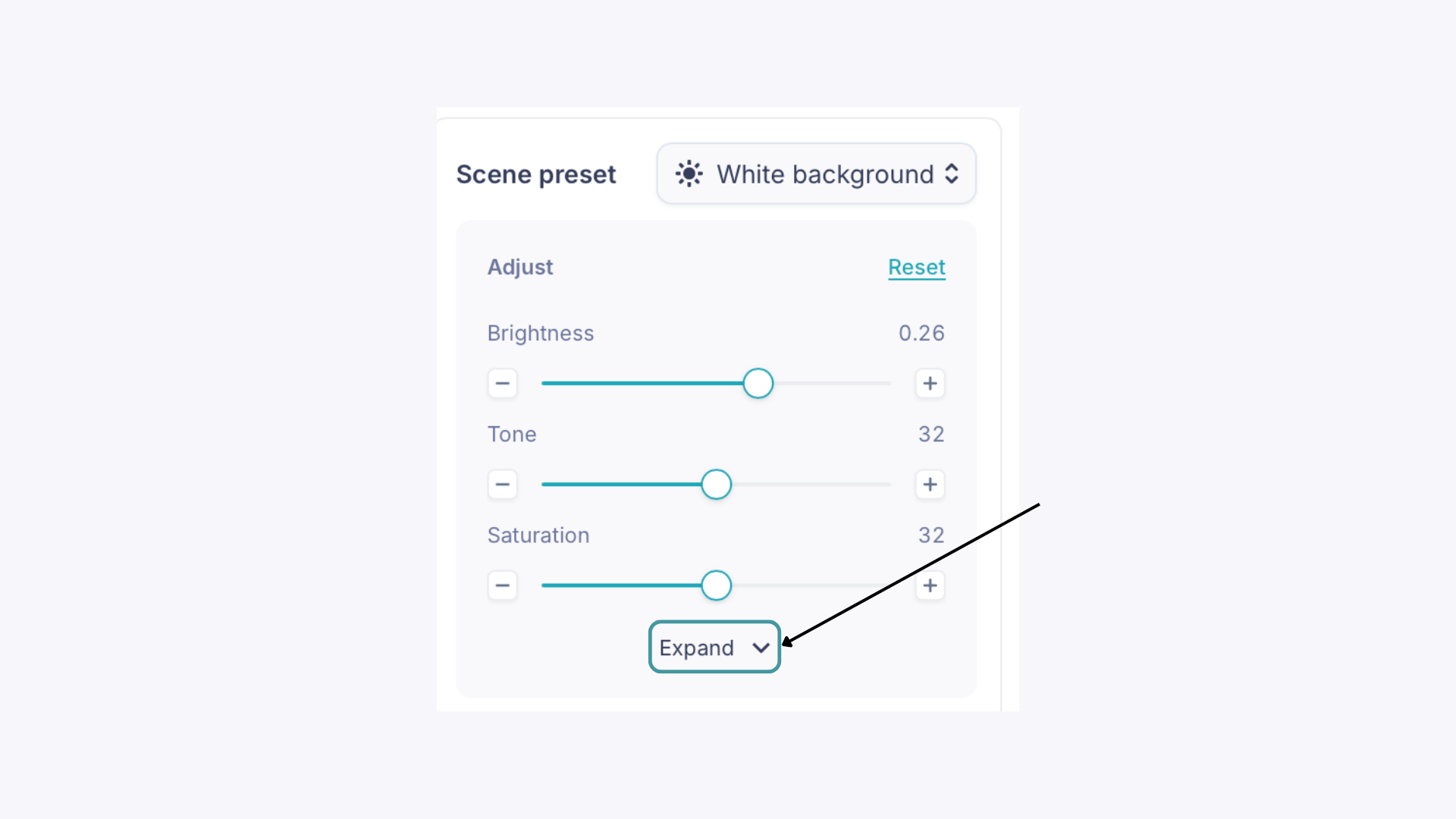
With your jewelry piece in the GemLightbox, navigate to the adjustment panel and click Expand
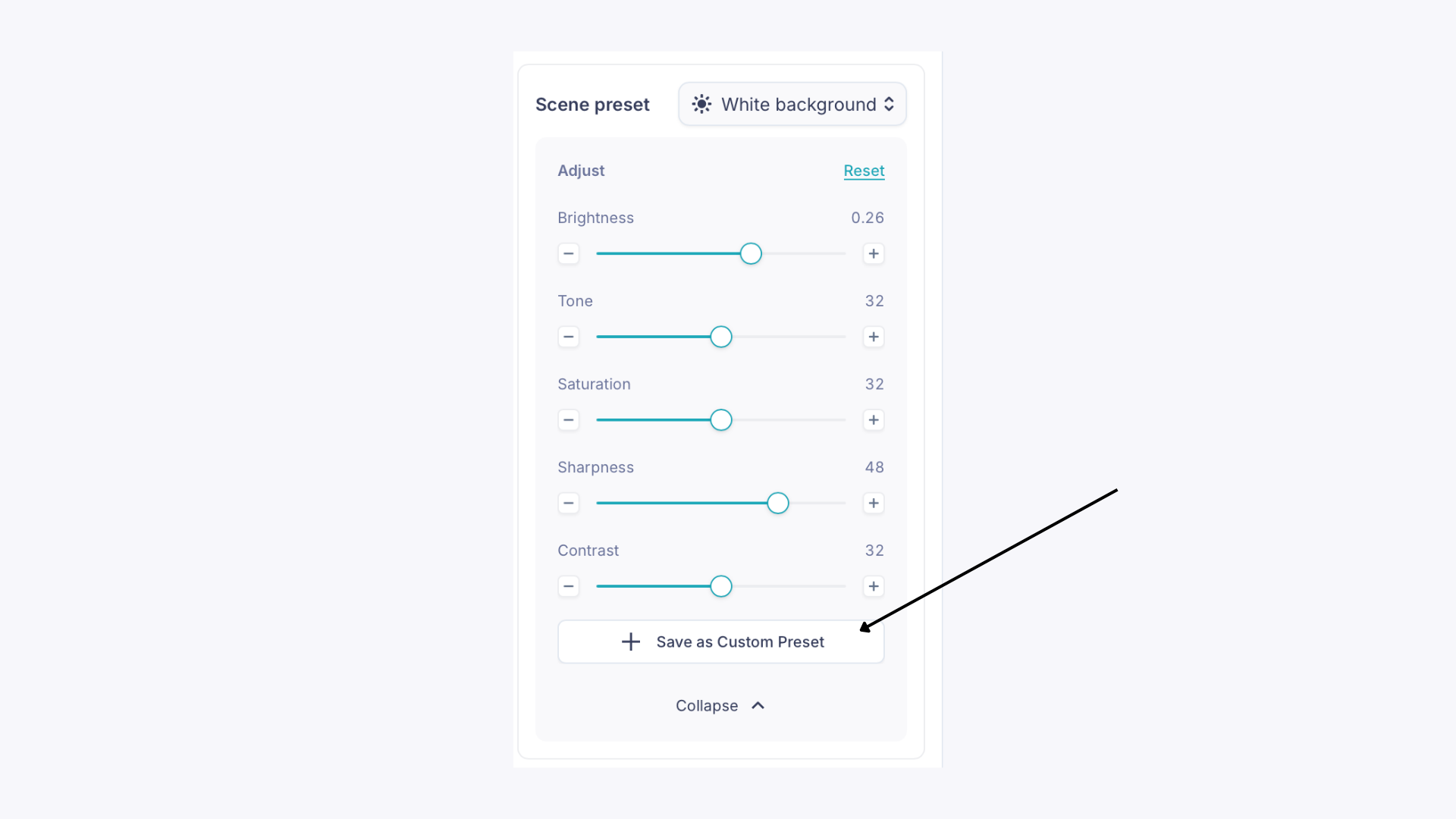
Adjust Brightness, Tone, Saturation, Sharpness, and Contrast to your liking
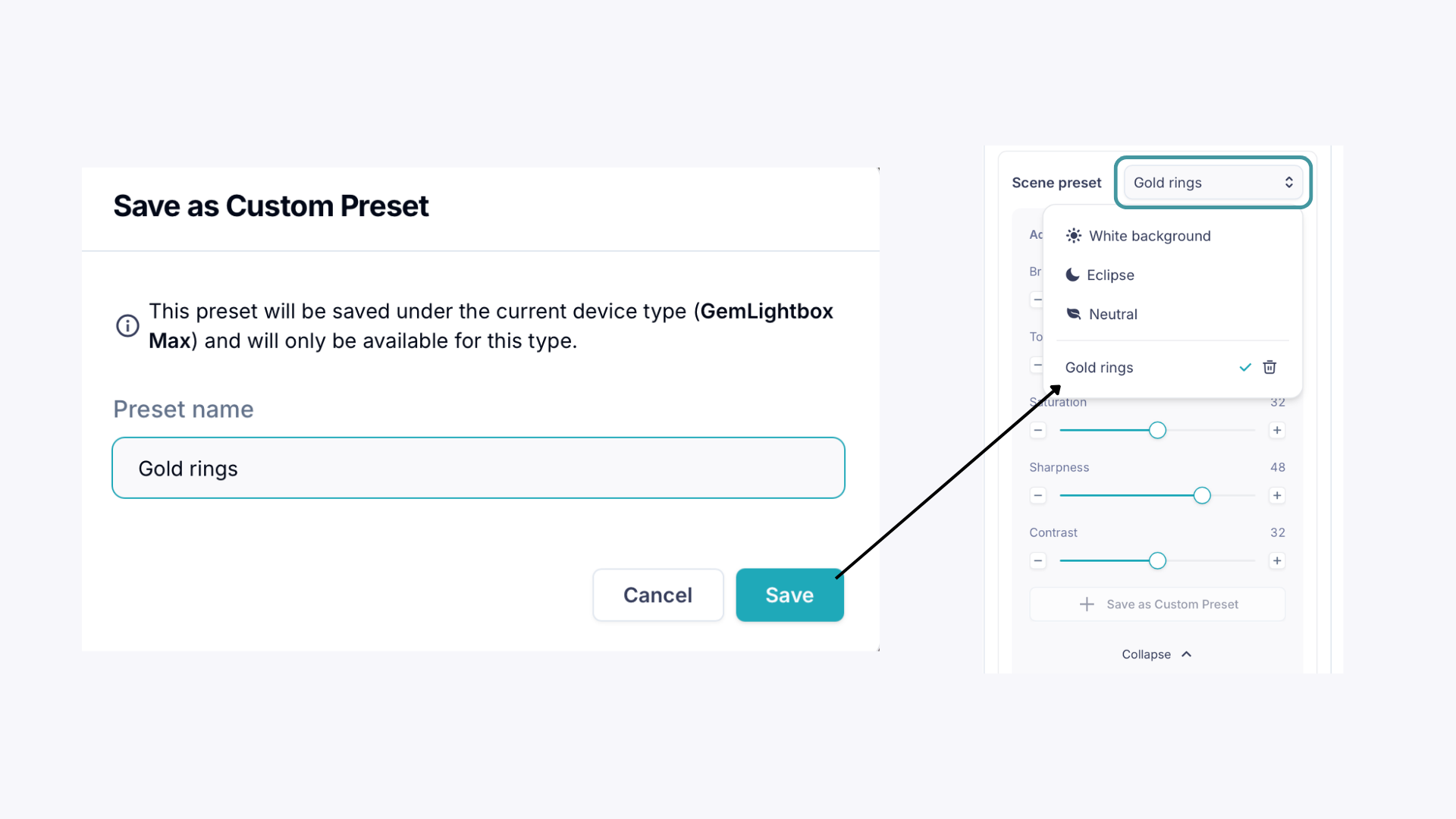
At the bottom of the panel, click Save as Custom Preset
Give the Custom Preset a name and click