

Before you start#
Open the photo you want to edit in the Media Editor. Gemstone Color changes stones by color, so all stones that share the color you pick are recolored at the same time.
Opening Gemstone Color#
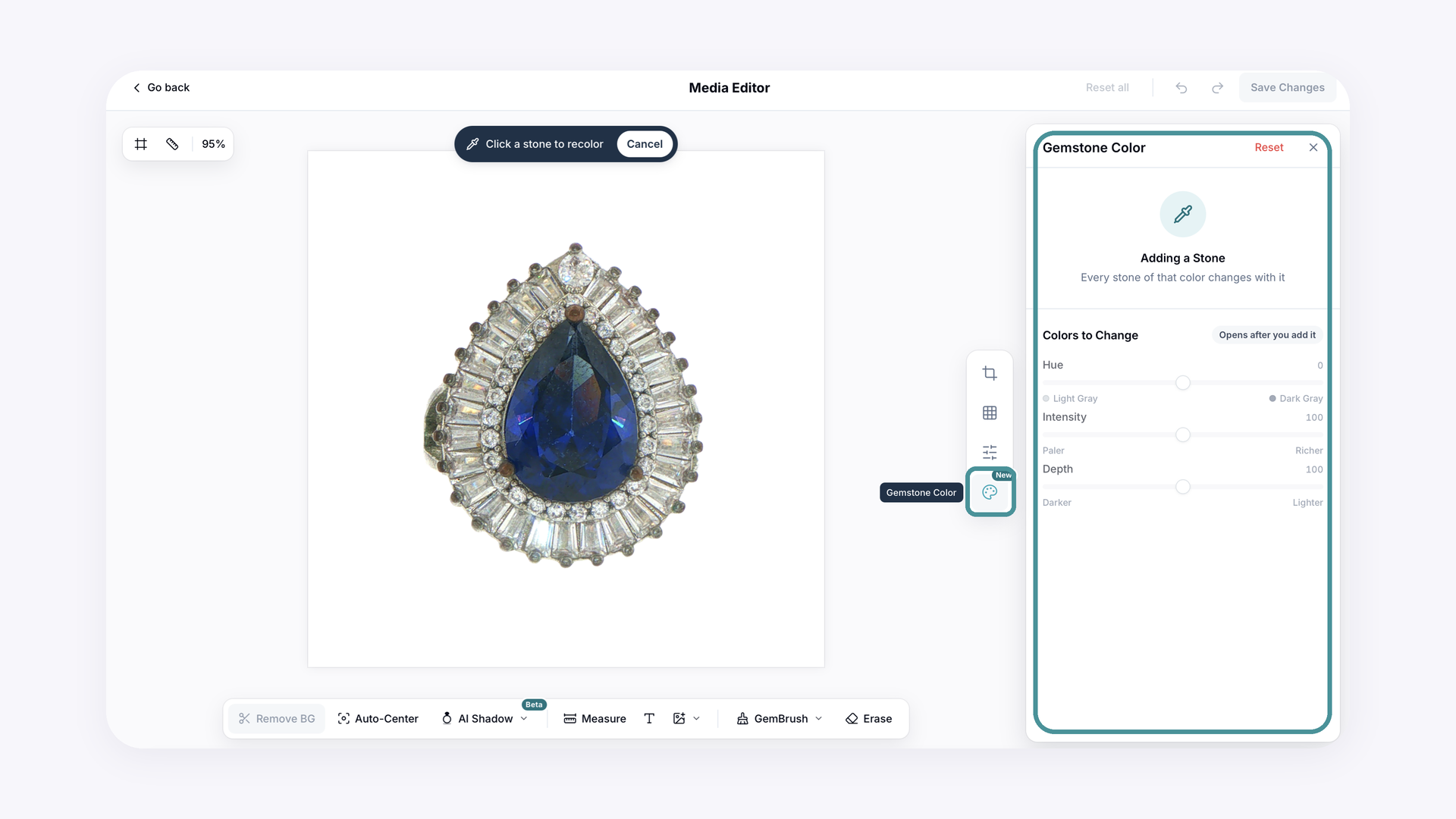
Click the Gemstone Color icon (the palette with the New badge) on the toolbar to the right of the photo. The Gemstone Color panel opens on the right.
Adding a stone color#
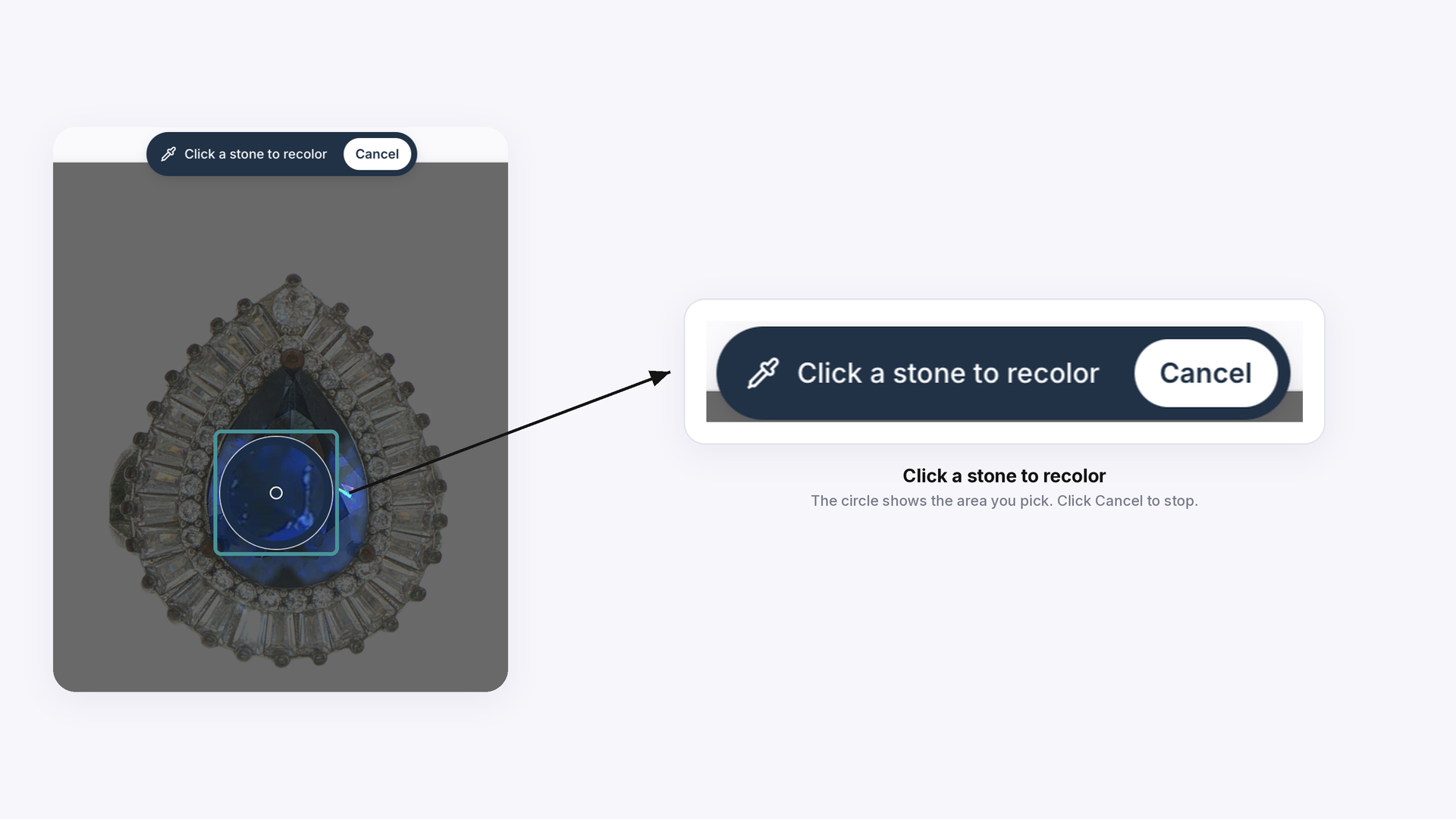
A bar reading Click a stone to recolor appears above the photo.
Move your pointer over the photo: the background dims and a circle shows the area you are about to pick.
Click on the stone you want to change. To stop without picking a stone, click Cancel.
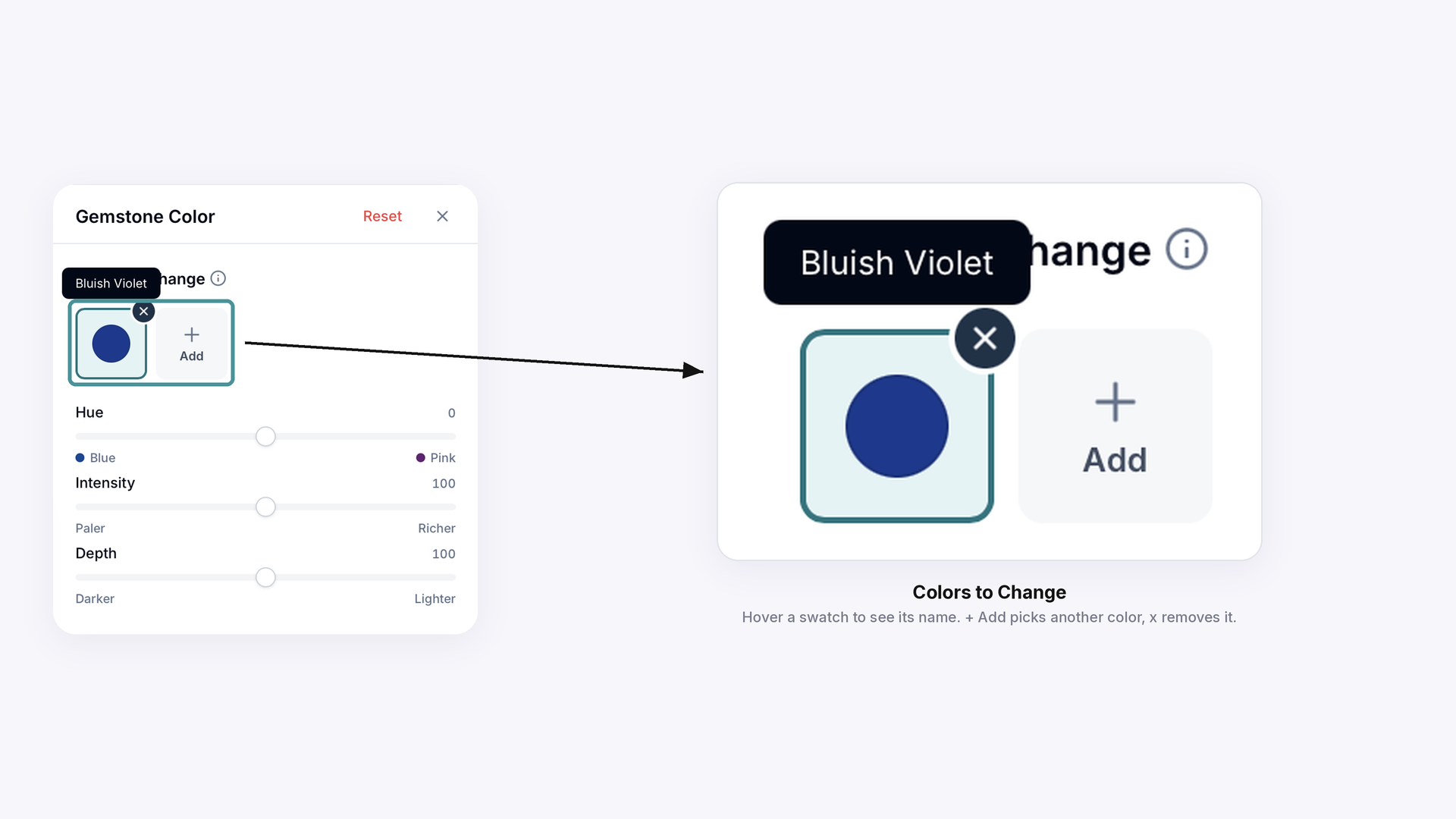
The stone's color is added under Colors to Change as a swatch.
Hover over the swatch to see the color's name (for example, Bluish Violet). The sliders only become active once a color has been added.
Adjusting the color#
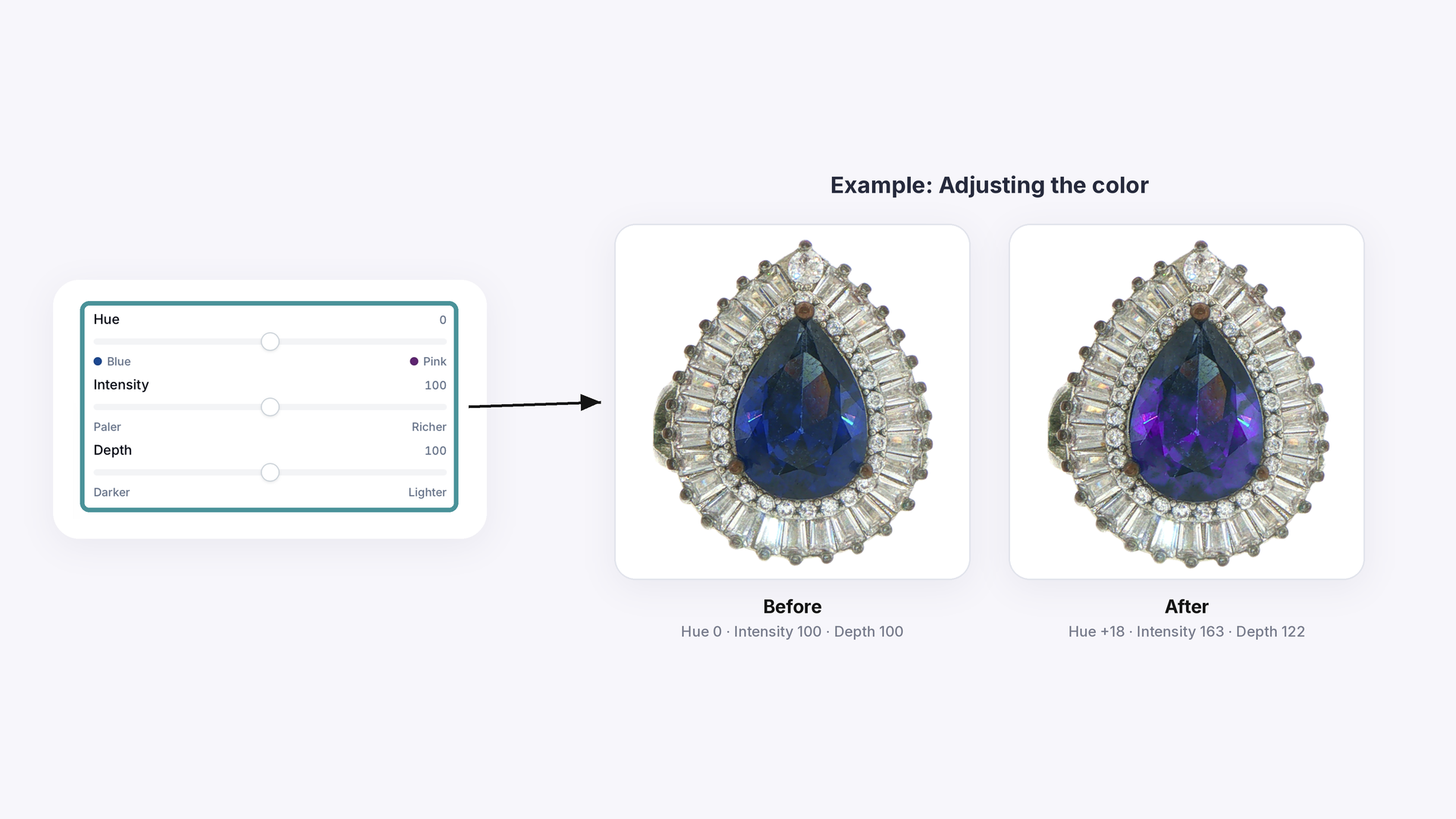
Use the three sliders. Each starts at the default in the middle.
Hue shifts the color toward a neighboring color.
The labels at each end show the direction for the stone you picked (for a blue stone: Blue to Pink).Intensity makes the color paler or richer.
Depth makes the color darker or lighter.
Changing more colors, undoing and saving#
To recolor stones of a different color, click + Add and pick another stone. You can add up to 3 colors. Each color has its own Hue, Intensity and Depth settings, so select a swatch to adjust that color without changing the others.
To remove a color, click the x on its swatch.
Reset in the panel clears your Gemstone Color changes.
Reset all at the top clears all edits to the photo. You can also use the undo and redo arrows.Click Save Changes at the top right to keep your edit.
Common Questions#
Q: How do I change a gemstone's color in the Media Editor?
A: Click the Gemstone color (palette) icon, click the stone in your photo, then adjust the Hue, Intensity and Depth sliders. Click Save Changes when you're done.
Q: Why did other stones change color too?
A: Gemstone color changes every stone of the color you picked, not one stone on its own. Stones of a different color, such as white side stones, are not changed unless you add their color too.
Q: Why are the sliders greyed out?
A: The sliders open only after you add a stone. Click a stone in the photo first, and its color appears under Colors to Change.
Q: Can I change more than one stone color in the same photo?
A: Yes, you can add up to 3 colors. Click + Add and pick another stone, then select its swatch to adjust that color separately.
Q: How do I undo a color change?
A: Click Reset in the Gemstone Color panel to clear those changes, or use the undo arrow at the top. Reset all clears every edit made to the photo.