How to Edit and Resize Your Images and Videos in GemIQ#
Quick Answer#
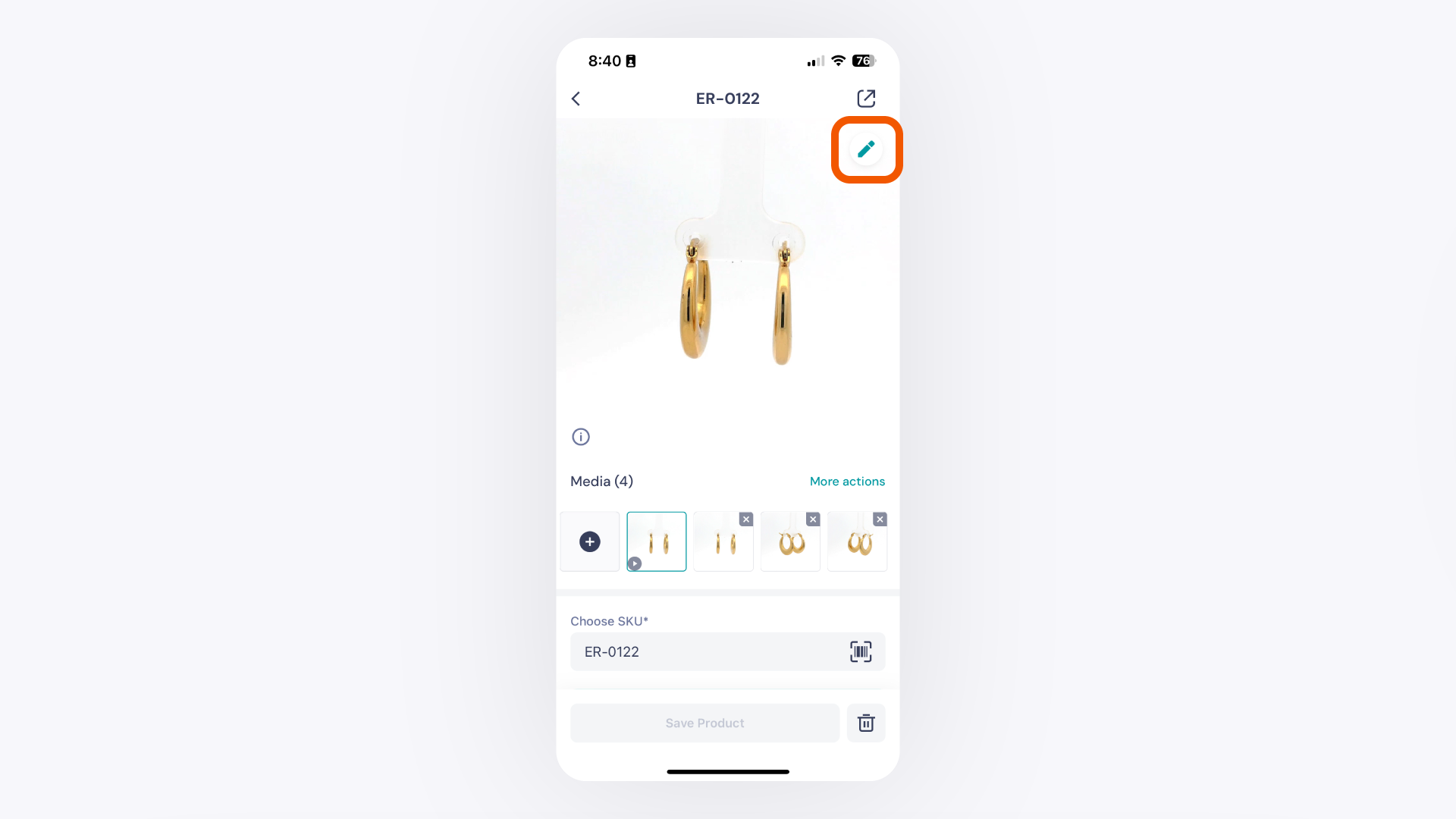
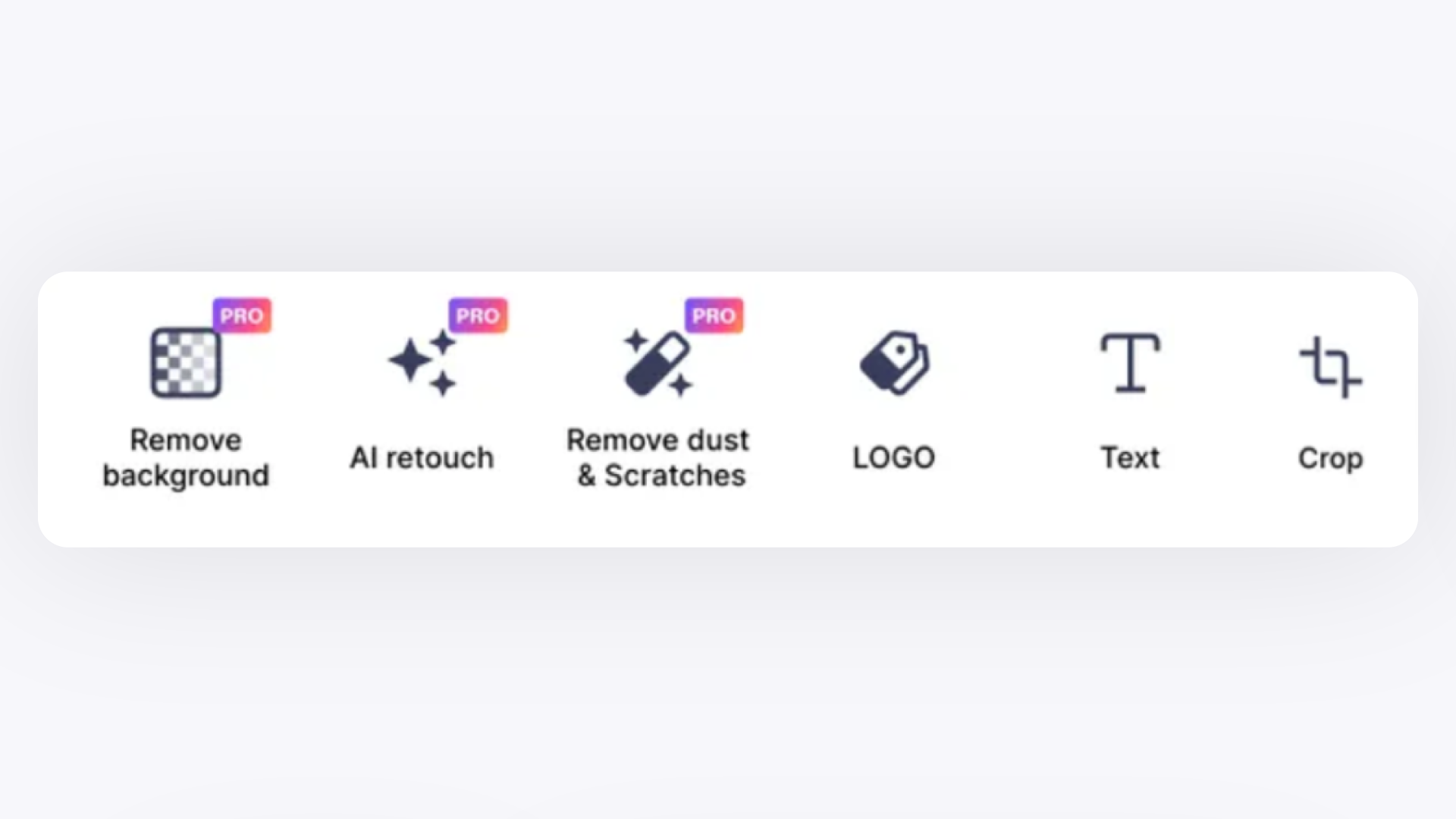
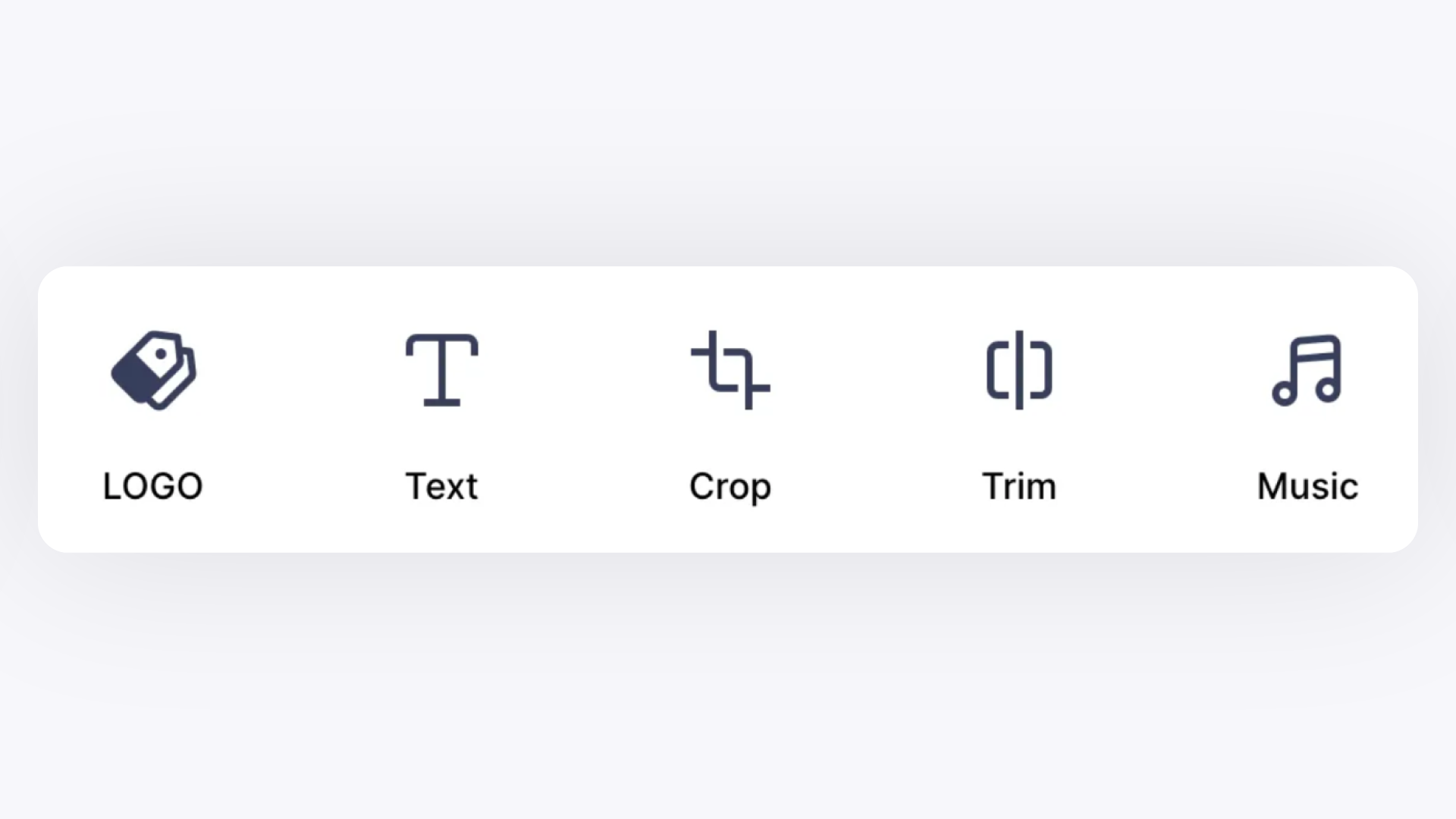
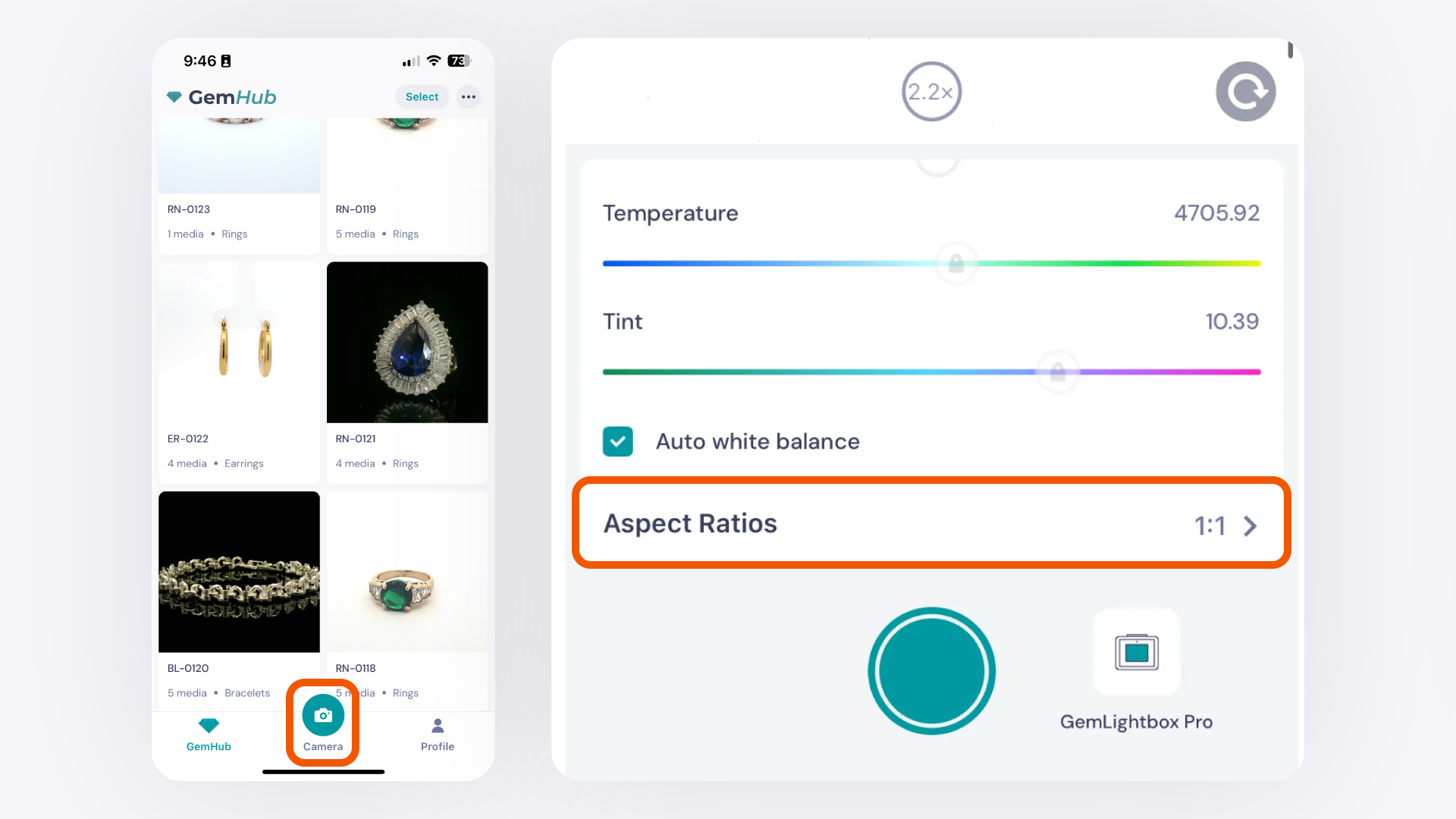
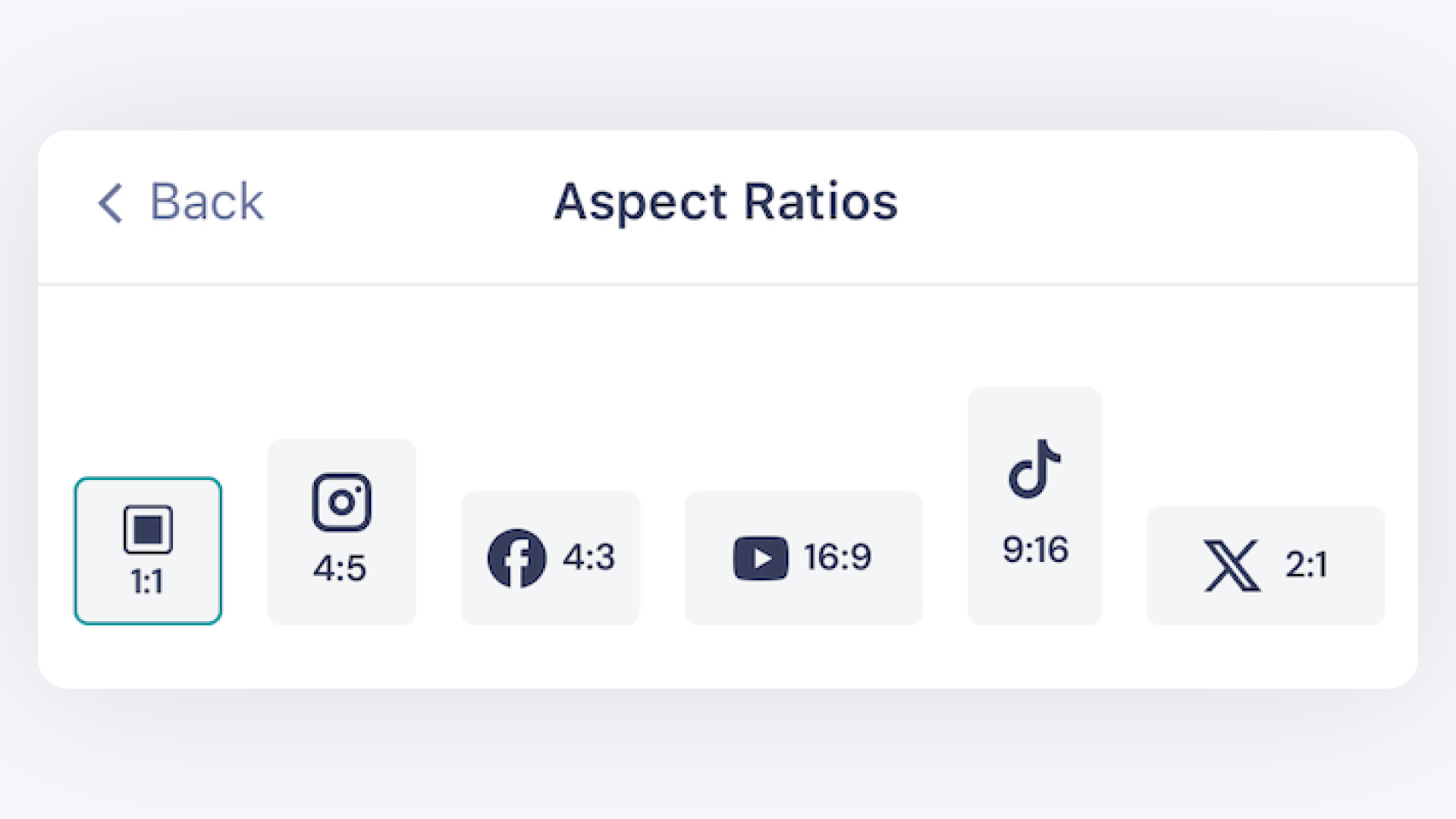
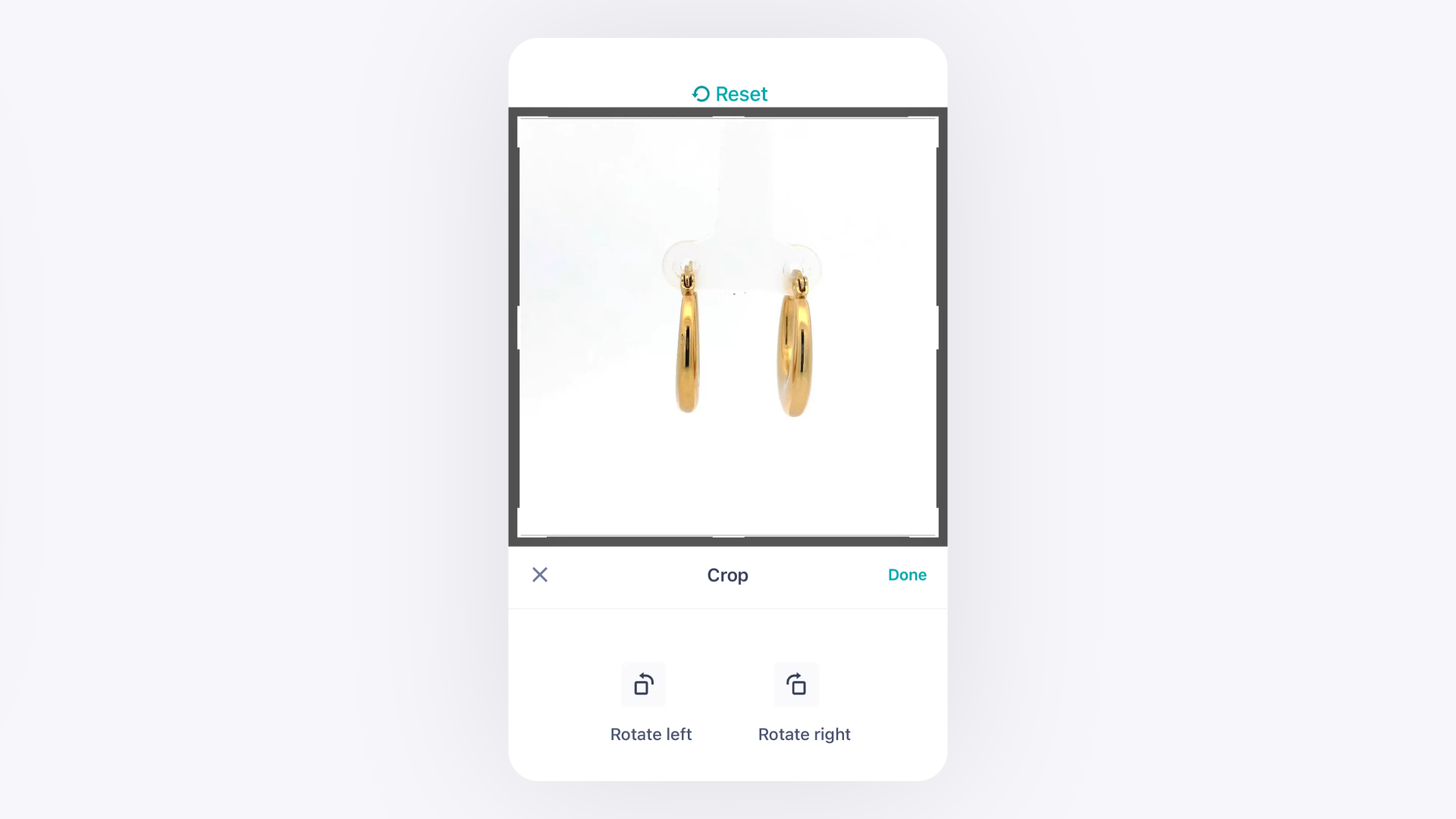
GemIQ's built-in editor lets you enhance and resize your jewelry images and videos directly in the app. Apply AI background removal, cropping, watermarks, and logos — or resize your media for any social media platform, either during capture or after shooting.
Before You Start#
GemIQinstalled and signed in to your account
At least one image or video already captured in GemIQ, or saved in your phone's gallery for post-capture editing