How to Customize and Share a Collection in GemIQ · GemIQ Learn
Learning Center
How-to
How to Customize and Share a Collection in GemIQ
Choose your preferred Collection layout, customize how your jewelry and business information are displayed, and share your Collection directly with customers.
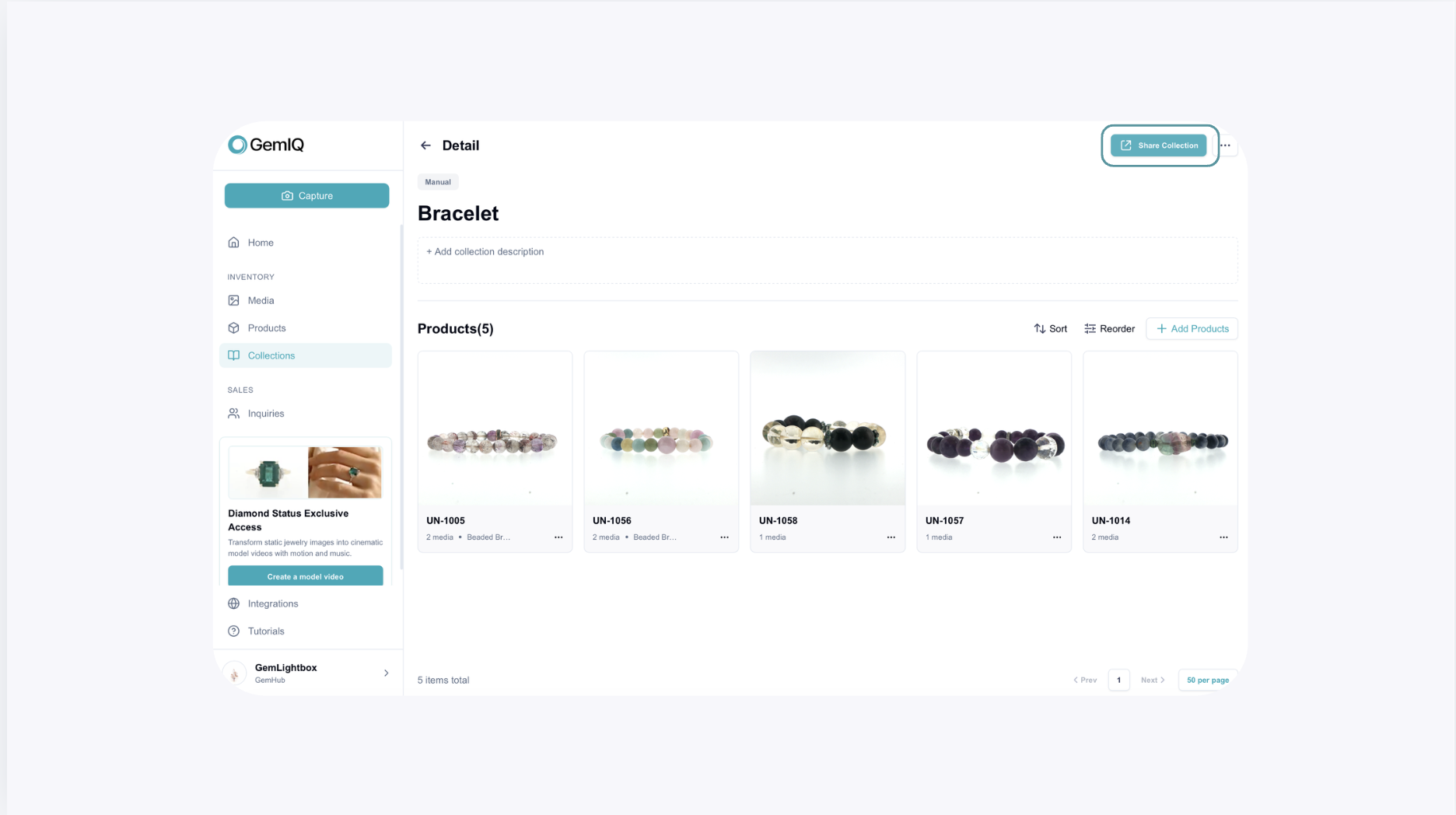
GemIQ Collections allow you to create a customized page to showcase your jewelry and share it directly with customers.
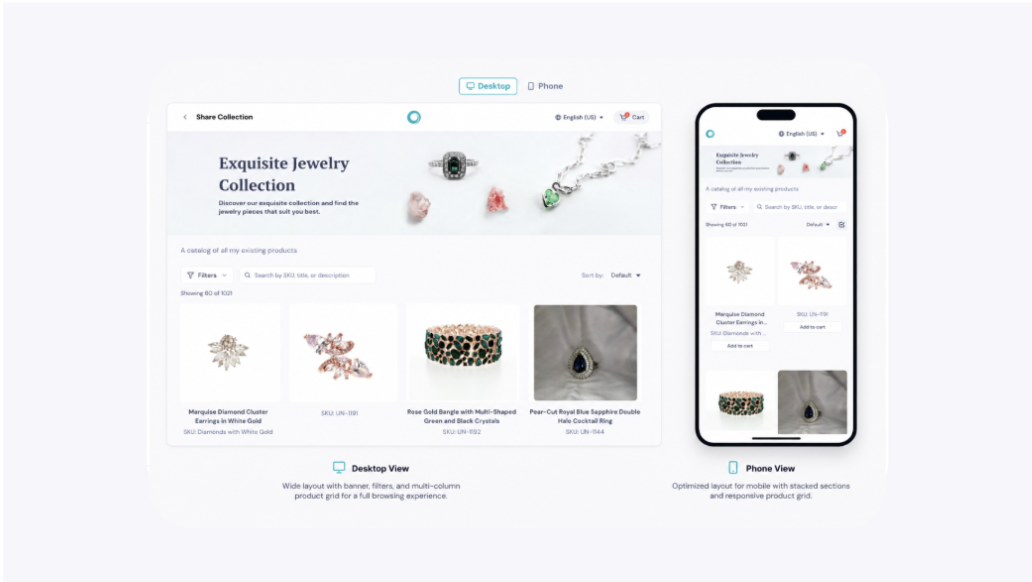
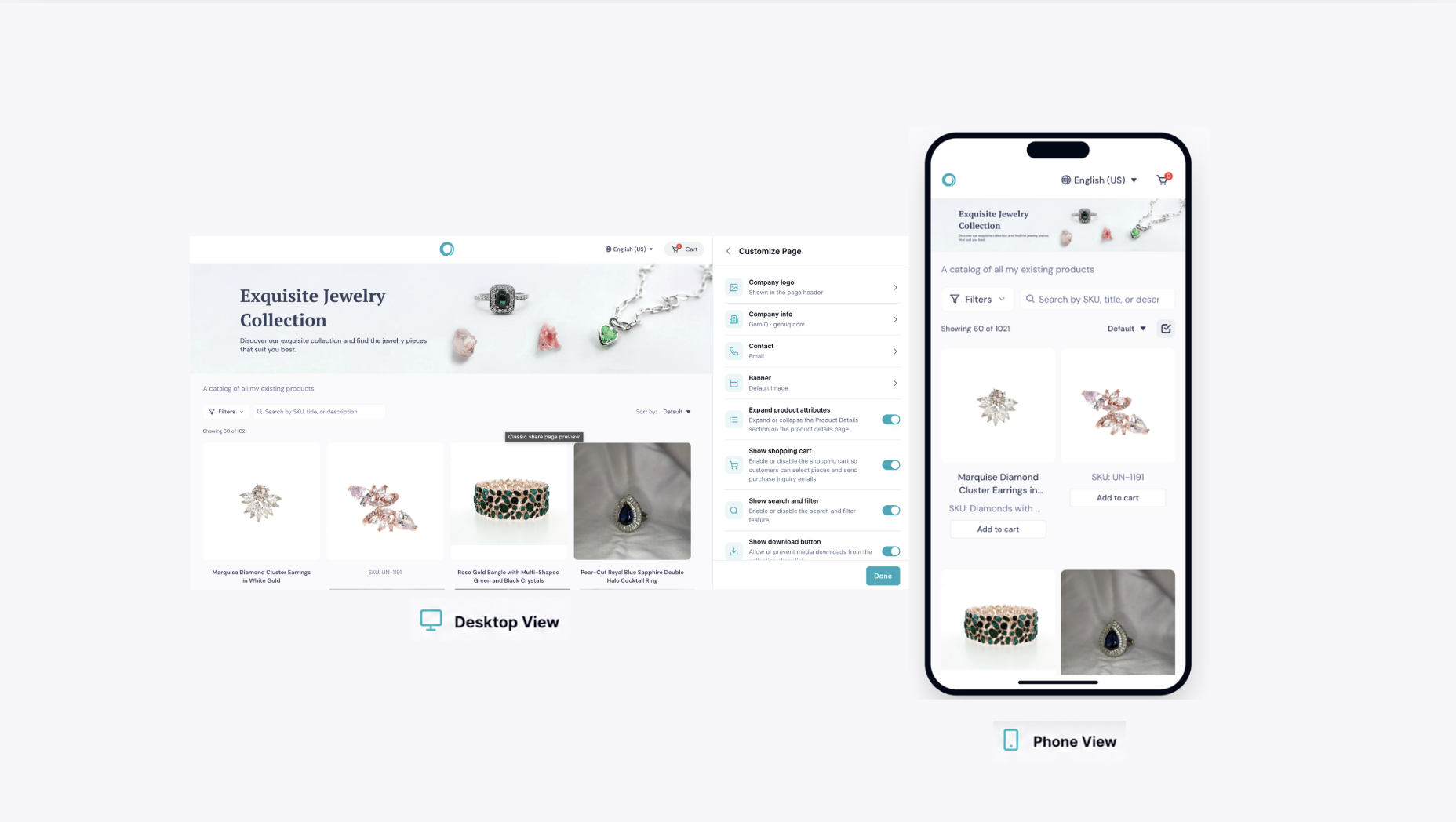
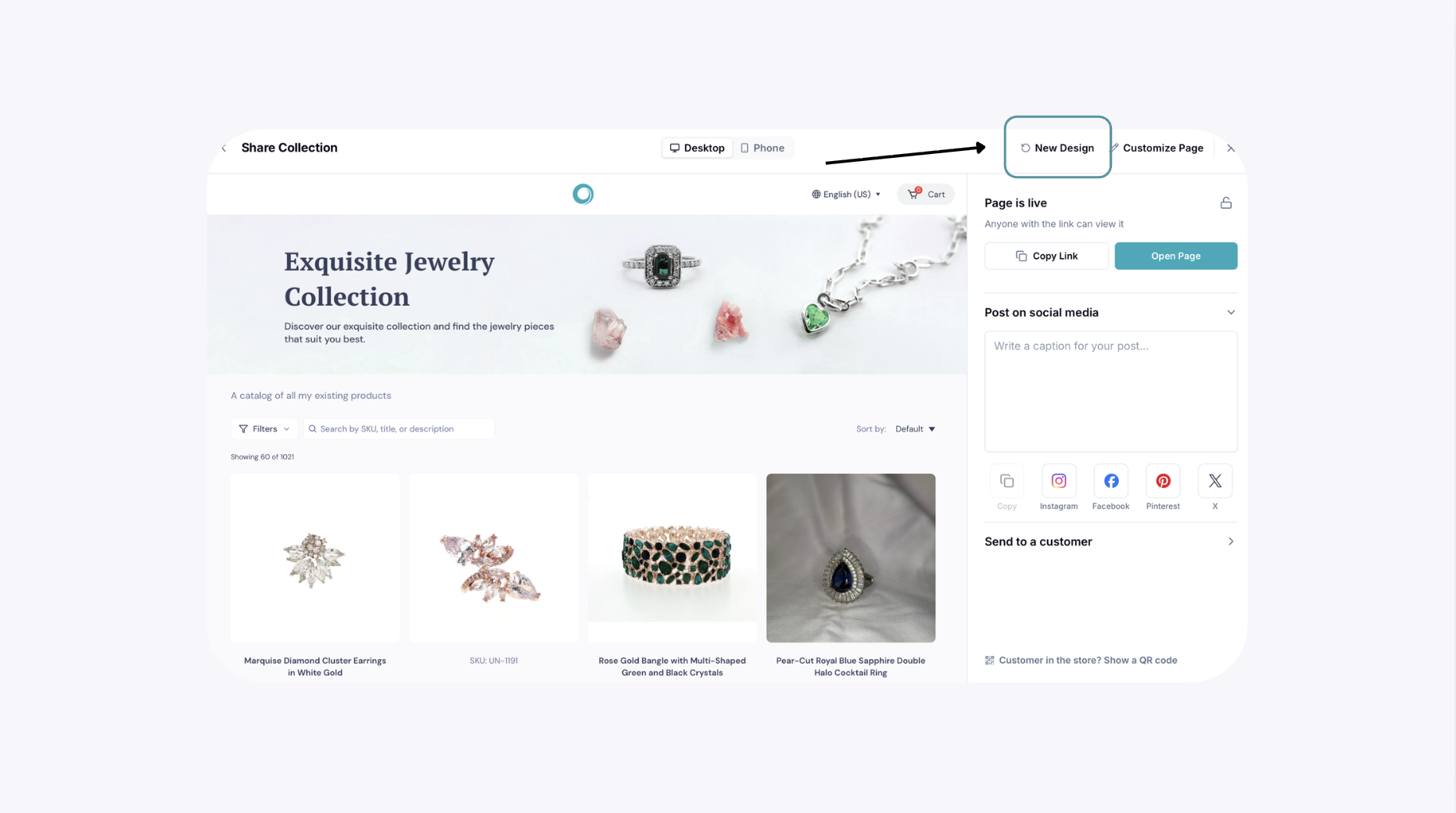
When setting up your Collection share page, you can choose between two different layouts: the Old Version and the New Design. Each layout provides different customization options, allowing you to choose how you want your Collection to appear to customers.
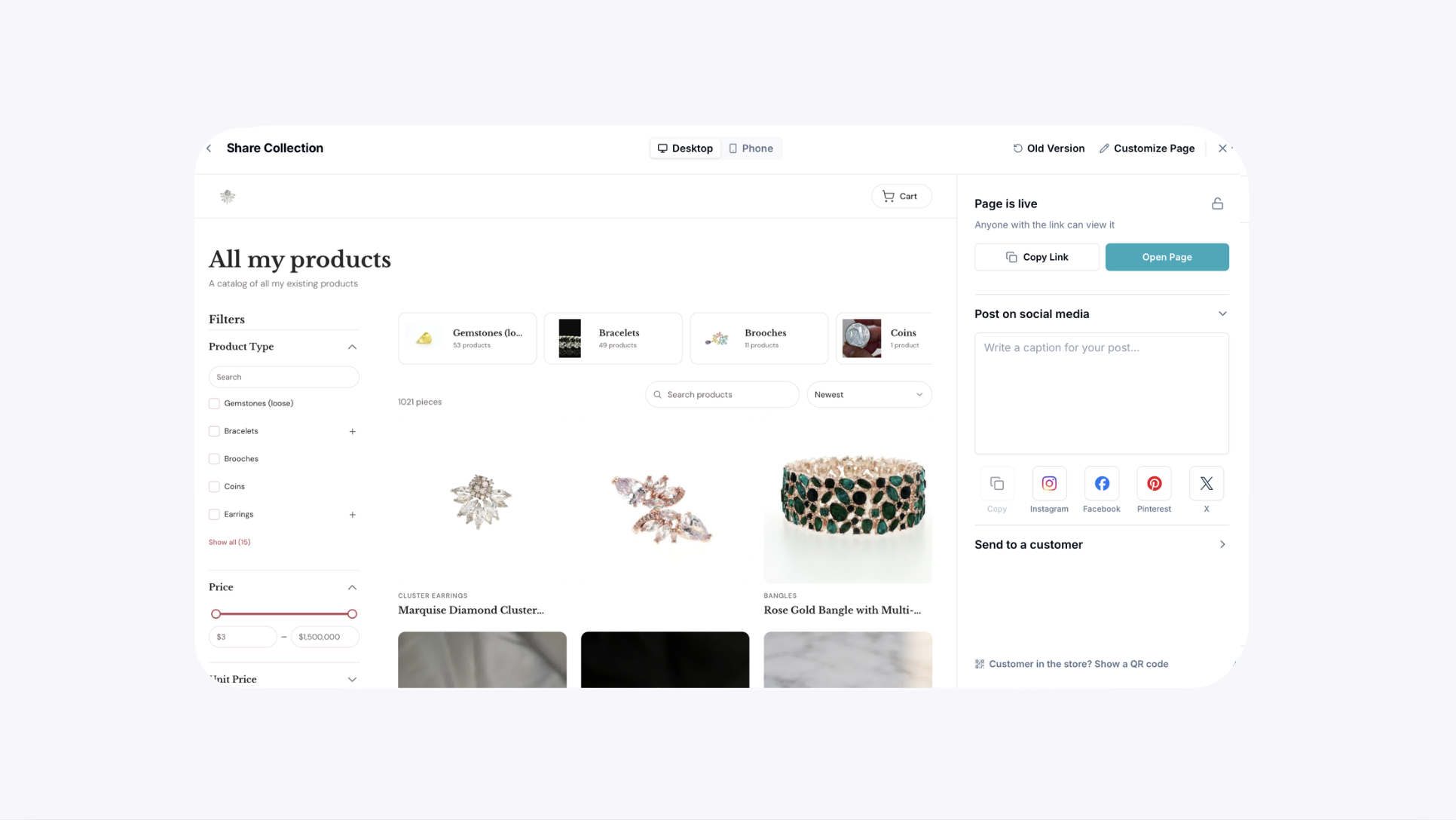
You can then customize your branding, contact information, product display and customer features before sharing your Collection through a direct link, WhatsApp, email, social media, or QR code.
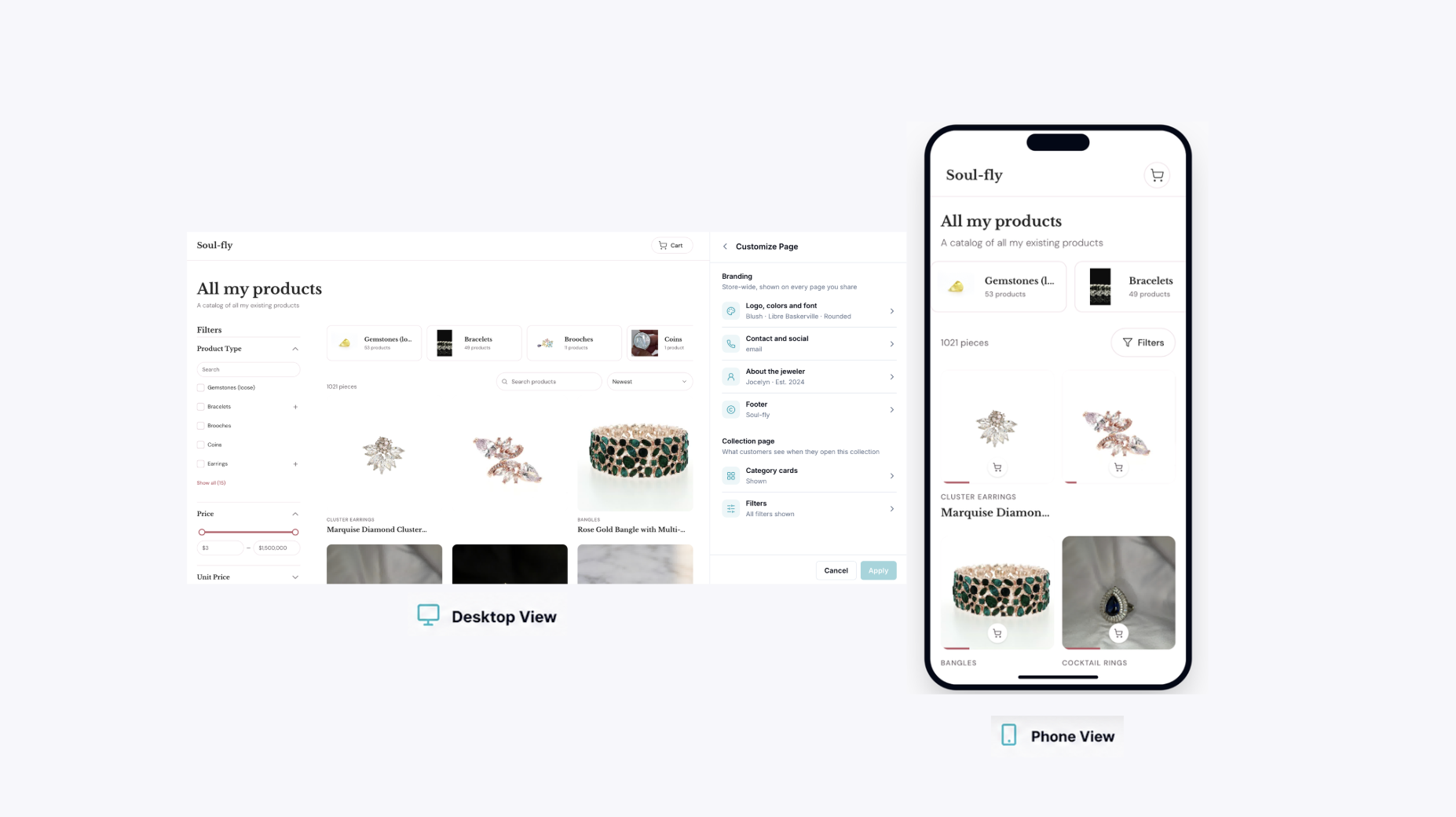
The New Design provides an updated Collection experience with additional branding and Collection page customization options.
Under Customize Page, the New Design allows you to manage areas such as:
Customization Options
Branding
Logo, colors and font
Contact and social information
About the jeweler
Footer information
Collection Page
Category cards
Product filters
Additional Collection display and browsing settings
The New Design provides a more storefront-style experience, with product categories, search, filters and other options to help customers browse larger Collections.
If you choose the New Design, select Customize Page to access the customization settings for the newer layout.
The options are organized into sections such as Branding and Collection Page.
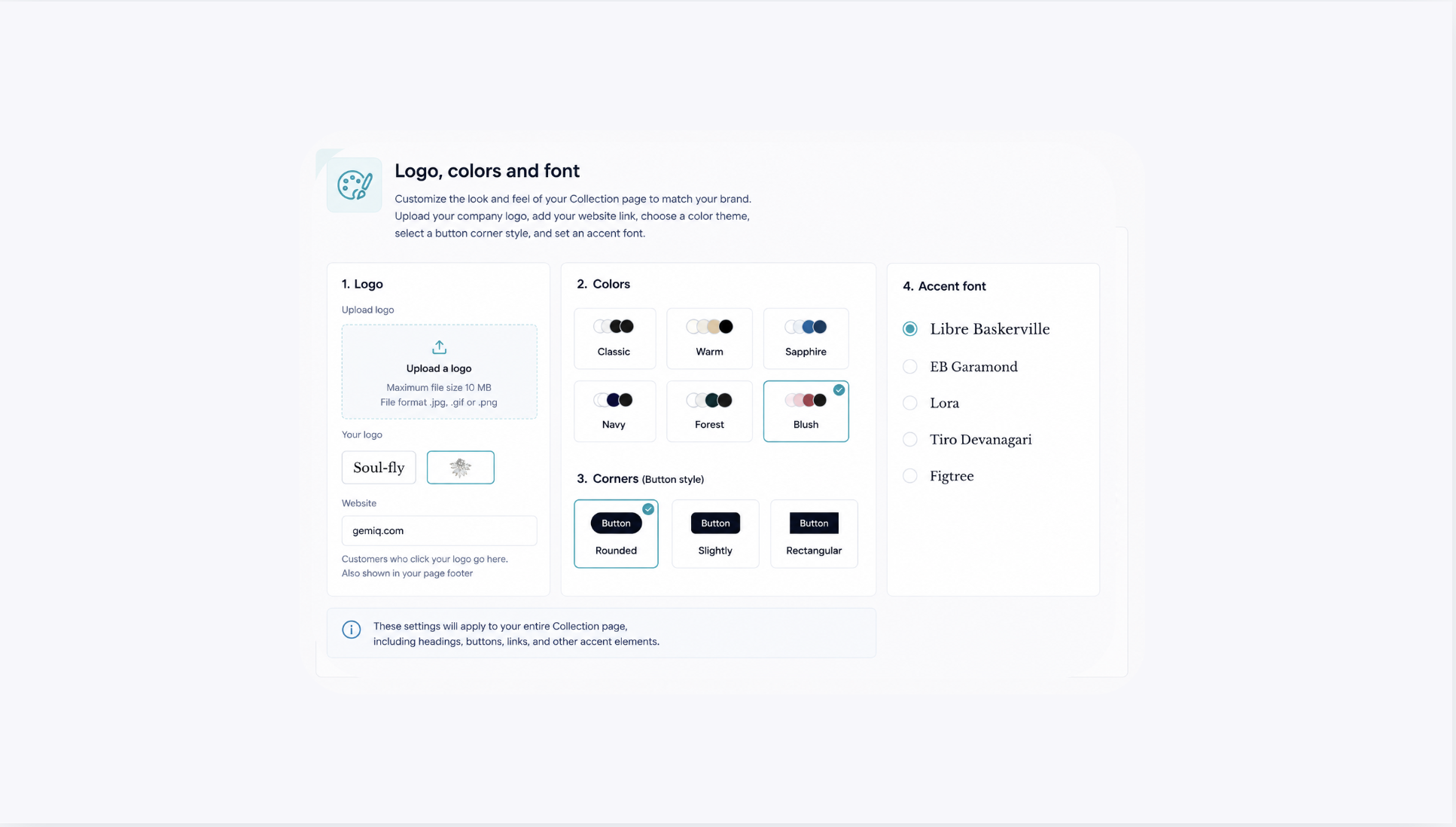
Logo, colors and font
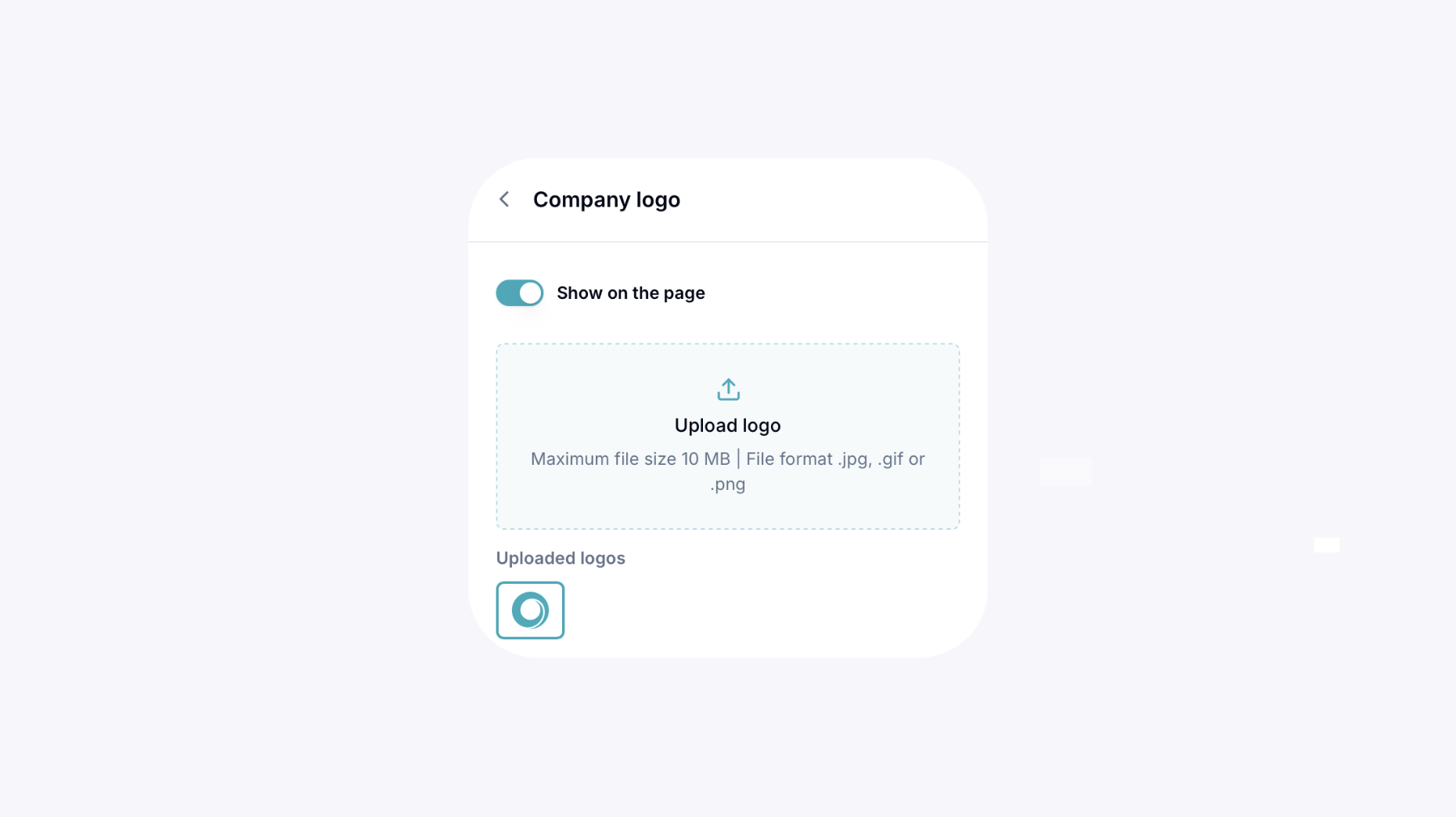
Customize the look and feel of your Collection page to match your brand. Upload your company logo, add your website link, choose from available color themes, select the button corner style, and set an accent font for your Collection page.
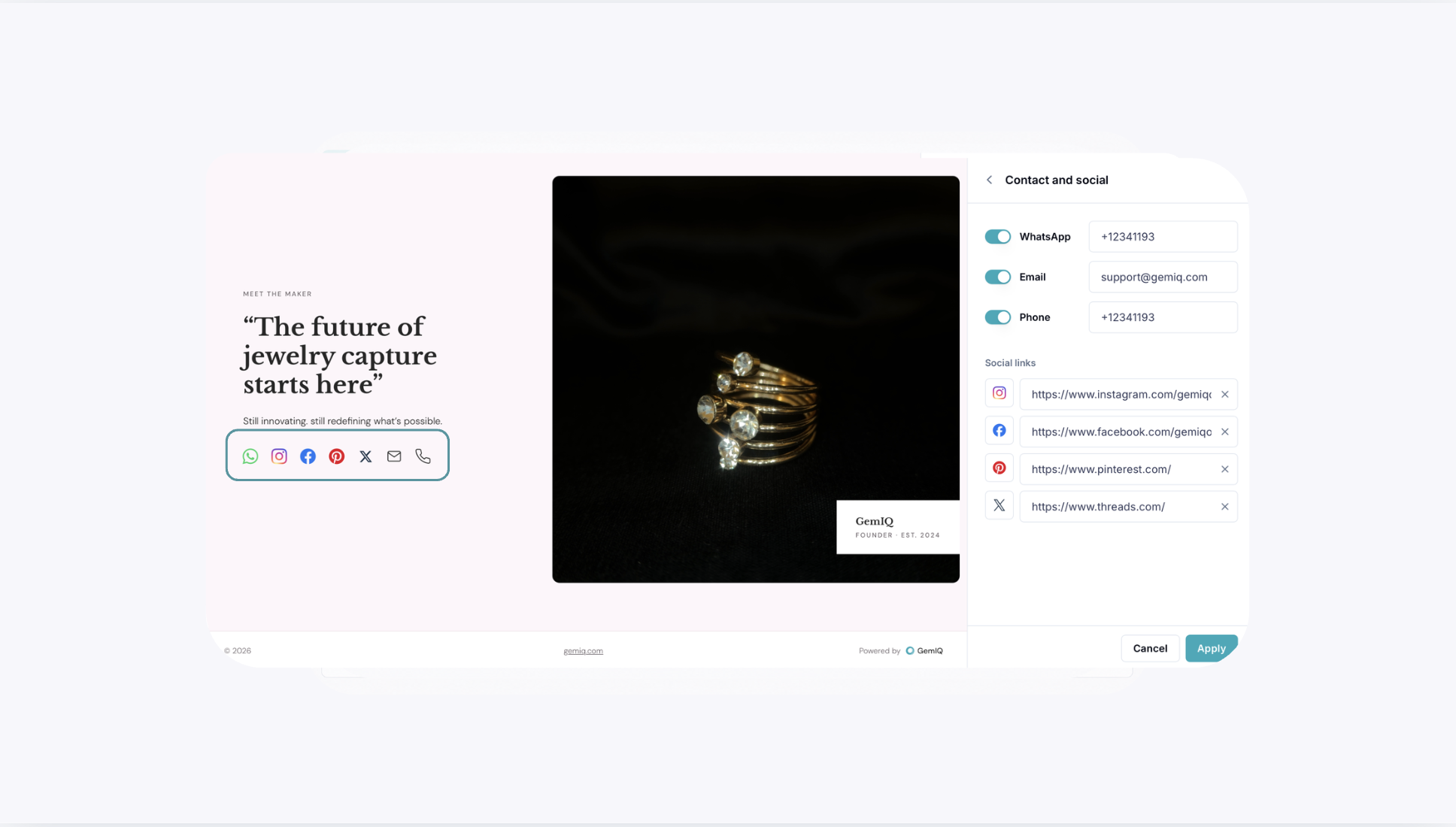
Contact and social information
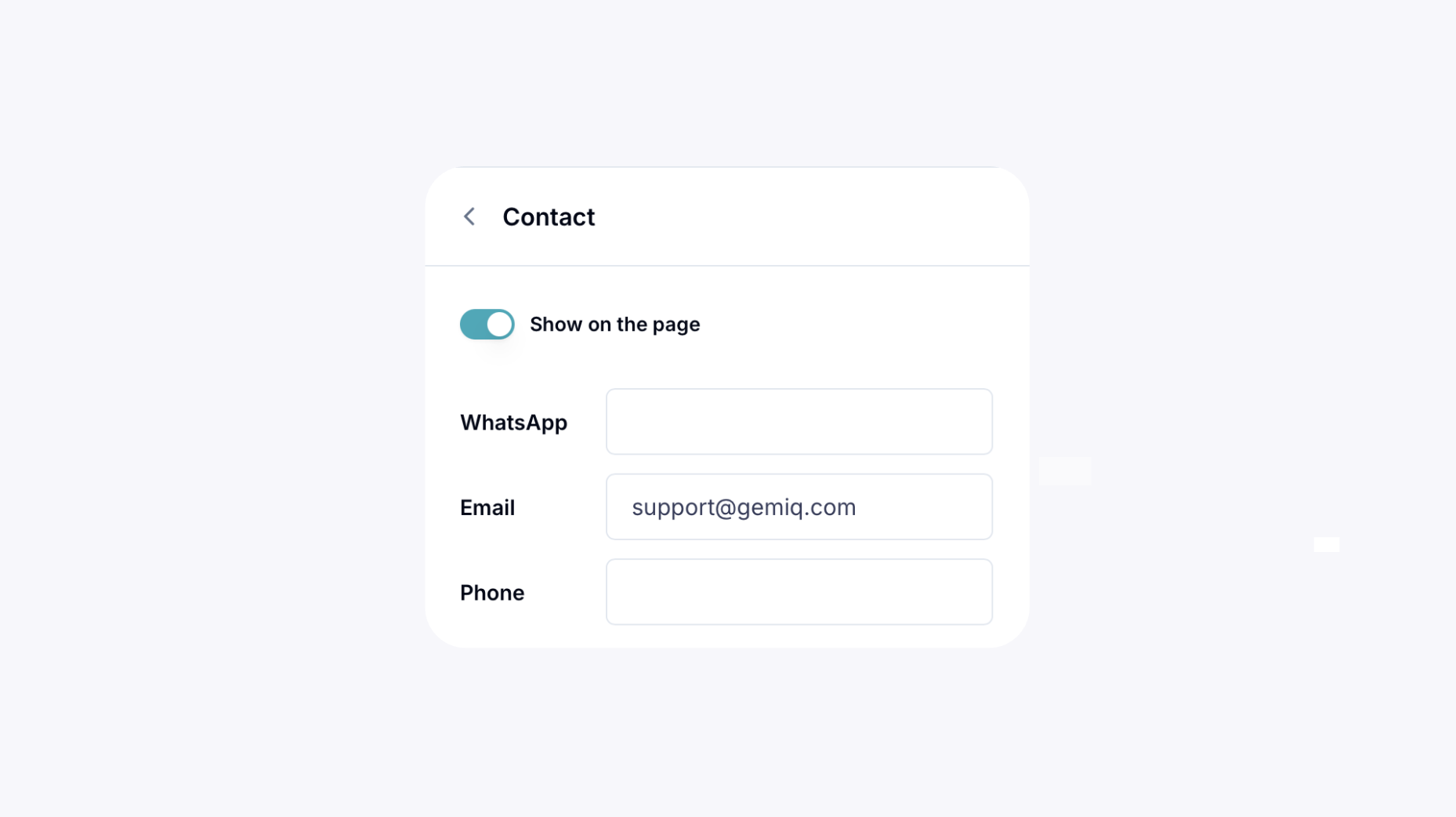
Add your business contact details and social media links to the Collection page, making it easier for customers to reach you or connect with your business online.
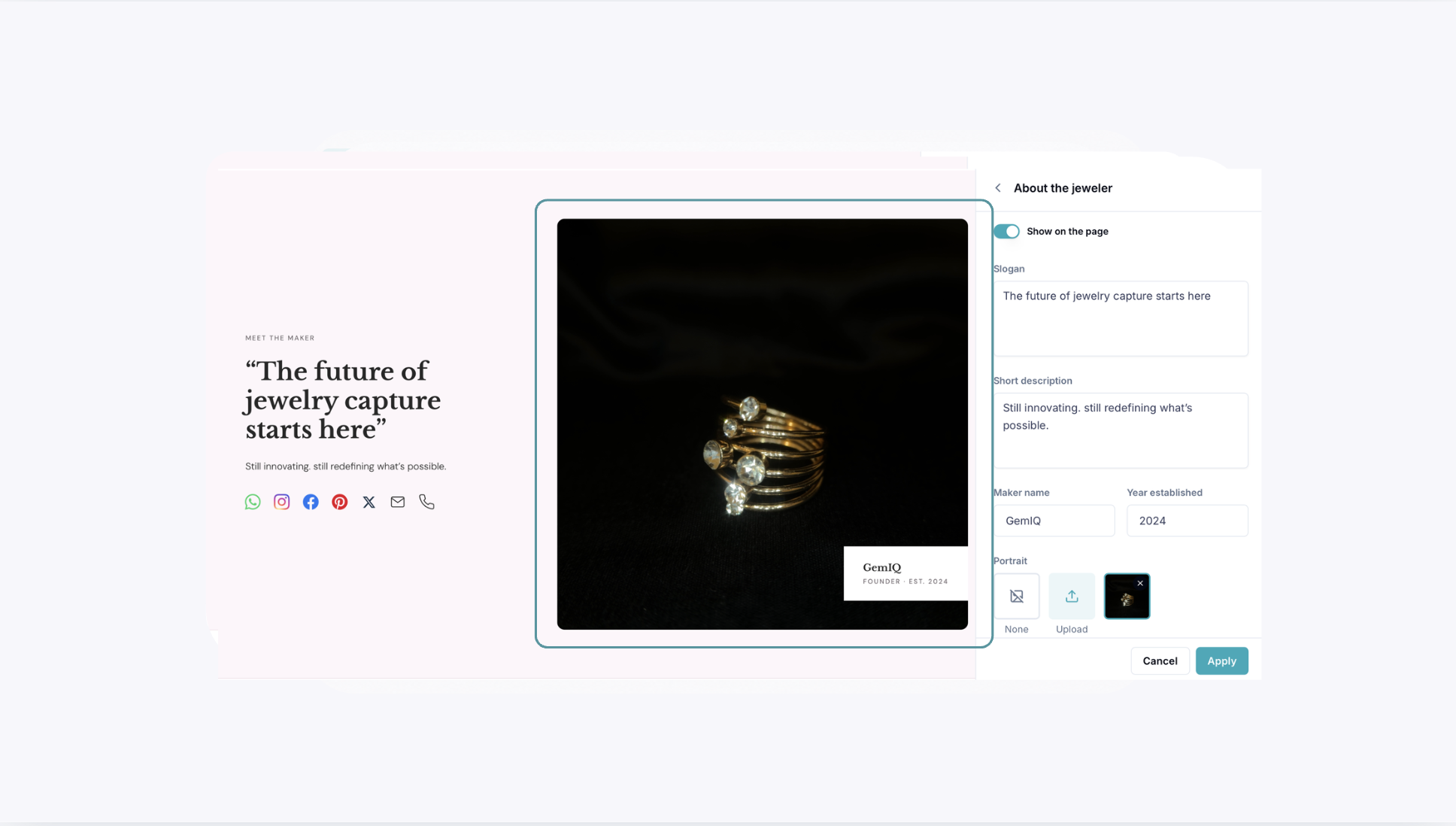
About the jeweler information
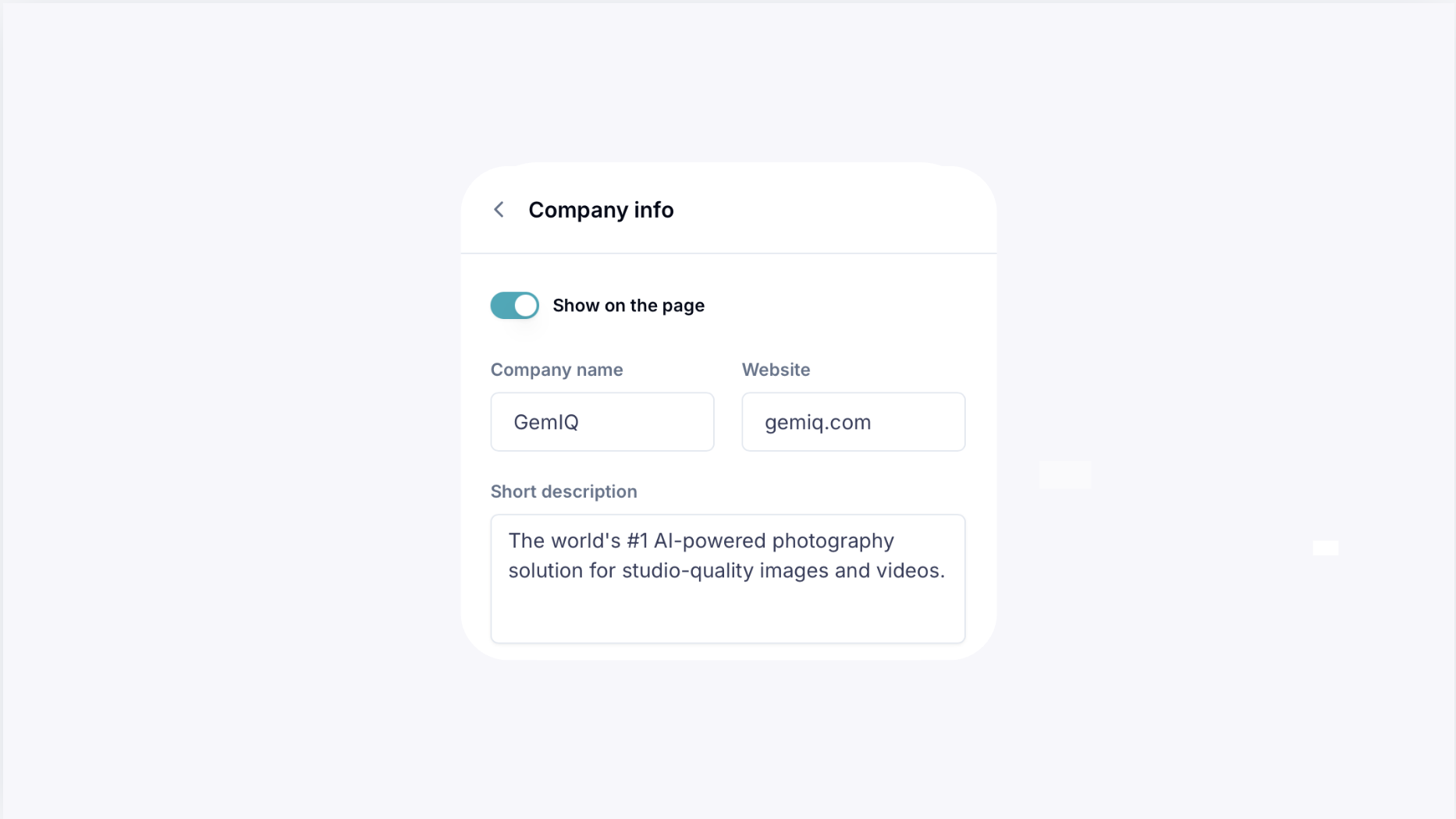
Add information about your business or brand to introduce your company and help customers learn more about the jeweler behind the Collection.
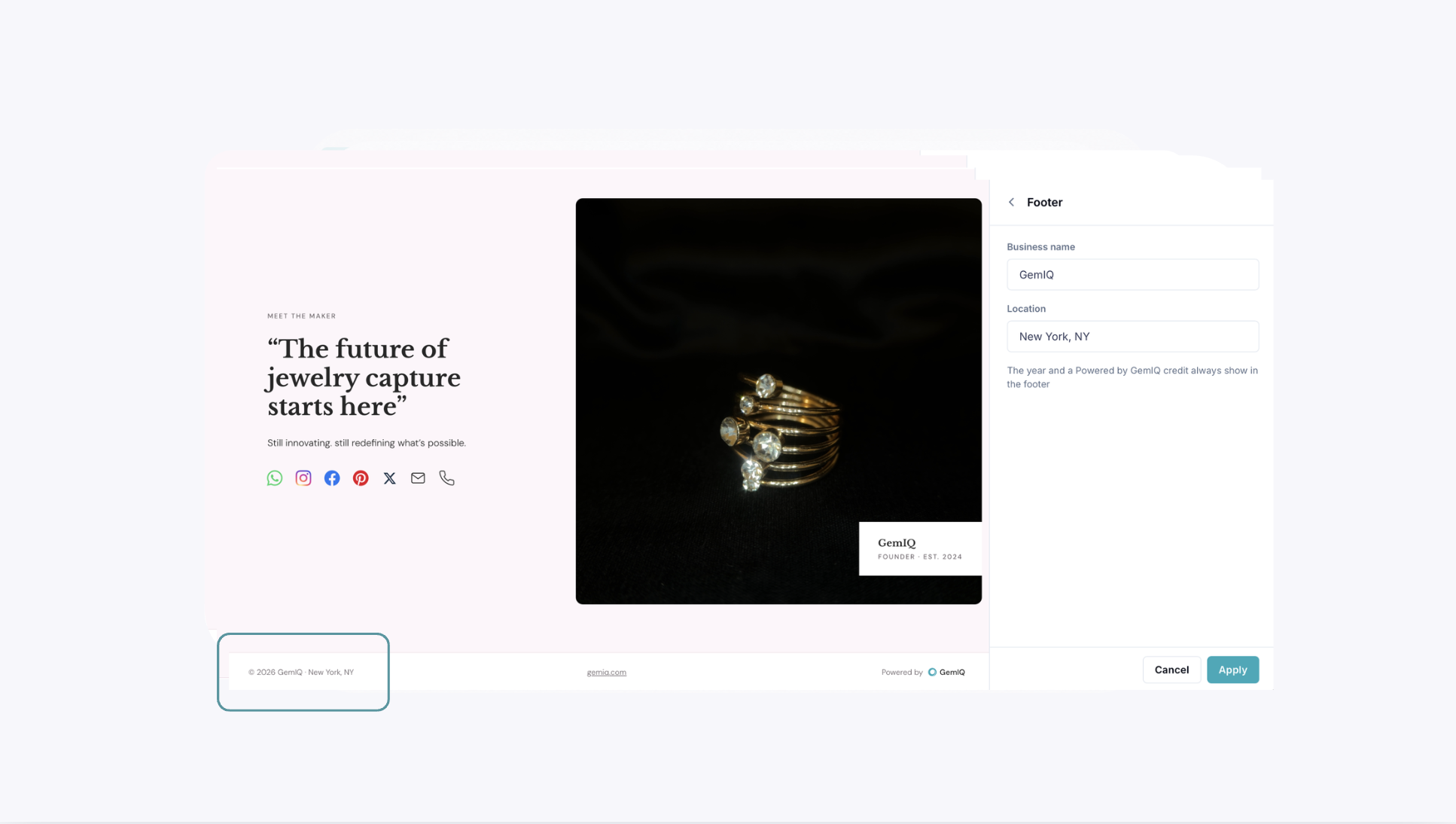
Footer
Customize the information displayed at the bottom of your Collection page, including your business name and location. The footer also automatically displays the year and “Powered by GemIQ” credit.
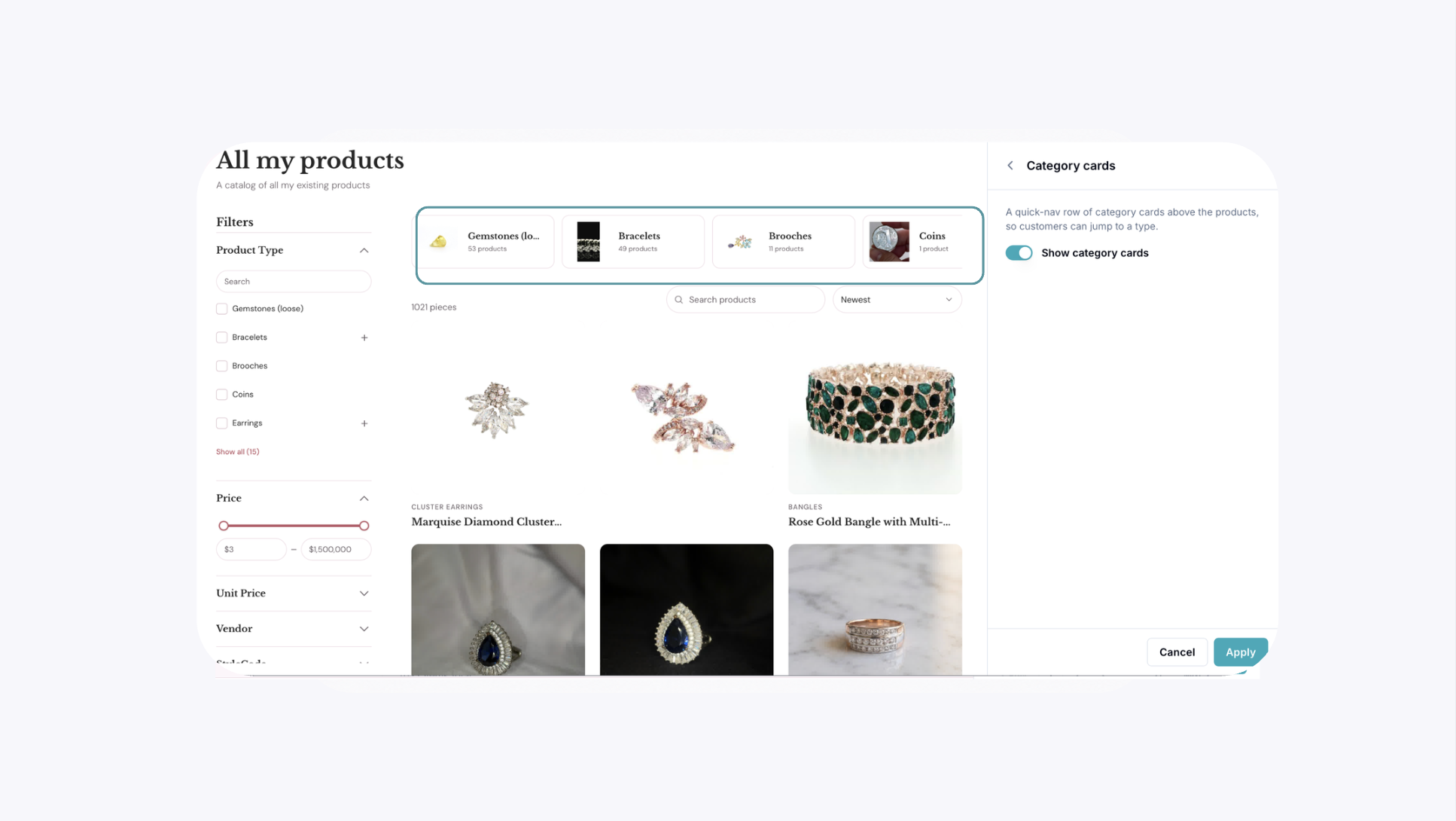
Category cards
Display product categories as quick-access cards above your Collection. Customers can select a category card to quickly browse products within that specific product type.
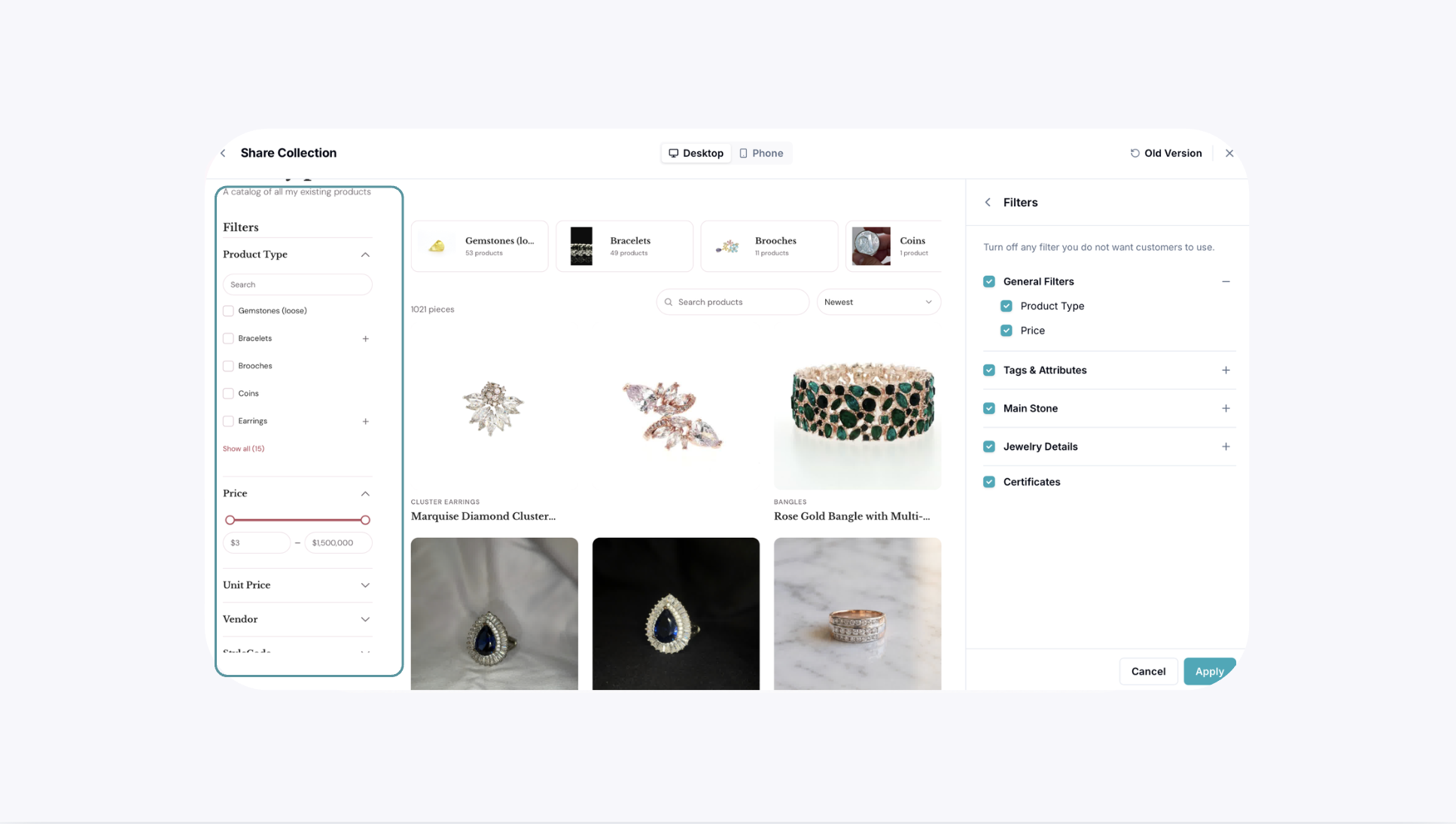
Filters
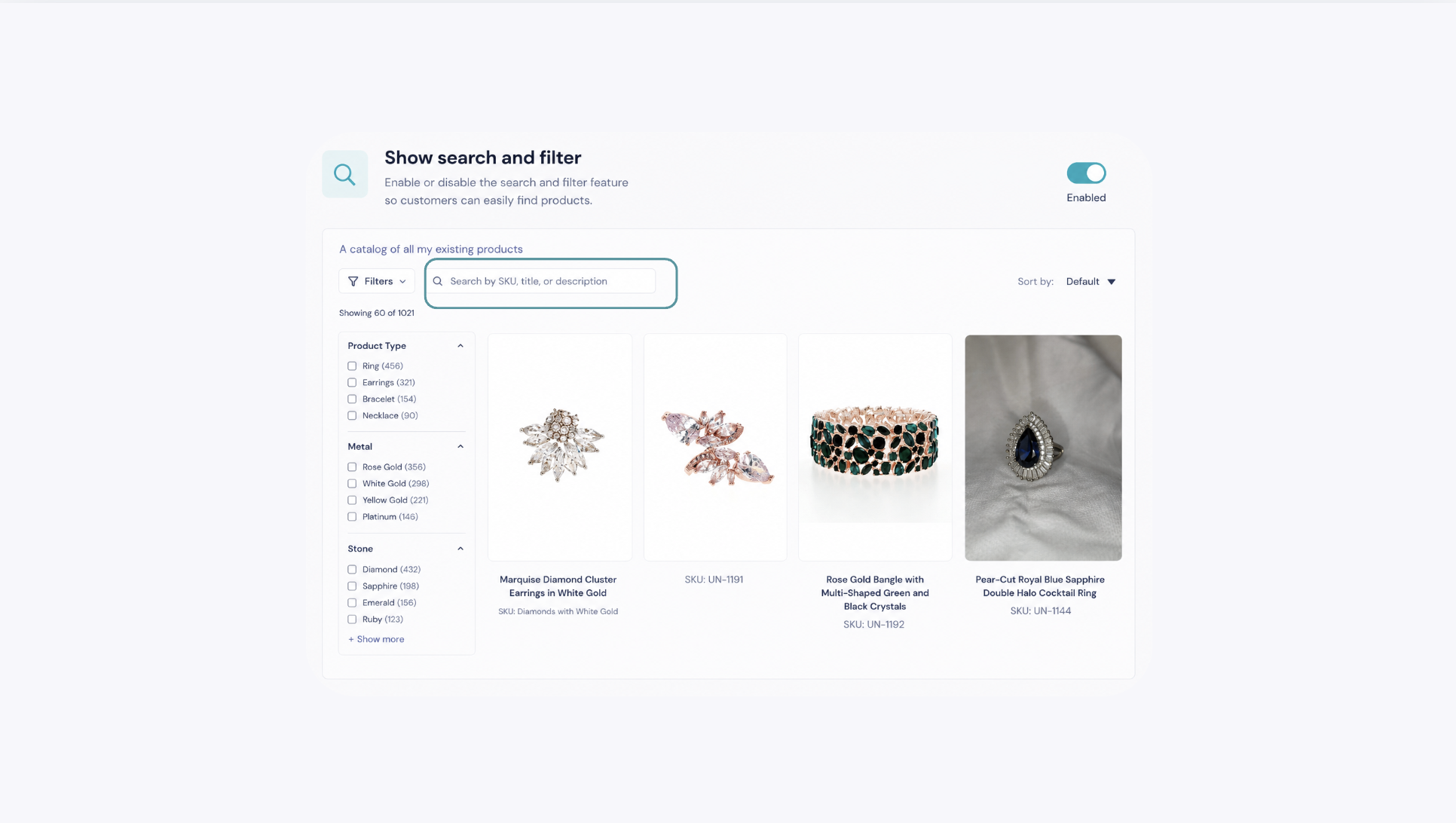
Choose which filters customers can use to narrow down products within your Collection. You can enable or disable filter options such as Product Type, Price, Tags & Attributes, Main Stone, Jewelry Details, and Certificates.
The preview will update so you can see how your Collection will appear to customers.
Once you are happy with the changes, select Apply.
Why do I see “Old Version” or “New Design” in the top-right corner? GemIQ provides two layouts for Collection share pages. The button in the top-right corner allows you to switch between them. If you see New Design, you are currently viewing the Old Version and can select it to switch to the new layout. If you see Old Version, you are currently using the New Design.
Do the Old Version and New Design have the same customization settings? No. Each layout has its own customization options and page design.
Which layout should I use? You can choose whichever layout best suits how you would like to present your Collection. Use the preview to compare both designs before sharing.
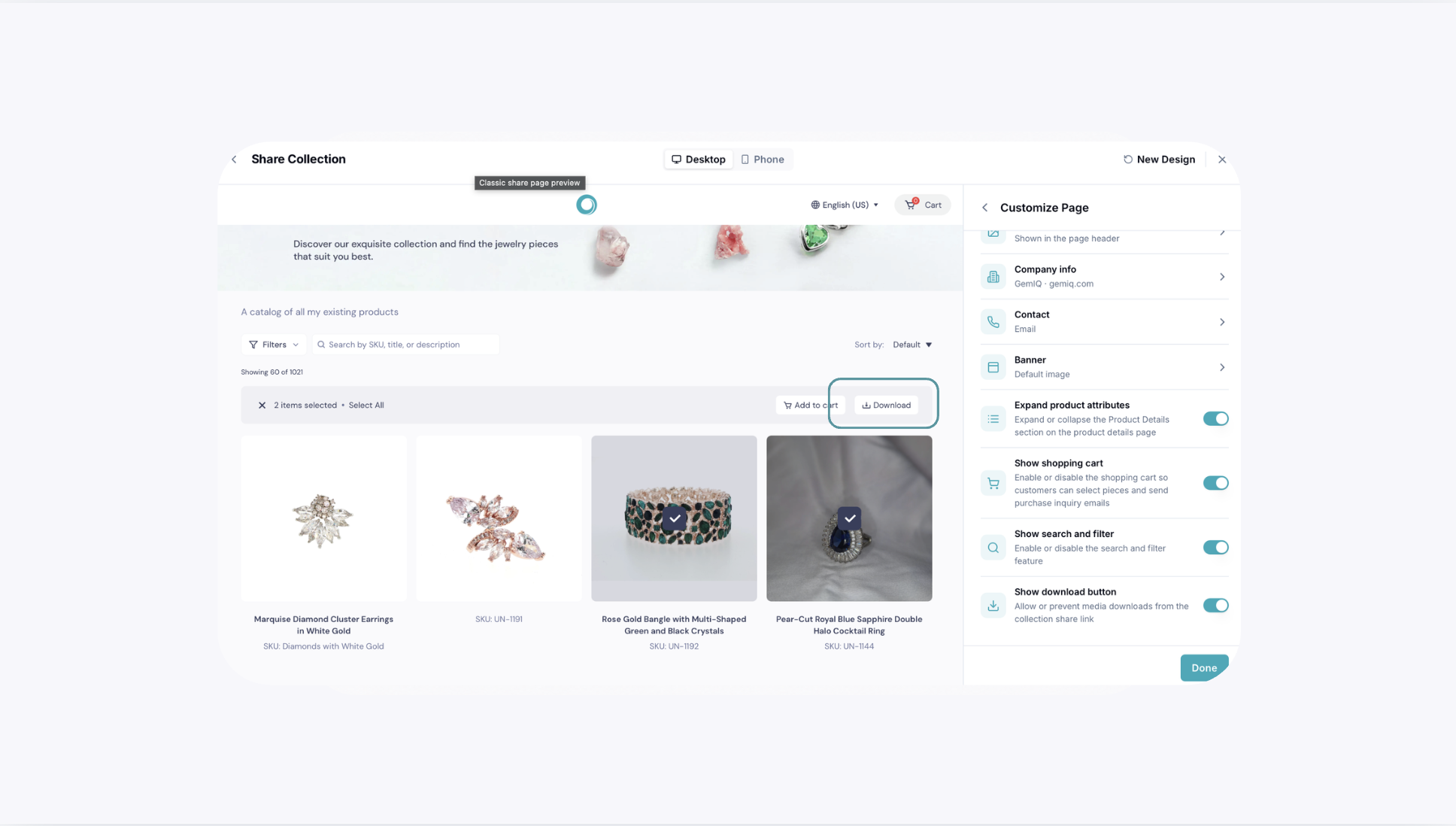
Can I preview the Collection on a phone? Yes. Select Phone at the top of the Share Collection page to preview the mobile layout.
Can customers download my images? In the Old Version, you can control this using Show download button under Customize Page.
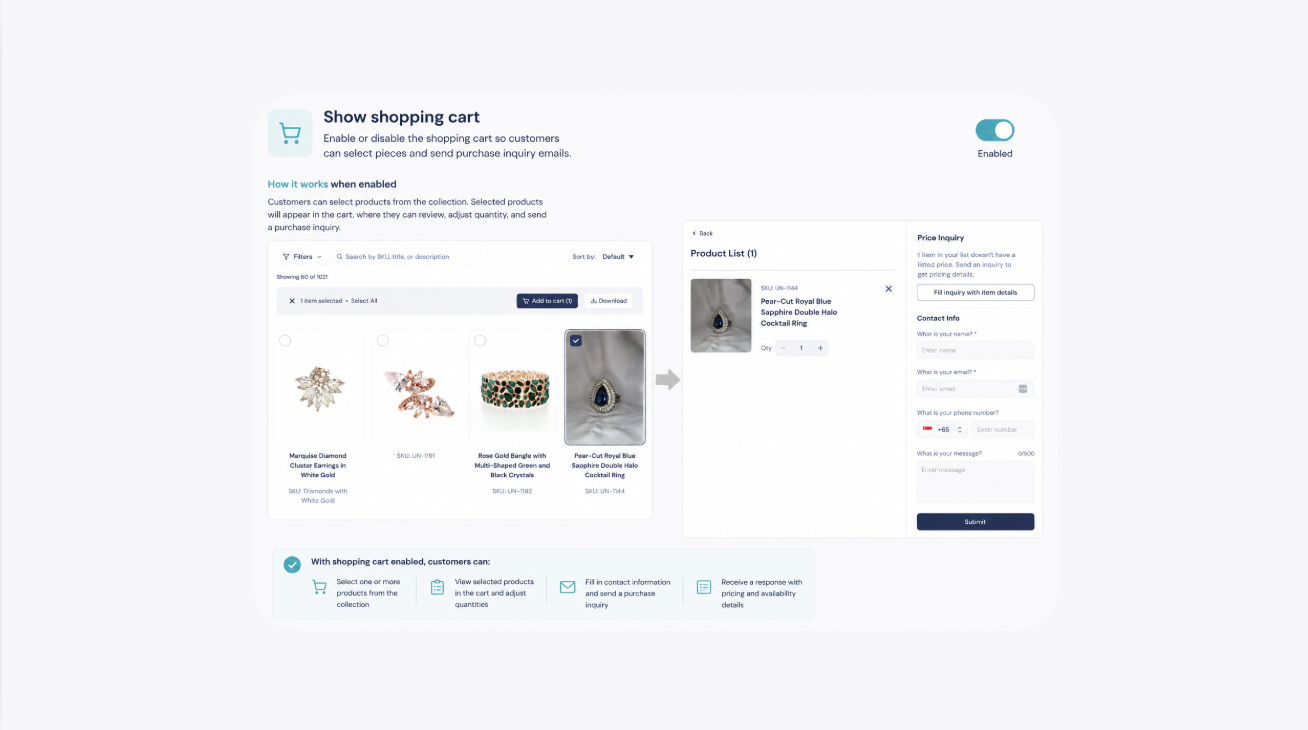
Can customers select products they are interested in? Yes. The Old Version includes a Show shopping cart option that allows customers to select pieces and send a purchase inquiry.
Can I share my Collection through WhatsApp? Yes. You can send the Collection directly through WhatsApp from the Share Collection page.
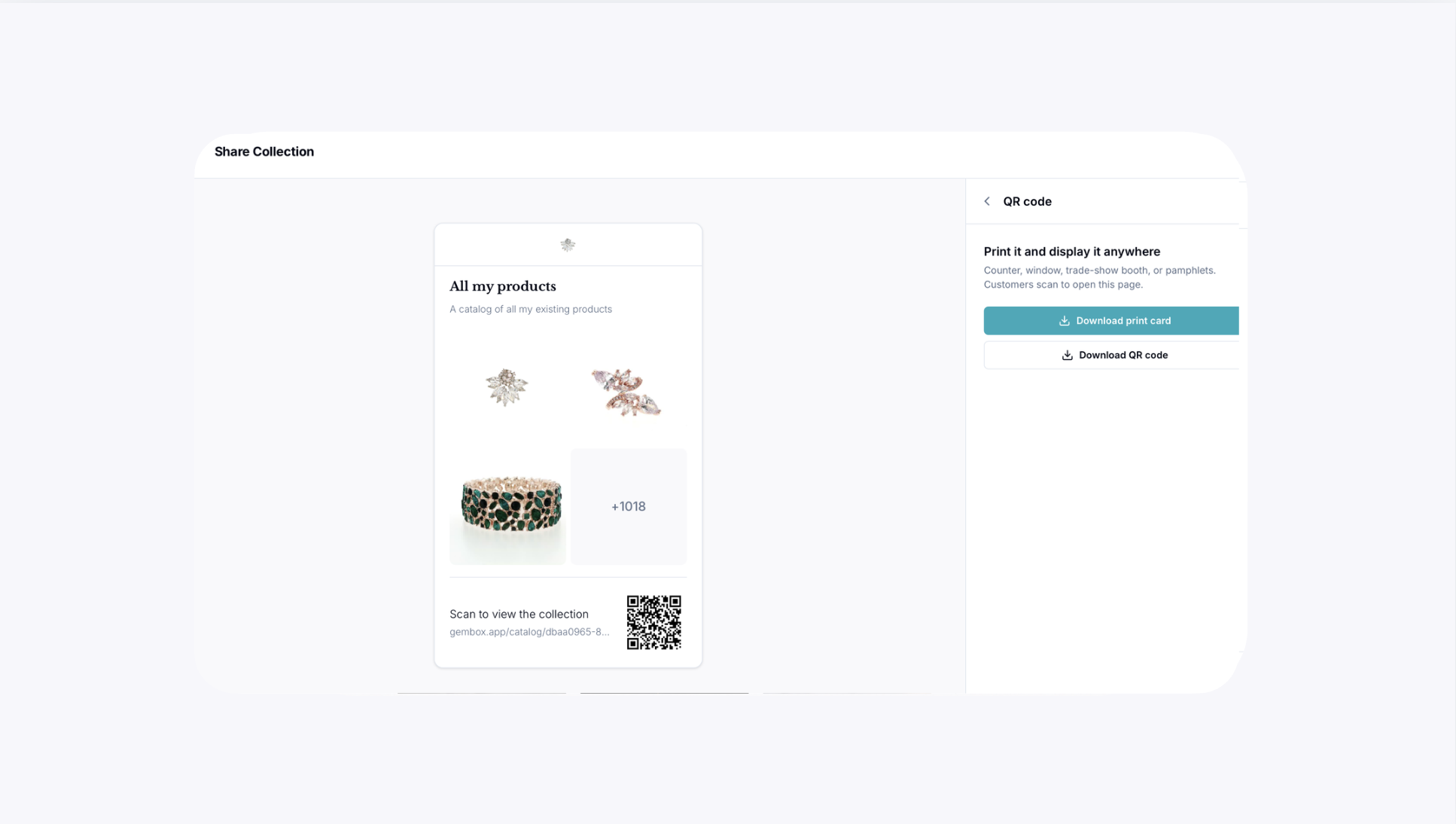
Can I create a QR code for my Collection? Yes. You can download either a QR code or a ready-to-display print card linked to the Collection.