

Quick Answer#
To get consistent product photography across your catalogue, use Grid Mode to position your pieces the same way every time, stick to a fixed resolution, use the Auto-center feature to align images automatically, and keep your GemLightbox lighting setup the same across every shoot.
Place the Jewelry in the Same location everytime#
There is a faint small dot on the center of the turntable to indicate the absolute center point of the turntable. Use that as a reference to place your jewelry in the same location and combine this with the use of Grid Mode to establish the most consistent point of capture.
Turn On Grid Mode#
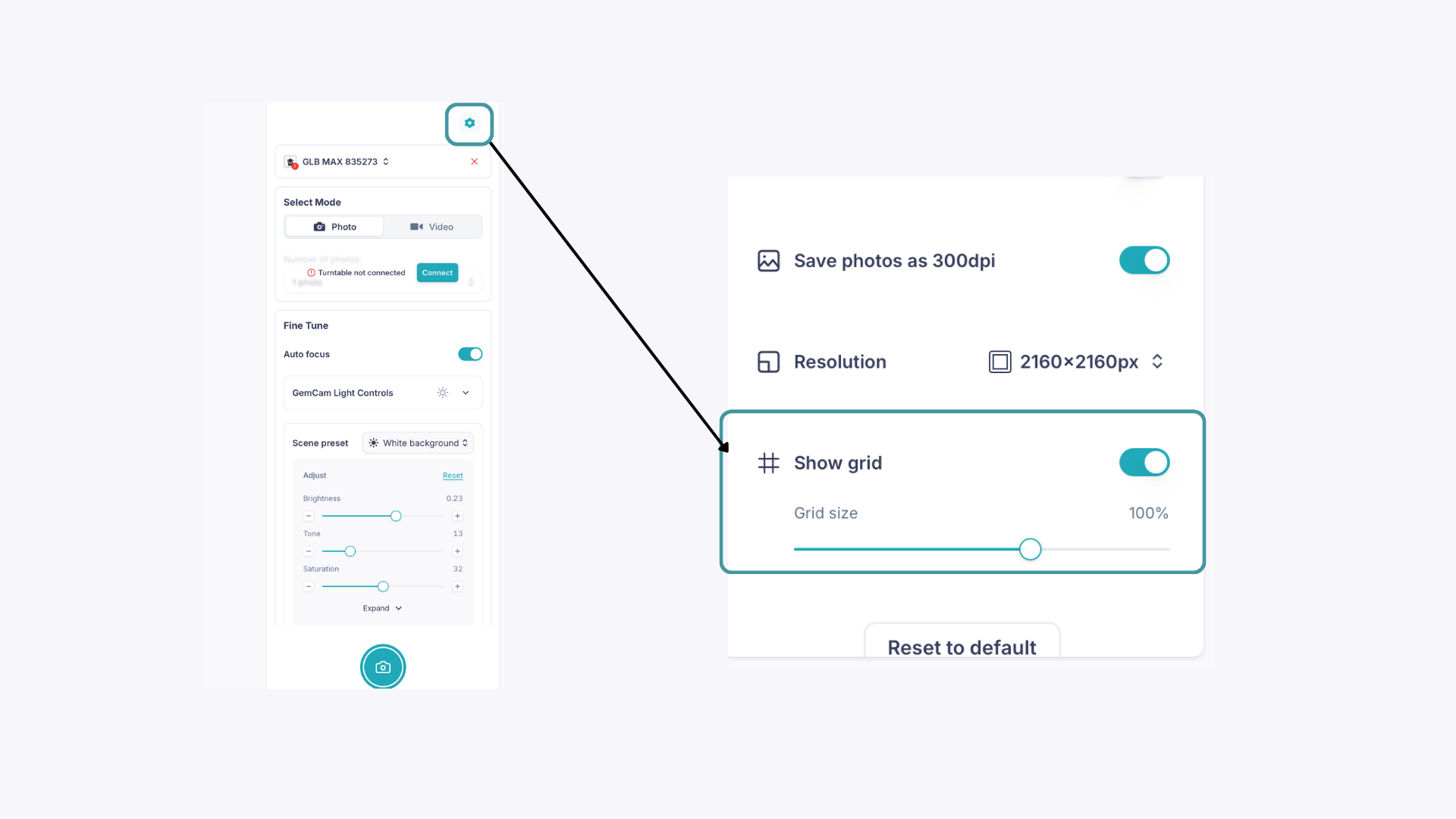
Grid Mode overlays a grid on your camera view, making it easier to position your jewelry consistently before every capture. This is especially useful when shooting multiple pieces for the same catalogue, as it gives you a reliable visual reference for placement each time.
Use a Fixed Resolution#
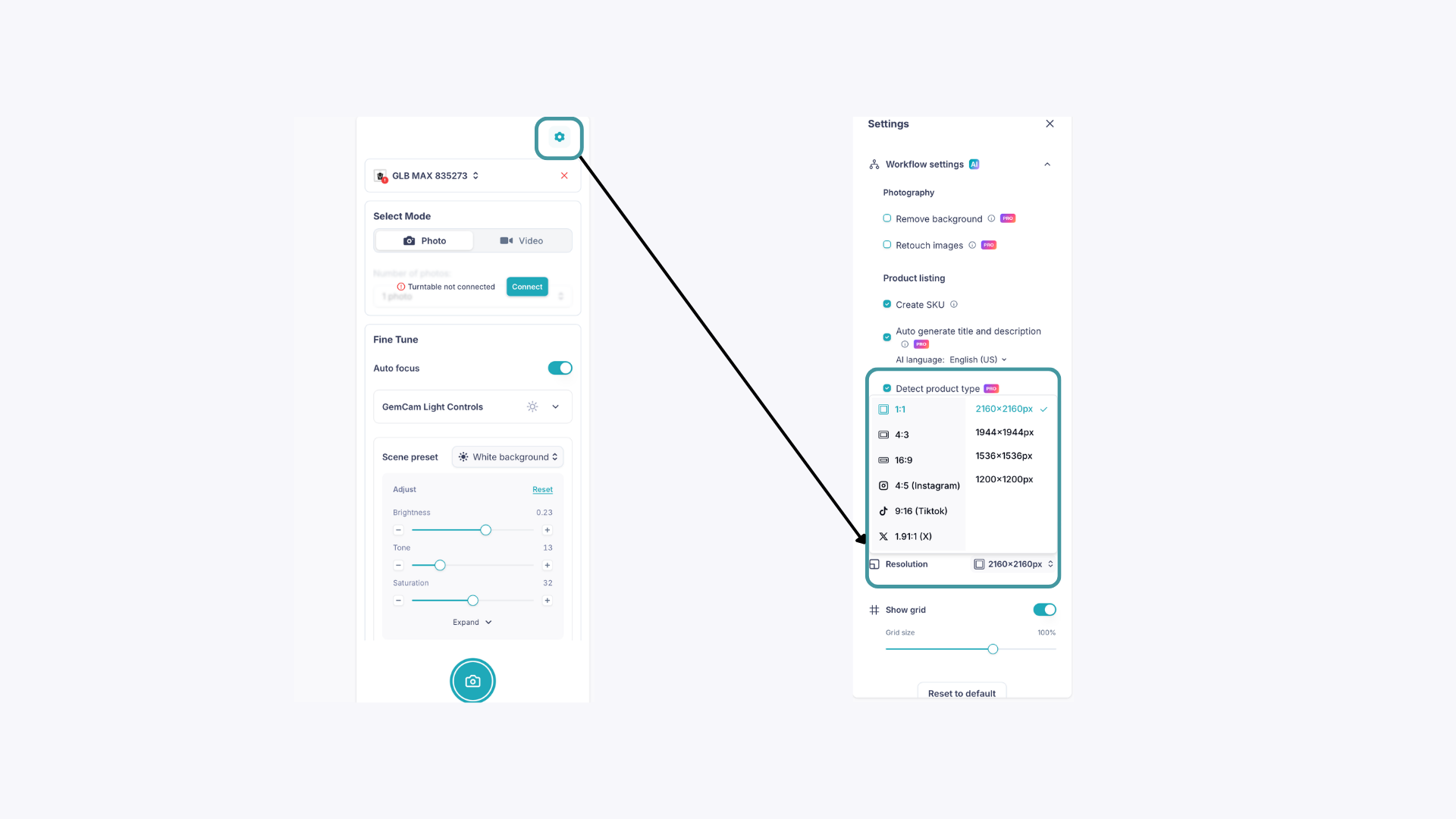
Stick to the same resolution for each catalogue or jewelry type. GemIQ supports resolutions ranging from 1:1 at 2160x2160px up to 16:9 at 3840x2160px. Mixing resolutions within a catalogue will result in inconsistent image sizes and formatting across your product listings.
Use the Auto-Center Feature#
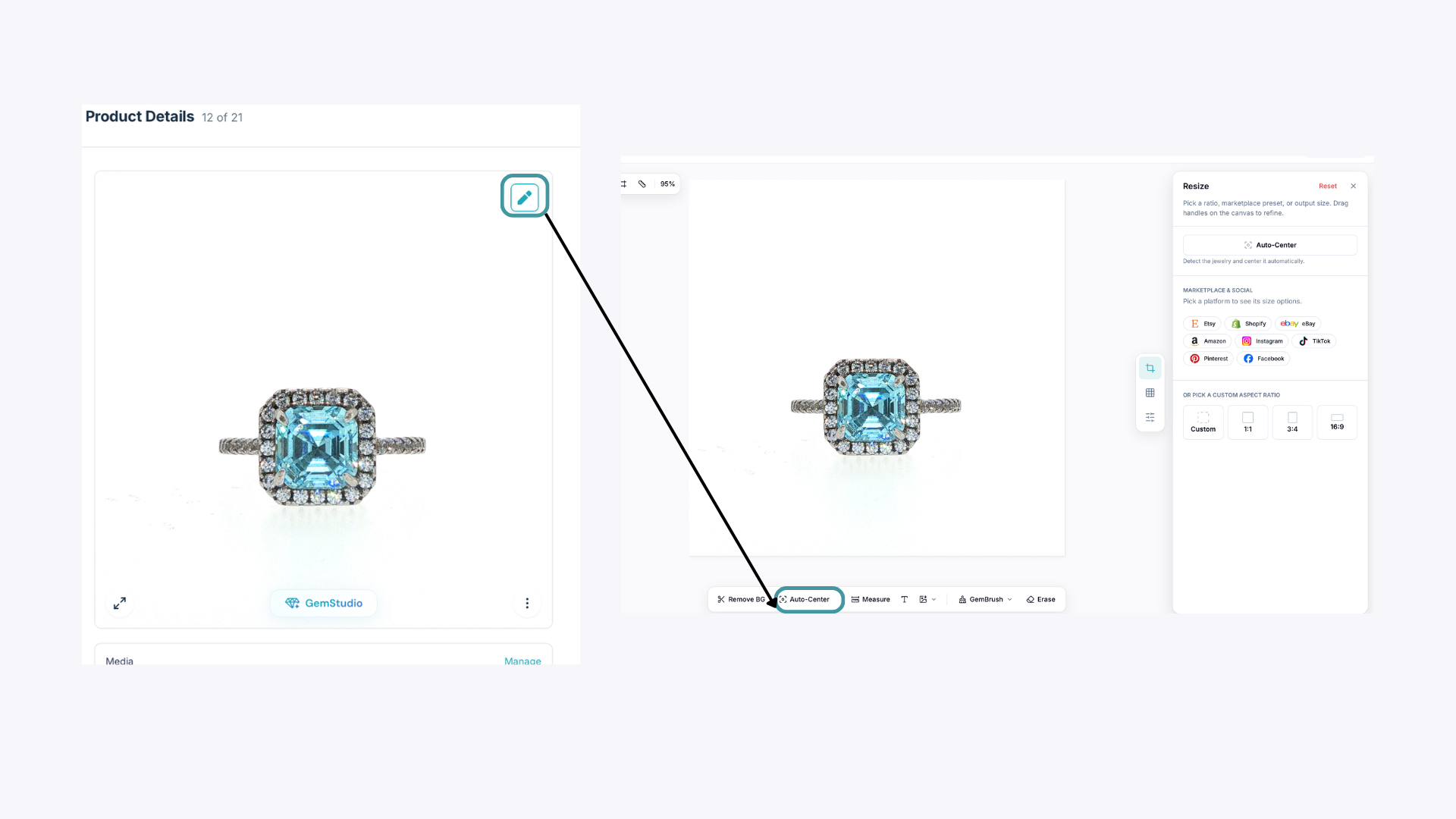
After capturing a photo, tap the edit icon in the top right corner of the image and select Auto-center at the bottom. This automatically centers your piece in the frame the same way every time, keeping your catalogue visually uniform without manual cropping or repositioning.
Keep Your Lighting Setup Consistent#
Use the same lighting configuration inside your GemLightbox for every shoot within a catalogue. This means keeping the same accessories attached, the same Scene Preset selected, and the same brightness and tone settings applied. If you've found settings that work well, save them as a Custom Preset so you can apply them instantly every session. See: How to Save Custom Presets in the GemIQ App.
Expected Result#
After applying these steps consistently, your catalogue images should look uniform in framing, lighting, and composition, giving your product listings a polished and professional appearance.
Common Questions#
Does Auto-center work on all jewelry types? Auto-center works on most standard product images. For best results, make sure the jewelry is the main subject in the frame and the background is clean before applying it.
Can I use different resolutions for different catalogues? Yes. The key is to keep the resolution consistent within each individual catalogue. You can use different resolutions across different catalogues as long as each one stays uniform internally.
What's the best resolution for ecommerce listings? 1:1 at 2160x2160px is the most widely used format for ecommerce platforms like Shopify and Etsy, as most product listing pages display images in a square format.