

Quick answer#
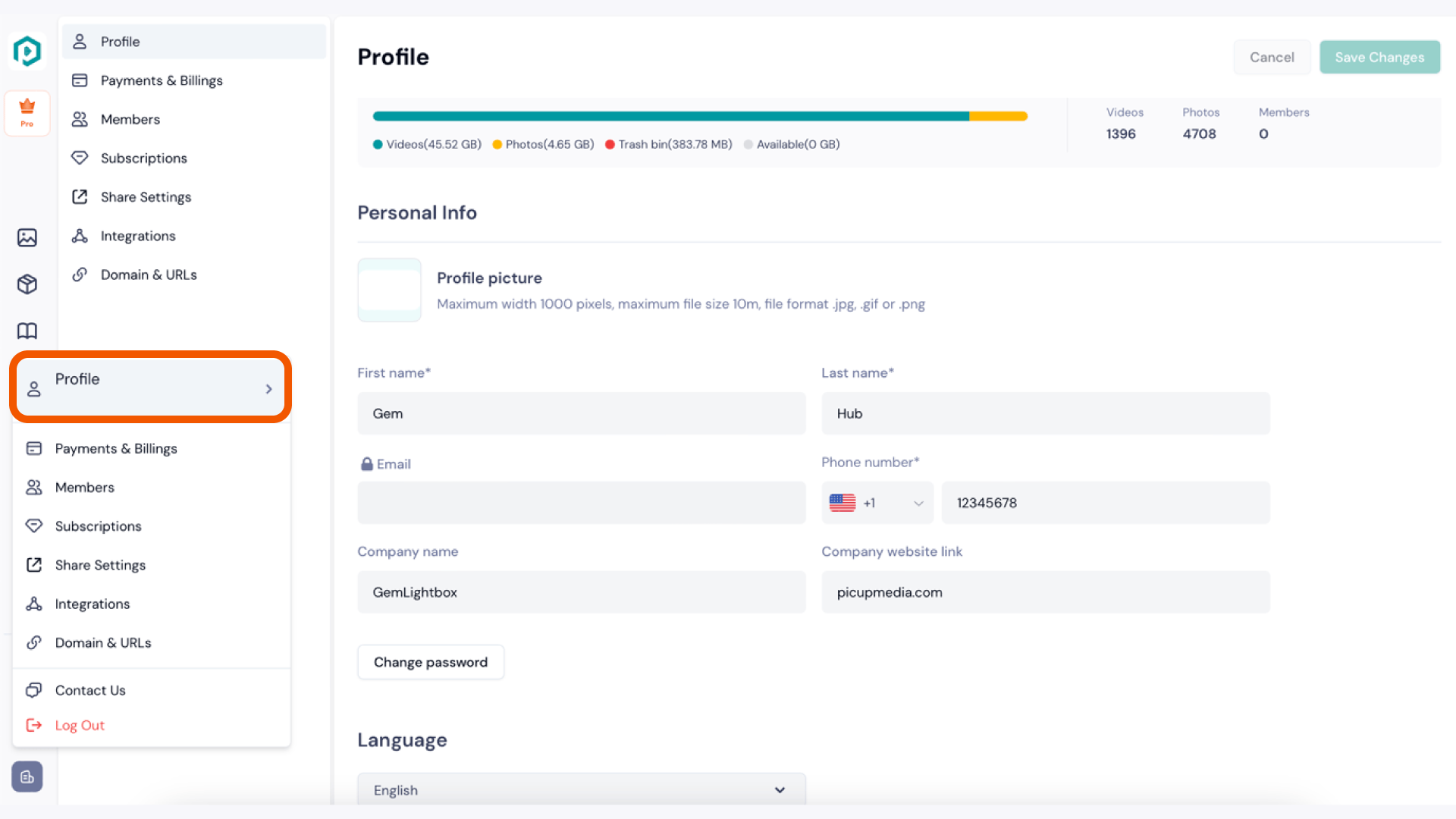
You can update your profile picture, name, contact details, company information, and preferred language from the Account Info section in the GemIQ Desktop App. Click your profile name in the bottom left corner of the GemIQ interface to get started.
Before you start#
You must be logged in to your GemIQ account.
Steps#
Click your profile name in the bottom left corner of the GemIQ interface.
Select Account Info.
Update your profile information
Click Save Changes.
Expected result#
Your information is saved and updated across your GemIQ account.