

To find your Profile page in the GemIQ mobile app, tap the icon in the top left corner of the home screen, next to the GemIQ logo.
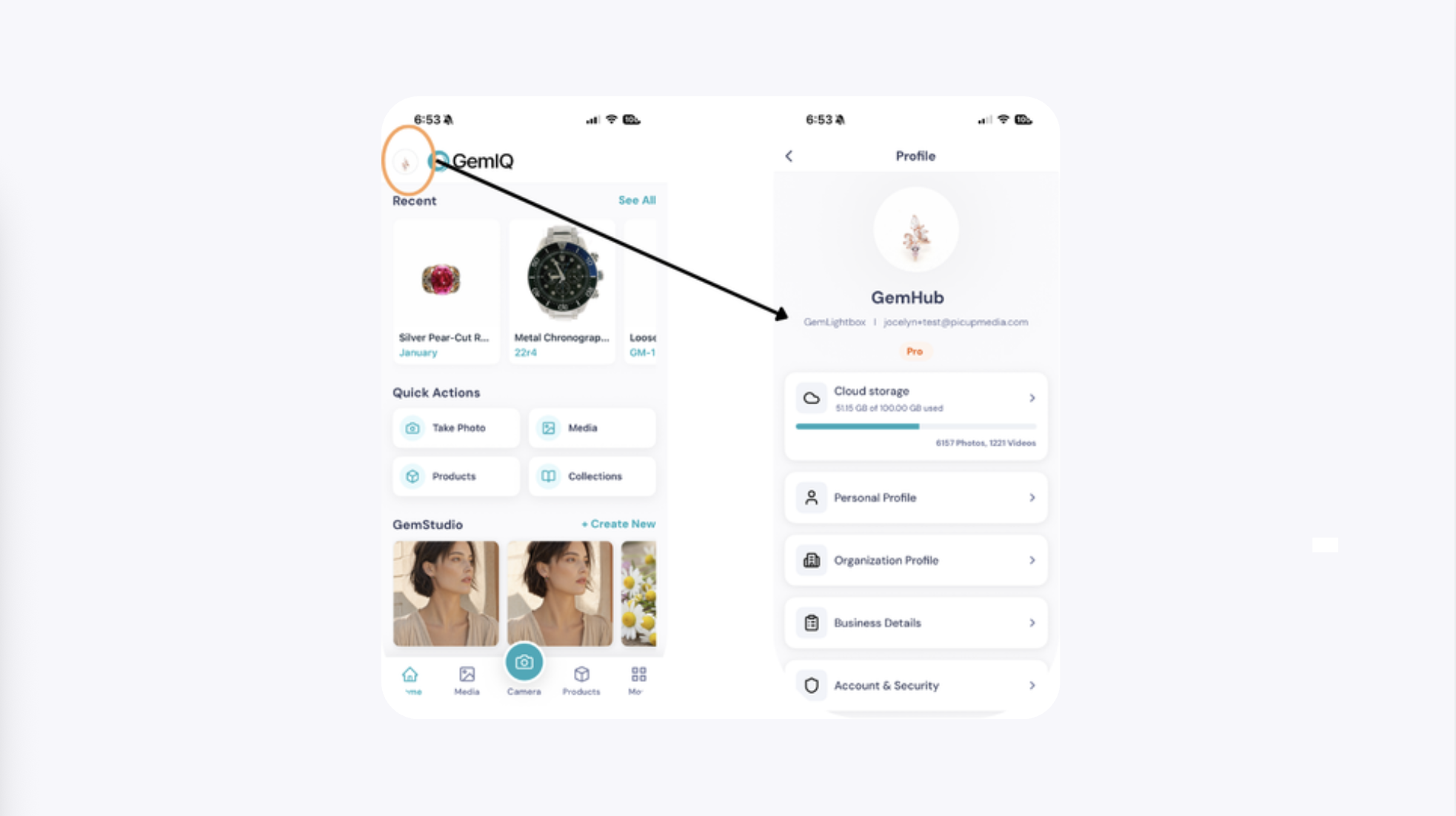
From the Profile page, you can view and manage:
Cloud storage, including how much of your plan's storage you've used
Personal Profile
Organization Profile
Business Details
Account & Security
This is also where you can see your current plan (for example, Pro) and account name at a glance.
Expected Result
Customers can locate the Profile page from the GemIQ mobile app home screen and know what information and settings are available there.
Common Questions
Where is the Profile page in the GemIQ mobile app?
Tap the icon in the top left corner of the home screen to open it.
What can I see on the Profile page?
Your cloud storage usage, personal profile, organization profile, business details, and account & security settings.
How do I check my cloud storage usage?
It's shown near the top of the Profile page, listing how much storage you've used out of your plan's total.
Can I update my business details from the Profile page?
Yes, Business Details is one of the sections available on the Profile page.