

Before you start
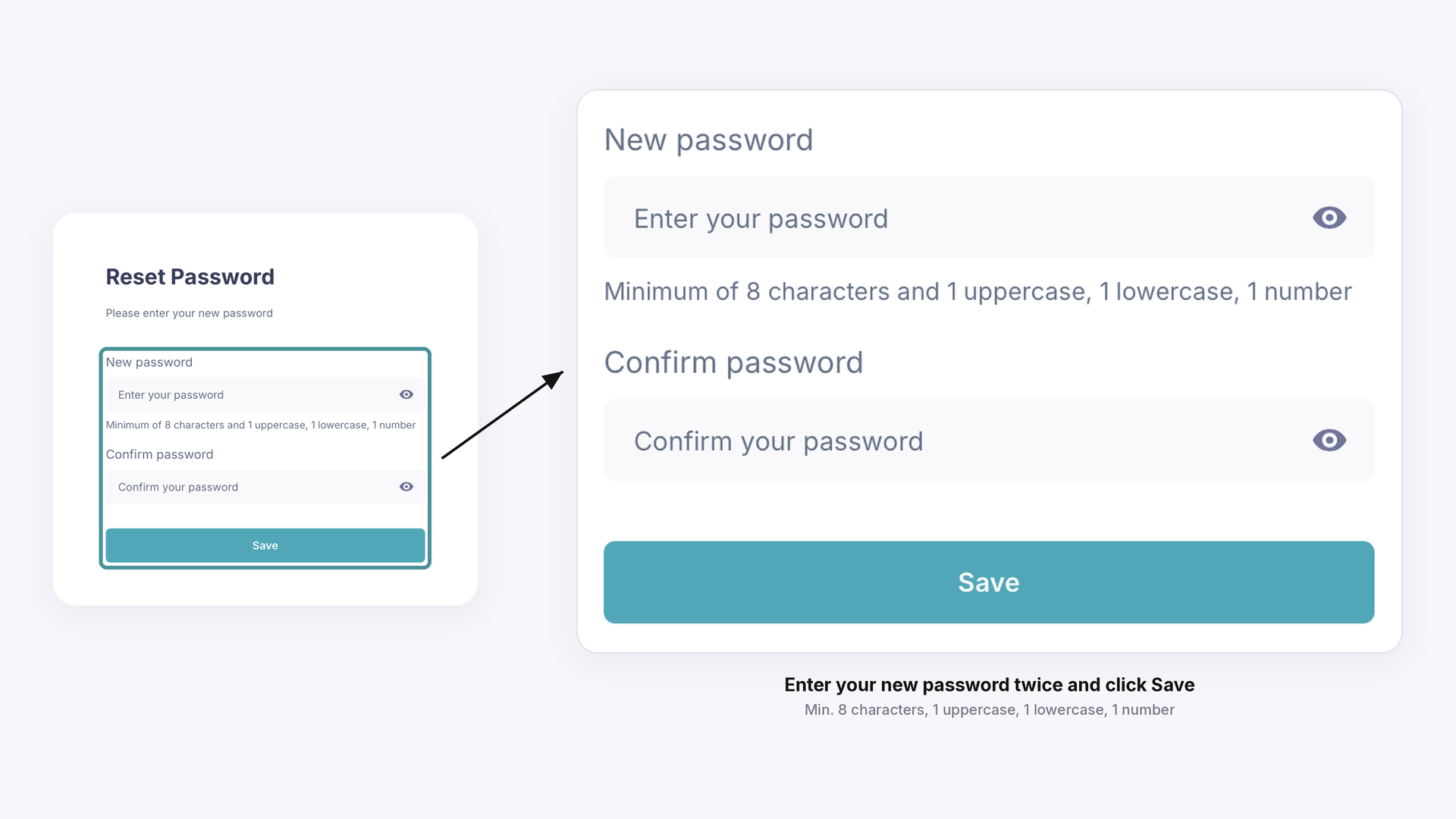
You need access to the inbox of the email address your GemIQ account was created with. The same email and password work on every GemIQ app and on the web dashboard, so use your new password everywhere after you change it. New passwords must be at least 8 characters long and contain at least 1 digit, 1 lowercase letter and 1 uppercase letter.
Change your password (if you know your current one)
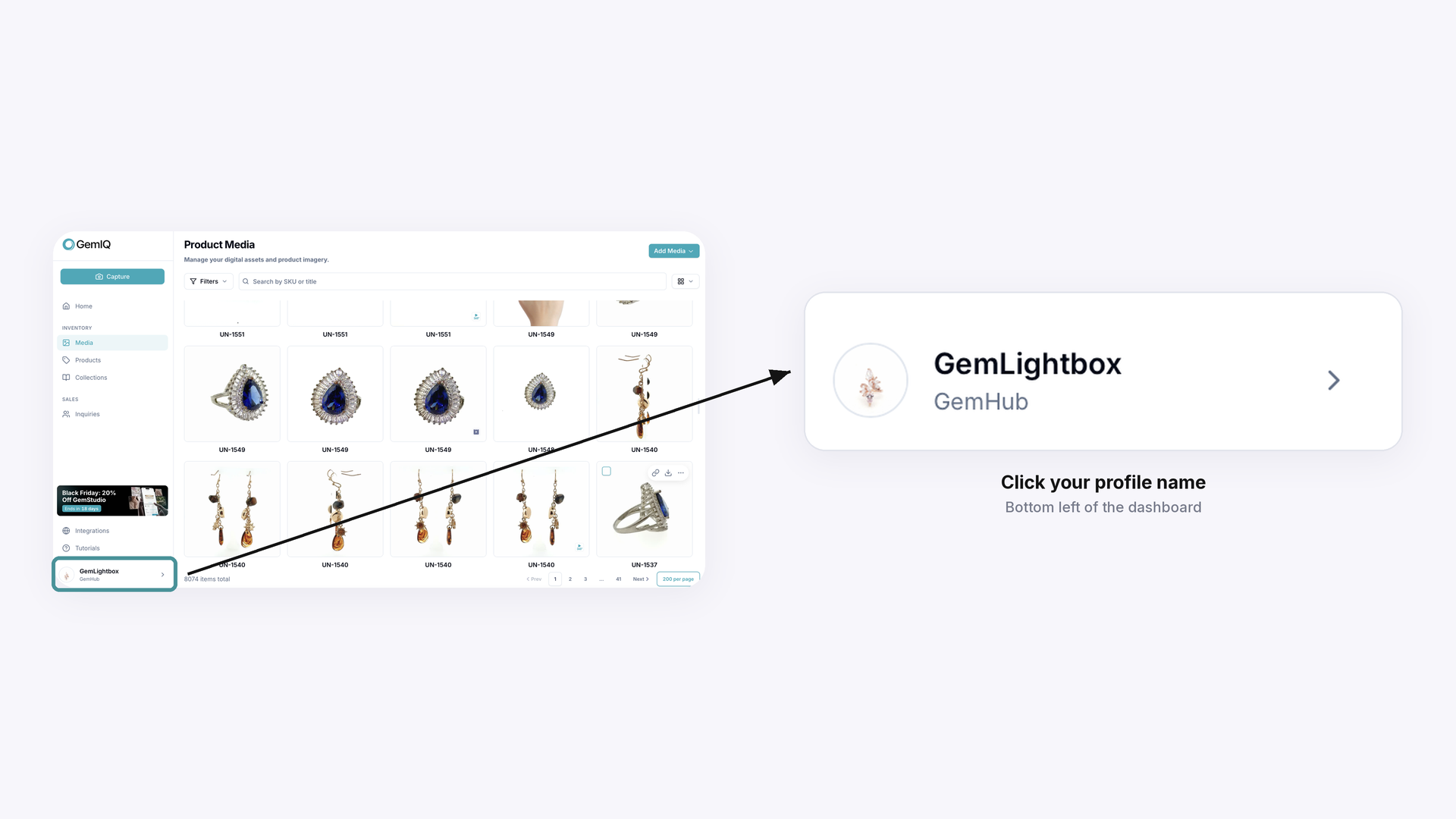
Log in at hub.gemlightbox.com and click your profile name in the bottom left.
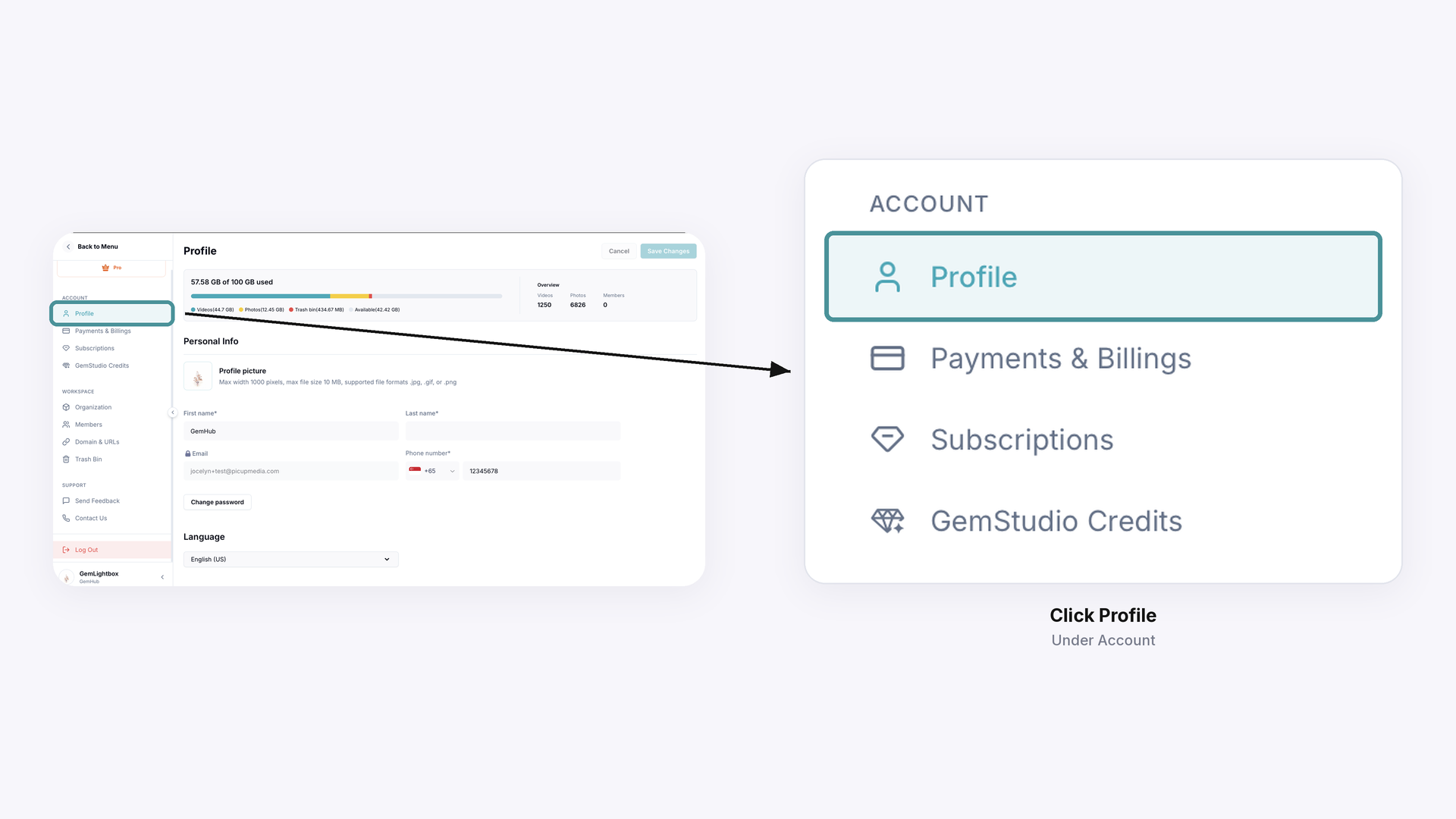
Under Account, click Profile.
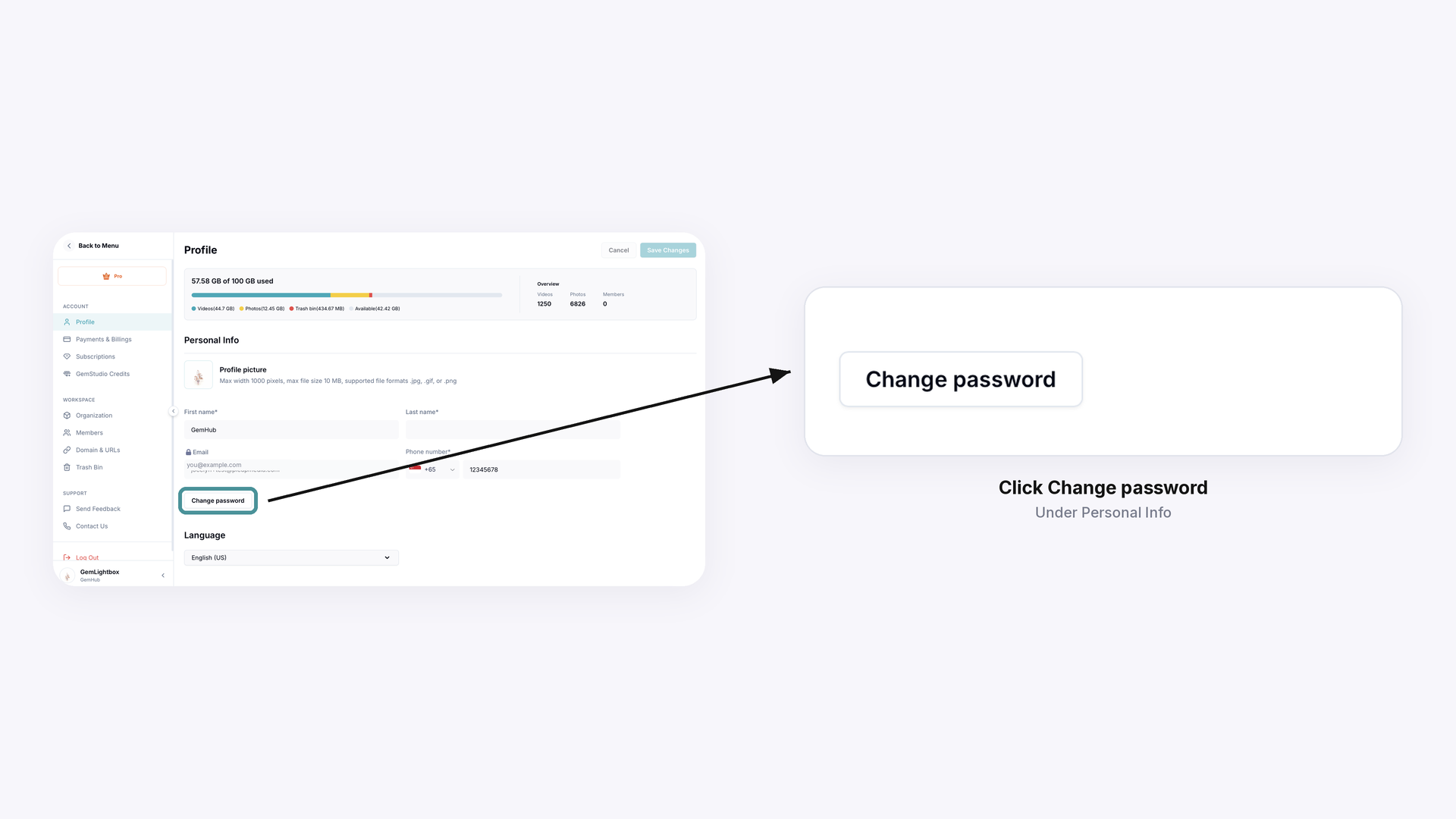
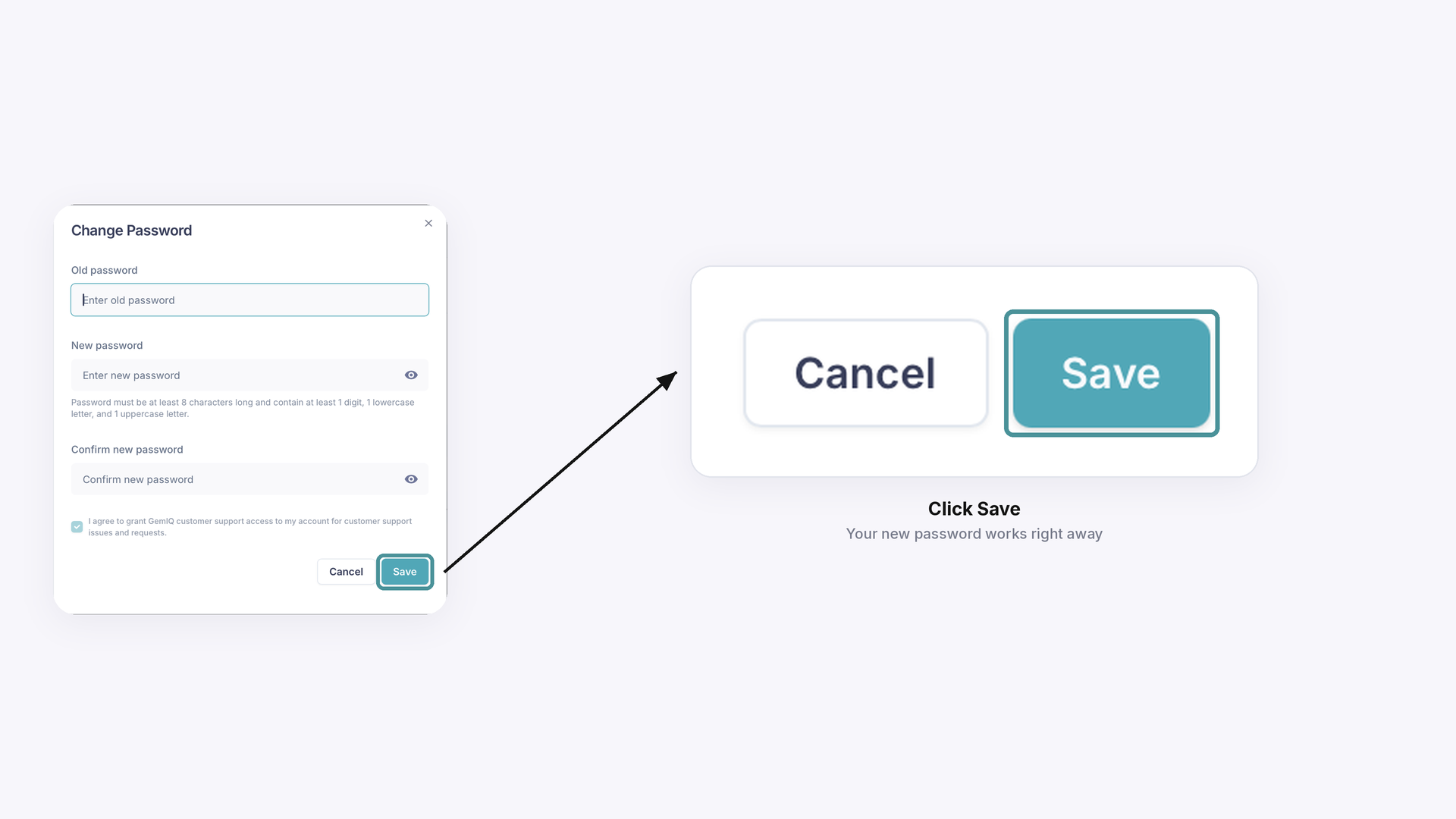
Under Personal Info, click Change password.
Enter your old password, then enter your new password and confirm it.
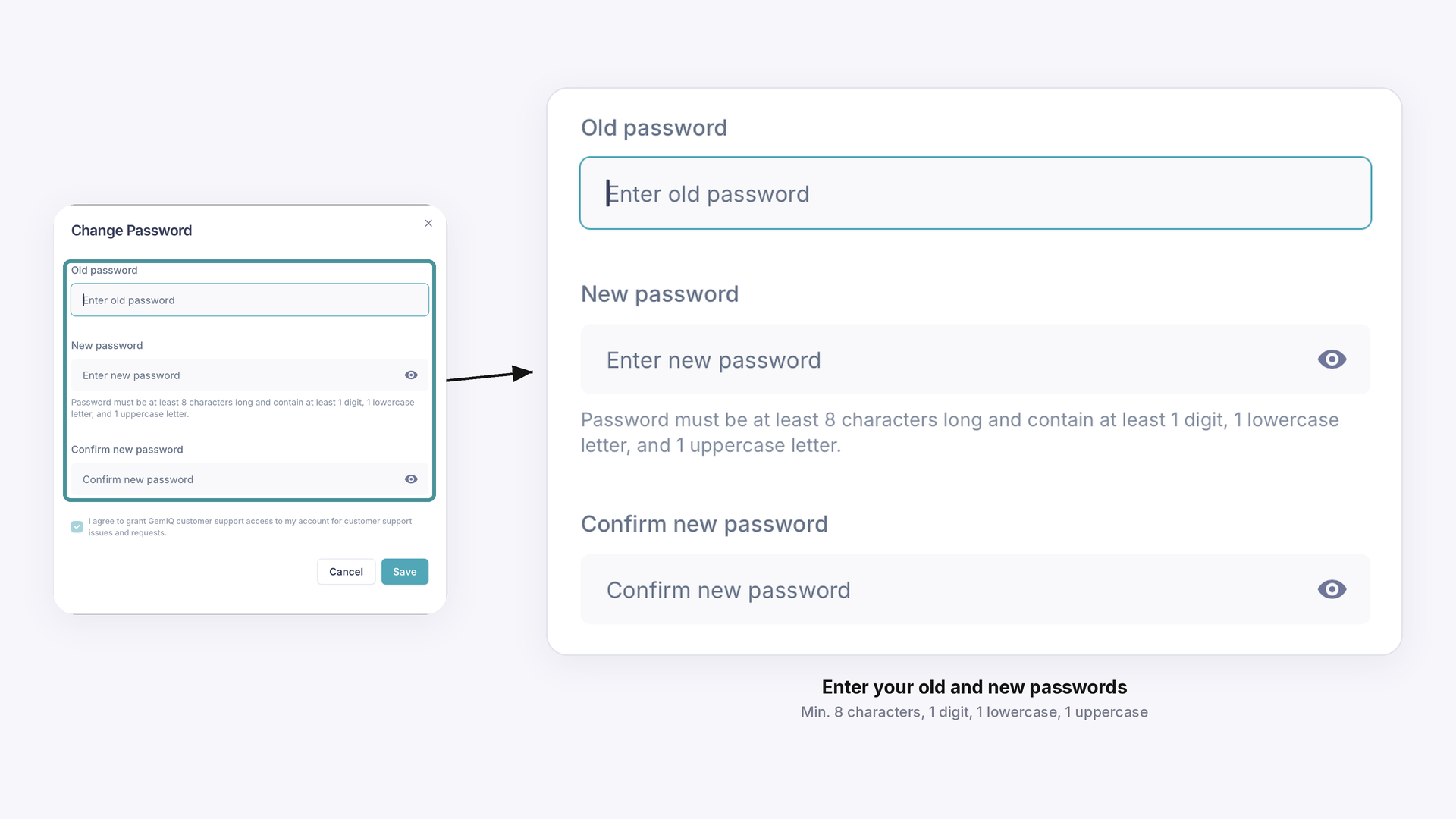
Click Save.
Reset your password (if you’ve forgotten it)
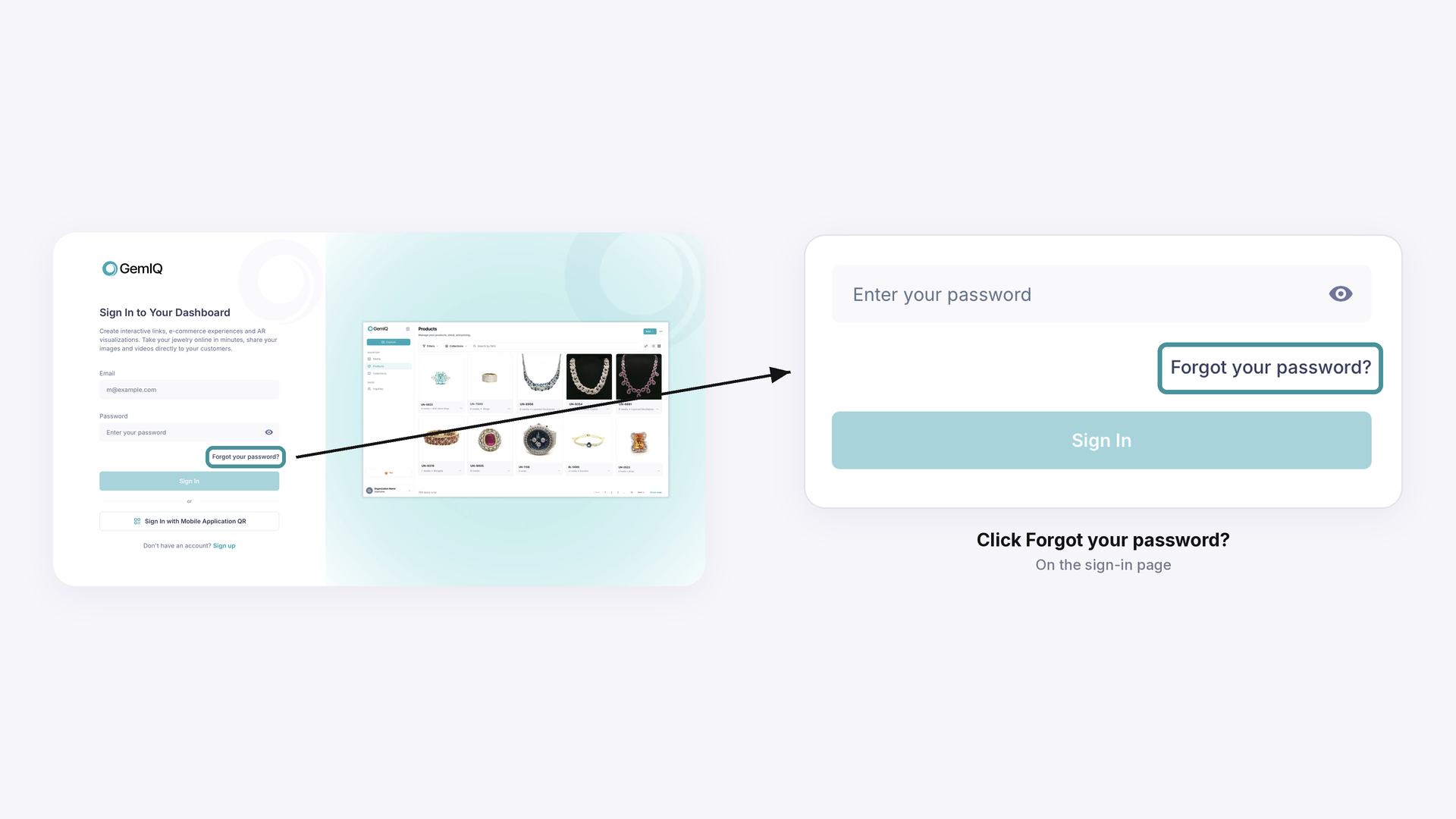
On the sign-in page, click Forgot your password?, or go straight to the password reset page.
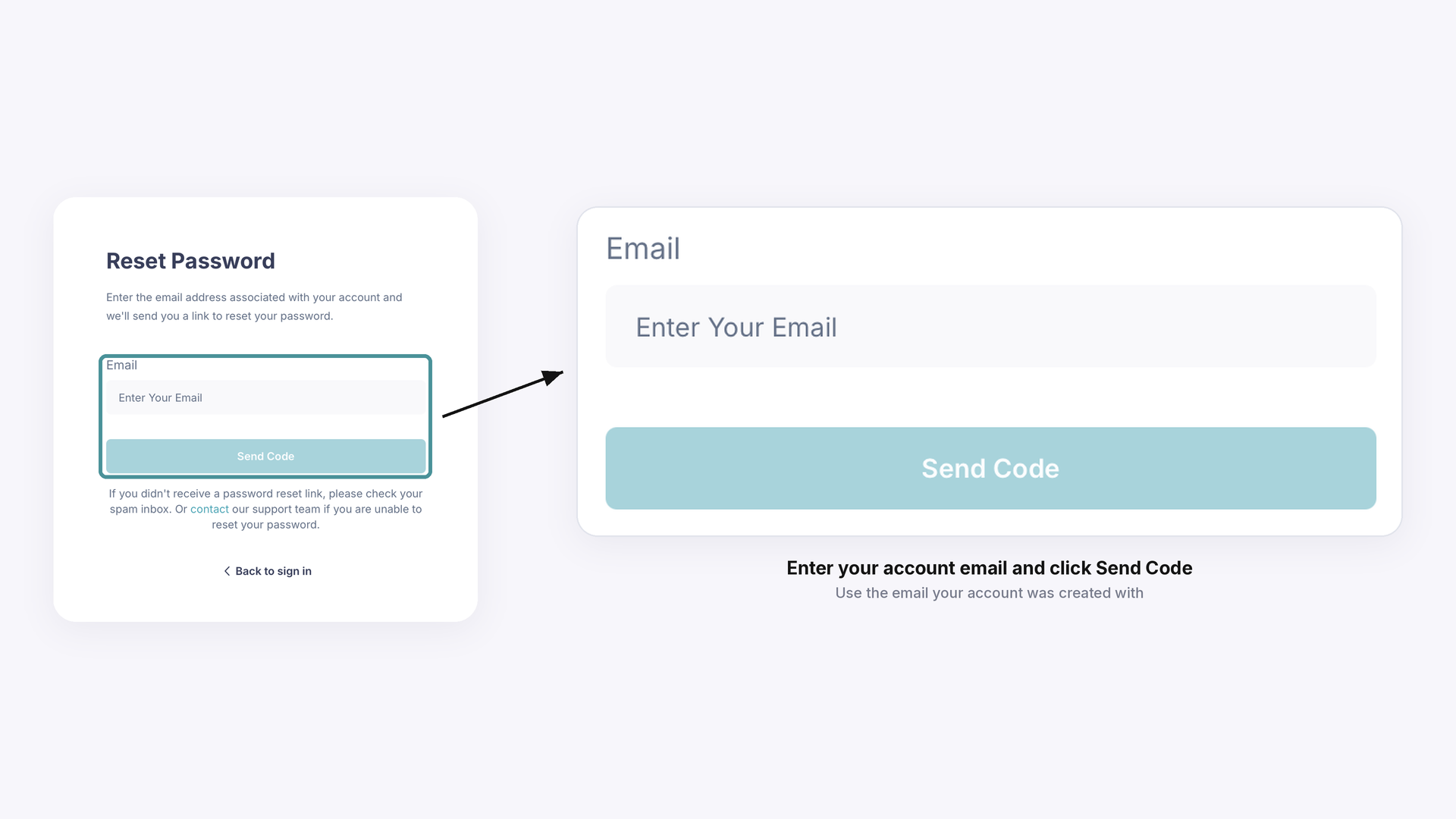
Enter the email address of your GemIQ account and click Send Code.
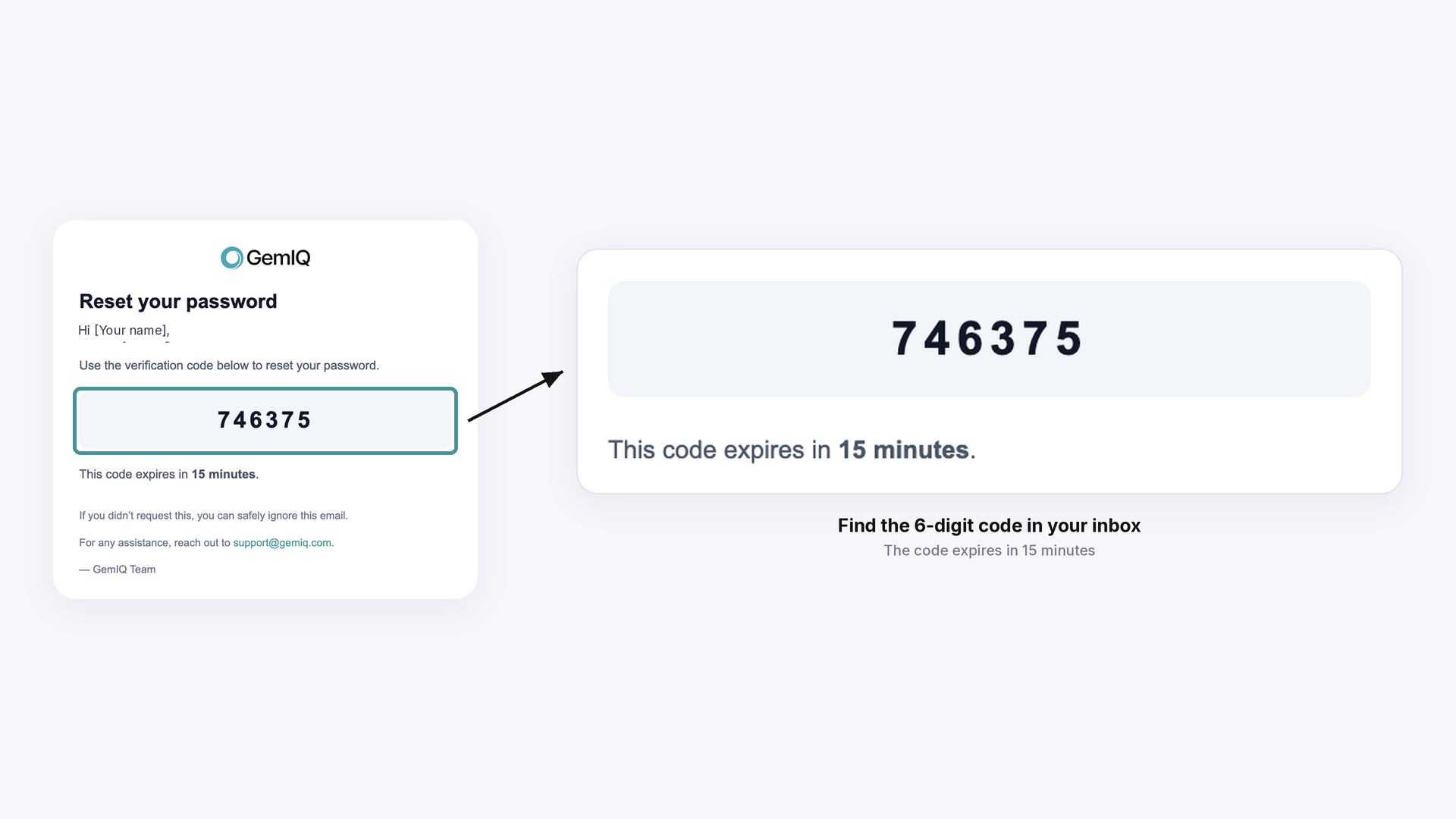
Open the “GemIQ password reset code” email in your inbox and find the 6-digit code. The code expires in 15 minutes.
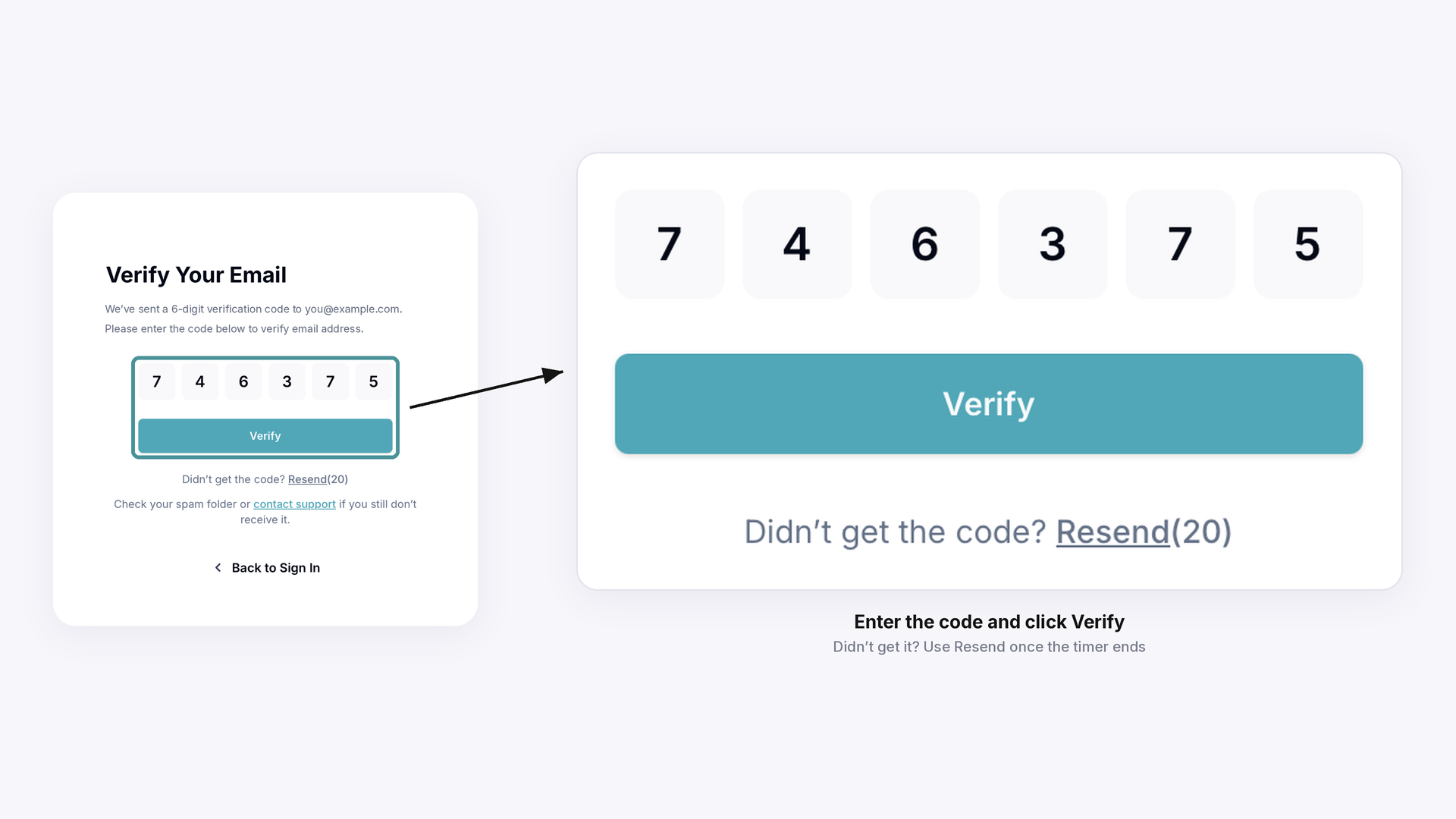
On the Verify Your Email page, enter the code and click Verify. If the email hasn’t arrived, wait for the timer next to Resend to finish, then click Resend.
Enter your new password, confirm it and click Save. You can now sign in with your new password.
If you still can’t log in#
The code email doesn’t arrive
Check your spam, junk and promotions folders, and allow a few minutes for it to arrive.
The code is rejected
The code may have expired. Click Resend, or start again from Forgot your password?, and enter the new code within 15 minutes.
The reset page sends you back to the login page
Log out of GemIQ on all devices, then try again in a private or incognito browser window.
You see “Incorrect email or password” after a reset
Make sure you’re using the exact email the account was created with and the newest password you set.
Common Questions#
Q: How do I reset my GemIQ password?
A: Click Forgot your password? on the sign-in page, enter your account email and click Send Code. Enter the 6-digit code from the email, then set your new password.
Q: What if the reset code doesn’t arrive or doesn’t work?
A: Check your spam, junk and promotions folders, and enter the code within 15 minutes, because it expires after that. If it still fails, click Resend for a new code or email support@gemiq.com.
Q: Why isn’t my new password accepted?
A: Passwords must be at least 8 characters long and contain at least 1 digit, 1 lowercase letter and 1 uppercase letter. The new password and confirmation fields must also match.
Q: Why does GemIQ say “Incorrect email or password” after I reset it?
A: Usually a different email was entered or an older password is being used. If you’ve reset more than once, only the most recent password works.
Q: How do I regain access if my account email no longer works?
A: The email on a GemIQ account can’t be changed, but our support team can reset your password so you can log in. If the email is permanently gone, we may recommend creating a new account with a working email and moving your images there.