Quick Answer#
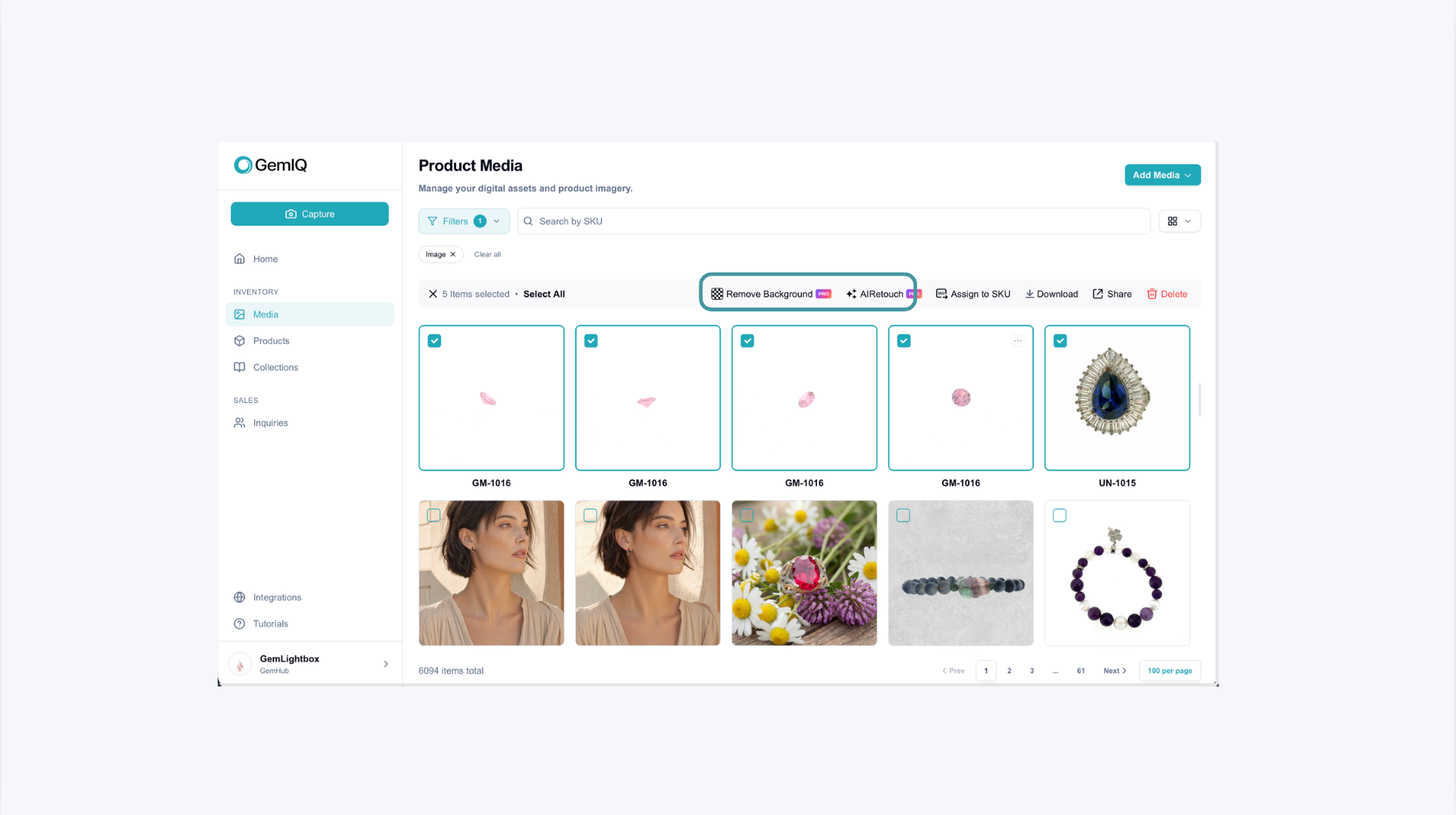
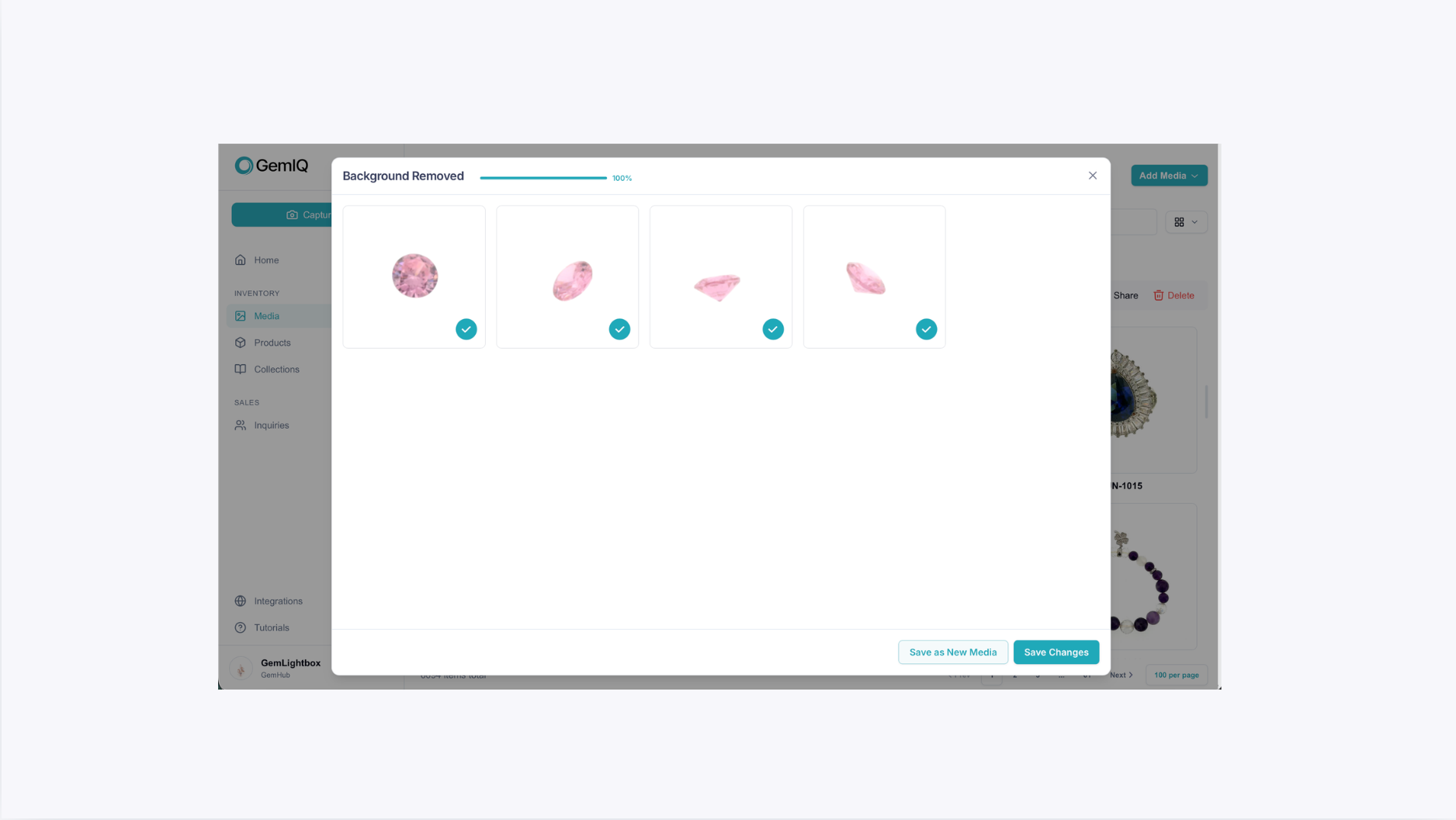
You can apply GemAI edits, such as background removal and retouching, to multiple images at once in the GemIQ Desktop App. This feature, available on paid plans, allows you to select up to 50 images from your gallery and process them in a single batch.
Before You Start#
You must have a paid GemIQ account subscription.
The GemIQ must be installed on your device.
You need images already uploaded to your GemIQ media.
Steps#
Open the GemIQ and navigate to your Media.
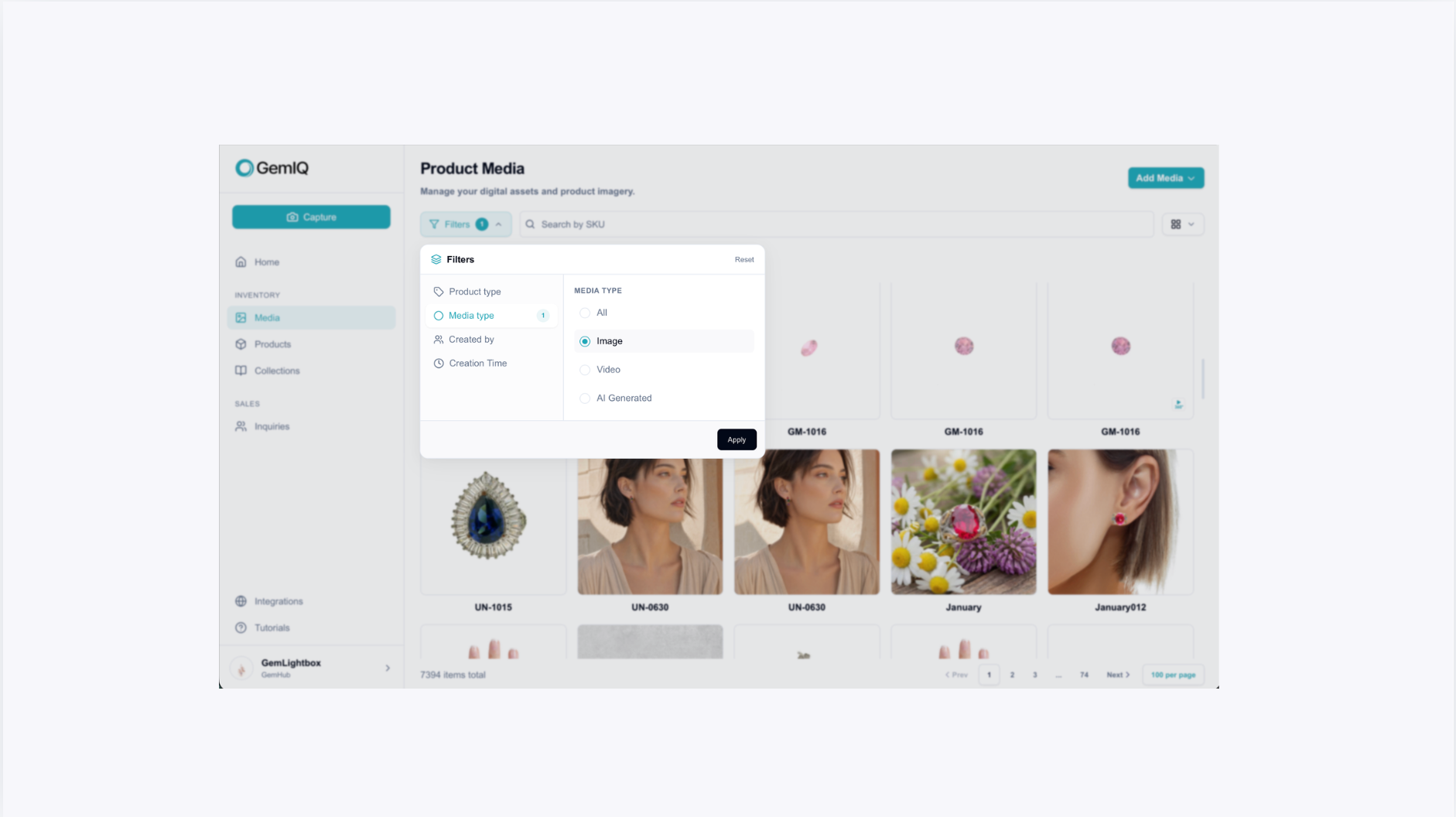
Use Filter, select Media type and select Images. This will show in images and make it easier to select your photos.
Select the images you wish to edit. You can select up to 50 images at a time.