Quick Answer#
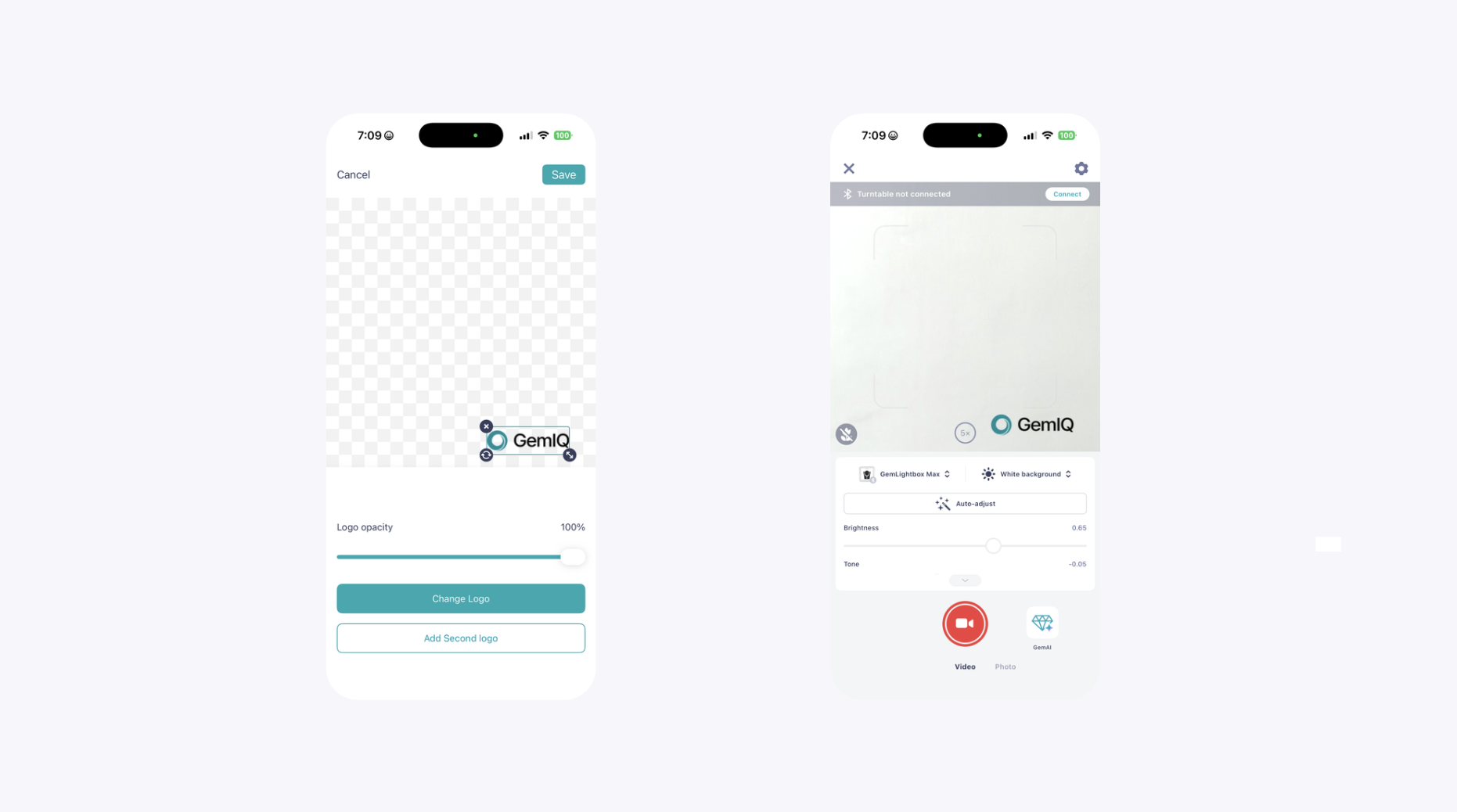
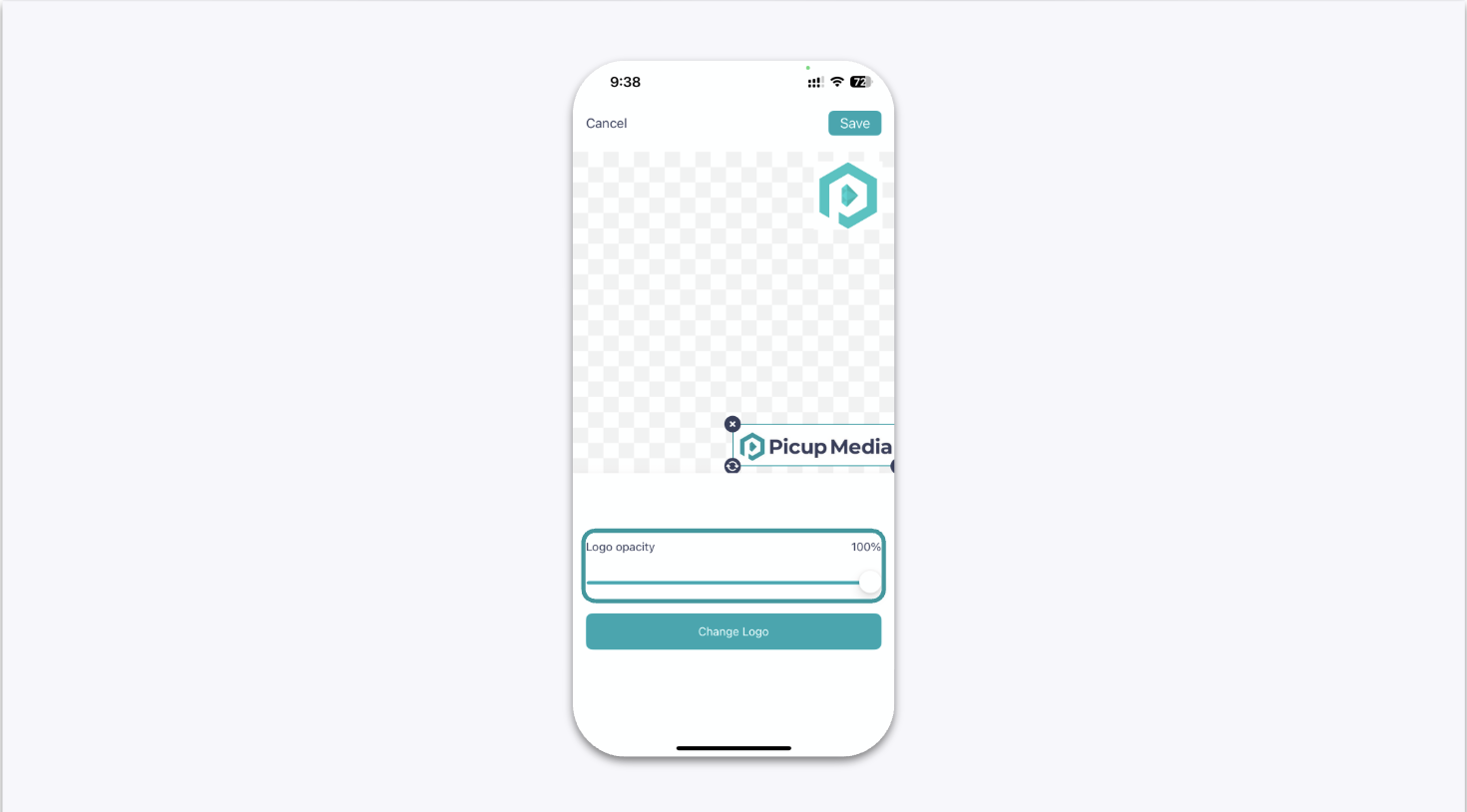
You can add up to two custom logo watermarks to your photos and videos directly within GemIQ. Upload your logo files in the camera settings, then adjust their size, position, and transparency before you start shooting.
Before You Start#
Install GemIQ on your mobile device.
Save your logo file(s) to your device's photo library or files. For best results, use a high-resolution PNG file with a transparent background.
Steps#
Open GemIQ and navigate to the camera capture screen.
Tap the settings icon (⚙️) to open the camera settings menu.
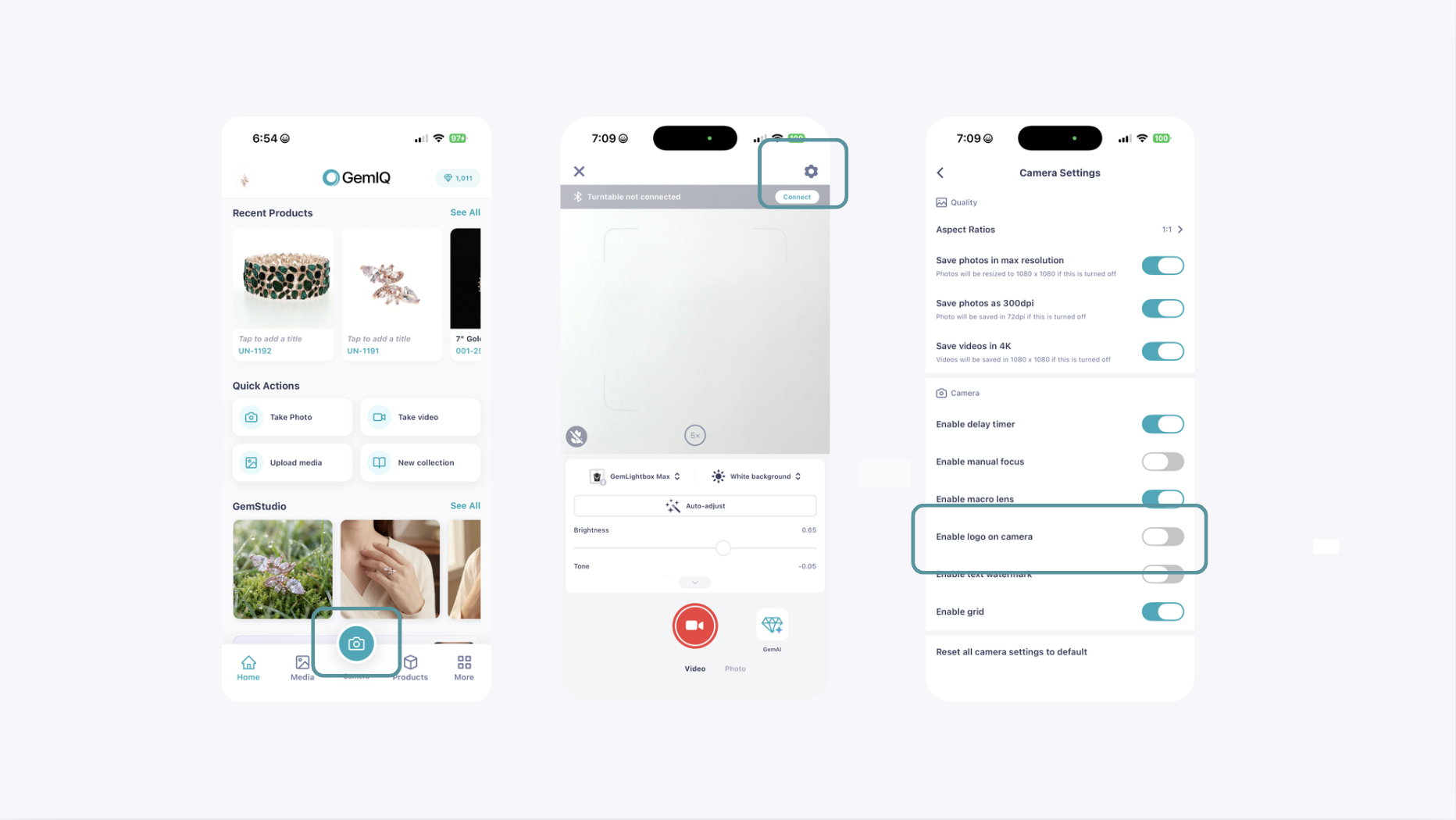
Scroll through the settings and toggle on Enable logo on camera.
Tap the setting again to open the logo editing screen. Tap Add Logo and select your logo file from your device.