

Quick Answer#
GemIQ allows you to add a custom text watermark to your photos and videos. This helps protect your creative work and consistently brand your content. You can enable this feature in the camera settings and customize the text, font, size, color, opacity, and position.
Before You Start#
Ensure you have GemIQ installed on your smartphone or tablet.
Be ready to capture a new photo or video, or have existing media in your gallery to test the appearance.
Steps#
Open GemIQ and navigate to the camera screen.
Tap the Settings icon to open the camera settings.
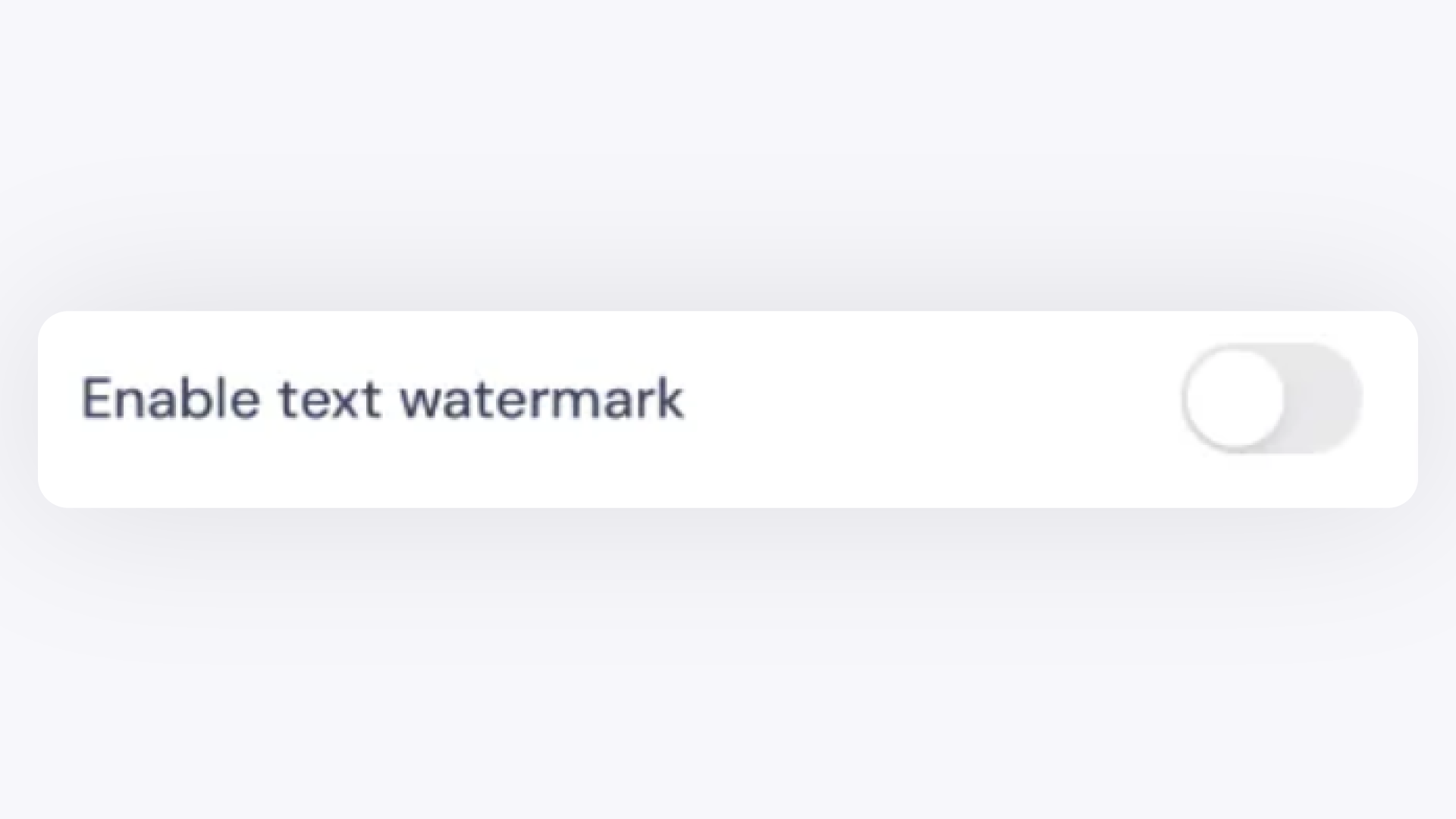
Scroll down to the Watermark section and enable the Text Watermark toggle.
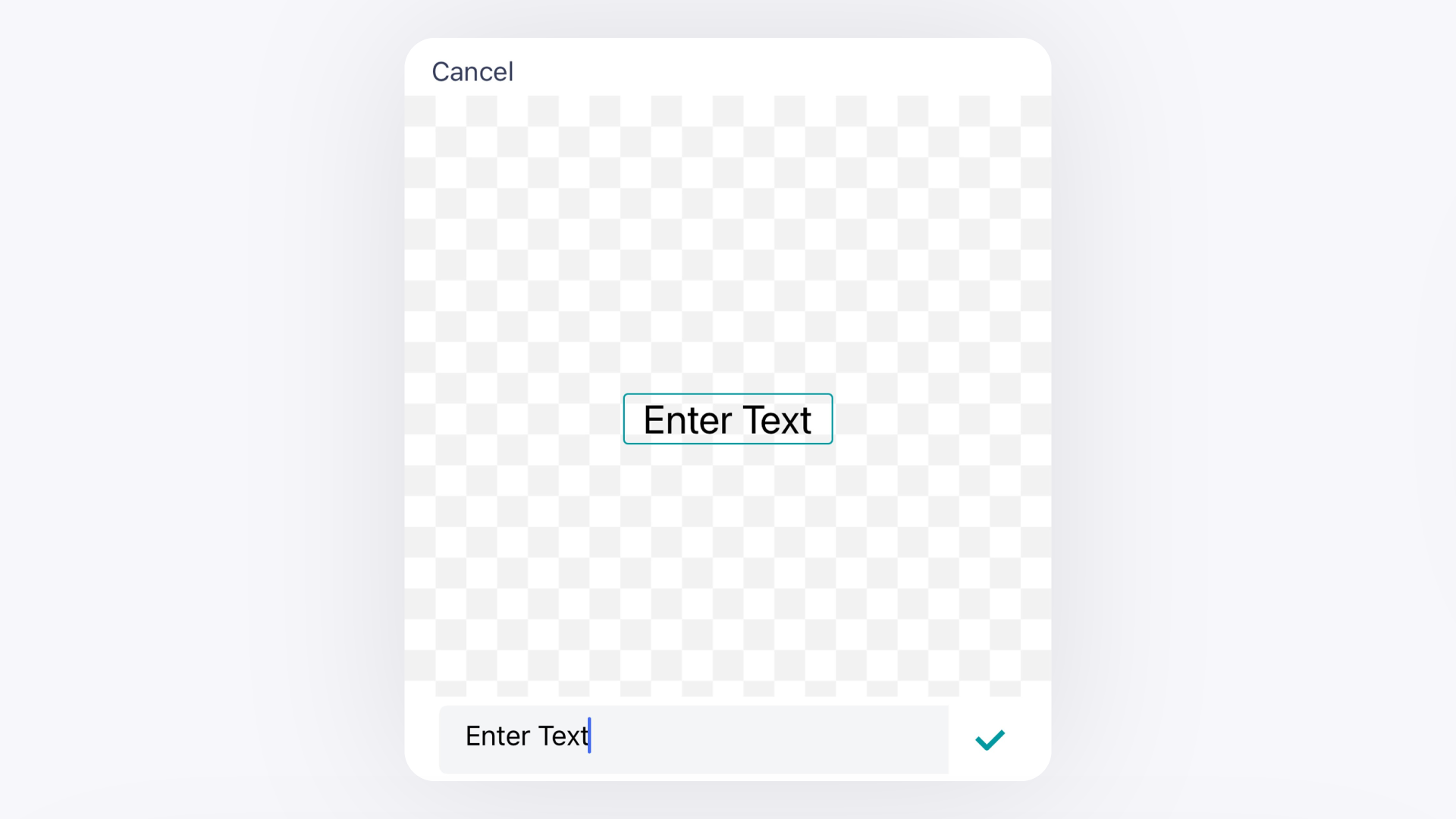
In the text bar that appears, type your desired watermark text (e.g., your brand name or website).
Customize your watermark's appearance using the available options:
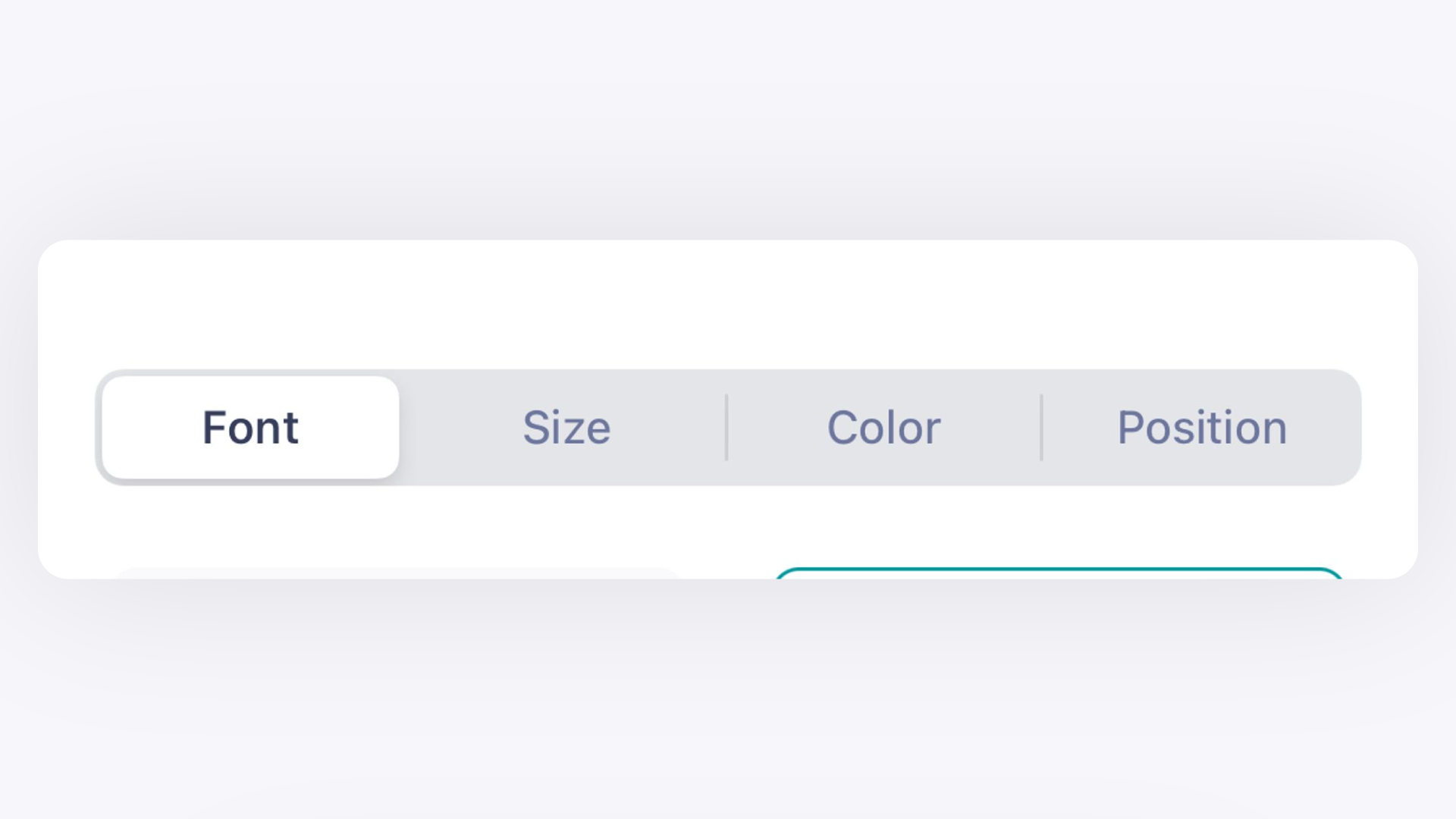
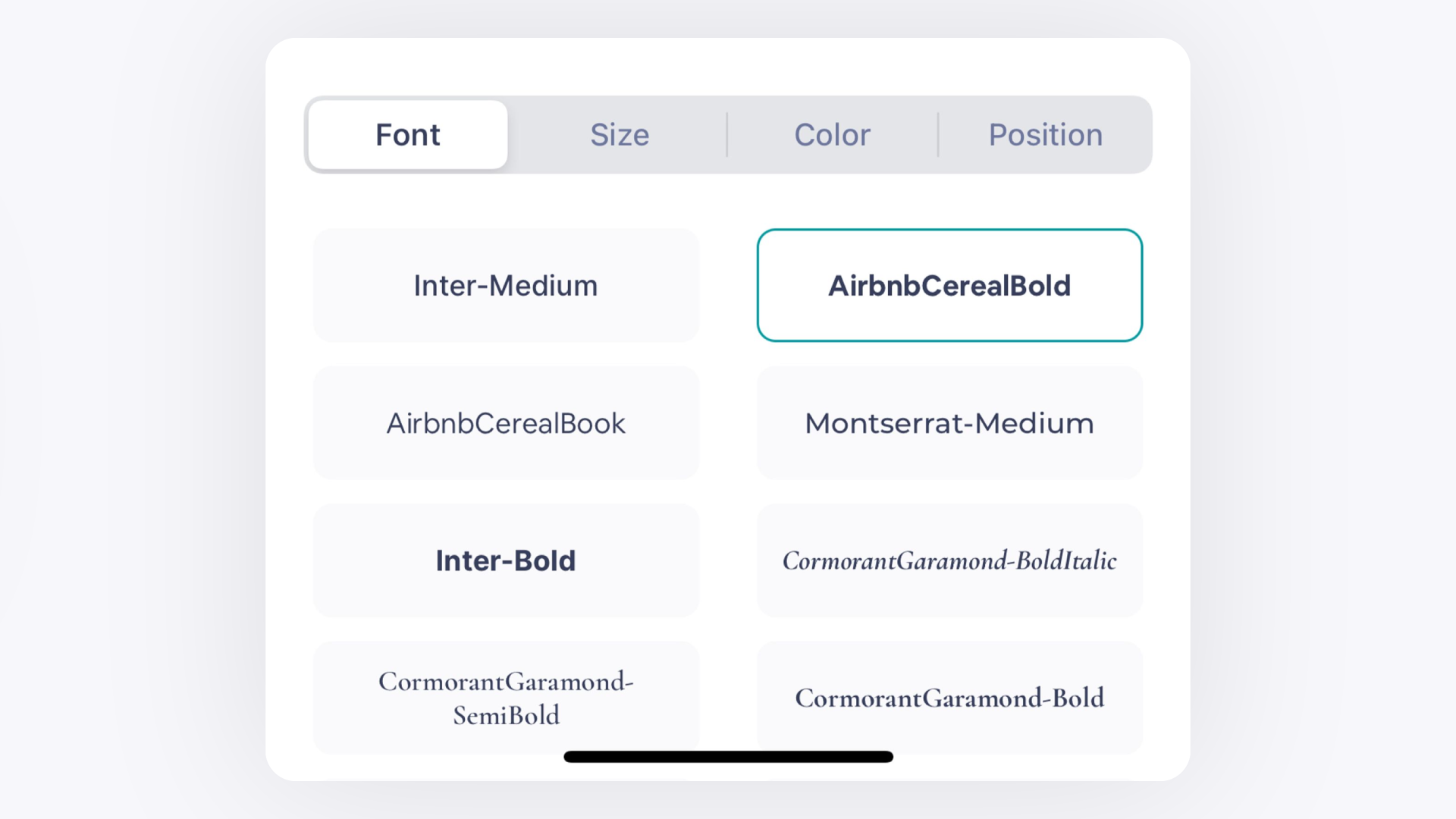
Font: Choose a style that matches your brand.
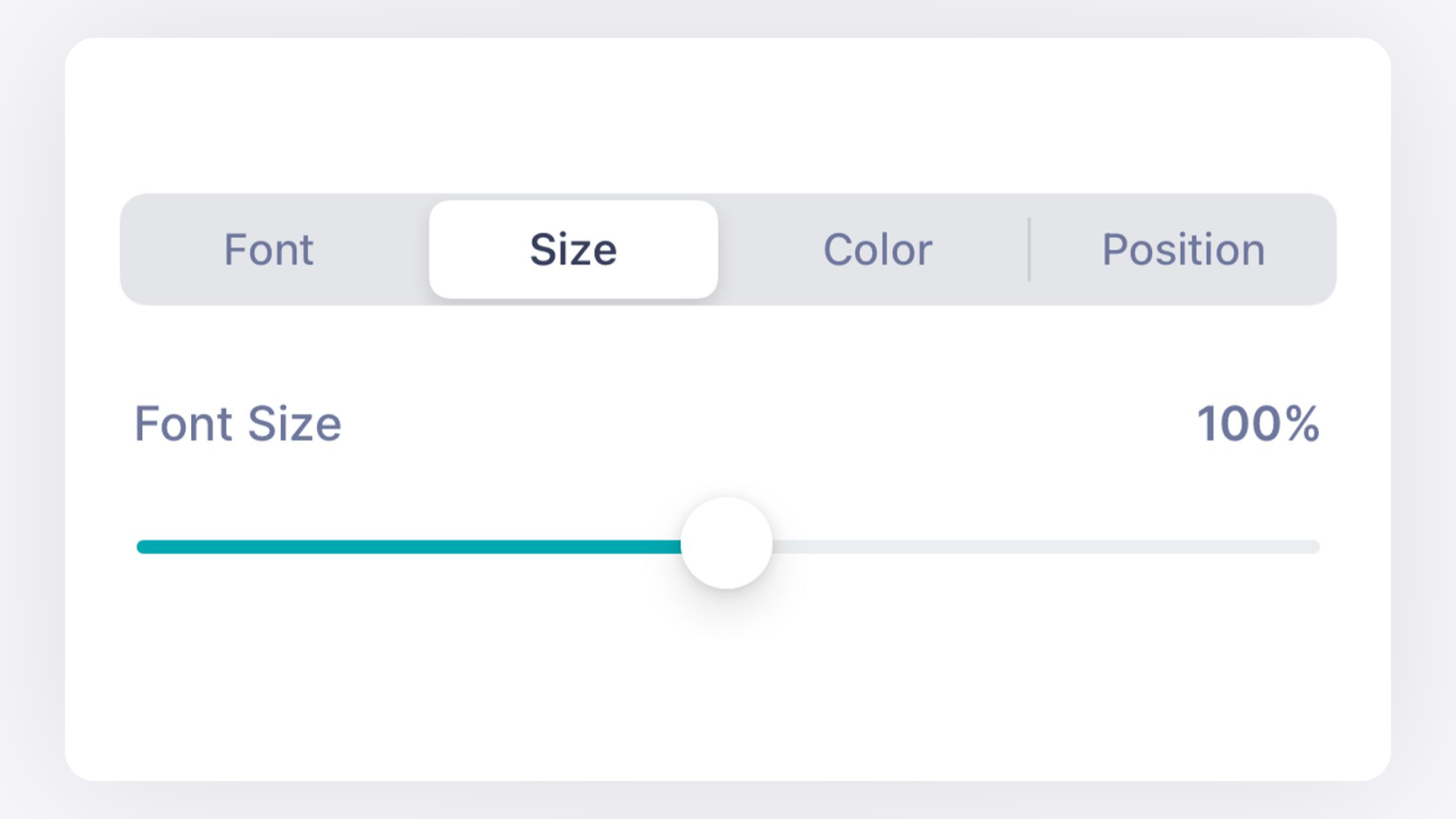
Size: Use the slider to make the text larger or smaller.
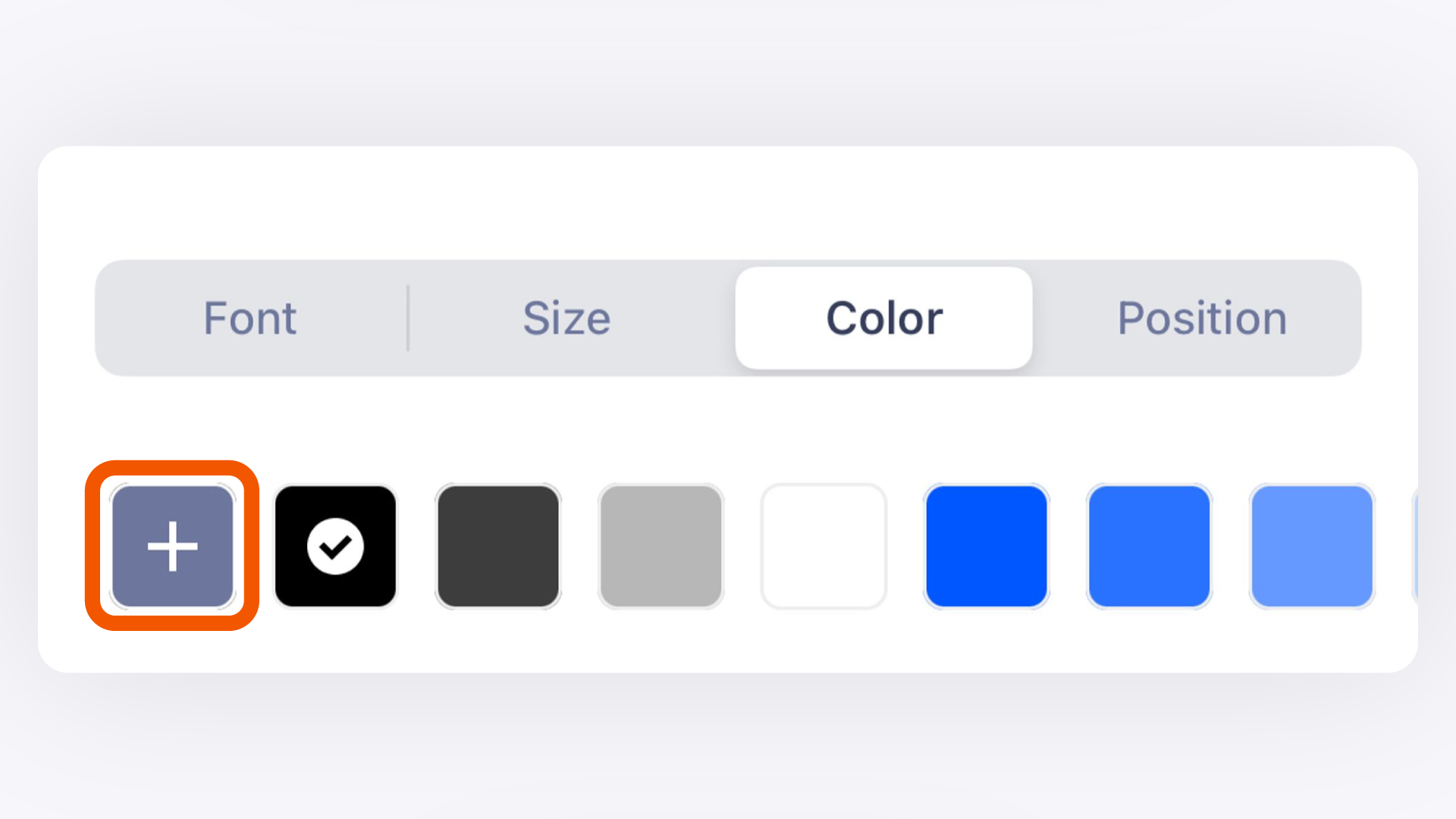
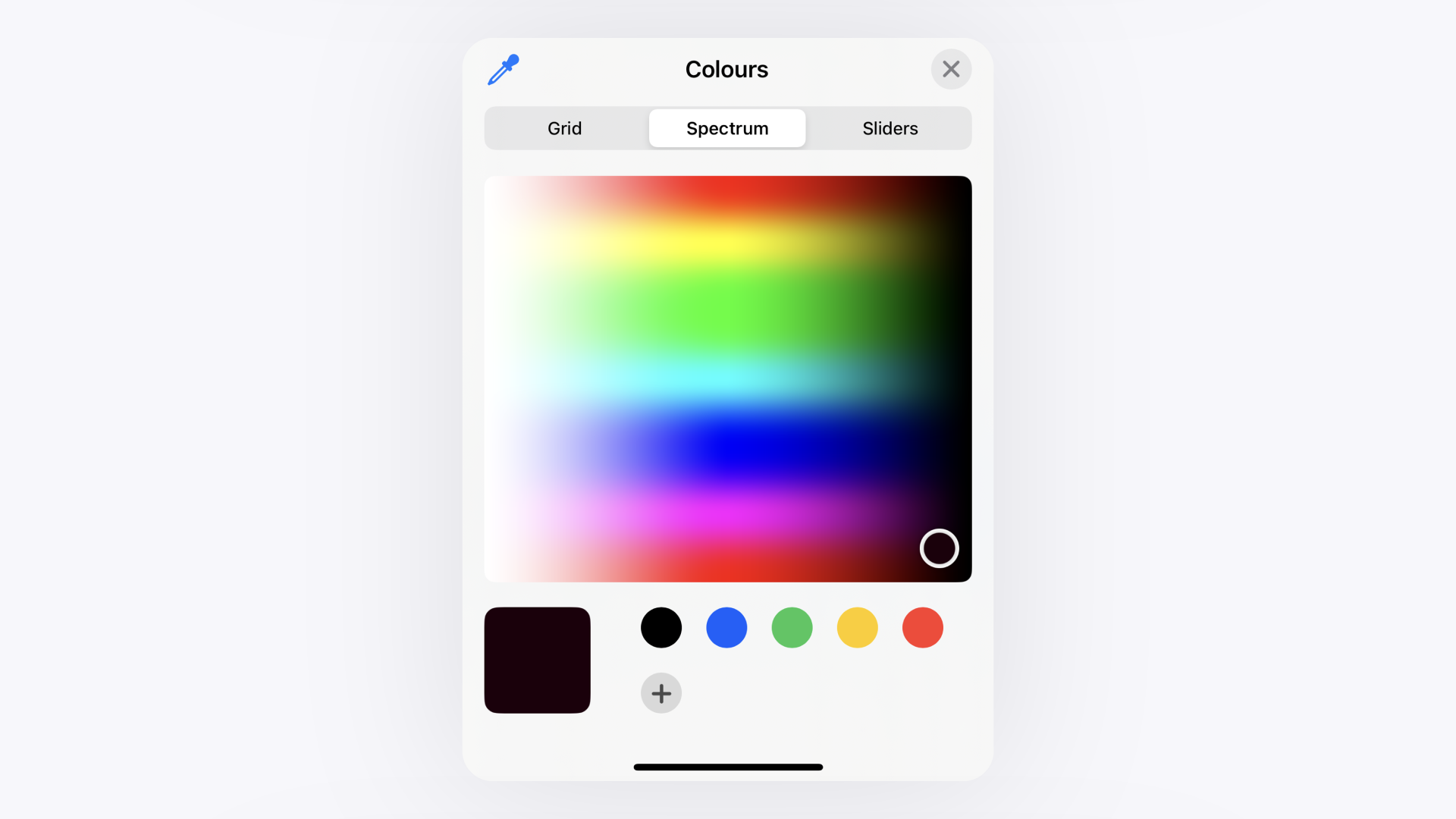
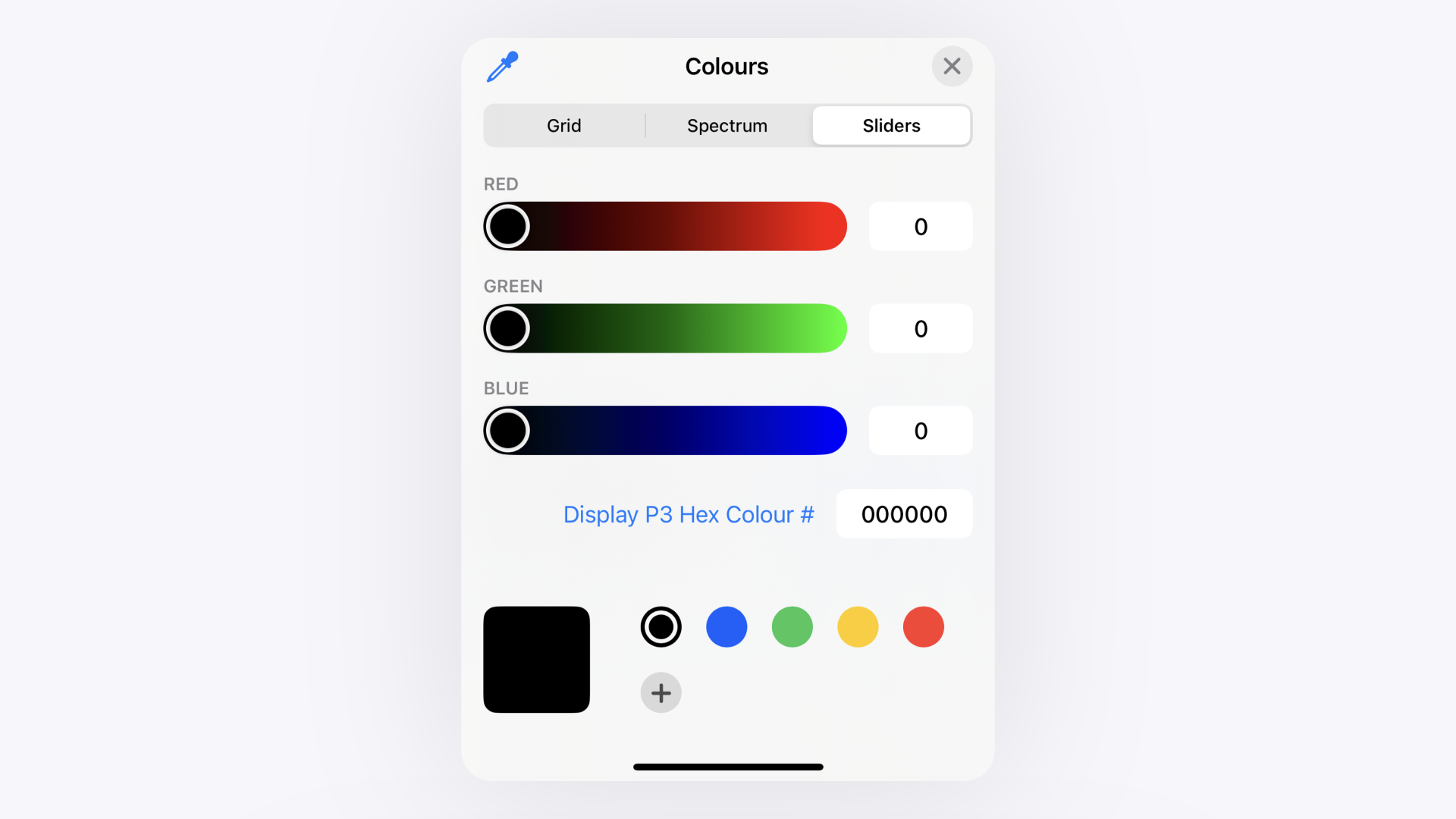
Color: Select a preset color or tap the
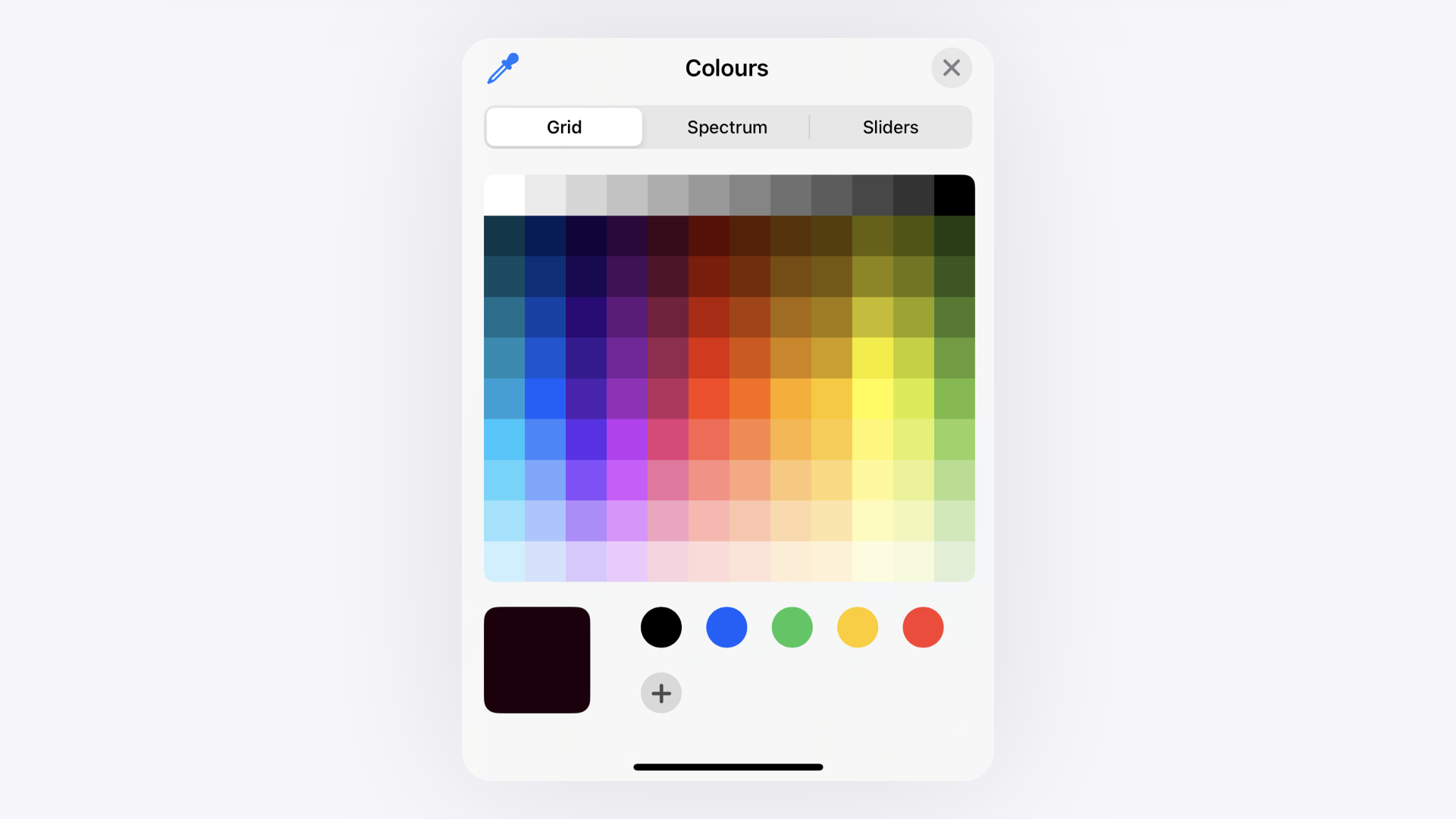
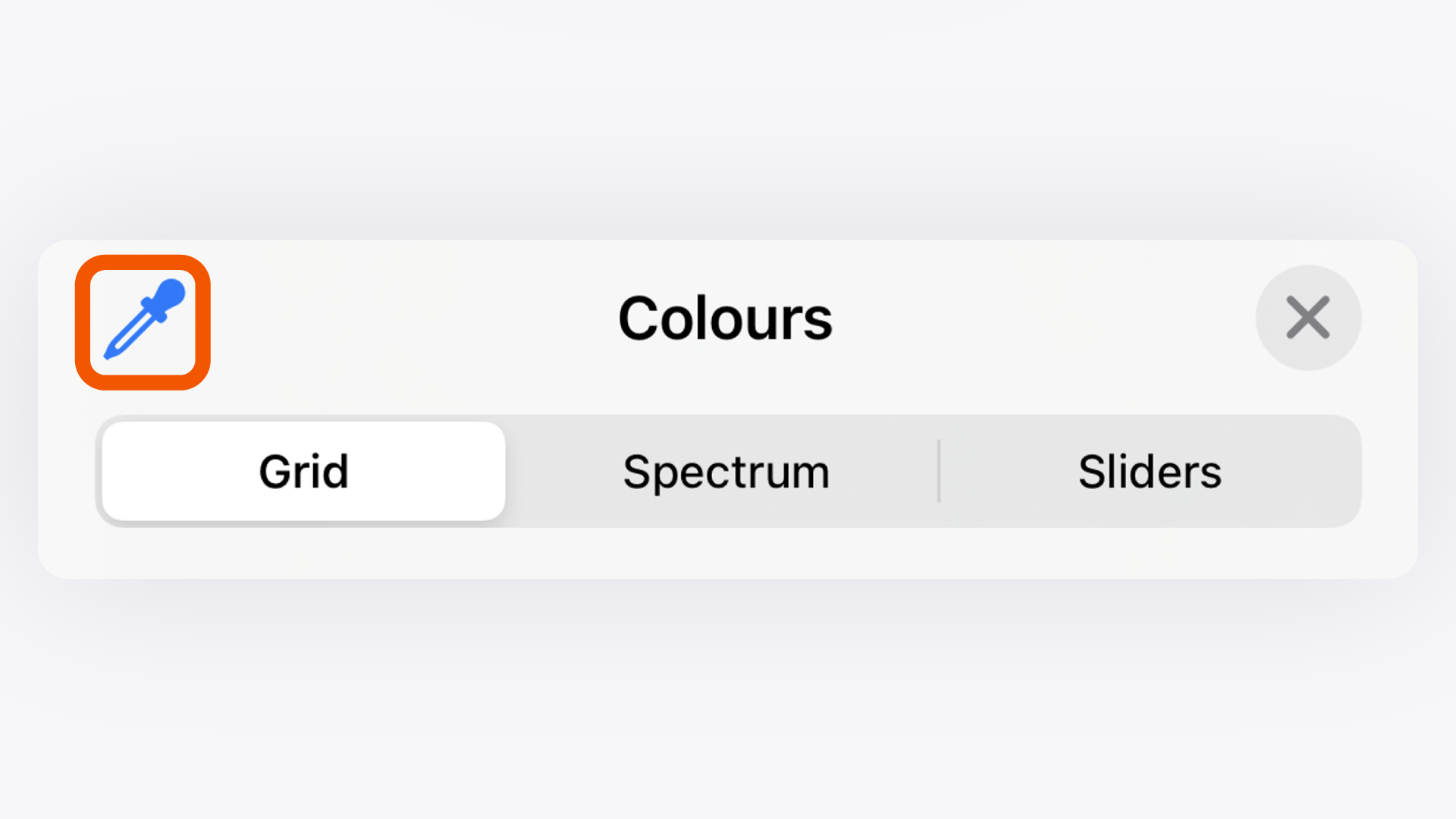
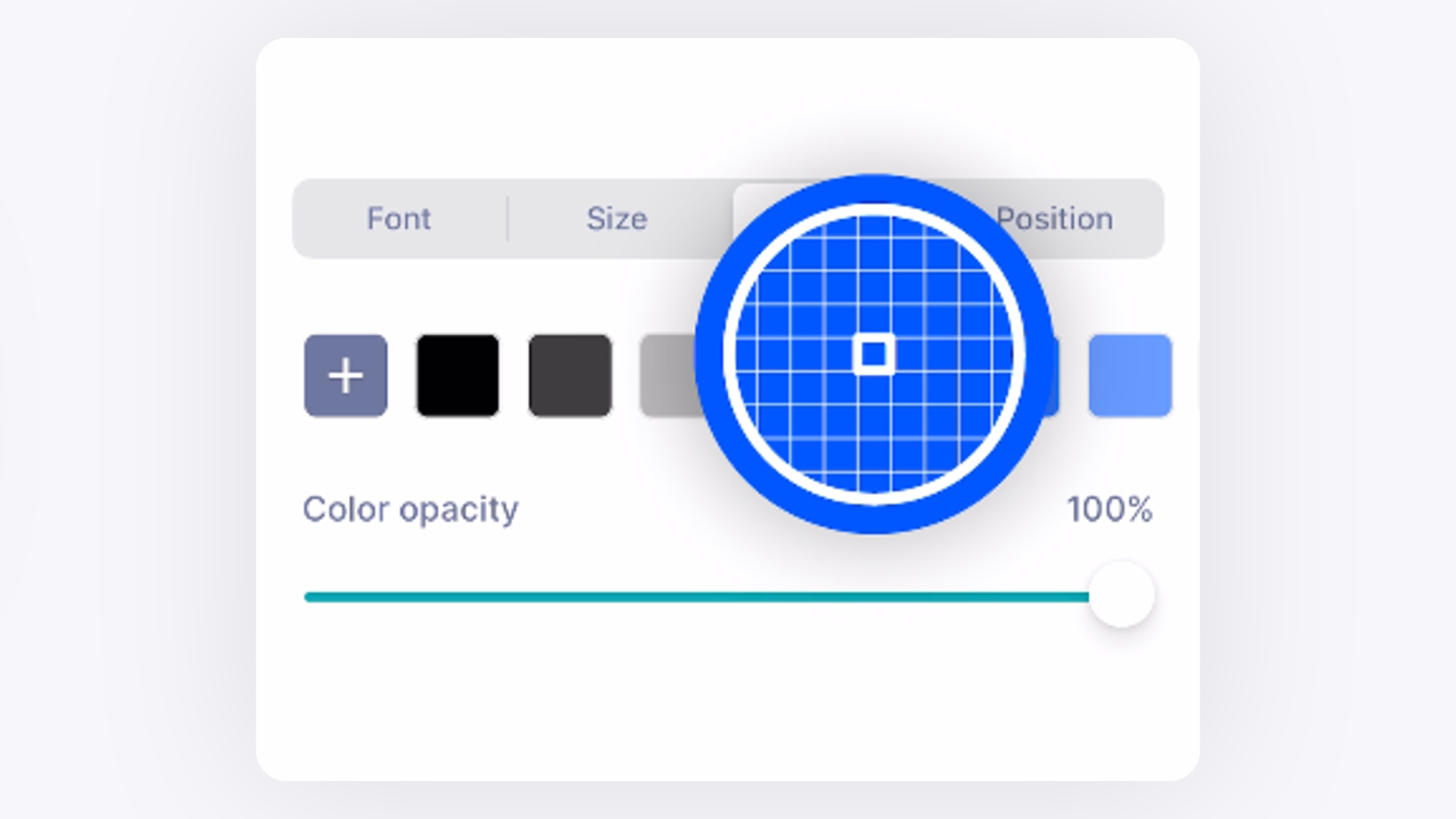
+icon to create a custom color and adjust the opacity. You can use the color grid, spectrum, sliders, or picker for precise control.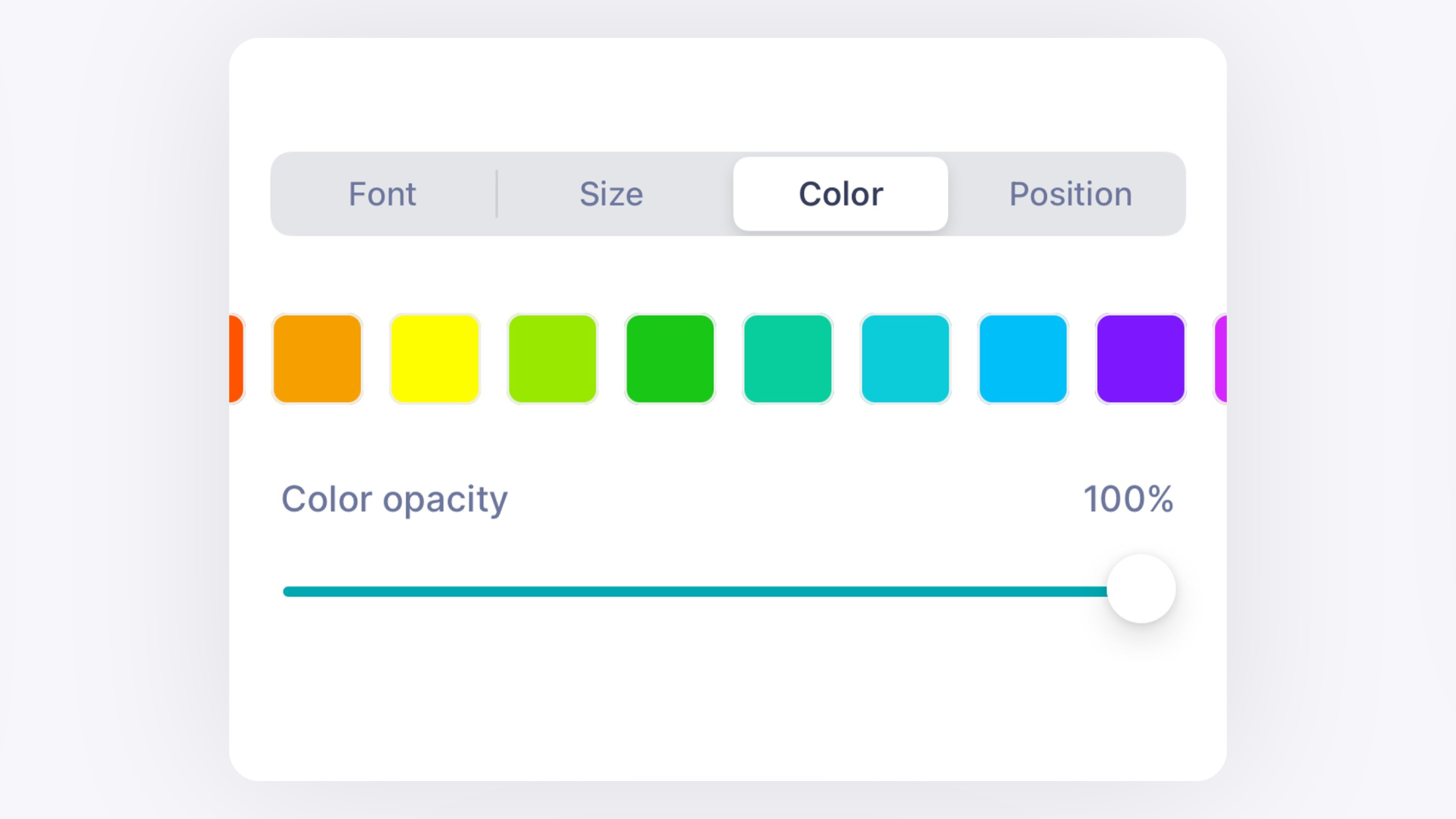
Position: Tap one of the nine squares on the grid to place your watermark in the corresponding location (e.g., bottom right, center).
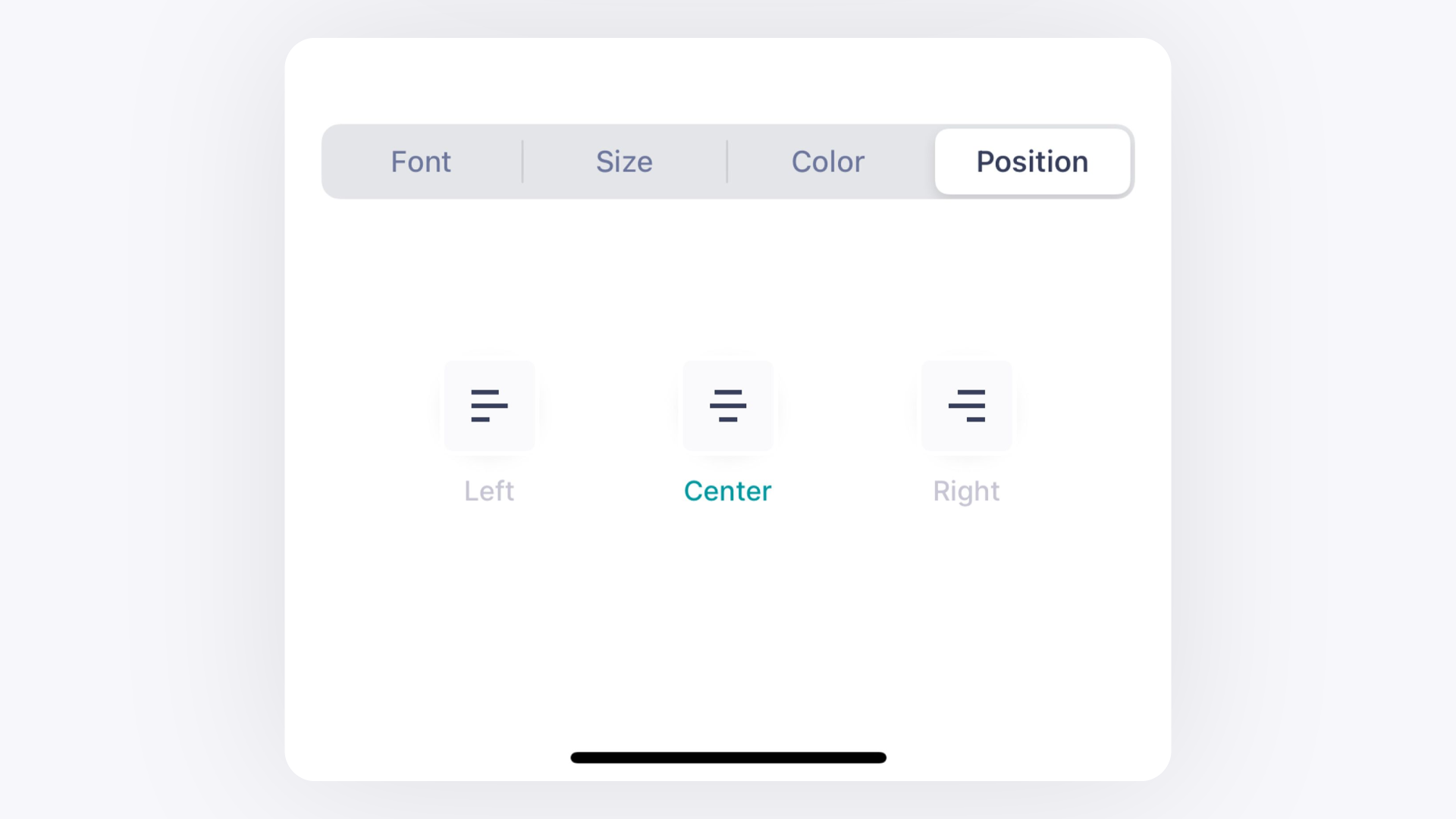
Once you are happy with the settings, exit the settings menu to save them.
Expected Result#
Your custom text watermark will now be automatically applied to all new photos and videos you capture with GemIQ The watermark will not be applied to media already in your gallery.
If This Does Not Work#
Watermark is not visible: Double-check that the Text Watermark toggle is enabled. Verify that the text color is not the same as your background and that the opacity is not set to 0%.
Settings not saving: Close and restart GemIQ completely, then try configuring the settings again.
App is not up to date: Check the App Store or Google Play Store for any updates to GemIQ, as this feature may have been improved in a newer version.
Common Mistakes#
Making the watermark too large or distracting: A subtle watermark protects your work without detracting from the jewelry.
Choosing a font or color that is hard to read: Test your watermark against both light and dark backgrounds to ensure it remains legible.
Forgetting to disable the watermark: If you need to capture a clean image without branding, remember to turn the feature off in the settings.