

Before you start#
Make sure your GemLightbox Max and GemCam Pro are connected to your computer and shown in GemIQ. Clean your jewelry and center it on the turntable.
Turn on Auto focus#
In GemIQ, click Capture.
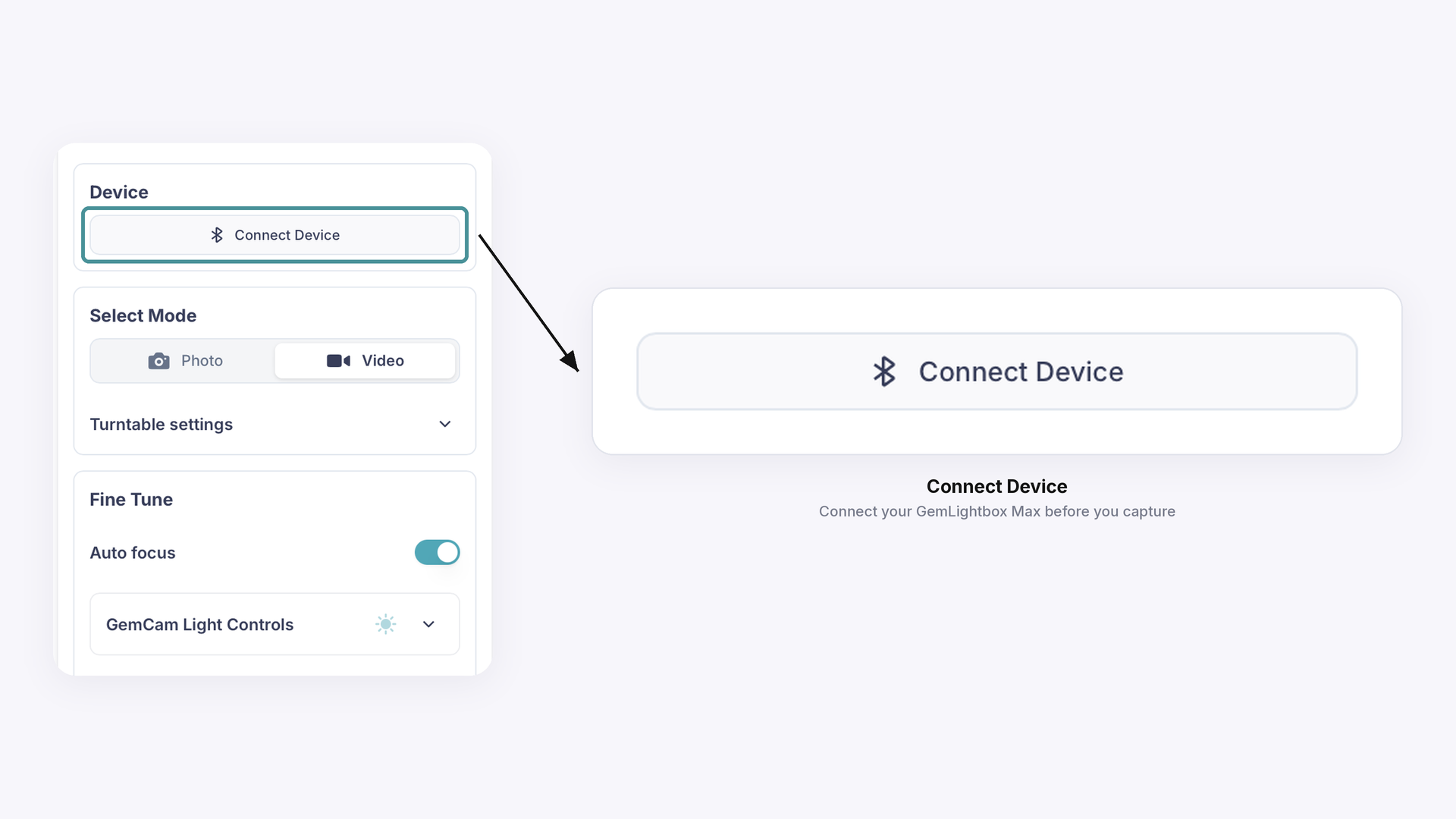
Check that Connect Device shows your GemLightbox Max as connected.
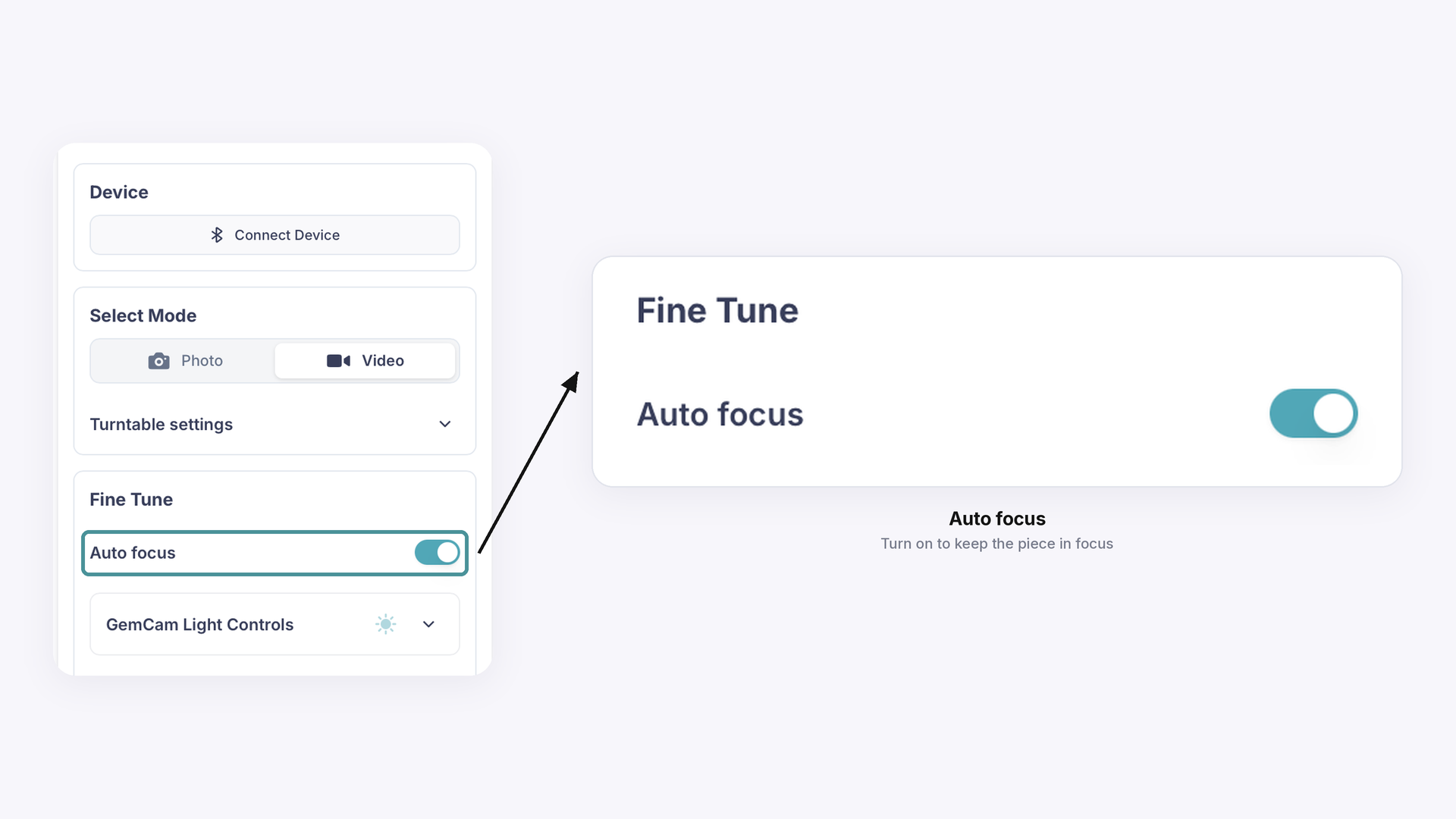
Turn on Auto focus so the GemCam Pro keeps the piece in focus as it rotates or as you reposition it.
Set the lighting#
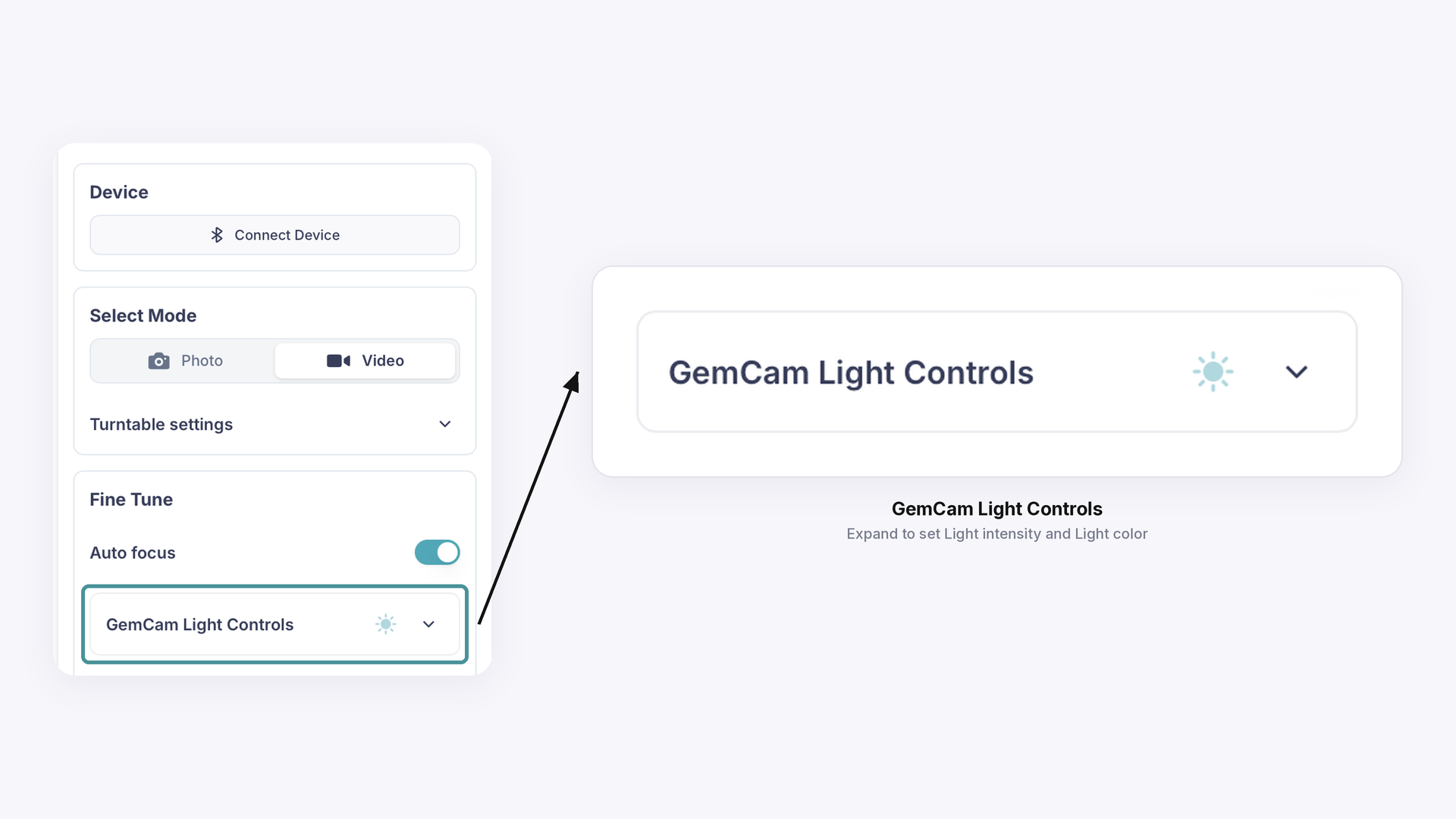
Use Light intensity to control the brightness of the GemCam Pro front light. Higher values add light for small stones or darker pieces. Lower values help avoid glare on very reflective metals.
Choose a Light color that suits the piece. Warm tones suit yellow gold, and cooler tones suit silver, platinum, white gold and diamonds.
For stones that glare easily, lower the GemCam Pro front light and angle the sparkle lights away from the stone, or remove them. See What Type of Lights Should I Use for Different Jewelry?
Fine-tune the image#
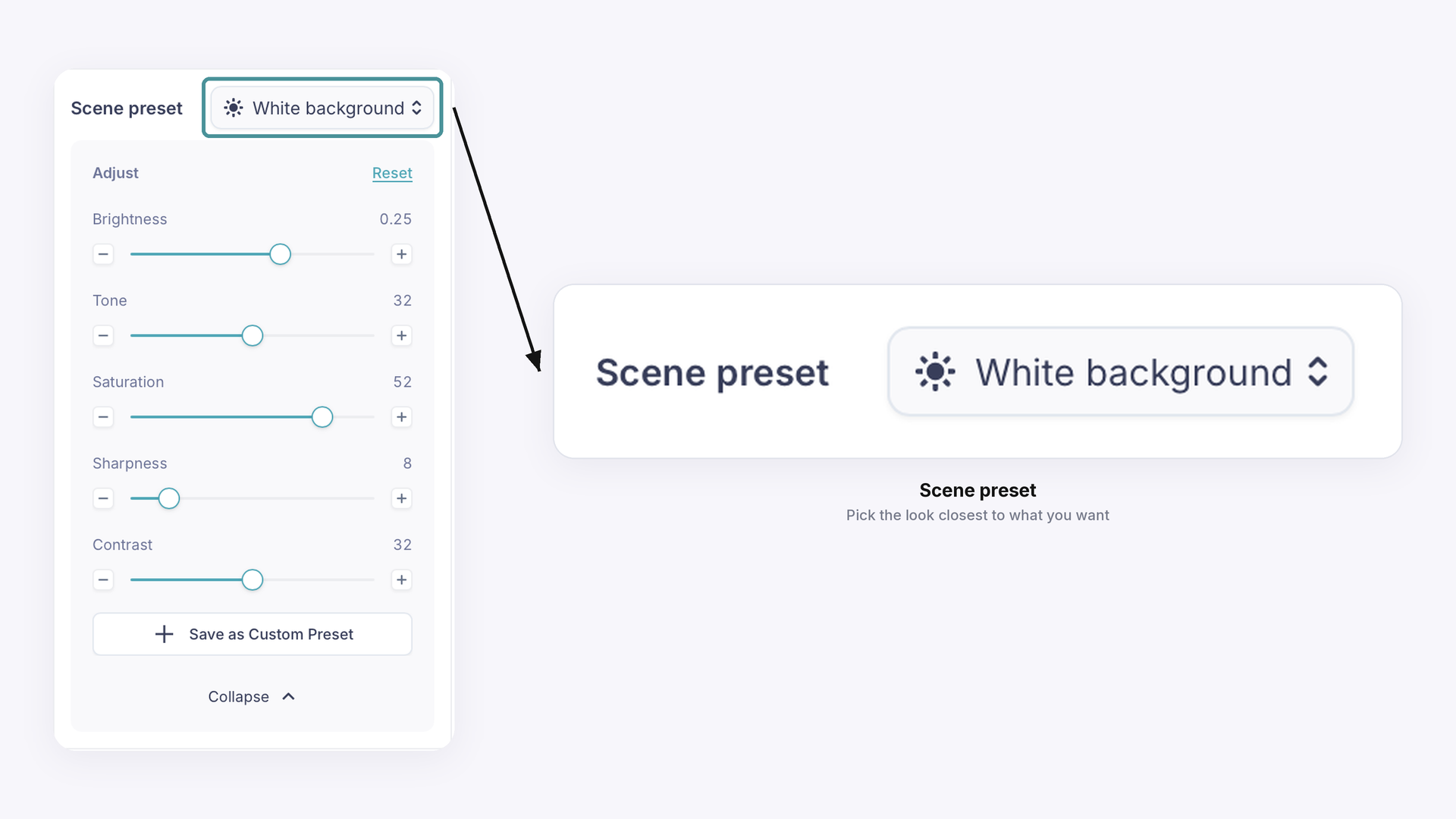
Open the Scene Preset dropdown and pick the look closest to what you want.
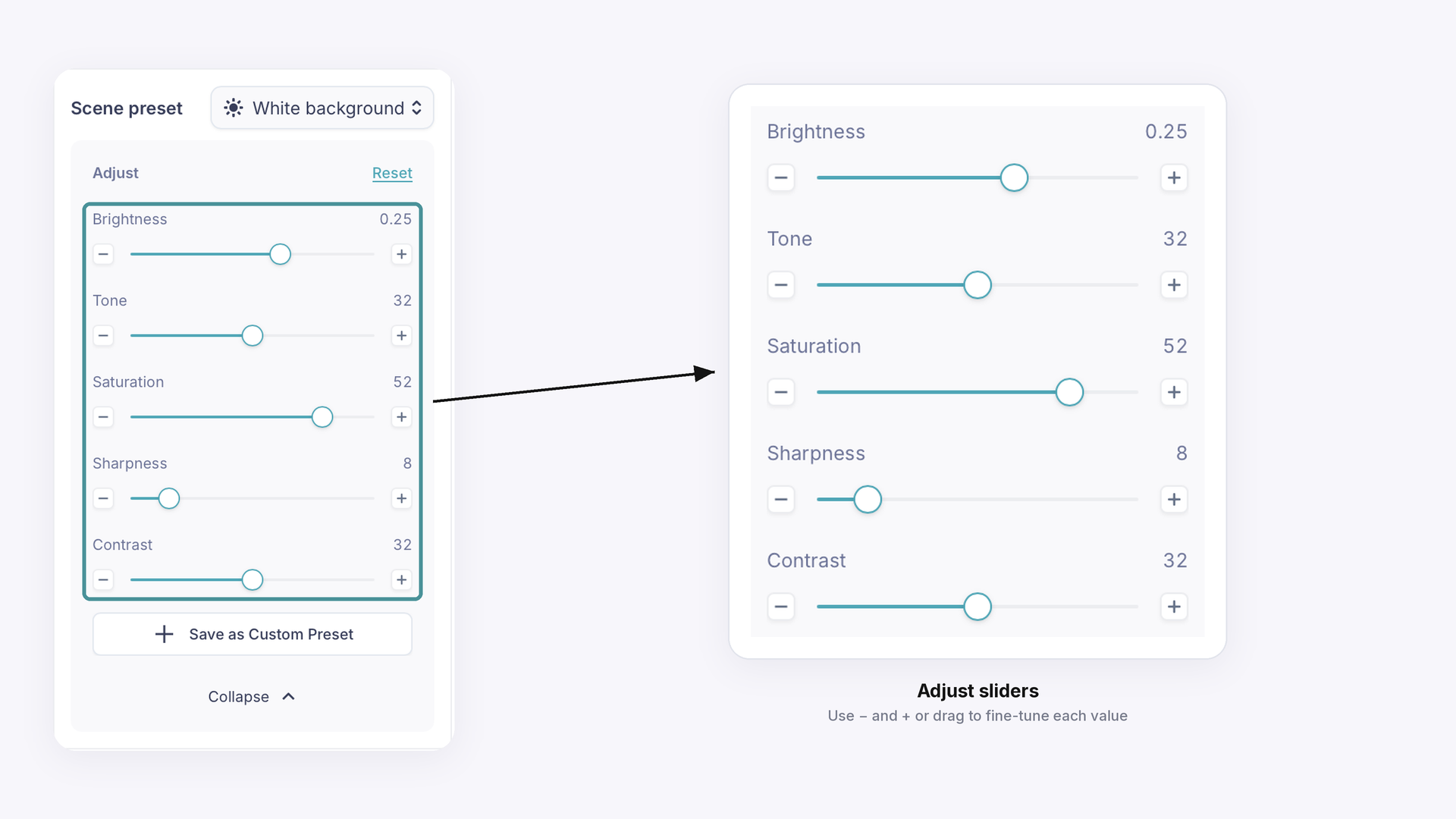
Adjust Brightness, Tone, Saturation, Sharpness and Contrast as needed.
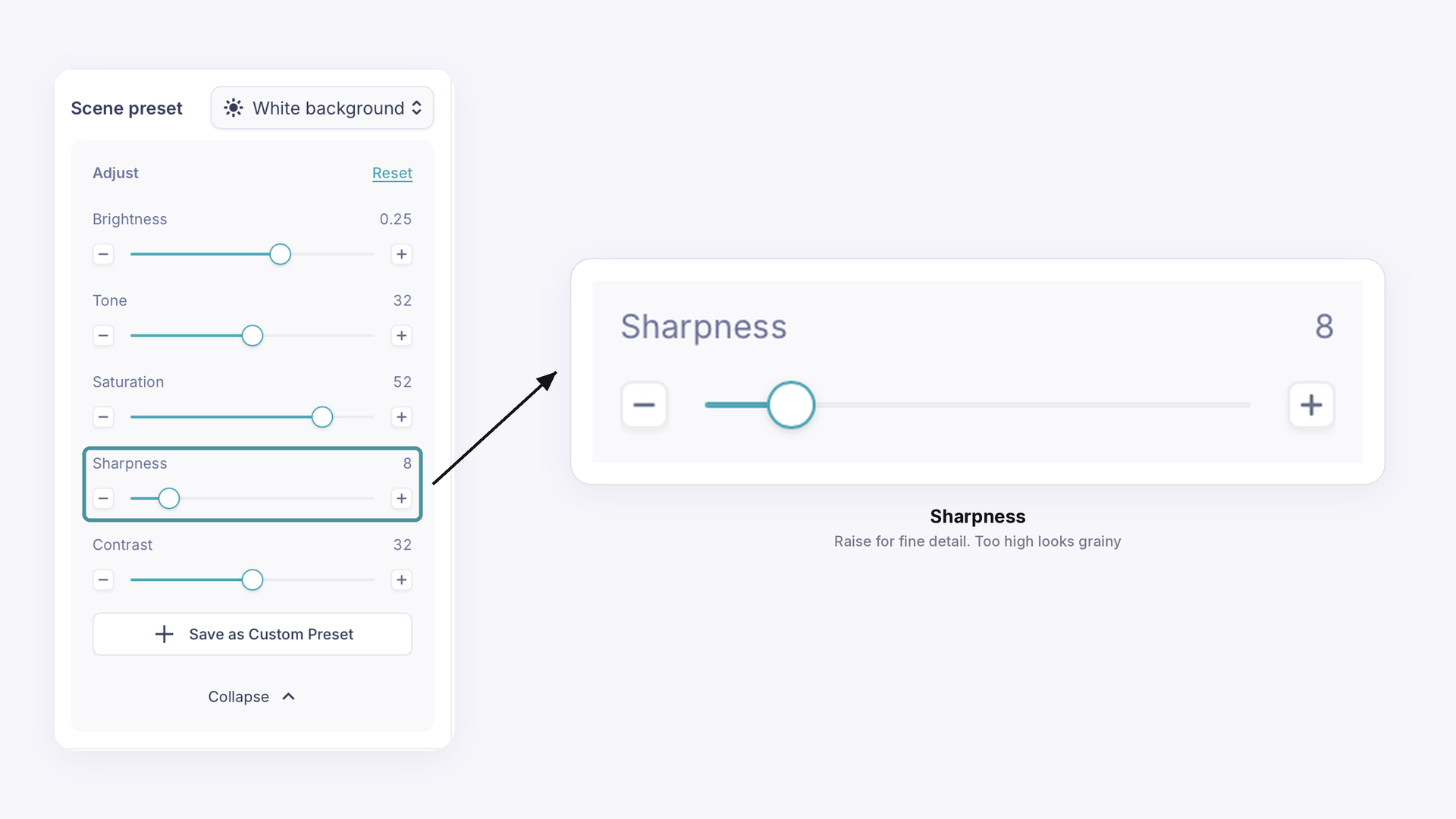
Reduce Sharpness to smooth out reflective surfaces such as smooth ring bands. Setting it too high can make the image look grainy.
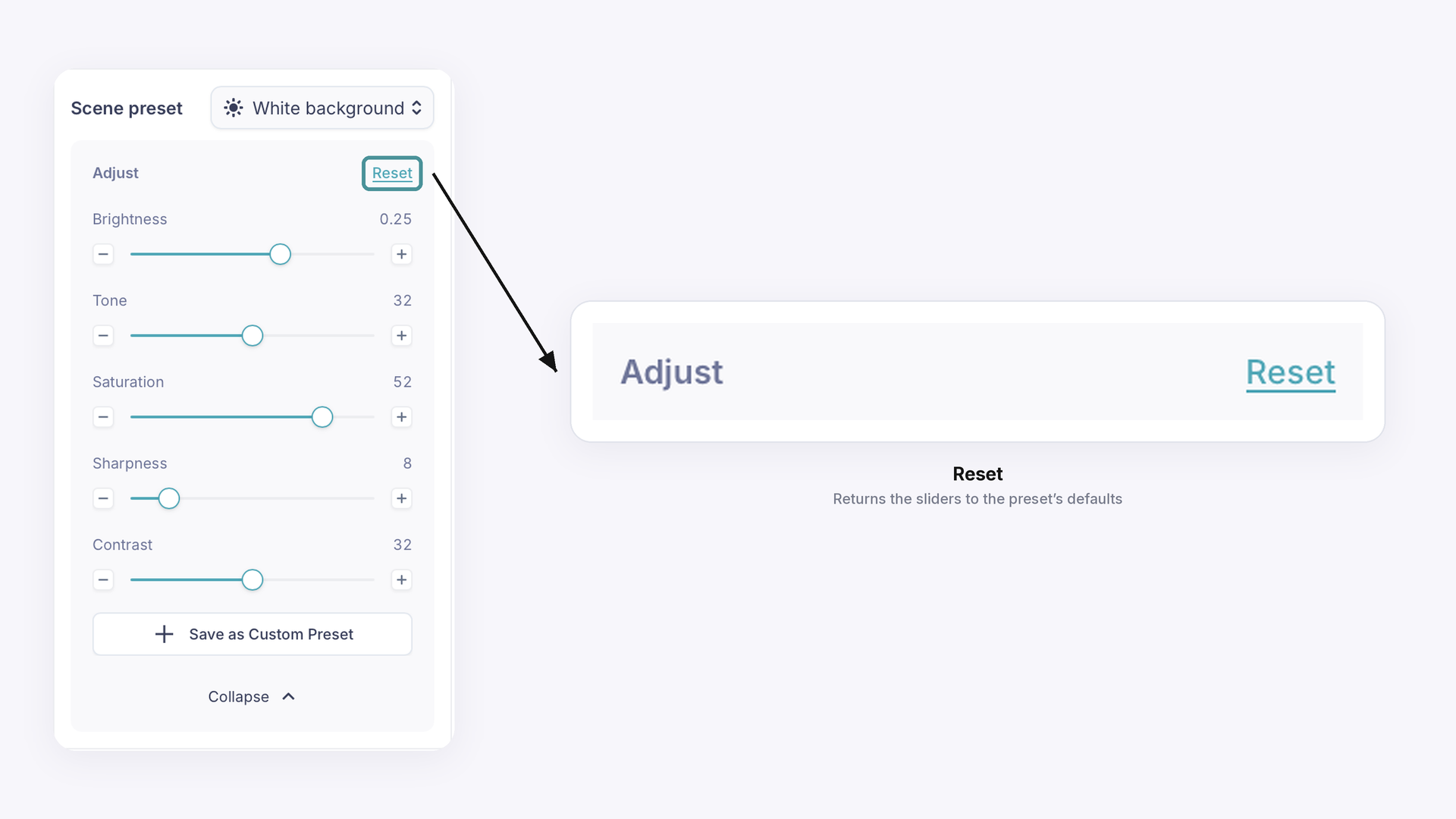
Click Reset to return the sliders to the preset’s defaults.
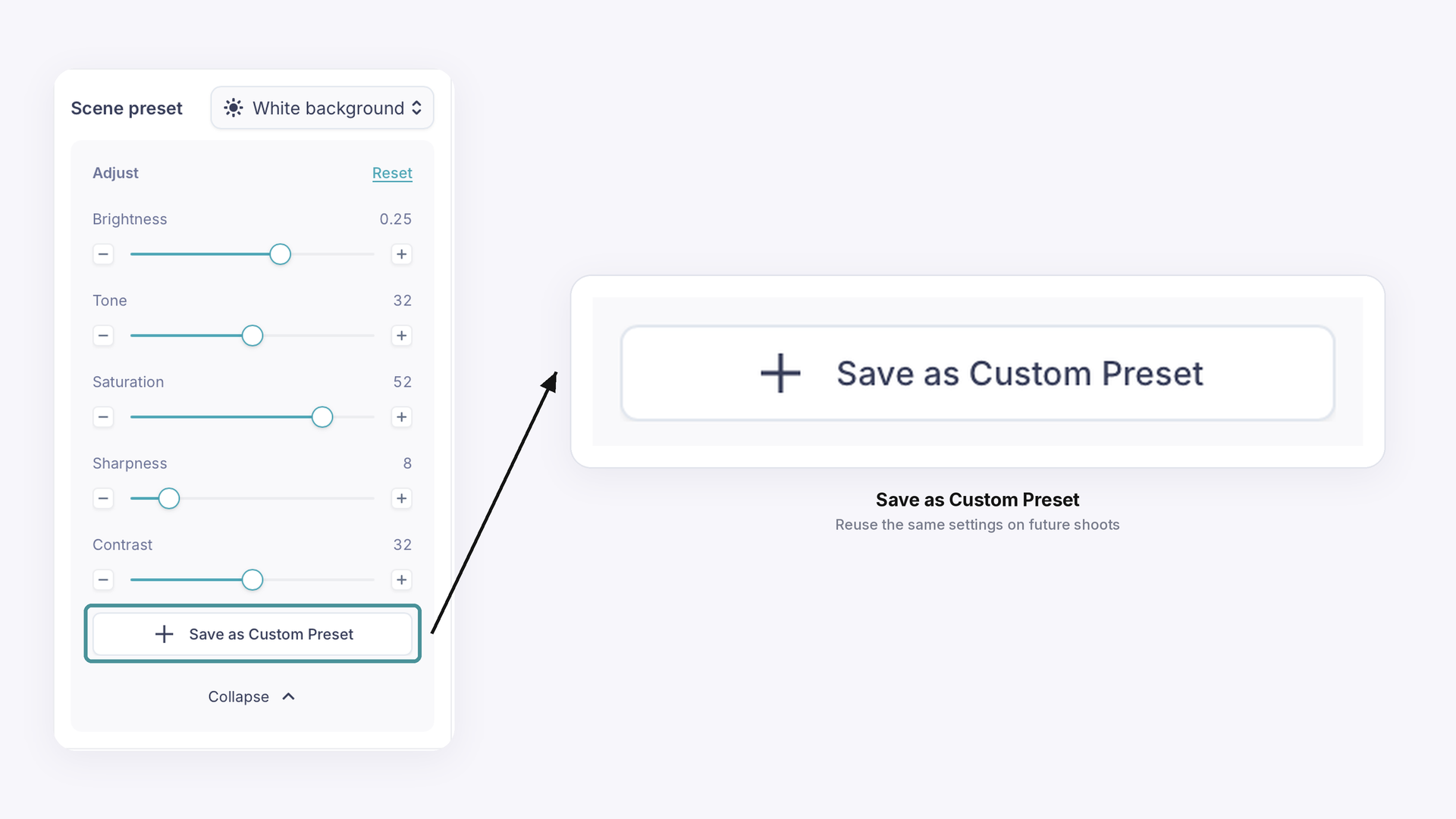
Once you have a look you like, save it as a custom preset to reuse on future shoots.
Using the original GemCam#
The original GemCam works with the GemLightbox Max but is discontinued. It is designed to focus on the front of items, so parts of a piece further back may look soft.
Need More Help?#
If you need more help, email support@gemiq.com with an example image and the settings you used, or book a support meeting and we’ll help you adjust your settings.
Expected Result
Customers can find and adjust the GemIQ Capture settings that affect focus, lighting and sharpness, and can save them as a preset for similar pieces.
Common Questions
Q: How do I improve image quality with the GemLightbox Max?
A: Turn on Auto focus, set Light intensity and Light color for the piece, and adjust the Scene Preset sliders such as Sharpness.
Q: Why does my image look grainy?
A: Setting Sharpness too high can make an image look grainy. Lower it and check your Light intensity.
Q: Why are parts of my piece out of focus with the original GemCam?
A: The original GemCam is designed to focus on the front of items, so areas further back may look soft. The GemCam Pro is the current camera.
Q: What settings give consistent results?
A: Save a custom preset once you have a look you like, then reuse it on similar pieces.
Q: Does this also apply to the Elite Kit Max?
A: Yes. The Elite Kit Max includes a GemLightbox Max and a GemCam Pro, so the same Capture settings apply.