1. Check your Scene Preset
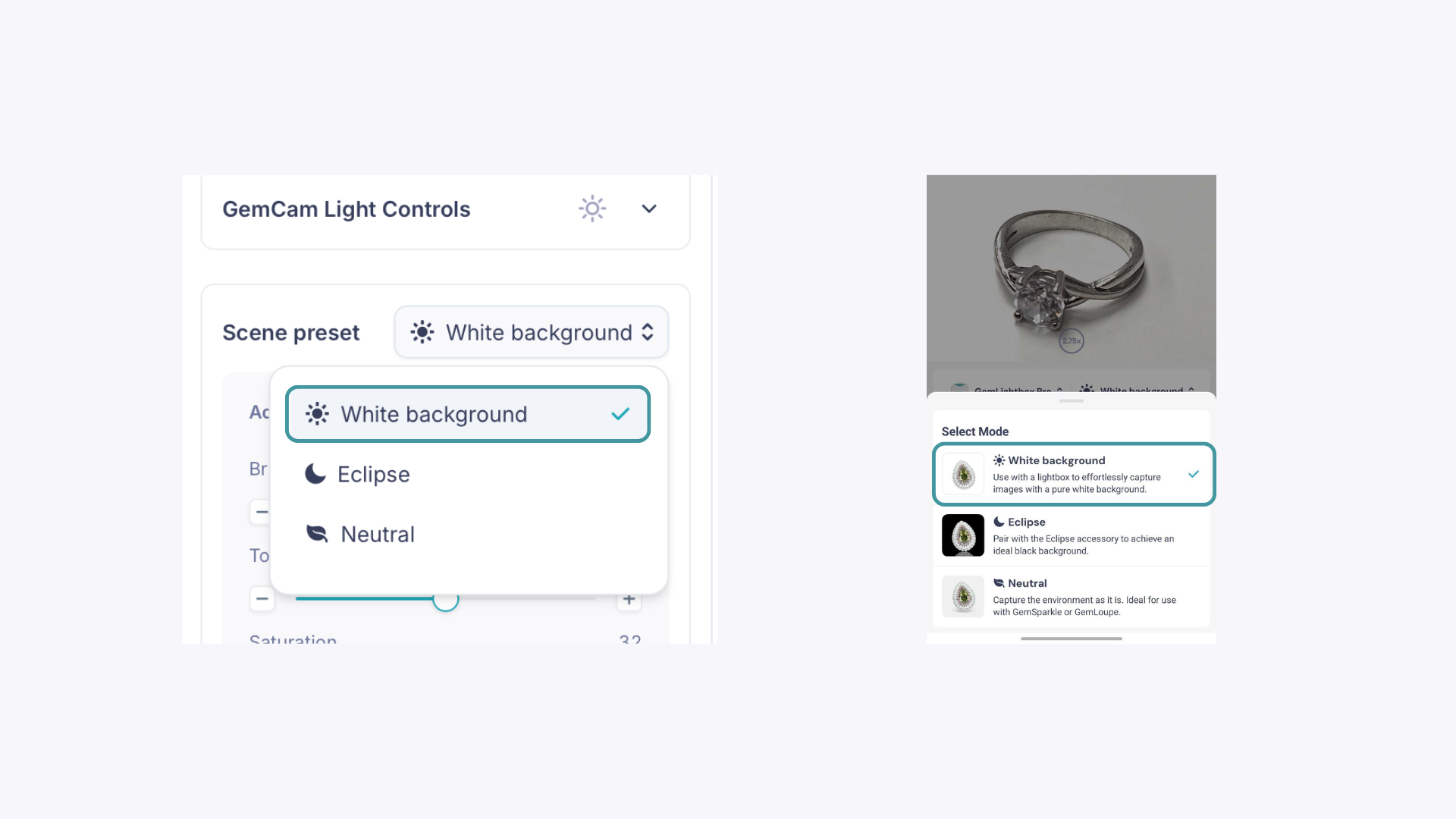
Whether you're using the desktop app with the GemCam Pro or the phone app, make sure White Background is selected under Scene Preset. This activates the correct settings for a white background result.
2. Check your brightness
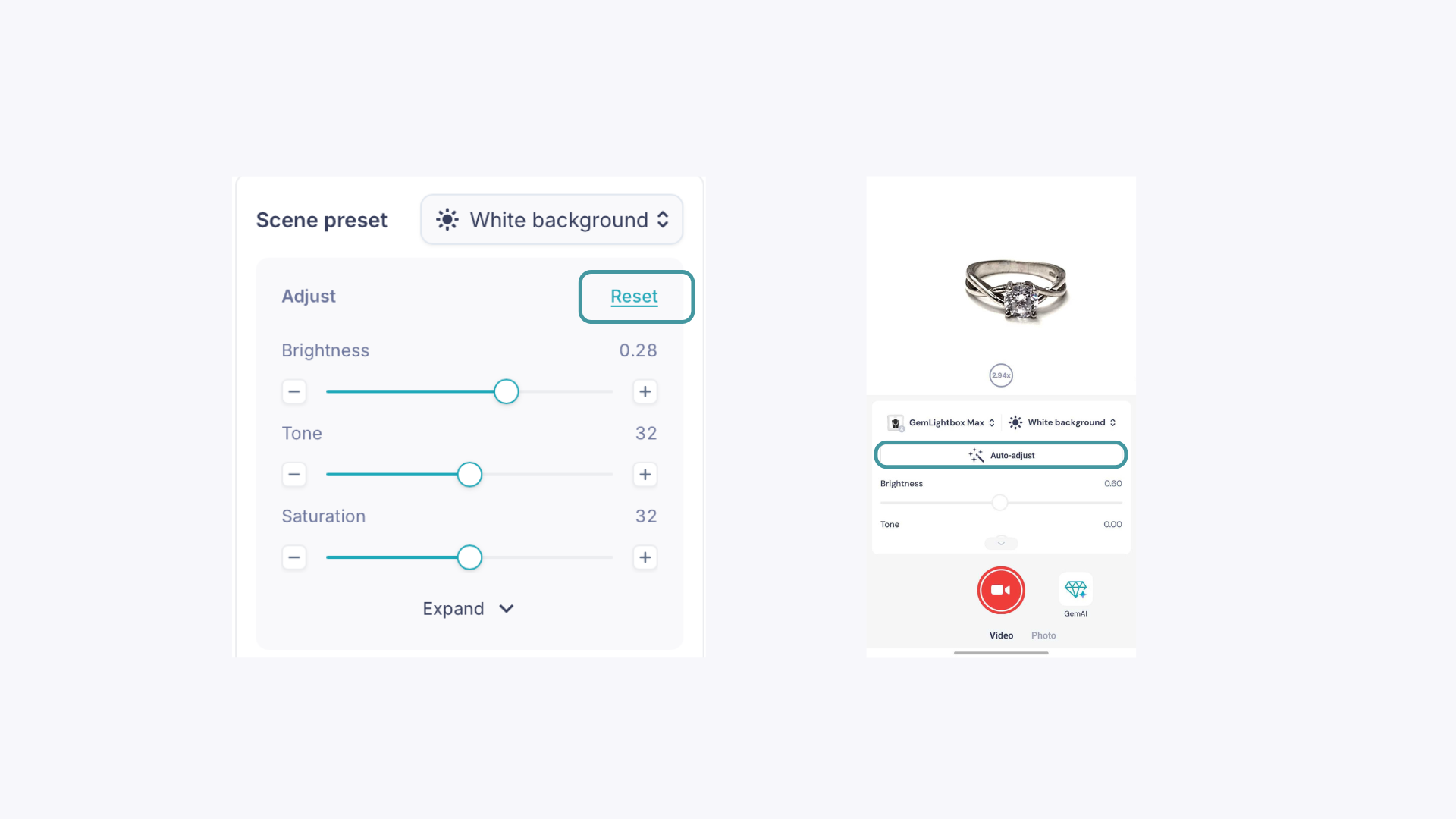
If the brightness is set too low, the background will appear grey rather than white.
Desktop app: Press Reset to restore the default brightness, then gradually lower it — stopping before the background turns grey.
Phone app: Tap Auto-Adjust for the best automatic settings. To fine-tune, use the Brightness slider — left for less bright, right for brighter.
3. Remove the background entirely
For a guaranteed pure white result, you can remove the background from any image directly in the app.
Desktop app: Click the image, then tap the Edit Media icon in the top right corner. Click Remove BG and save.