Quick answer#
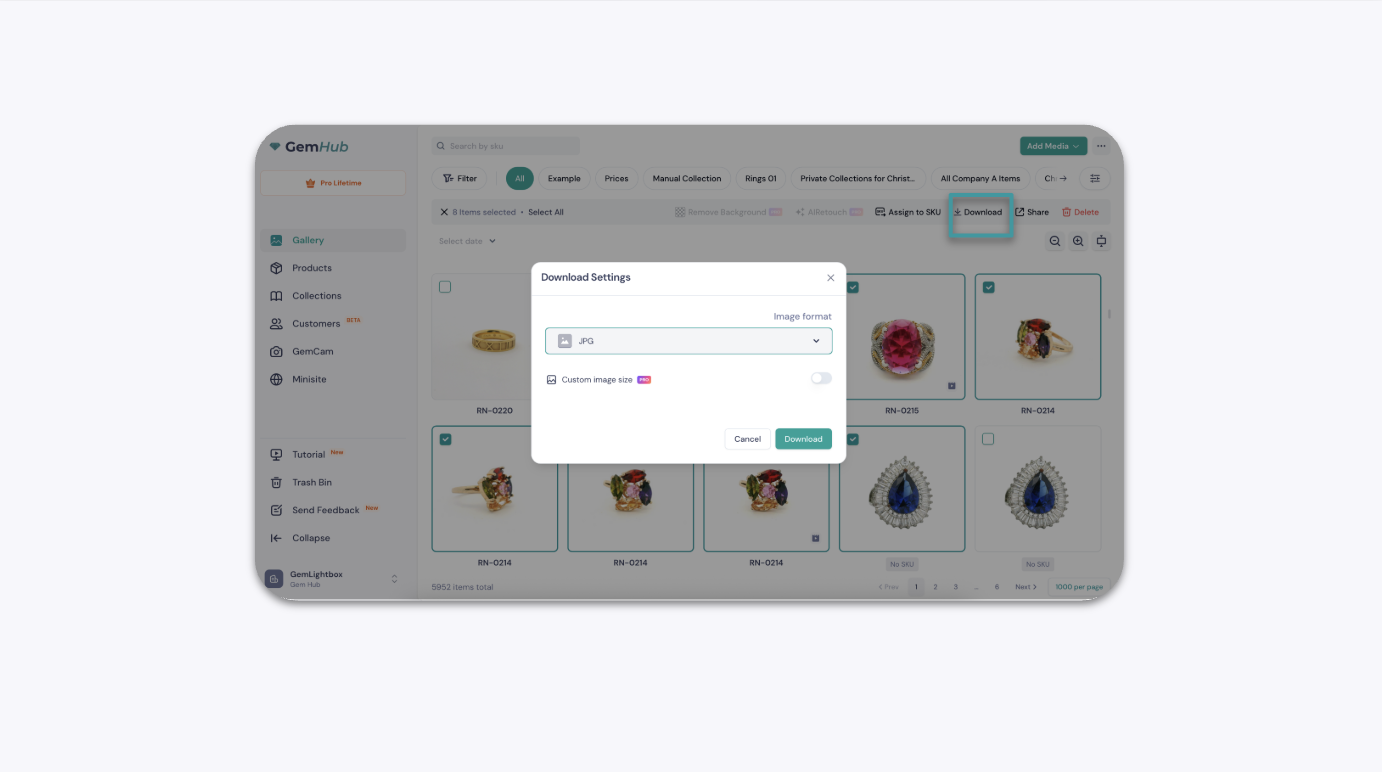
You can download photos and videos directly from Media, Products, or Collections section in GemIQ. Downloaded files are automatically named using the SKU you assigned, making them easy to organize. For the best video quality, always download directly from your GemIQ account rather than from a shared link.
Before you start#
Log in to your GemIQ account.
Confirm your media files have been captured and are available in your Media, Products, or Collections.
Assign SKUs to your products so downloaded files are labeled correctly.
Steps#
Download Photos or Videos#
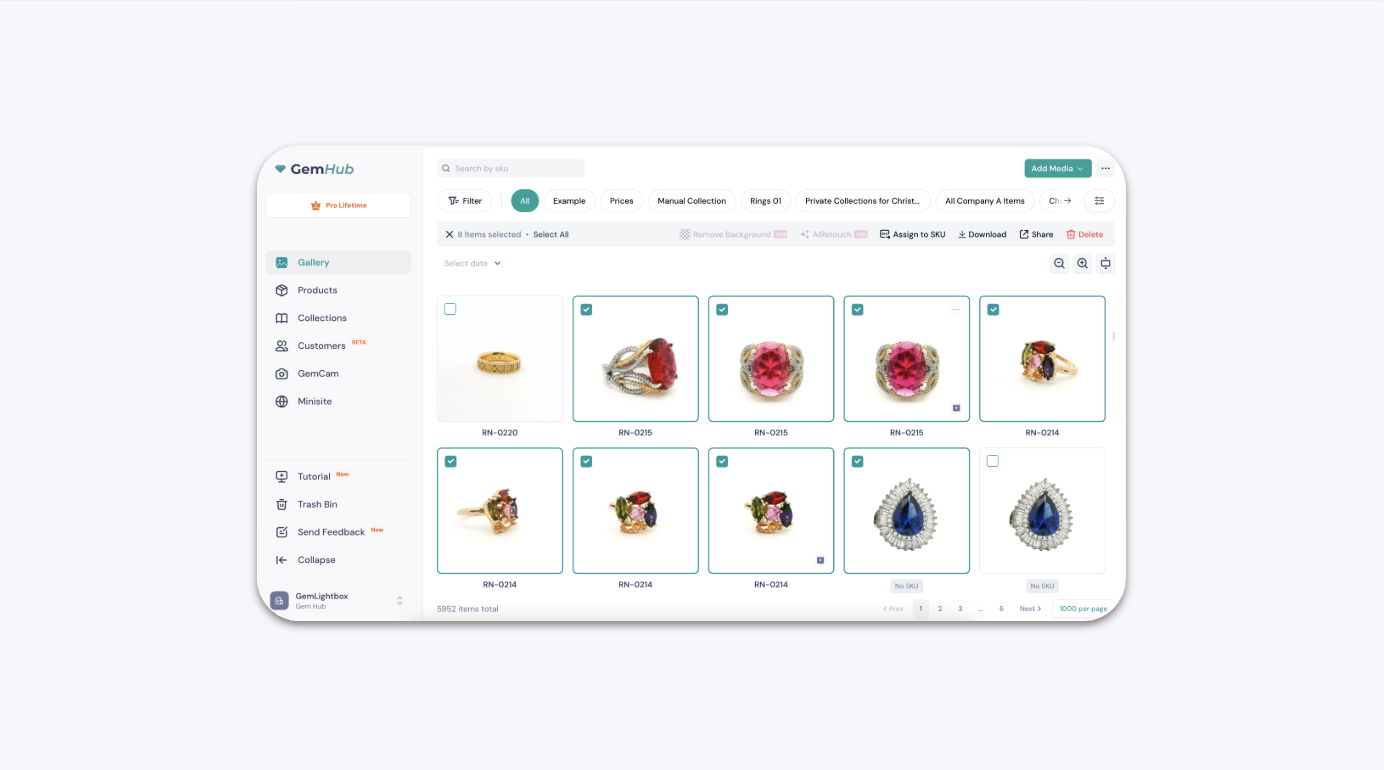
Navigate to the Media, Products, or Collections tab.
Select the media files you want to download.