Quick Answer#
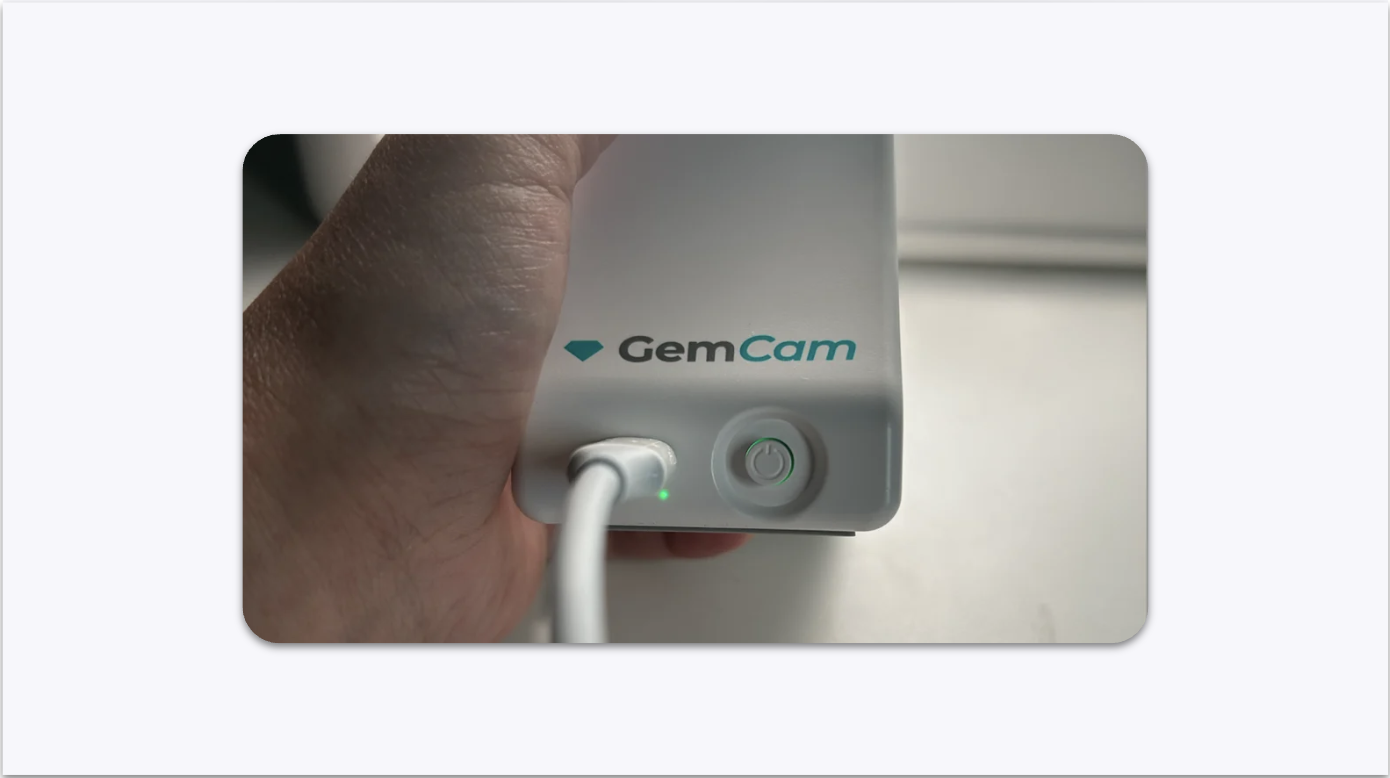
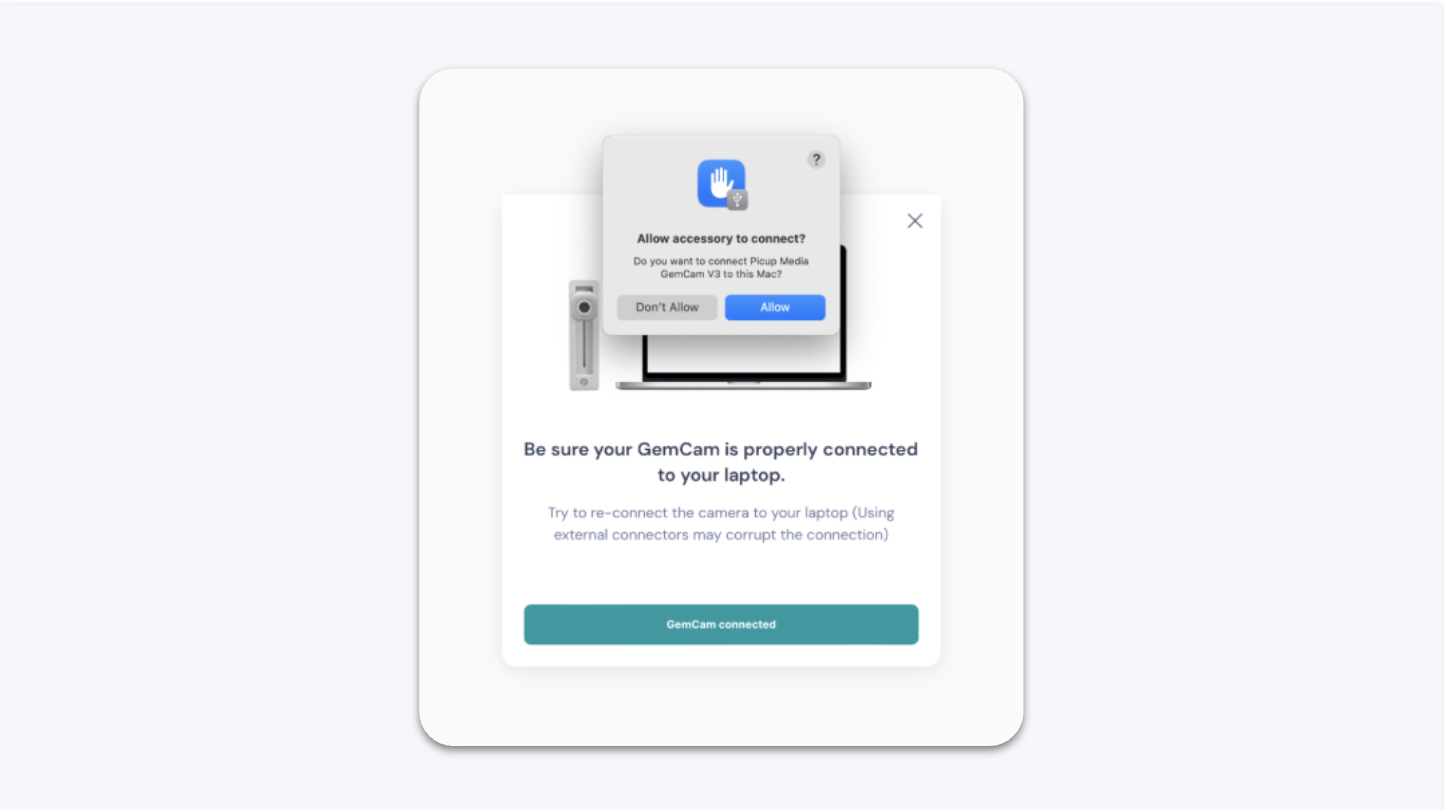
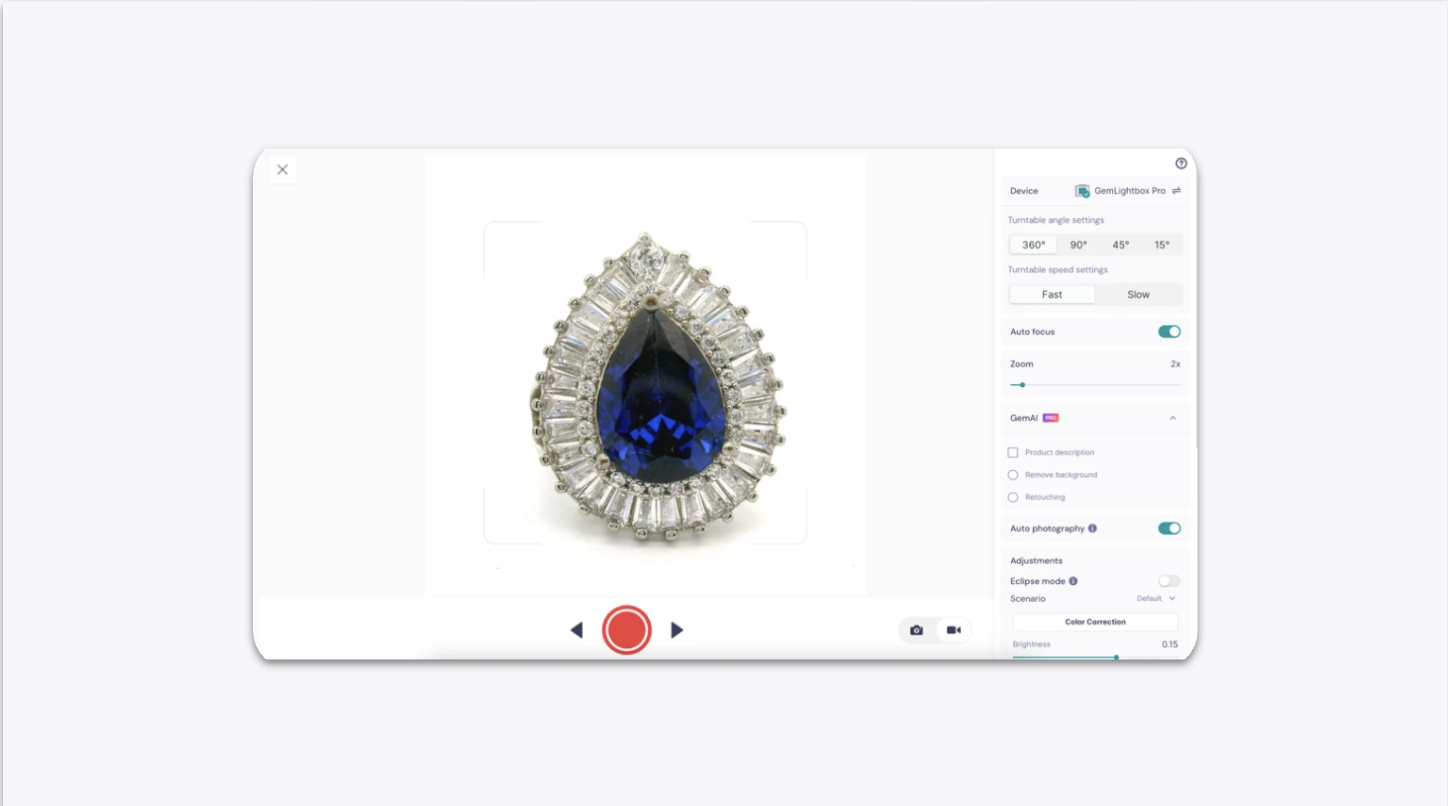
Download GemIQ, connect your GemCam via USB-C, and select it in the app to start shooting. The full setup takes under five minutes.
Before You Start#
Download and log in to GemIQ.
Have your USB-C data transfer cable ready (included in the box).
If your computer does not have a USB-C port, locate the included USB-A adapter.
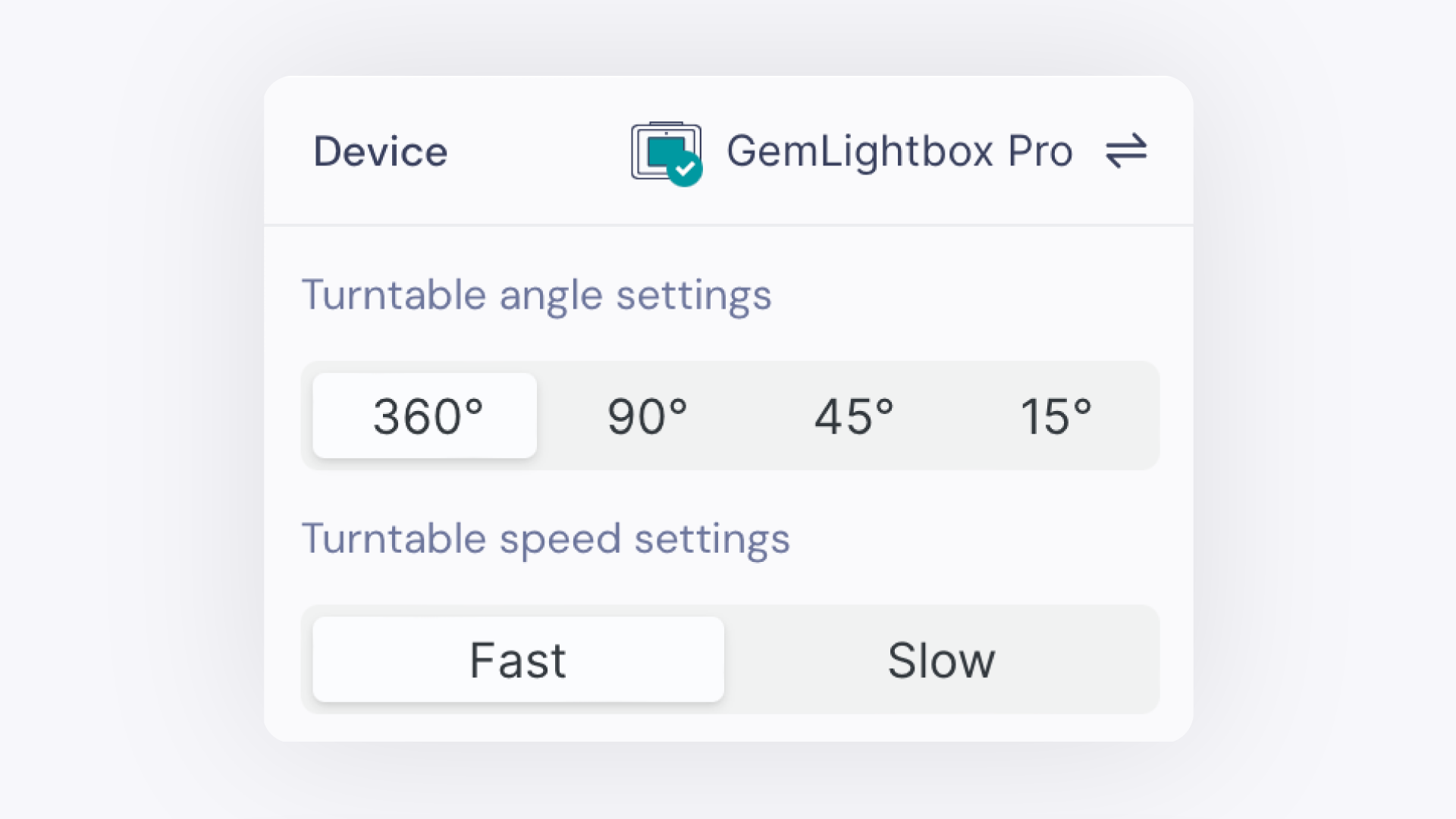
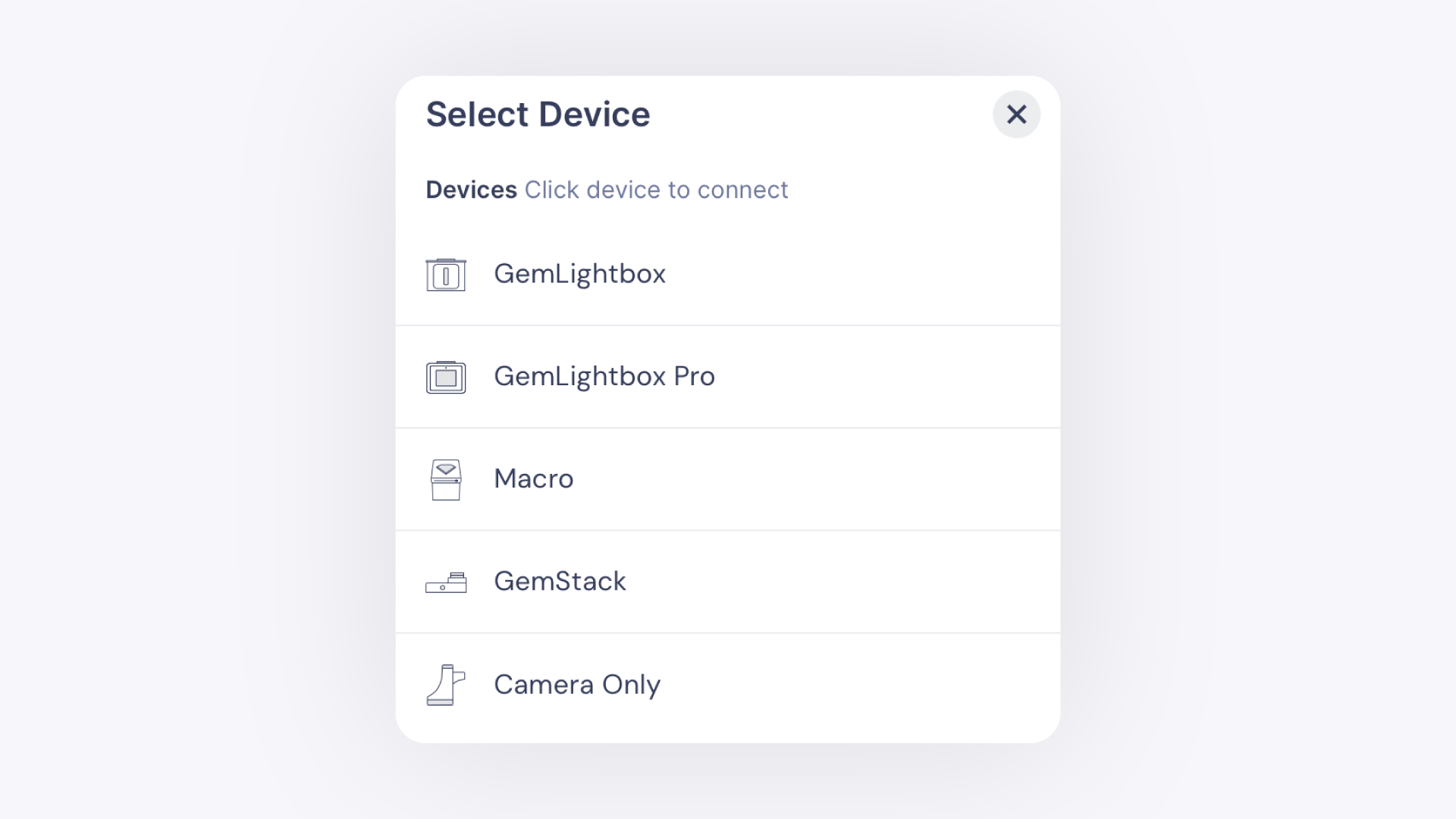
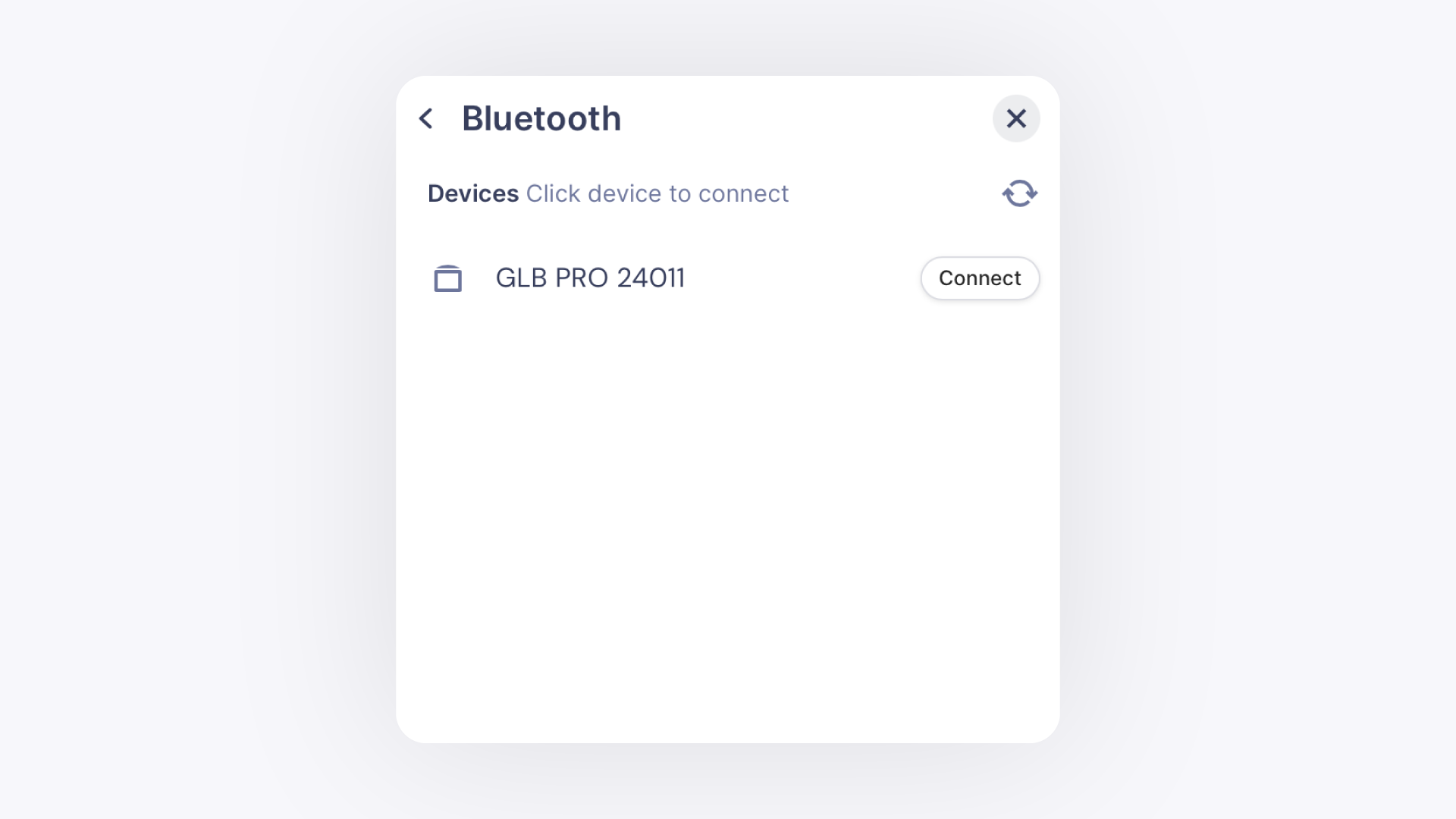
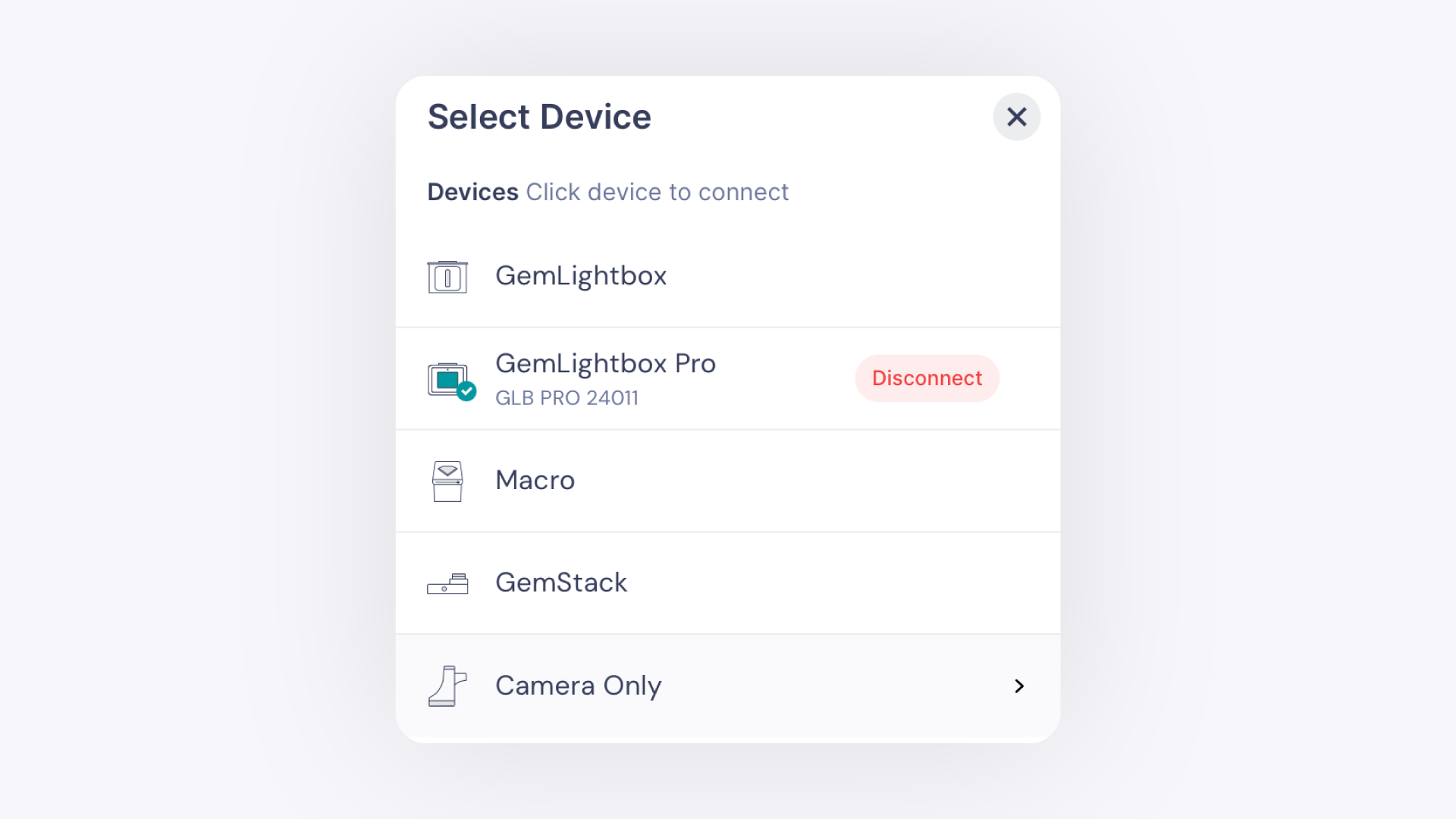
If you are also connecting a GemLightbox or GemLightbox Pro, ensure your computer's Bluetooth (version 4.0 or above) is turned on.
Steps#
Part 1: Connect Your GemCam#
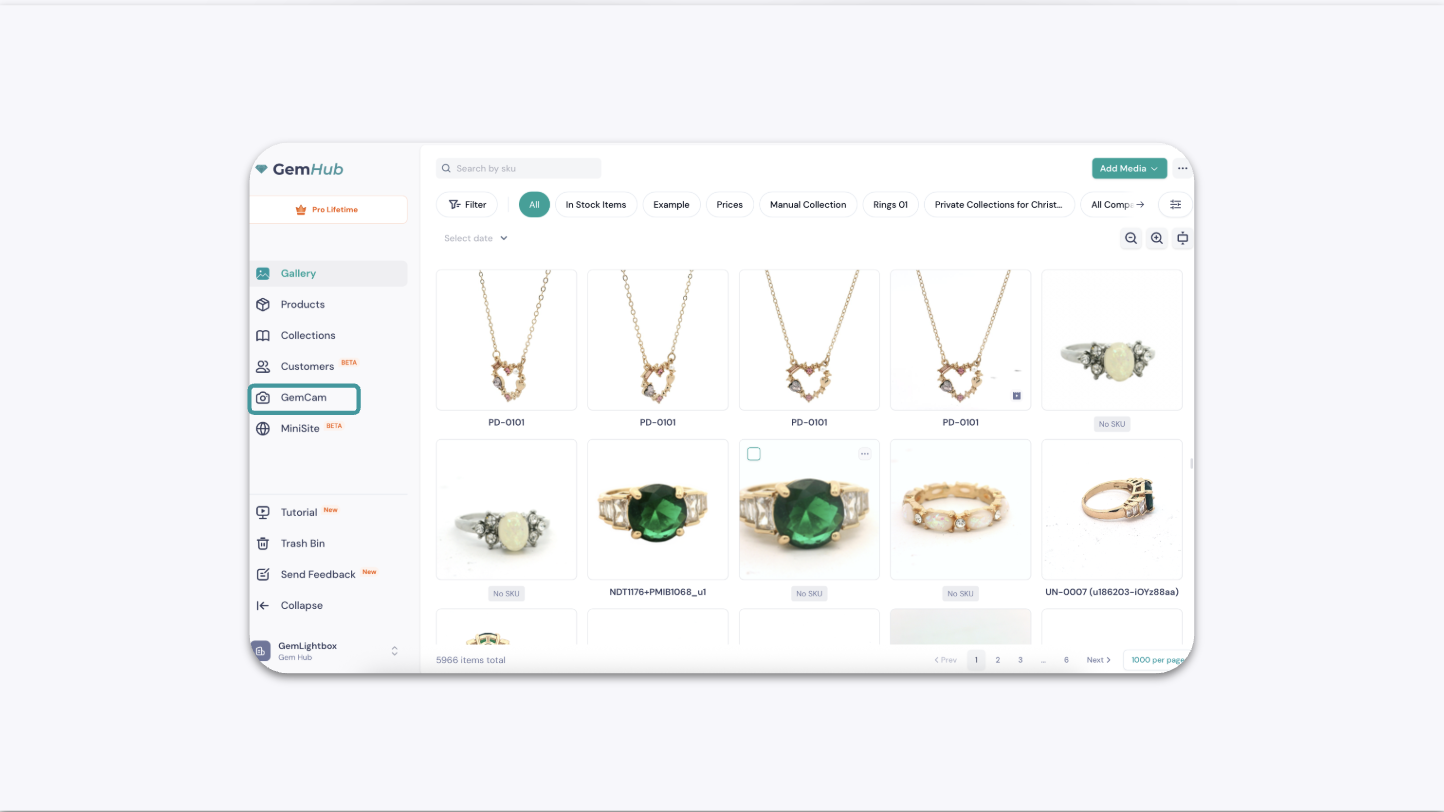
Open GemIQ and log in. Go to hub.gemlightbox.com and sign in to your account.