Quick Answer#
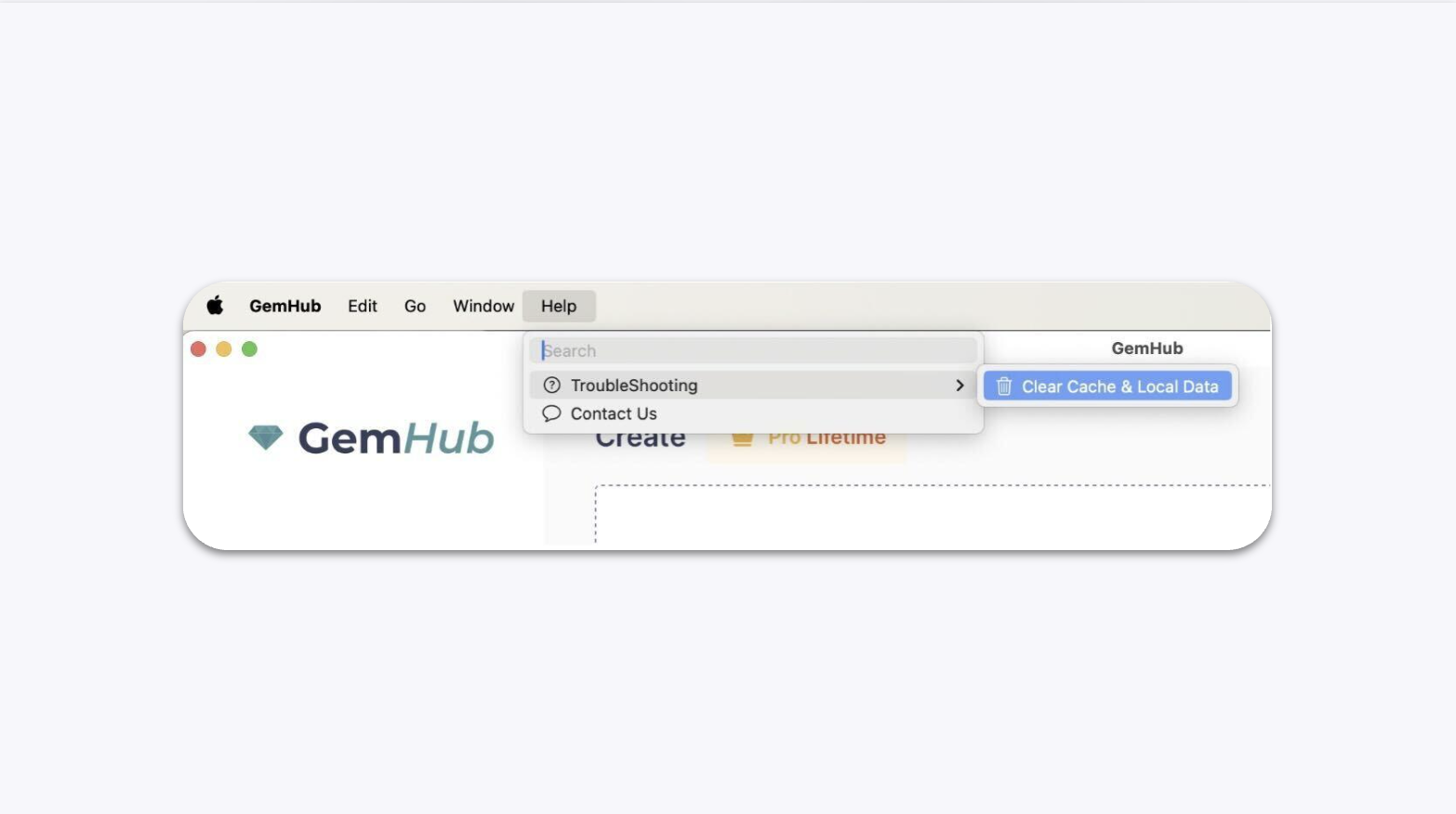
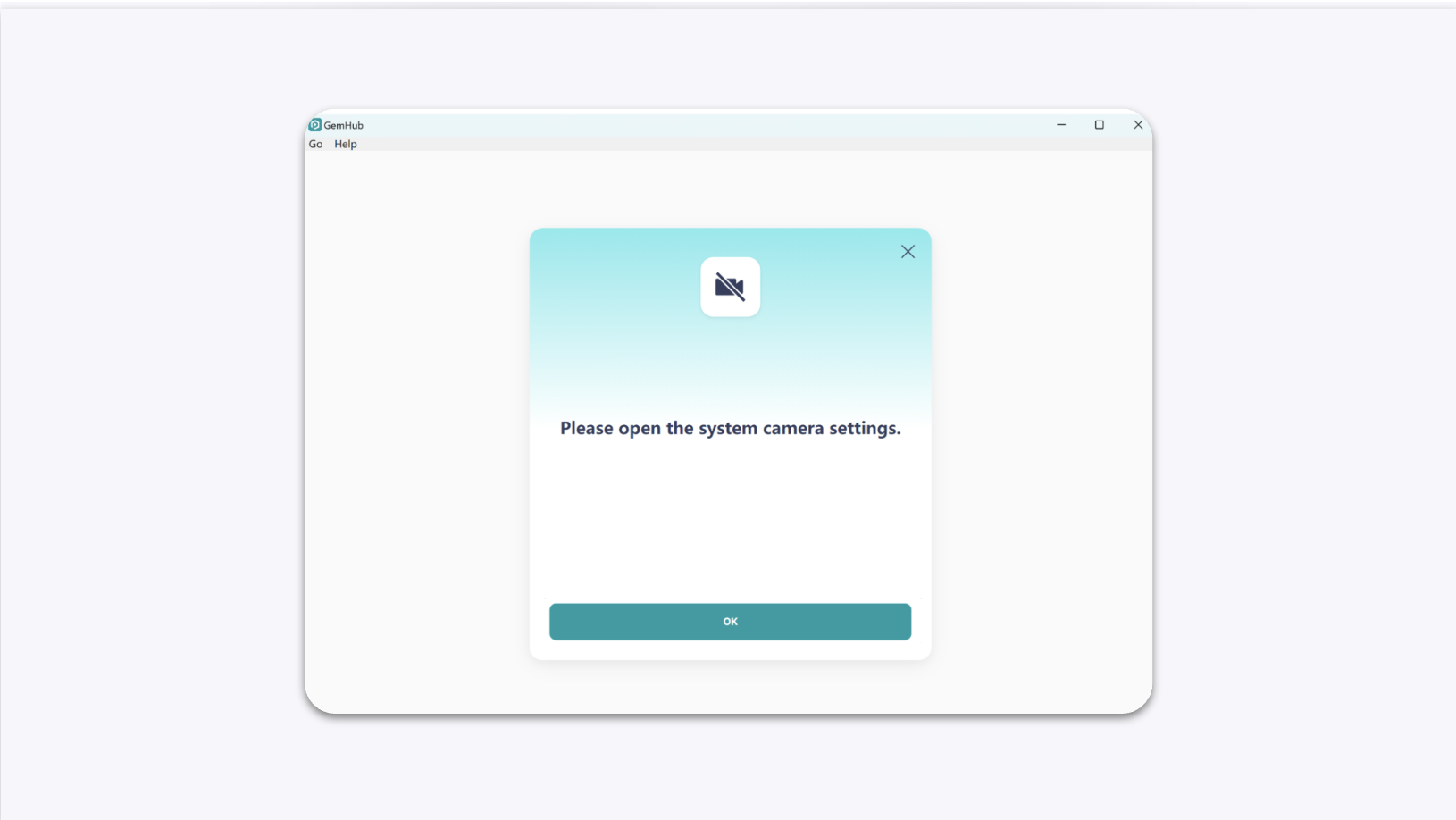
If the GemIQ Desktop App displays a recurring prompt to "open system camera settings," it usually indicates a problem with the camera's connection to your computer or a temporary issue with the app's cache. You can typically resolve this by checking your USB connection, clearing the app's cache, or reinstalling the app.
Before You Start#
Ensure your GemCam Pro is connected to your computer via its USB cable.
Close any other applications that might be using a camera.
Steps#
Follow these steps in order, from least to most disruptive. Stop when the issue is resolved.
Check the USB Connection
Unplug the USB cable from both the GemCam and your computer, then plug it back in securely.