

The GemLightbox Pro itself does not need to be calibrated.
If a particular photo does not look right, use Auto-Adjust in GemIQ. This adjusts the image settings, including:
Brightness
Tone
Temperature
Tint
These adjustments apply to the settings on the app only. They do not recalibrate the GemLightbox Pro.
How Does Auto-Adjust Work?#
When you use Auto-Adjust, GemIQ automatically adjusts the image settings to improve the result.
Once Auto-Adjust has been applied, you may see changes to the Brightness, Tone, Temperature, and Tint controls.
If the result is not what you want, you can return these settings to their original values.
How to Reset the Adjustments#
Open the Capture screen in GemIQ.
Apply Auto-Adjust if needed.
Open the image adjustment controls.
Tap Reset Adjustments.
The Brightness, Tone, Temperature, and Tint settings will return to their default values.
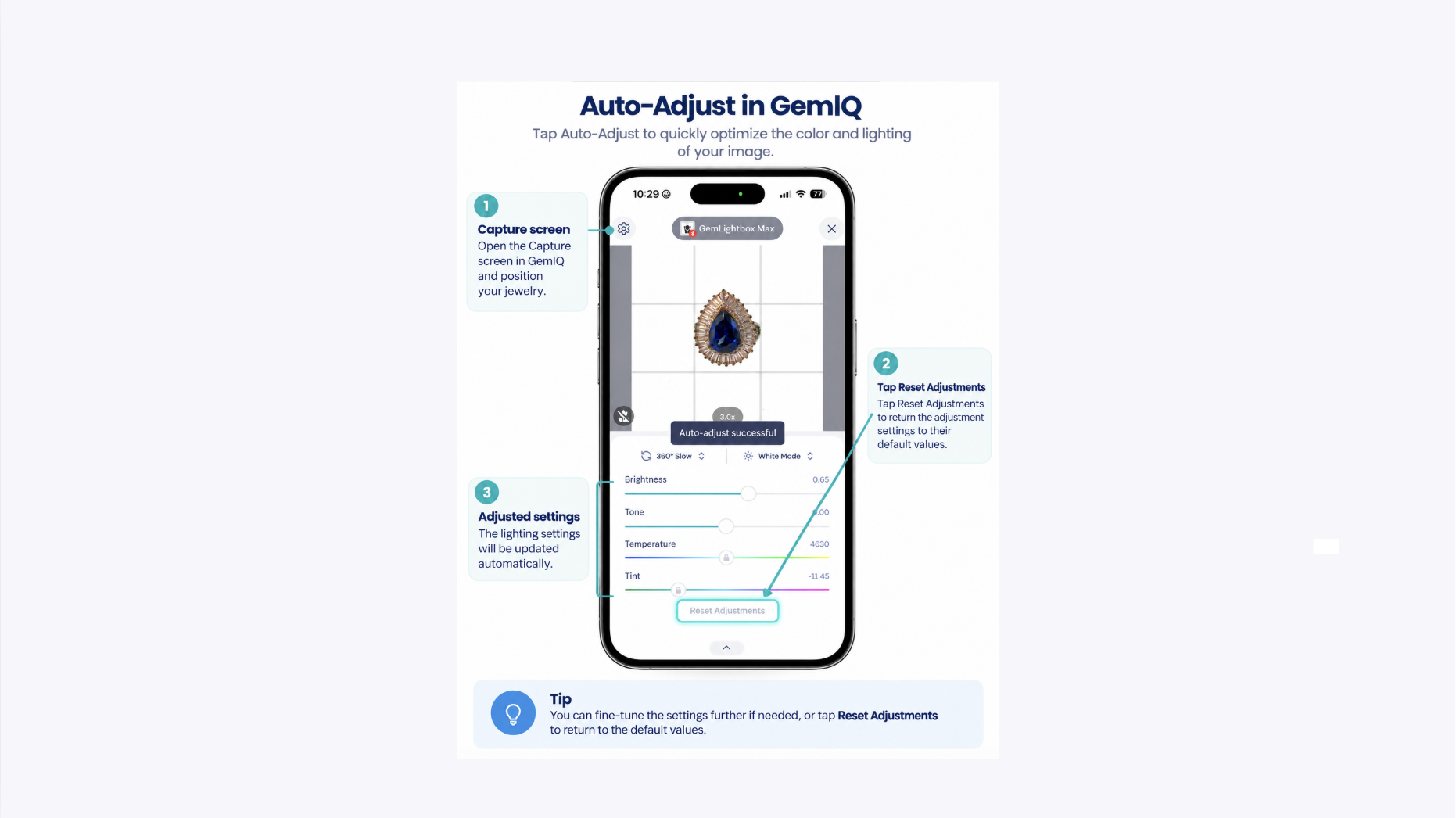
Place the image directly after these steps so customers can clearly see where Reset Adjustments is located.
Expected Result#
You can use the GemLightbox Pro without performing any calibration.
If an image requires correction, use Auto-Adjust. If you want to undo the changes, tap Reset Adjustments.
Common Questions#
Do I need to calibrate my GemLightbox Pro before using it?
No. The GemLightbox Pro is pre-calibrated.
Do I need to recalibrate it regularly?
No. There is no regular manual calibration process.
Does Auto-Adjust calibrate the GemLightbox Pro?
No. Auto-Adjust only changes the image settings in GemIQ.
What does Reset Adjustments do?
It returns the Brightness, Tone, Temperature, and Tint settings to their default values.
Does Reset Adjustments change the GemLightbox Pro hardware?
No. It only affects the settings inside GemIQ.