Quick answer#
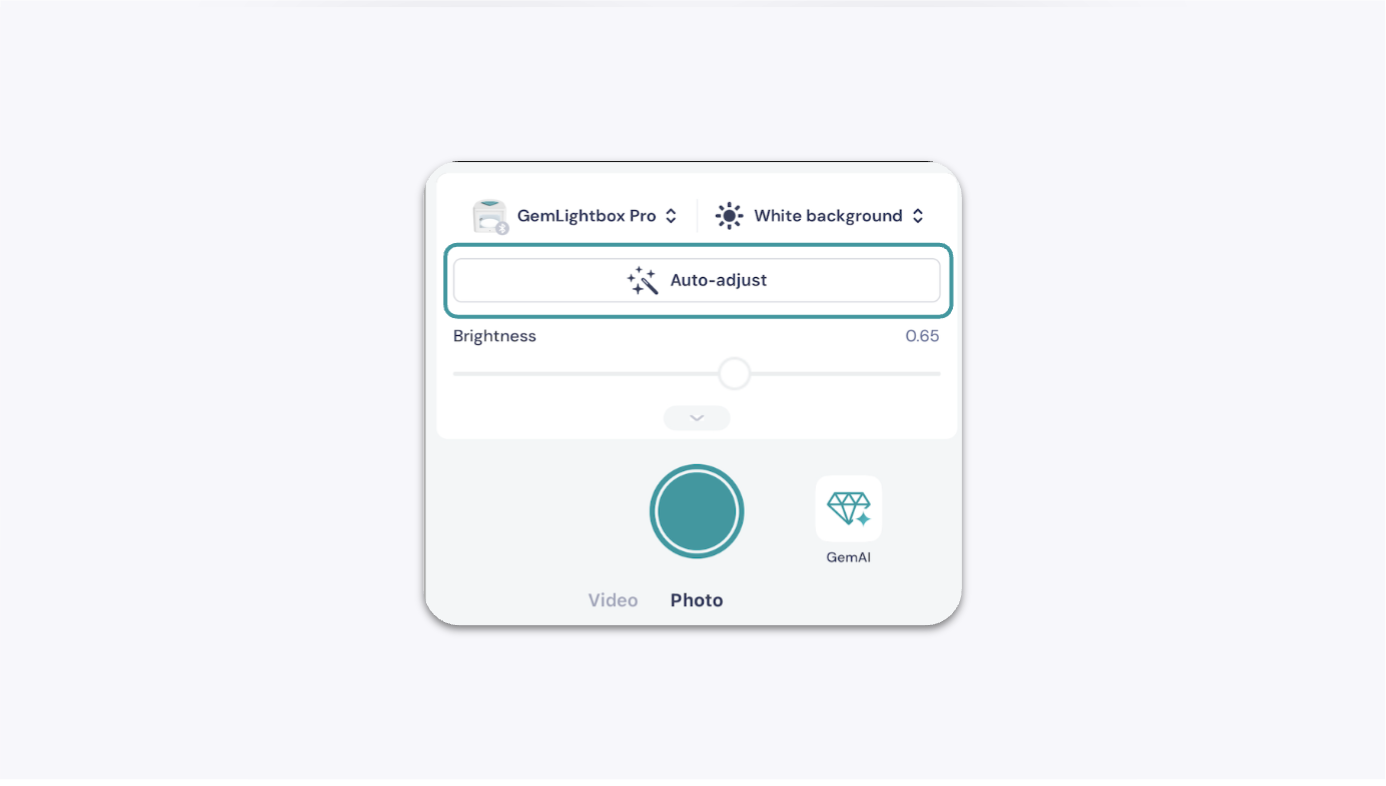
Use the Auto-Adjust button on the GemIQ camera capture screen to calibrate color before you start photographing. This corrects color discrepancies caused by your lighting conditions so your jewelry images look accurate from the first shot.
Before You Start#
GemIQ installed and updated to the latest version
Jewelry piece ready to photograph
Lighting setup in place and stable
Steps#
Open GemIQ.
Navigate to the camera capture screen.
Tap the Auto-Adjust button.
Wait for the calibration to complete before moving the device or your jewelry.
Begin photographing your pieces.