Quick Answer#
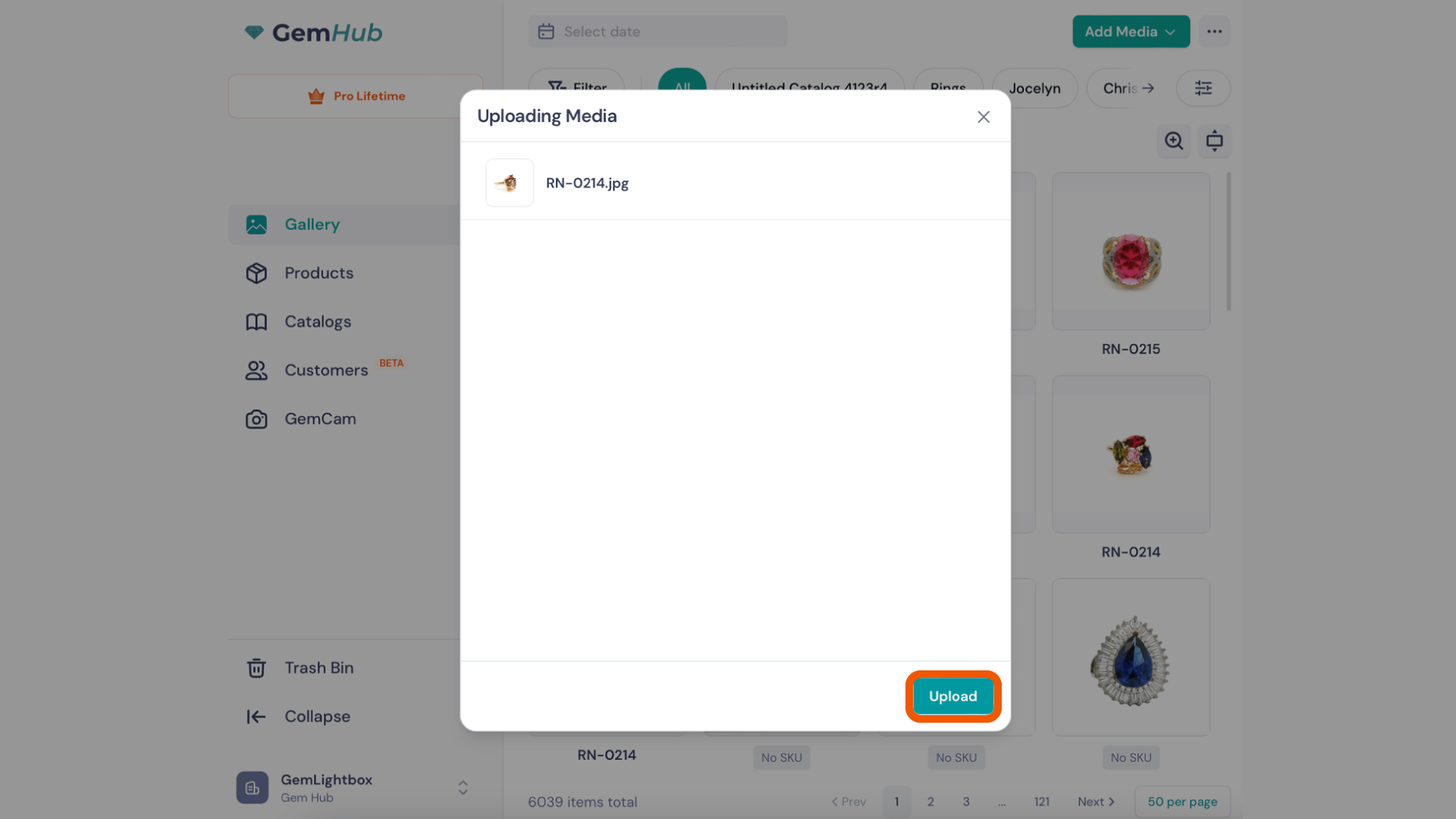
To add images and videos from your computer to GemIQ App, open the Media, then either drag and drop your files directly into the app window or click the "Add Media" button to select them. All uploaded media syncs automatically across your devices.
Before You Start#
Ensure GemIQ is installed on your Windows PC or Mac.
Log in to your GemIQ account.
Have the image and video files you want to upload saved locally on your computer.
Steps#
Open GemIQ on your computer and navigate to the Media section.
Drag your media files from a folder on your computer and drop them anywhere in the Media window.
Alternatively, click the Add Media button.