Quick Answer#
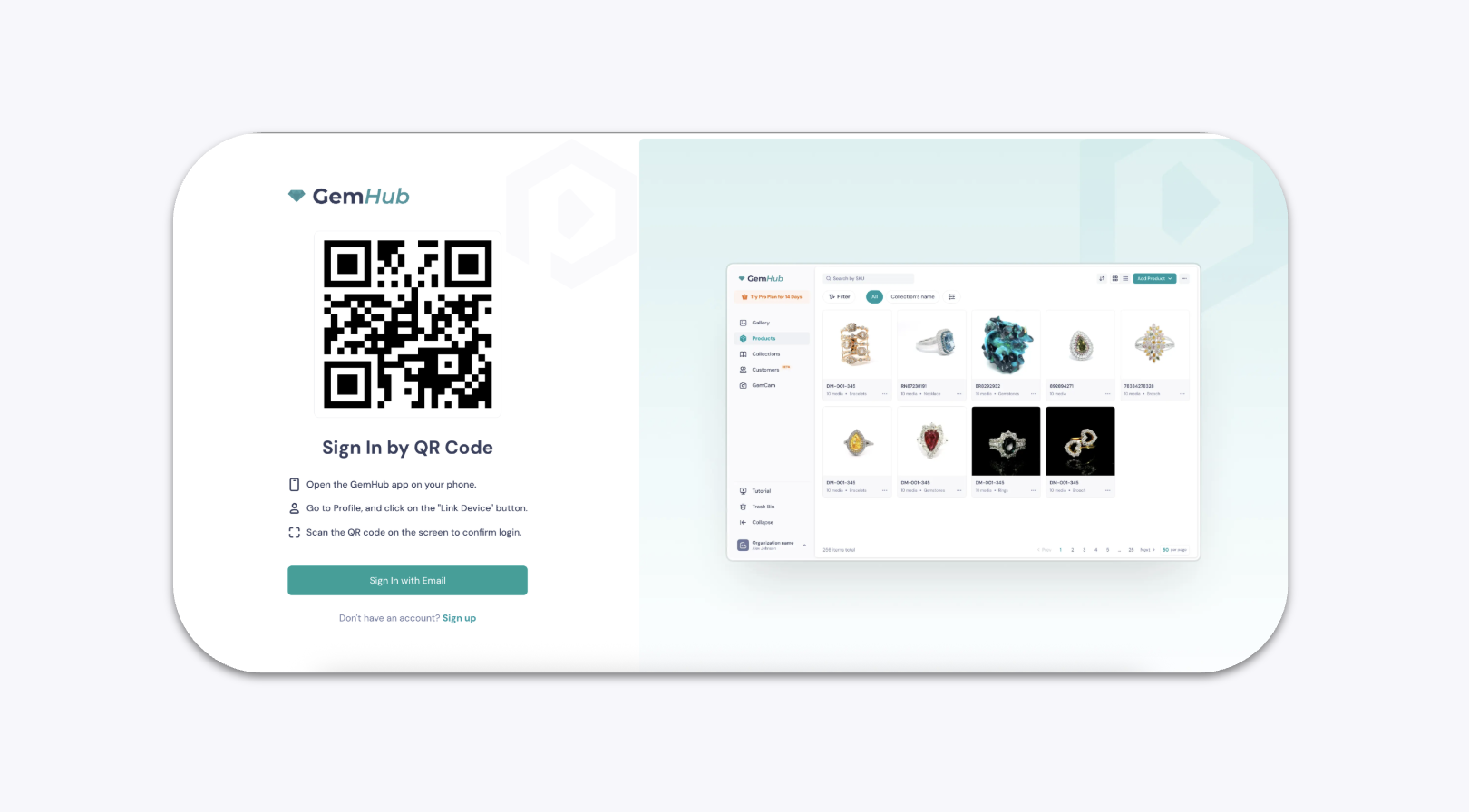
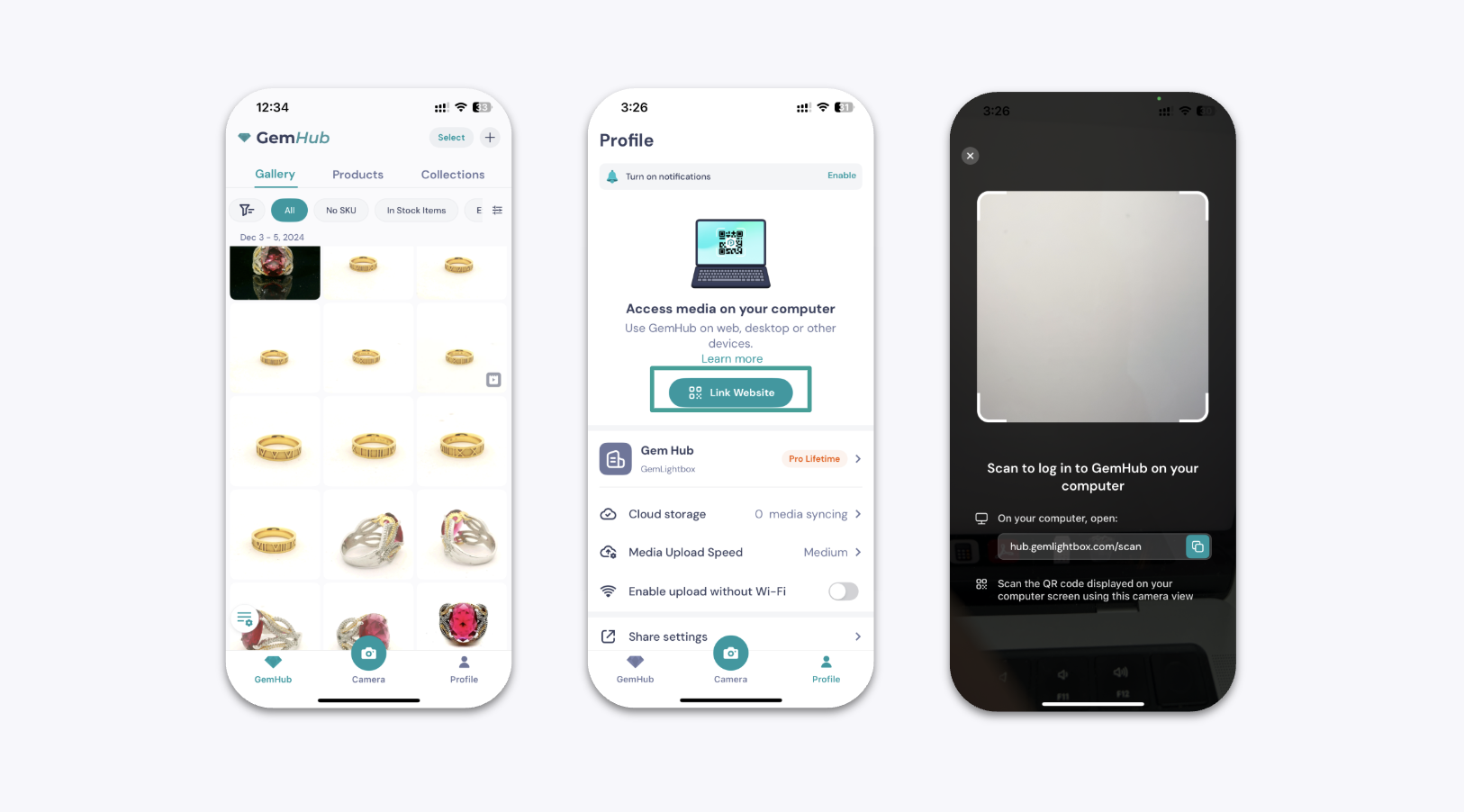
If your GemIQ mobile app isn't syncing media to your desktop, sign out of both apps, then reconnect your device using a fresh incognito browser window and QR code. Most sync problems are caused by session conflicts or browser cache issues.
Before You Start#
Sign out of GemIQ on both your mobile device and desktop. This clears any session conflicts that may block syncing.
Have your GemIQ login credentials ready.
Steps#
Step 1: Open an Incognito Window on Your Desktop#
Open your web browser.
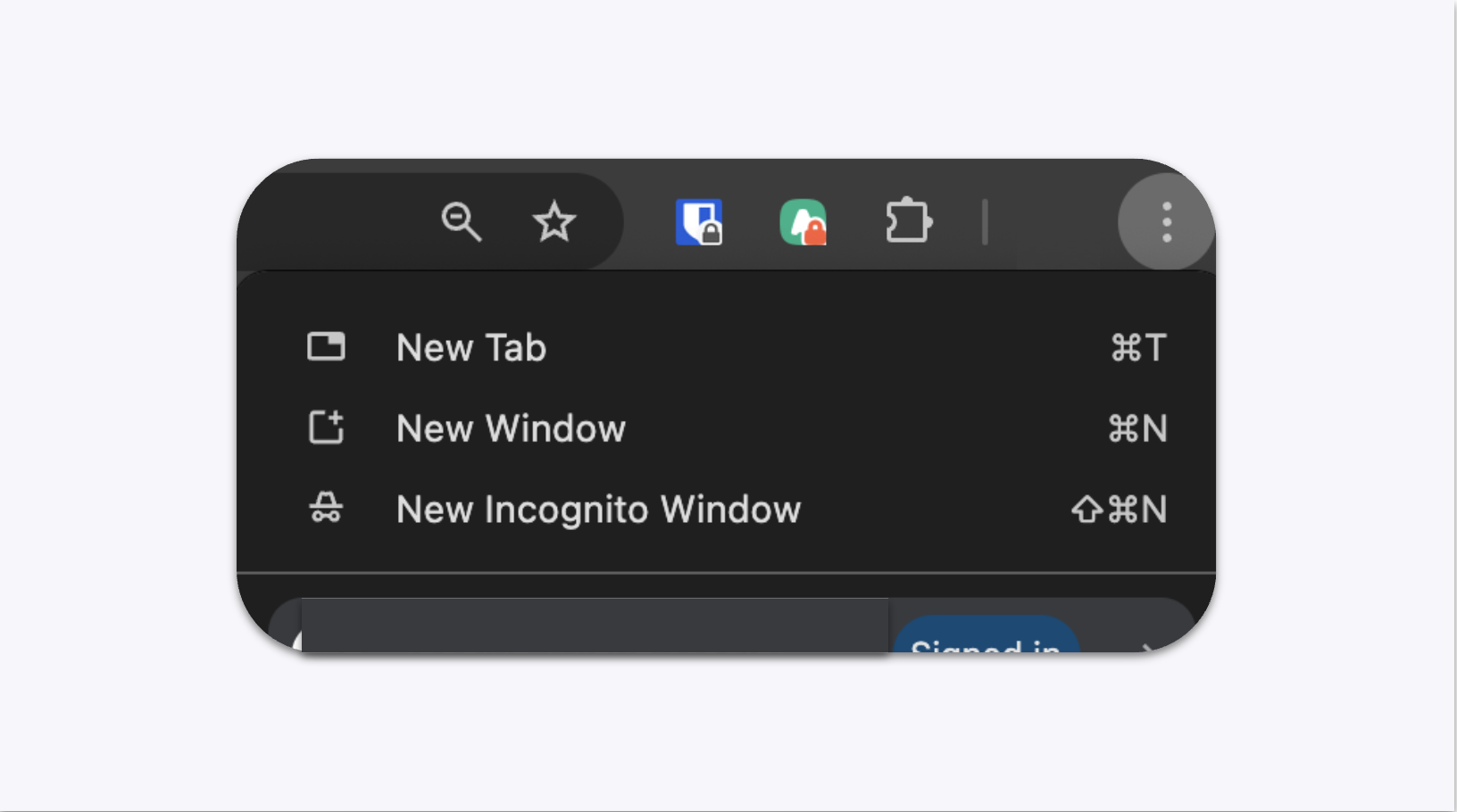
Click the three-dot menu in the top-right corner.
Select New Incognito Window (Chrome) or your browser's equivalent private browsing mode.