Quick Answer#
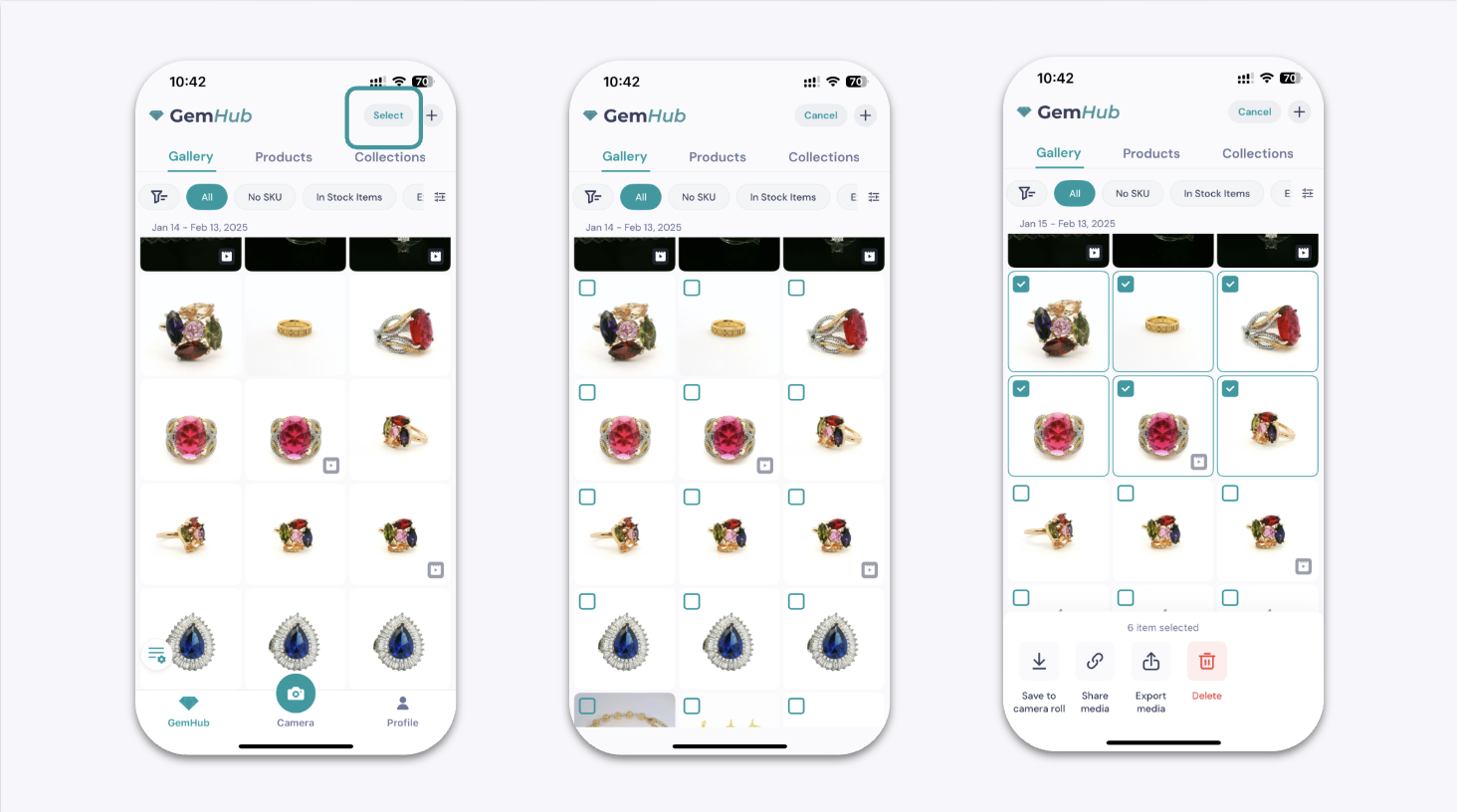
You can export images and videos from GemIQ App to your mobile device. From the GemIQ App's media, select the files you wish to save, then use the share option to save them directly to your device's camera roll or send them to another application.
Before You Start#
Ensure the GemIQ App is installed on your mobile device.
Make sure you have images or videos in your GemIQ gallery that you want to export.
Check that GemIQ App has permission to access your device's photo library. You can usually manage this in your device's settings.
Steps#
Open GemIQ on your mobile device and navigate to the Gallery tab.
Tap Select in the top right corner of the screen.
Tap on the images and videos you want to export. A checkmark will appear on selected items.
Once you have selected all desired files, tap the Share button in the bottom left corner.