Quick Answer
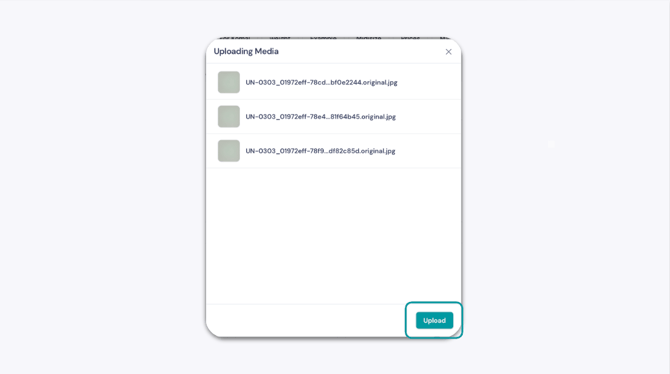
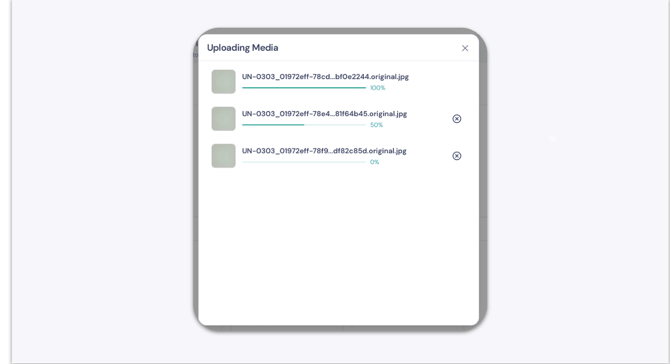
Open the Gallery in GemIQ, click Add Media, then drag and drop your files or use Browse File to select them. Confirm the preview and click Upload — your files sync to GemIQ cloud storage immediately.
Important: original file names are not retained. All uploaded files appear as No SKU until you manually assign a SKU.
Before You Start
Log in to GemIQ on your desktop.
Have the image or video files you want to upload ready and accessible on your computer.
Steps
Open GemIQ and navigate to Gallery. Click Add Media.
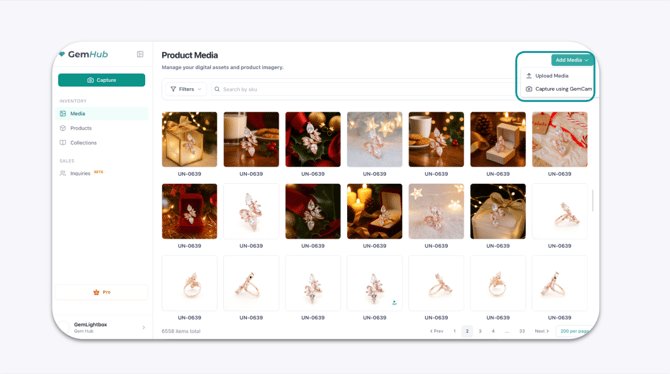
Click Upload Media.
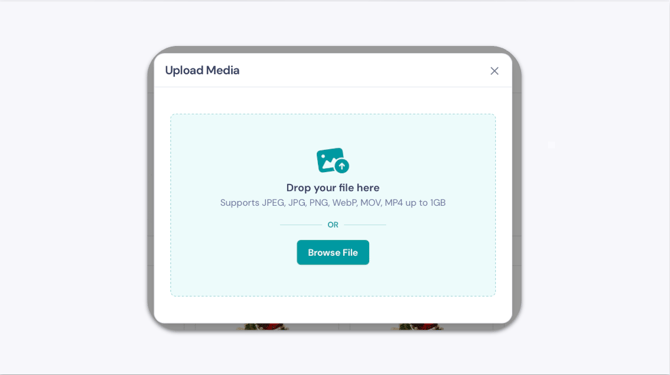
Drag and drop your files into the upload area, or click