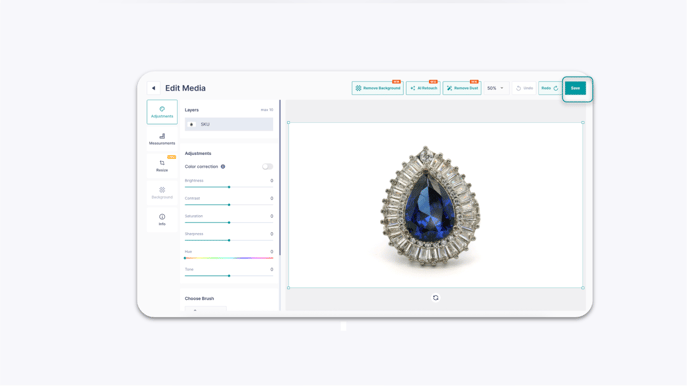
How to Use AI Editing Tools for Jewelry Photos
Quick Answer
To use AI editing tools, open the GemHub and navigate to your Gallery. Click the pencil icon on any image to open the editor, select an AI function like Retouch, Dust Removal, or Background Removal, and then save your changes as a new file.
Before You Start
You need at least one image or video saved in your GemHub Gallery.
Ensure you have an active GemIQ subscription that includes GemStudio AI editing features.
A stable internet connection is recommended for the AI processing to complete successfully.
Steps
Open the GemHub and go to the Gallery.
Hover your mouse over the image you want to edit and click the pencil icon that appears in the top-right corner. This will open the media editor.
-gif.gif?width=688&height=378&name=Screen%20Recording%202025-05-16%20at%2012-09-39%E2%80%AFPM%20(1)-gif.gif)
An Animation Showing a User Clicking the Pencil Icon to Edit an Image in the GemIQ App Gallery. 3. In the editor panel, select the AI function you wish to apply, such as AI Retouch or AI Dust Removal. The app will automatically process your image.
-gif.gif?width=688&height=387&name=Screen%20Recording%202025-05-16%20at%2012-13-45%E2%80%AFPM%20(1)-gif.gif)