
Calibrating Color in the GemHub
Quick answer
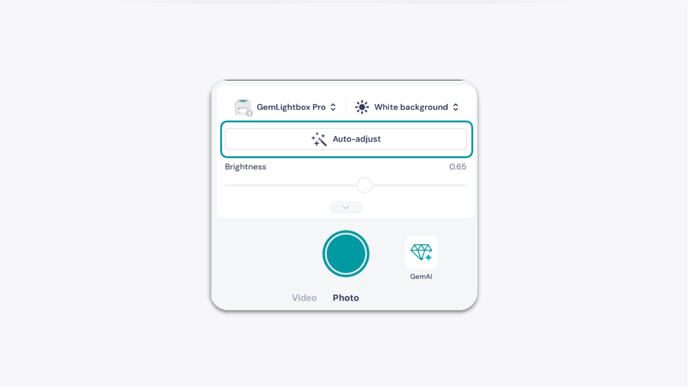
Use the Auto-Adjust button on the GemHub camera capture screen to calibrate color before you start photographing. This corrects color discrepancies caused by your lighting conditions so your jewelry images look accurate from the first shot.
Before You Start
GemHub installed and updated to the latest version
Jewelry piece ready to photograph
Lighting setup in place and stable
Steps
Open the GemHub.
Navigate to the camera capture screen.
Tap the Auto-Adjust button.
Wait for the calibration to complete before moving the device or your jewelry.
Begin photographing your pieces.
Expected Result
Color balance is corrected for your current lighting conditions. Your jewelry photos should display accurate, true-to-life colors without manual adjustments.
If This Does Not Work
Update the GemHub to the latest version and try again.
Close and reopen the app, then repeat the calibration steps.