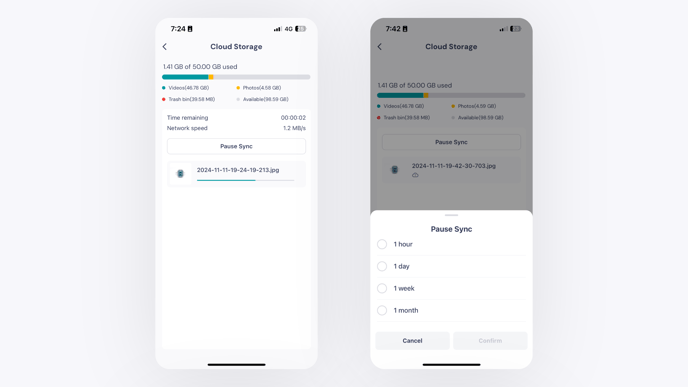
How to Sync Files to Your GemIQ Account
Quick Answer
Files captured in the GemIQ mobile app automatically sync to your cloud storage, making them accessible on all your devices. You can monitor the sync status, check your storage usage, and pause or resume the sync process at any time from the Profile section of the app.
Before You Start
Ensure the GemHub is installed on your mobile device.
Connect your device to a stable Wi-Fi or cellular network.
Have images or videos in your GemHub gallery that need to be synced.
Steps
Open the GemHub on your mobile device and tap on the Profile tab.
Locate the Cloud storage section. Here you can see how many files are waiting to be synced and view your current storage usage.
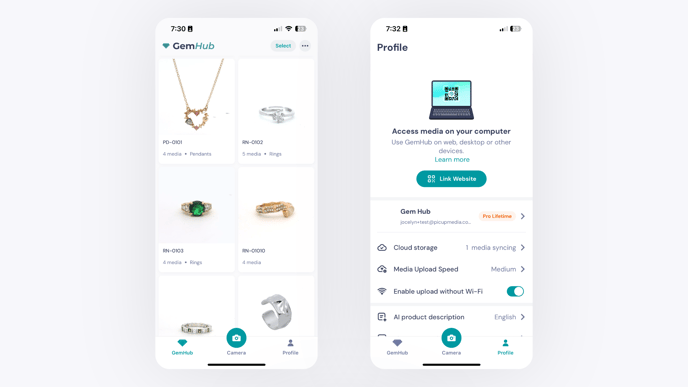
A Screenshot of the Profile Screen in the GemIQ App Showing the Cloud Storage Section Tap on Cloud storage for more details.
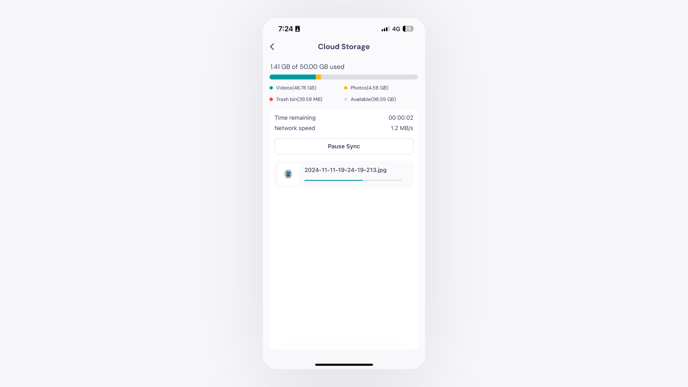
A Screenshot of the Cloud Storage Details Screen