Troubleshooting the 'Could Not Open System Camera Settings' Error
Quick Answer
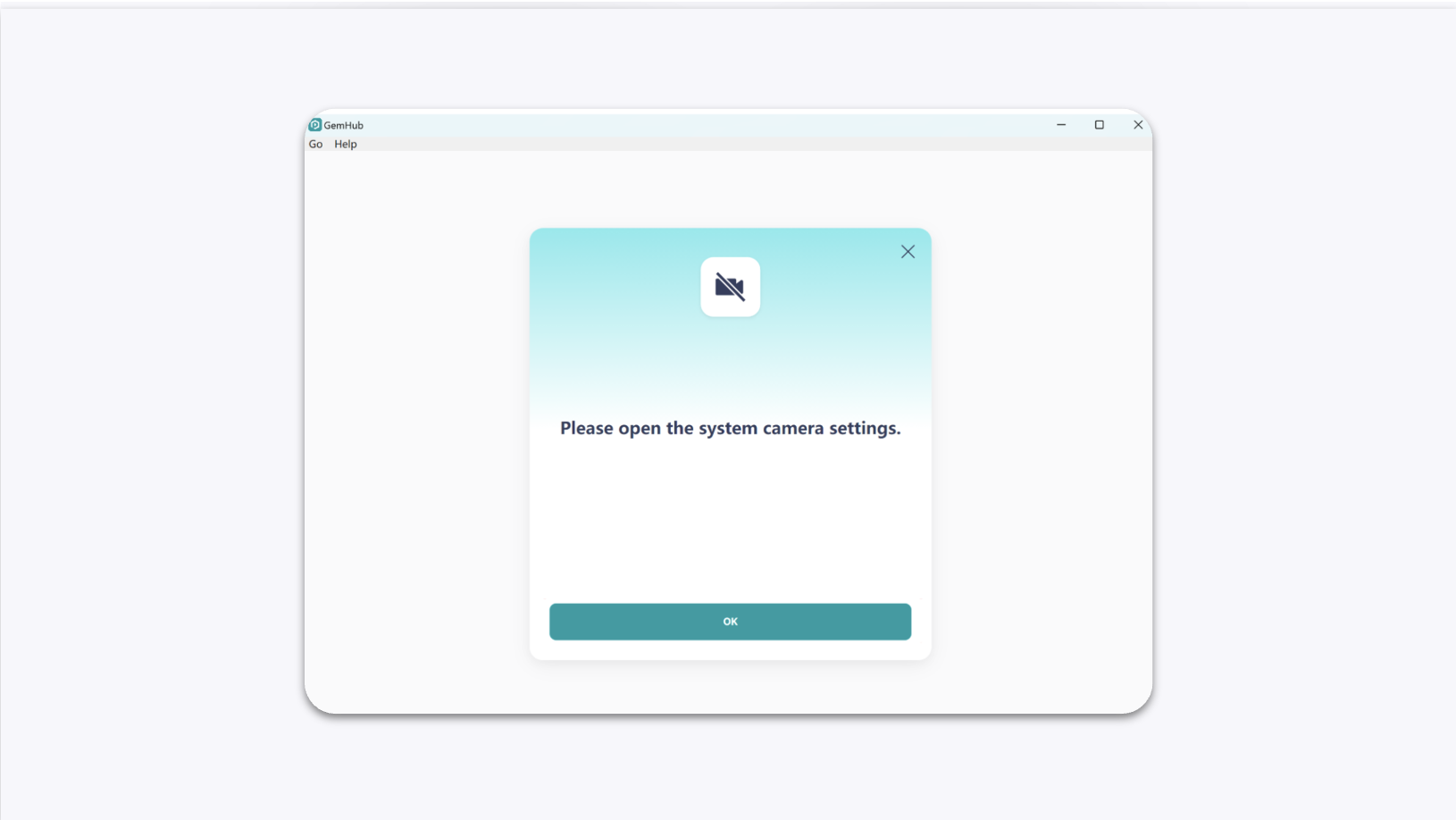
If the GemHub displays a recurring prompt to "open system camera settings," it usually indicates a problem with the camera's connection to your computer or a temporary issue with the app's cache. You can typically resolve this by checking your USB connection, clearing the app's cache, or reinstalling the app.
Before You Start
Ensure your GemCam is connected to your computer via its USB cable.
Close any other applications that might be using a camera.
Steps
Follow these steps in order, from least to most disruptive. Stop when the issue is resolved.
Check the USB Connection
Unplug the USB cable from both the GemCam and your computer, then plug it back in securely.
If the error persists, try connecting the cable to a different USB port on your computer.
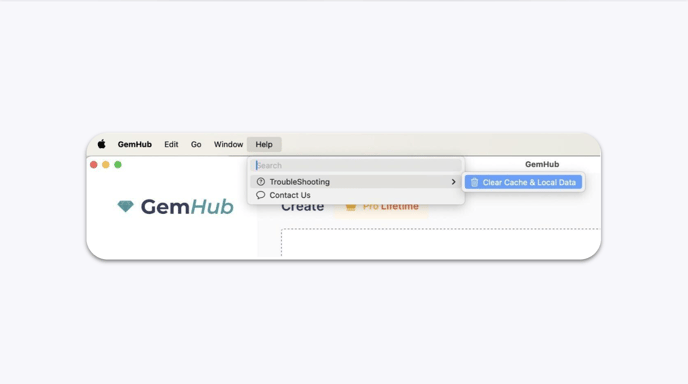
Clear the GemHub Cache
Open the GemHub.
Navigate to the