Adding Measurements to Your Jewelry Image in the GemHub
Quick Answer
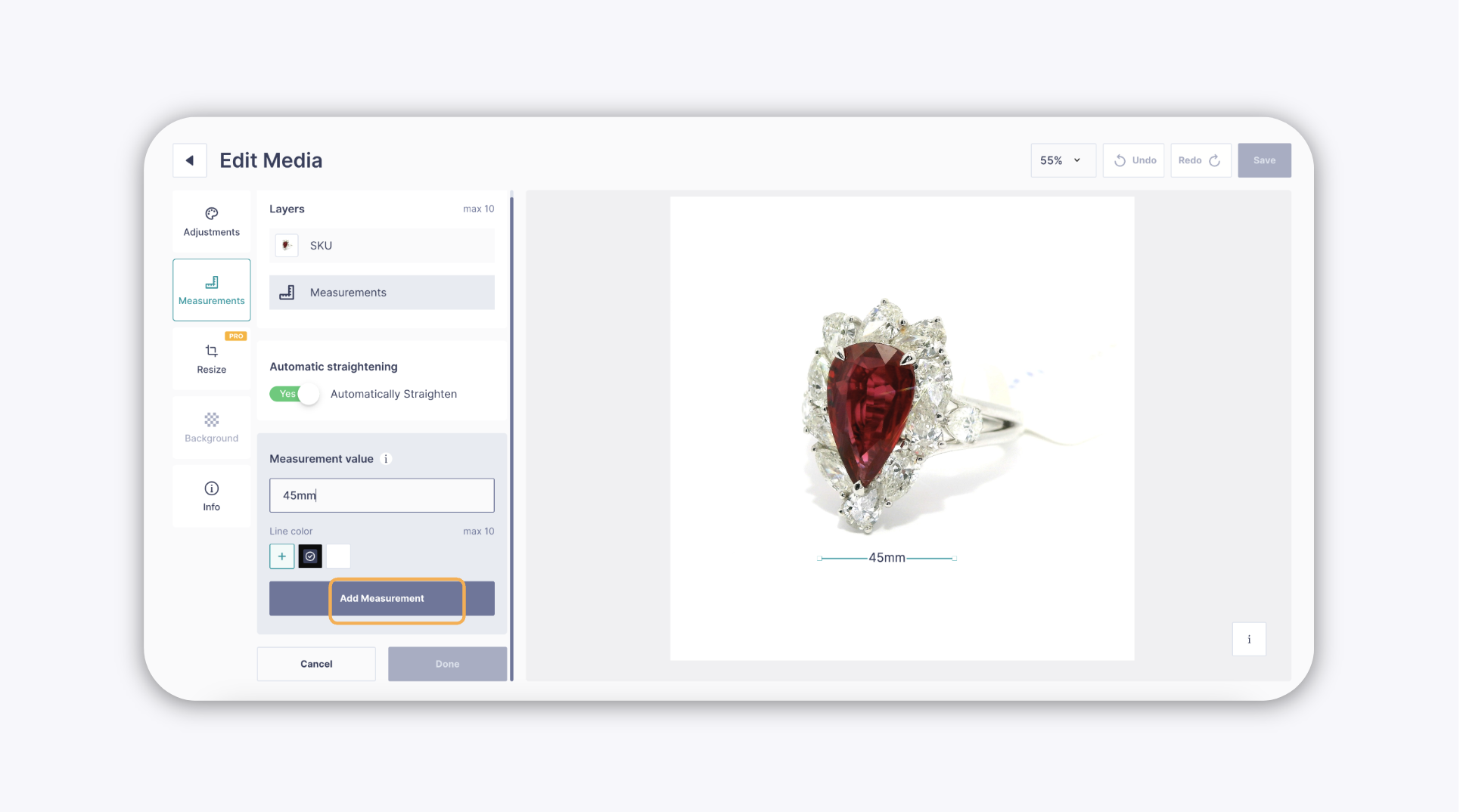
Use the Measurements tool in the GemIQ Image Editor to draw a labeled dimension line directly onto your jewelry image. Enter the value, choose a line color, place the line, and click Add Measurements to save.
Before You Start
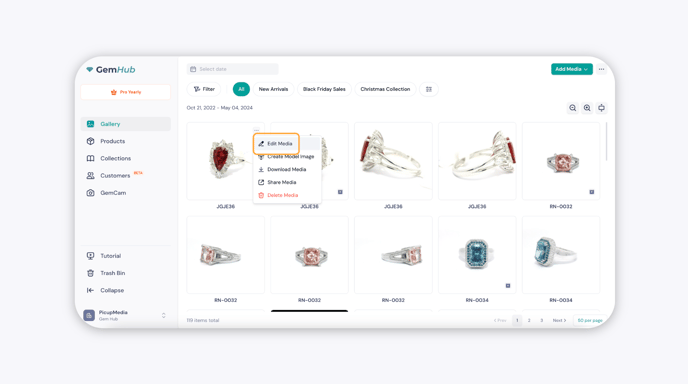
Your image must already be uploaded or captured in the GemHub.
Open the image in the GemIQ Image Editor before following these steps.
Steps
Open your image in the GemIQ Image Editor.
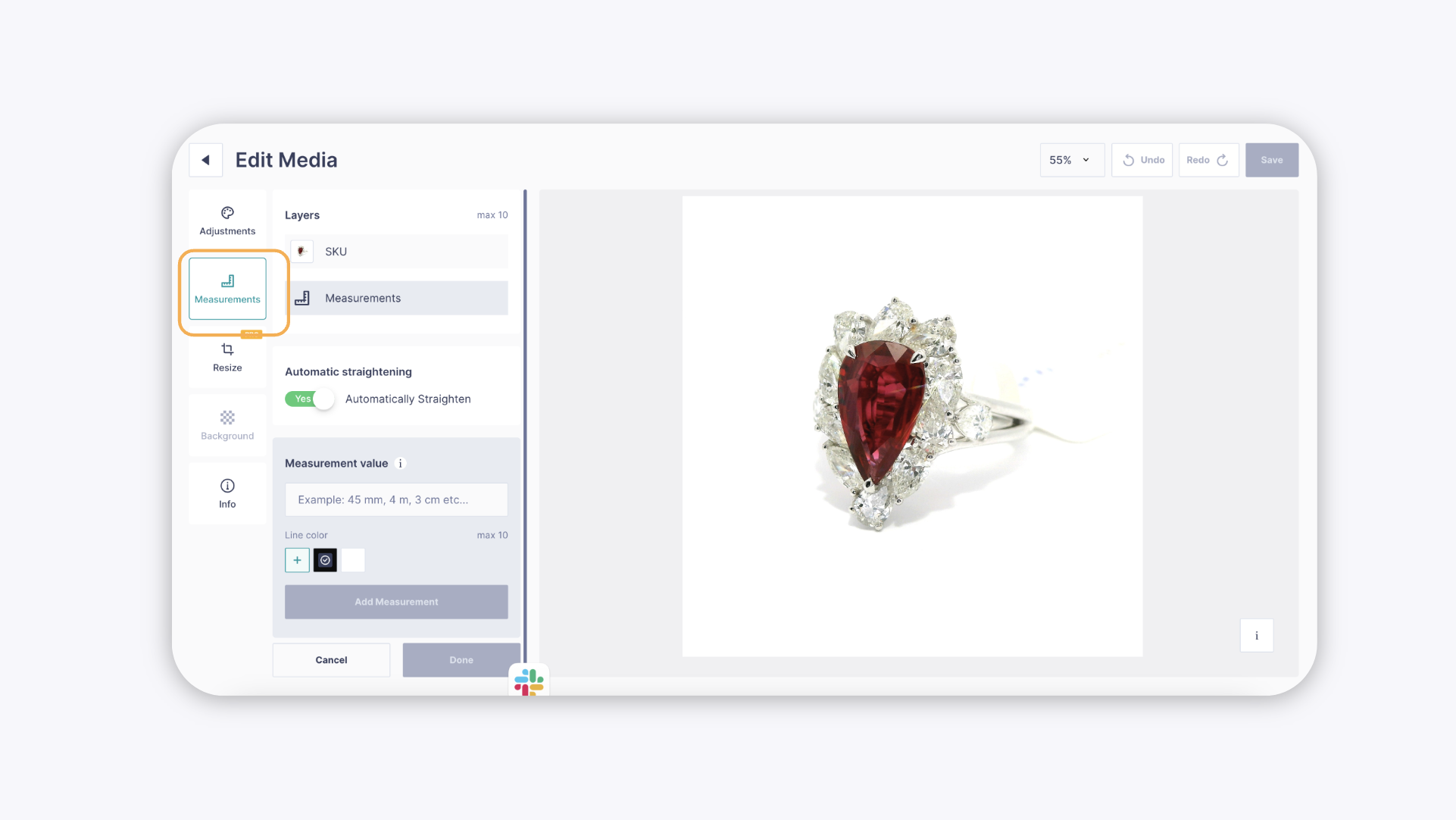
Click Measurements in the editor toolbar to enable the tool.
In the Measurements panel, enter the dimension value for your piece.
Select a line color that will contrast clearly against your jewelry image.
Click and drag to draw the measurement line on your image. If you want the line to snap to a perfectly horizontal or vertical position, enable the