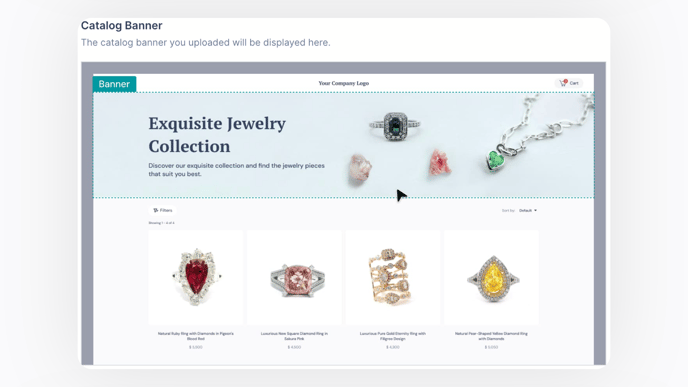
How to Customize Your Brand on Shared Links
Quick Answer
Customize your product and catalog share links by adding your company logo, contact information, and a branded banner. You can configure these global settings in the "Share Settings" section of your GemIQ account, ensuring a professional and consistent brand experience for your customers.
Before You Start
Log in to the GemHub on your desktop.
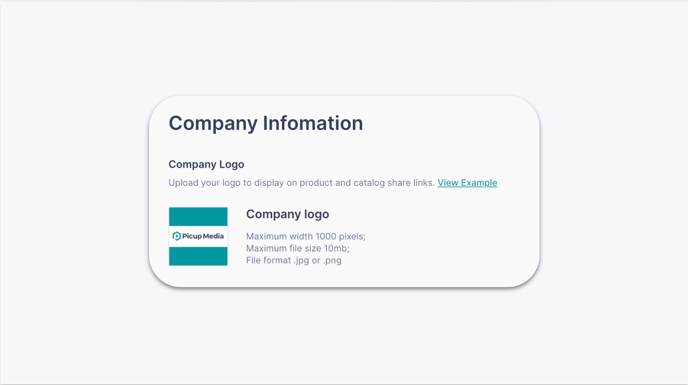
Have your company logo file ready. The recommended format is JPG or PNG, with a maximum size of 10MB and a maximum width of 1000 pixels.
If you plan to use a custom banner, have the image file ready. The recommended format is JPG or PNG, with a maximum size of 10MB and dimensions of 1920x400 pixels.
Know your company's description, website URL, and contact details (email, WhatsApp, phone number).
Steps
Click on your profile name in the top right corner of the GemHub and select Share Settings from the dropdown menu.
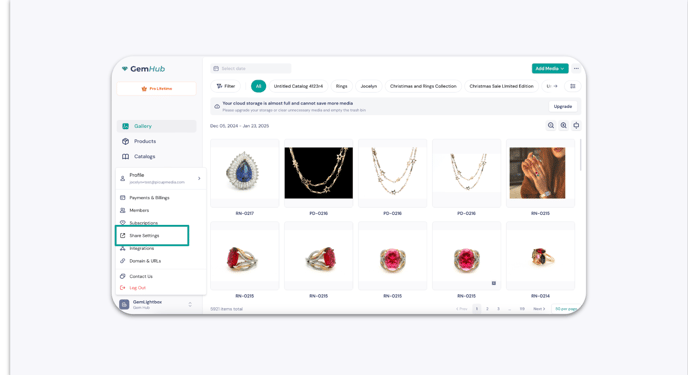
Accessing Share Settings in the GemIQ app In the Company Information section, click to upload your Company Logo. This logo will appear at the top of your shared pages.
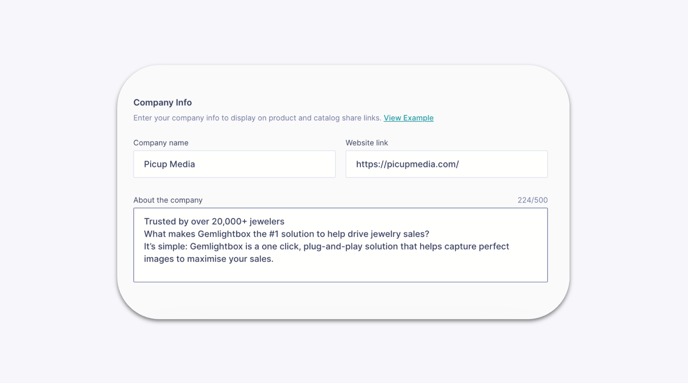
-png.png?width=688&height=387&name=202409%20-%20Notion%20-%20Managing%20Share%20Settings%20in%20GemHub-15%20(1)-png.png)