How to Add a Text Watermark in the GemHub
Quick Answer
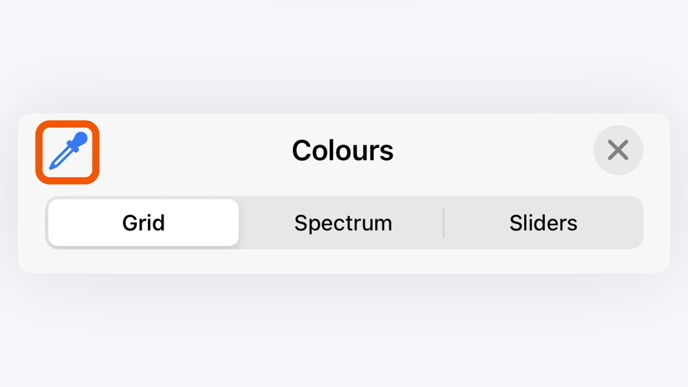
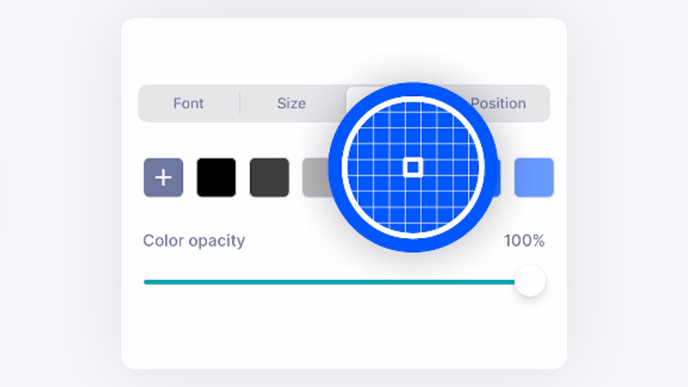
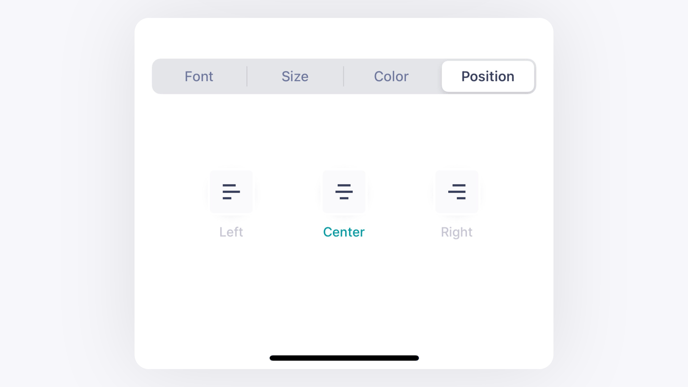
The GemHub allows you to add a custom text watermark to your photos and videos. This helps protect your creative work and consistently brand your content. You can enable this feature in the camera settings and customize the text, font, size, color, opacity, and position.
Before You Start
Ensure you have the GemHub installed on your smartphone or tablet.
Be ready to capture a new photo or video, or have existing media in your gallery to test the appearance.
Steps
Open the GemHub and navigate to the camera screen.
Tap the Settings icon to open the camera settings.
Scroll down to the Watermark section and enable the Text Watermark toggle.
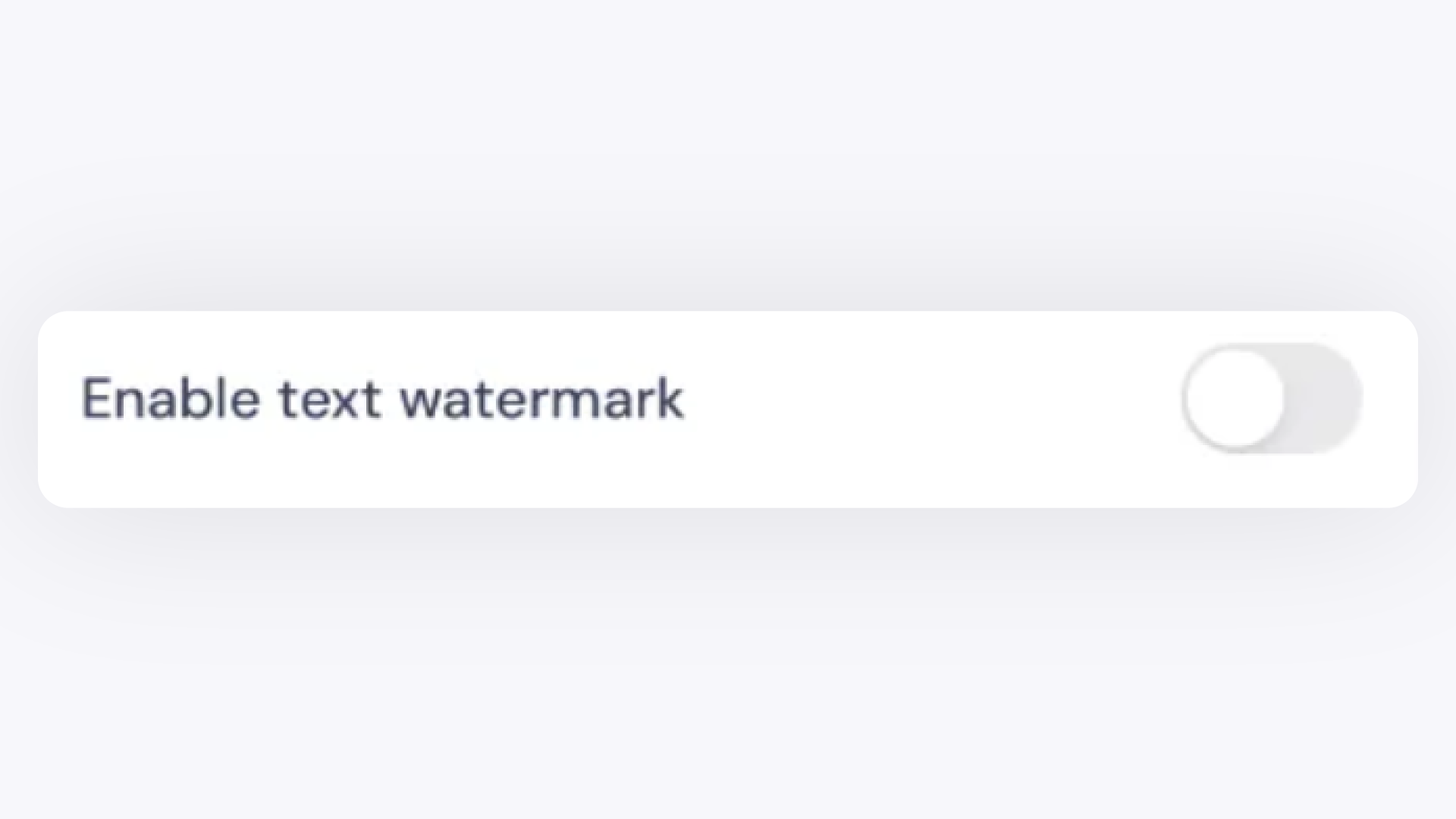
Enable Text Watermark Toggle in GemIQ App Settings In the text bar that appears, type your desired watermark text (e.g., your brand name or website).
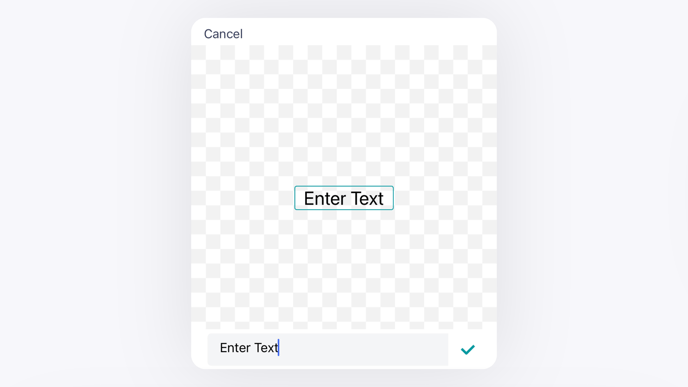
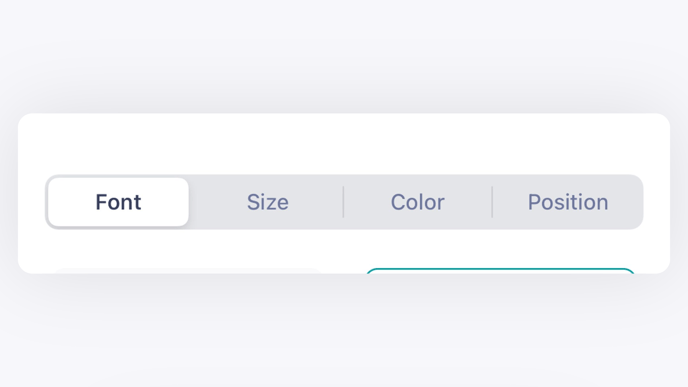
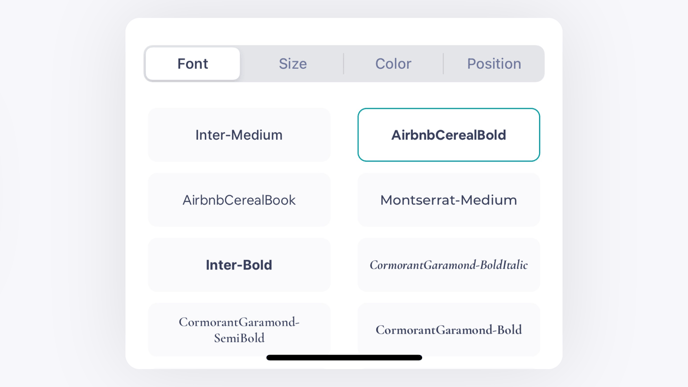
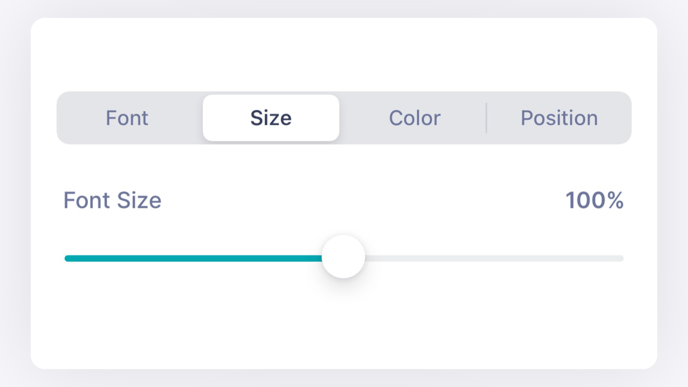
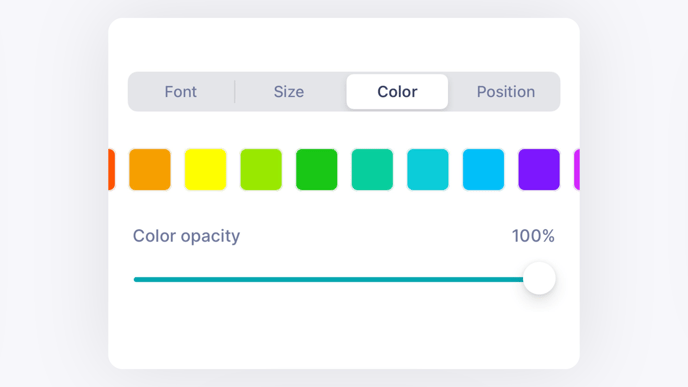
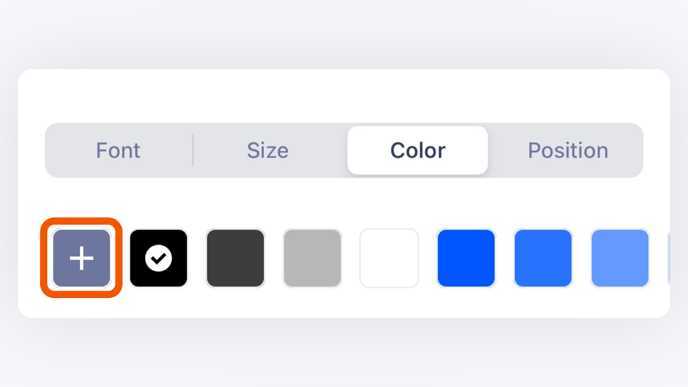
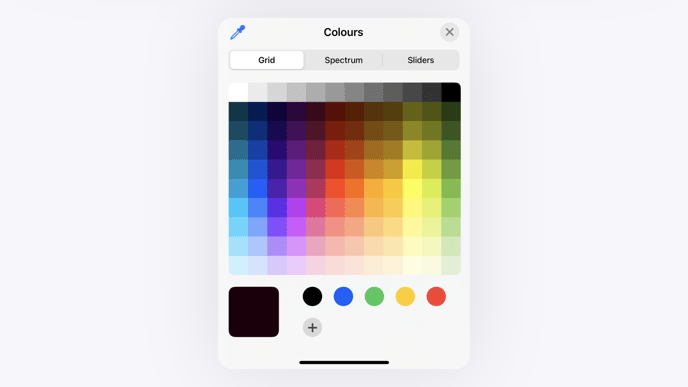
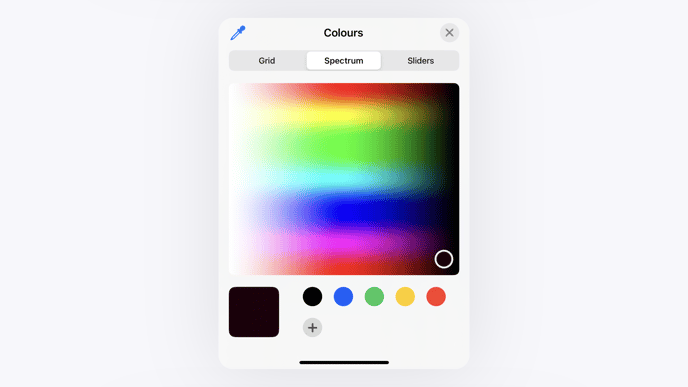
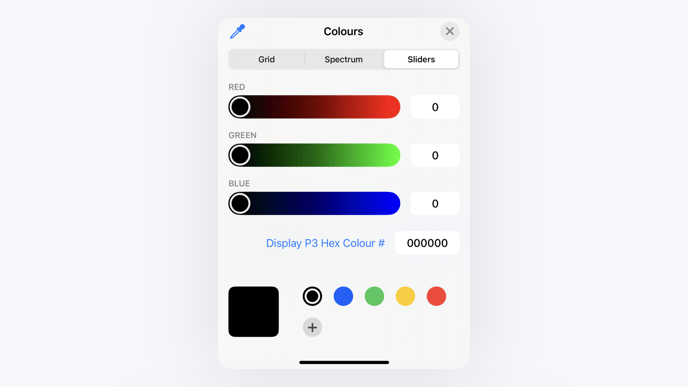
Text Bar for Entering Watermark Content Customize your watermark's appearance using the available options: