Adjusting Camera Settings in GemHub
Quick Answer
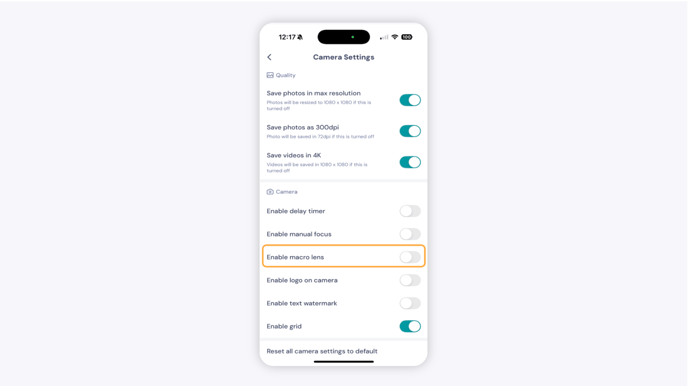
Open the GemHub app, tap Camera, then tap the gear icon (⚙) at the top right of the screen to access camera settings. From here you can control image resolution, video quality, the delay timer, and the macro lens.
Before You Start
GemHub app installed and up to date
Logged in to your GemIQ account
Steps
1. Open Camera Settings
Launch the GemHub app.
Tap Camera.
Tap the gear icon (⚙) at the top right of the screen.
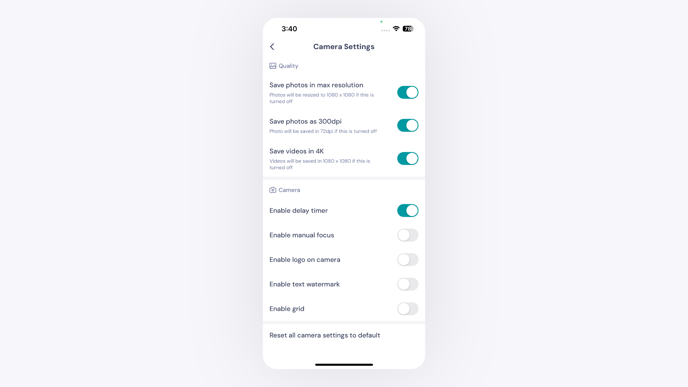
The camera settings panel will open.
2. Configure Your Settings
Save Photo in Max Resolution
Saves images at your smartphone's highest available resolution.
On: Captures at your device's maximum resolution — ideal for print, archiving, or high-detail use.
Off: Saves at 1080×1080, which is optimized for websites and e-commerce platforms.
Save Photo as 300 DPI
Saves images at 300 dots per inch. Recommended for print materials, catalogs, or any close-up digital display where fine detail matters.