Fix GemHub Sync and Connection Issues
Quick Answer
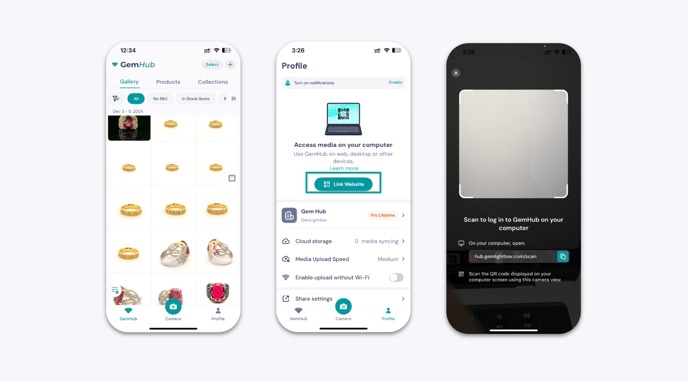
If your GemHub isn't syncing media to your desktop, sign out of both apps, then reconnect your device using a fresh incognito browser window and QR code. Most sync problems are caused by session conflicts or browser cache issues.
Before You Start
Sign out of the GemHub on both your mobile device and desktop. This clears any session conflicts that may block syncing.
Have your GemHub login credentials ready.
Steps
Step 1: Open an Incognito Window on Your Desktop
Open your web browser.
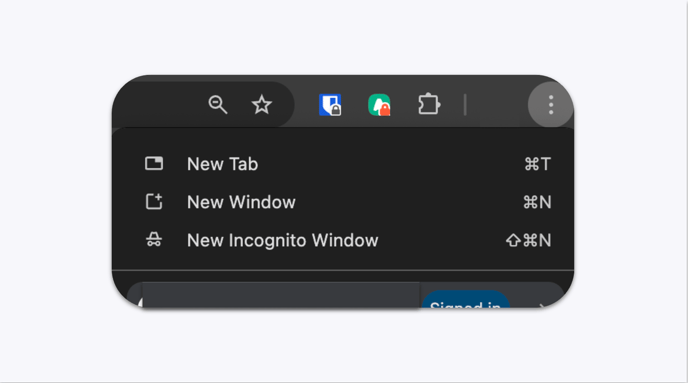
Click the three-dot menu in the top-right corner.
Select New Incognito Window (Chrome) or your browser's equivalent private browsing mode.
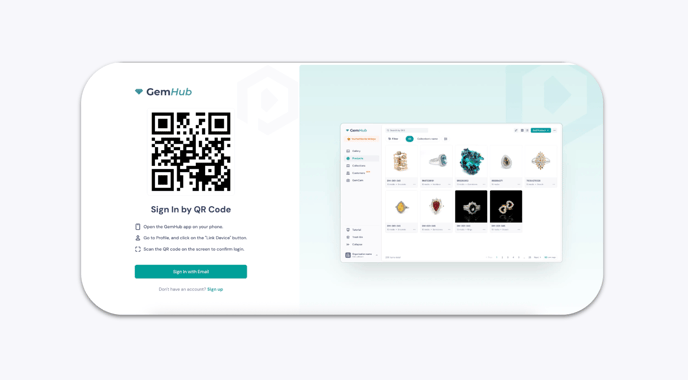
Go to hub.gemlightbox.com/scan. A QR code will appear on screen.