Troubleshoot iOS Camera Issues in the GemHub
Quick Answer
If your GemHub camera appears green, exit the app completely and relaunch it. If your camera struggles to focus on bracelets or larger pieces on an iPhone Pro or Pro Max, adjust the macro lens setting inside GemHub camera settings.
Before You Start
Confirm GemHub is updated to the latest version from the App Store.
Note your iPhone model — the macro control steps apply to iPhone 13 Pro, iPhone 13 Pro Max, iPhone 14 Pro, and iPhone 14 Pro Max.
Steps
Issue 1: Camera Appears Green
Swipe GemHub closed from the app switcher to fully exit the app.
Relaunch GemHub.
Tap the camera screen to refresh the view.
Issue 2: Camera Won't Focus on Bracelets or Larger Items
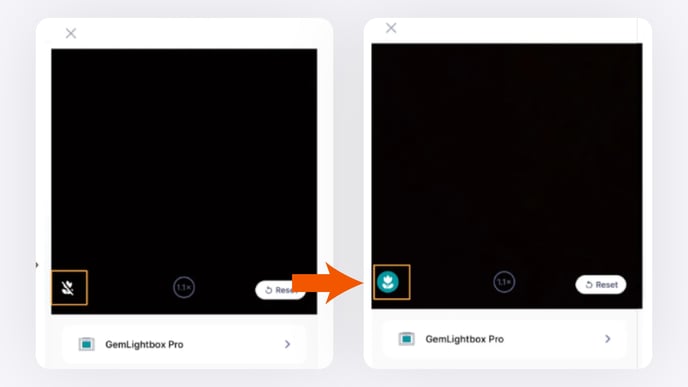
The macro lens on iPhone 13 Pro, iPhone 13 Pro Max, iPhone 14 Pro, and iPhone 14 Pro Max automatically activates for close-up shots. This can interfere with focus when shooting bracelets or larger pieces.
Open the GemHub and launch the camera.
Tap the settings icon in the top right corner of the screen.
Toggle Enable Macro Lens based on what you are shooting: - On — best for small items such as rings and pendants. - Off — best for bracelets and larger items.
Return to the camera and tap the macro toggle button to confirm your selection.