Troubleshooting Syncing Issues and Pending Uploads in the GemHub
Quick Answer
If your images and videos are stuck with a "pending" status or are not appearing in your cloud storage, it's usually due to an interrupted internet connection, full cloud storage, or a paused sync. Following the diagnostic steps below will help you identify and fix the issue.
Before You Start
Ensure the GemHub is installed on your mobile device.
Have access to a stable internet connection (Wi-Fi is recommended for large uploads).
Be logged into your GemIQ account.
Steps
Follow these steps in order to diagnose and resolve the syncing problem.
1. Check if Syncing is Paused
Sometimes the app's sync process may be paused. Look for a notification within the GemHub that says "Sync Paused."
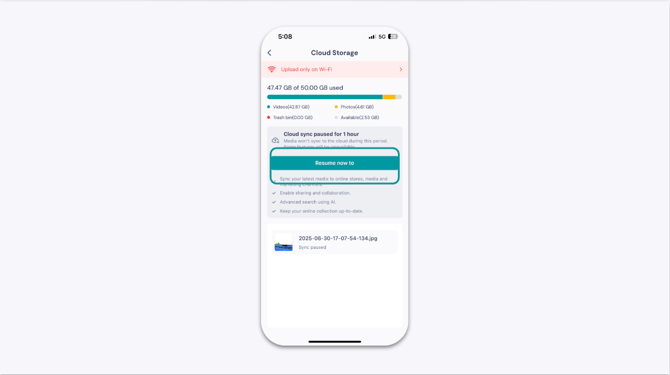
If you see this message, tap the Resume button to restart the sync. Also, ensure your device is not in airplane mode and has an active network connection.
2. Check Your Internet Connection
A stable internet connection is required for your files to sync to the cloud.
Wi-Fi: For the fastest and most reliable uploads, connect your device to a strong Wi-Fi network.