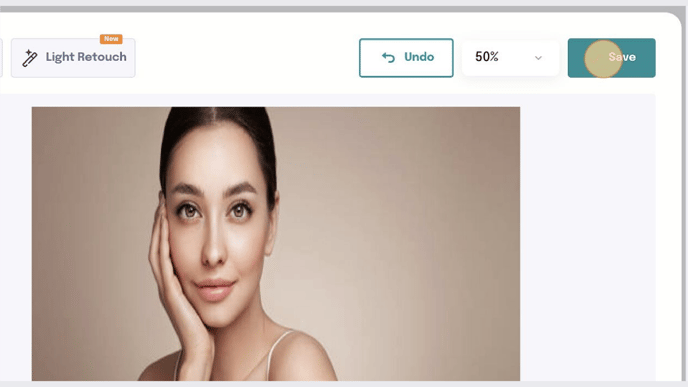
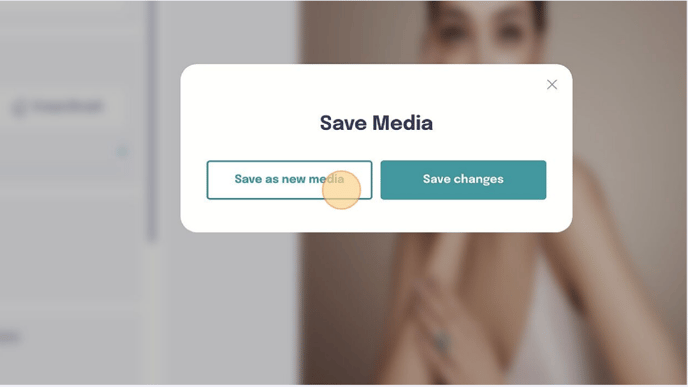
Upload a Custom Background Image for Virtual Try-On
Quick Answer
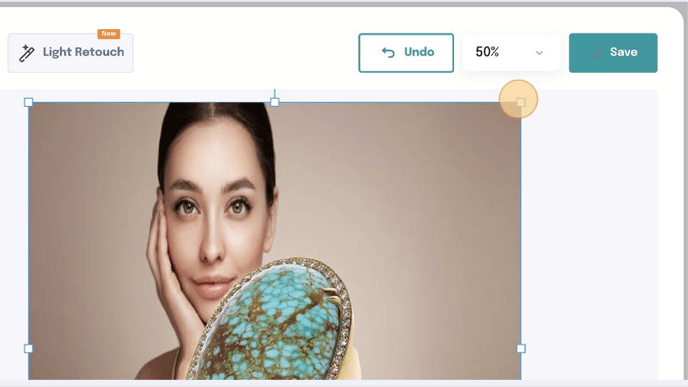
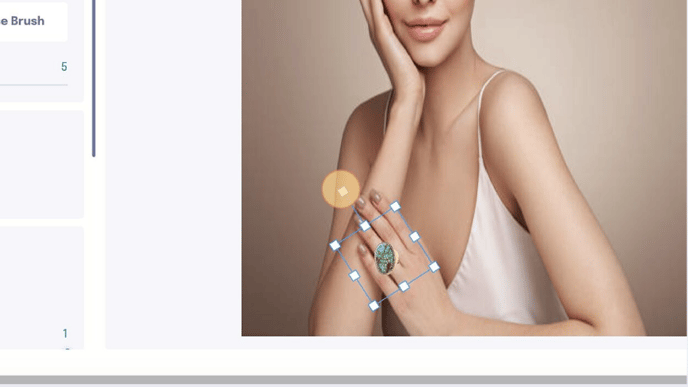
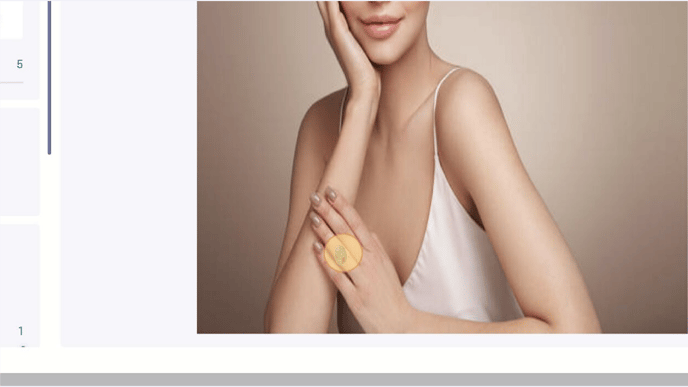
You can use any image — a model photo, stock image, or branded background — as the background for a jewelry piece in the GemHub. Remove the jewelry's original background, upload your custom image, resize and position the piece, then save it to your Virtual Try-On gallery.
Before You Start
Have the jewelry image already captured and saved in your GemIQ Gallery.
Prepare the background image you want to use (e.g., a model photo, lifestyle shot, or branded background).
Steps
Open the image editor. Select your jewelry piece from the gallery, then open the image editor.
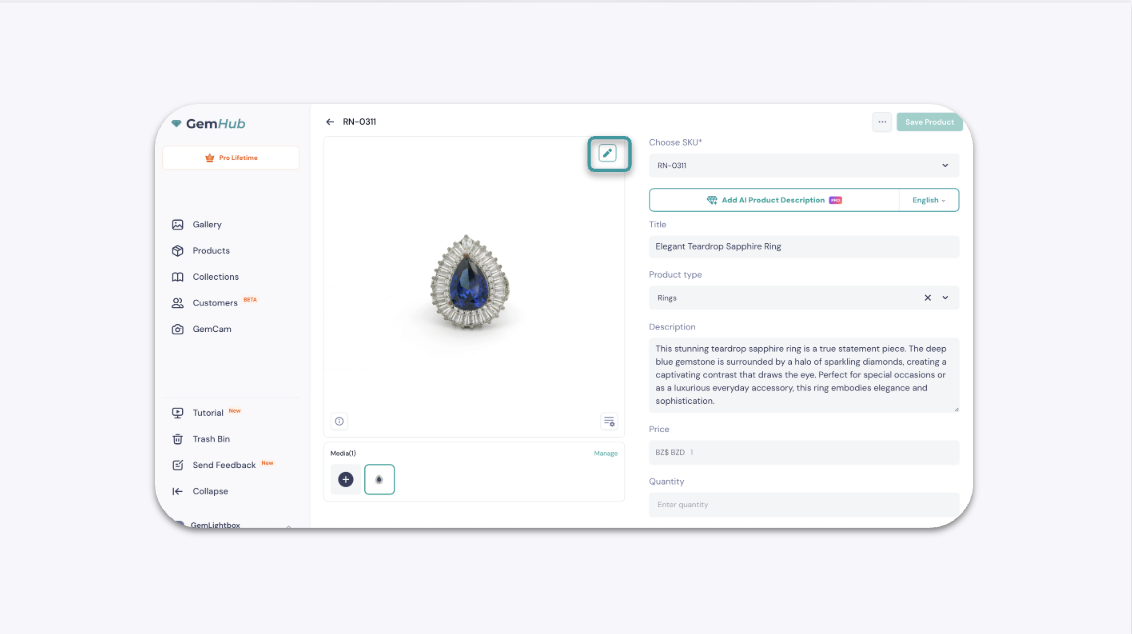
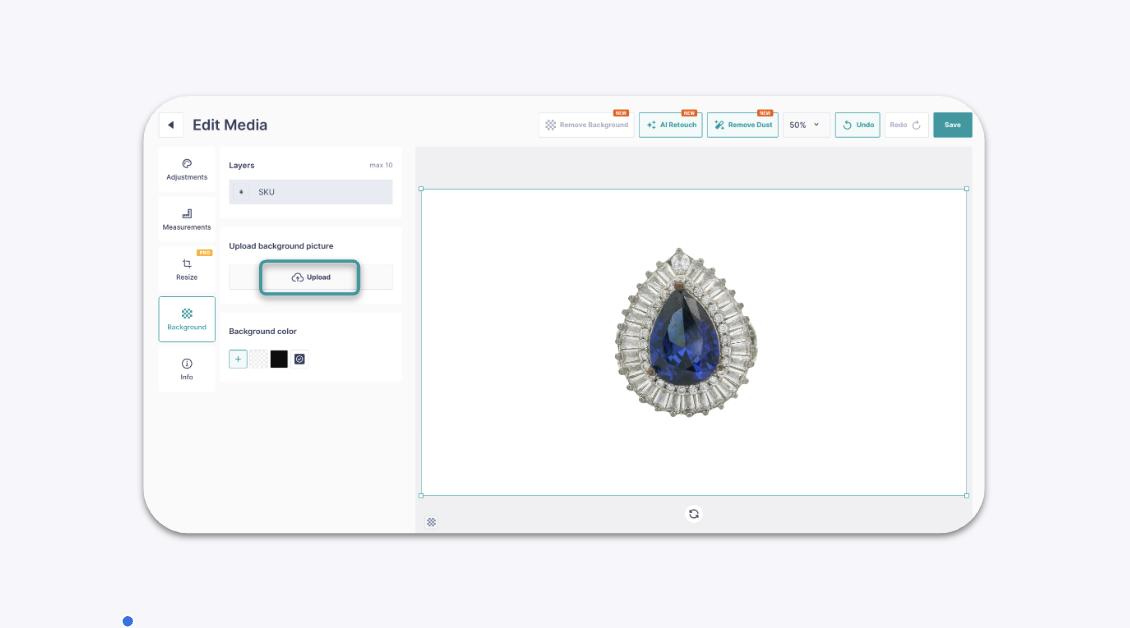
Remove the background. Tap Remove Background to strip the background from your jewelry image.
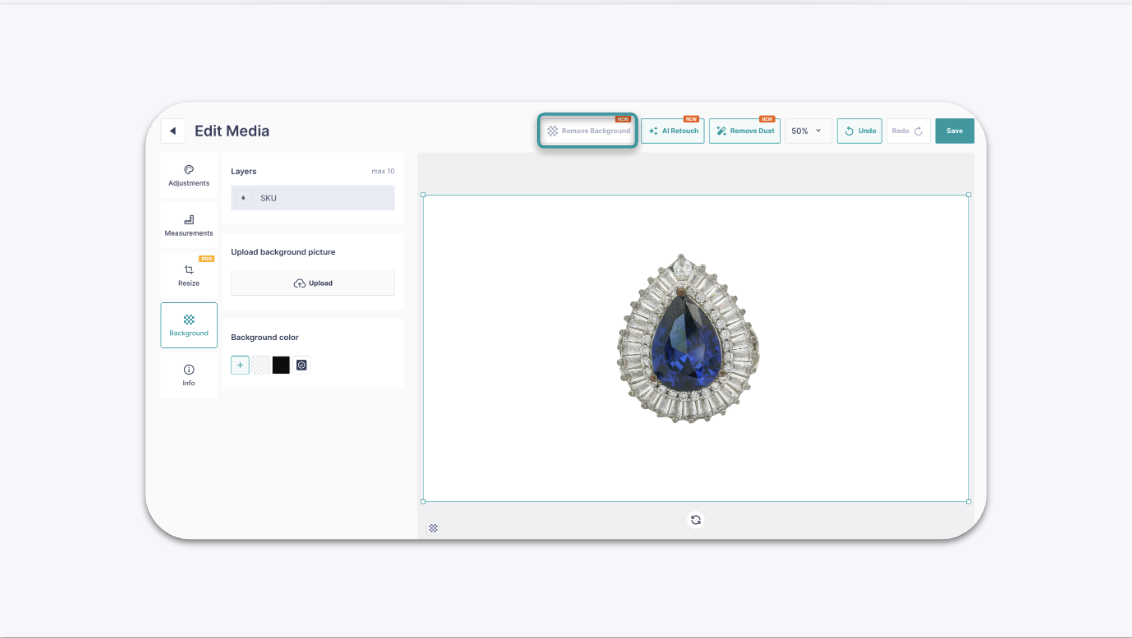
Upload your custom background. Tap the Upload button and select the background image from your device.