
How to Update Your Personal Information in the GemHub
Quick answer
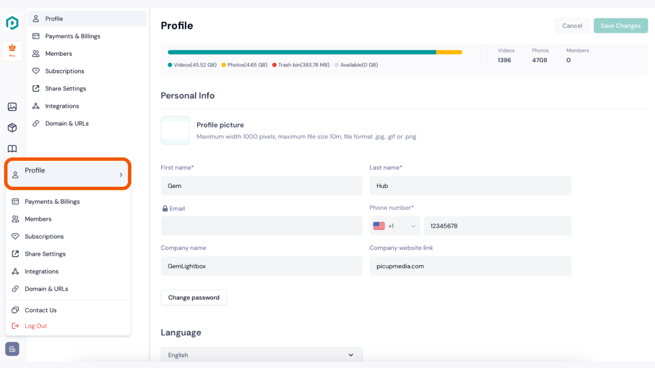
You can update your profile picture, name, contact details, company information, and preferred language from the Account Info section in the GemHub. Click your profile name in the bottom left corner of the GemHub interface to get started.
Before you start
You must be logged in to your GemIQ account.
Steps
Click your profile name in the bottom left corner of the GemHub interface.
Select Account Info.
Update any of the following fields: - Profile Picture - First Name - Last Name - Contact Number - Company Name - Company Website Link - Language
Click Save Changes.
Expected result
Your information is saved and updated across your GemIQ account.
If this does not work
Save Changes button not responding: Refresh the page and try again.
Profile picture not uploading: Ensure the file is a JPG or PNG format and is not too large. Try reducing the file size before uploading again.
Language preference not updating: