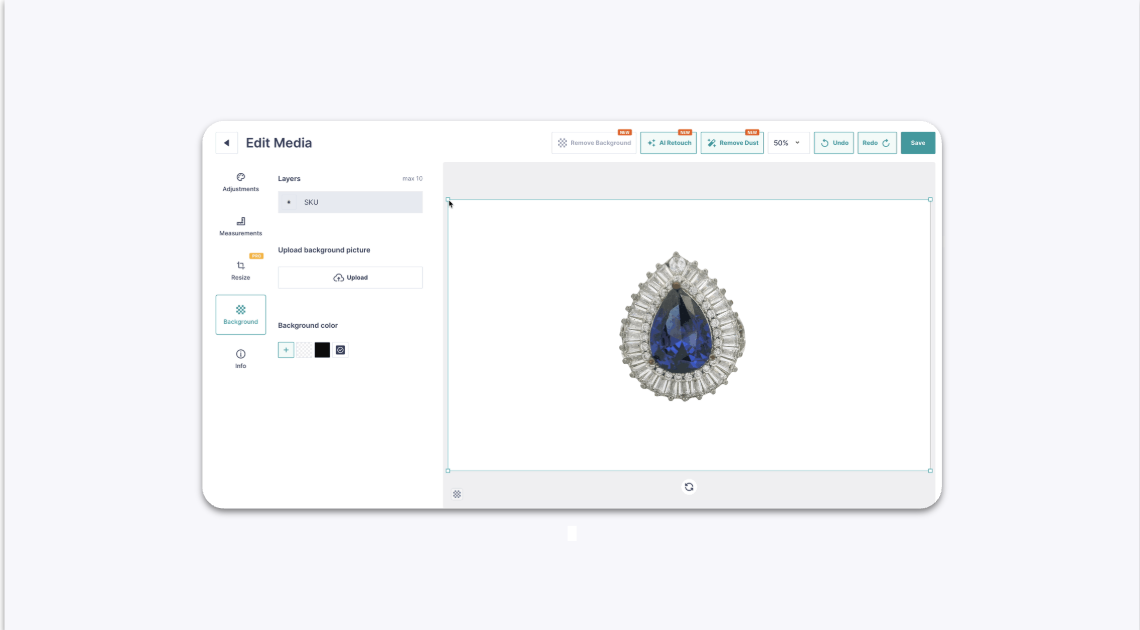
How to Resize an Image After Using GemStudio AI Editing
Quick Answer
Yes, you can resize your jewelry within the frame after applying GemStudio AI effects like Background Removal or AI Retouch. Simply apply the desired AI effect, then click and drag a corner of the jewelry item to adjust its size before saving your final image.
Before You Start
You need an image opened in the GemHub editor.
You should have already applied at least one GemStudio AI effect (e.g., Background Removal, AI Retouch) to the image.
Steps
In the GemHub's image editor, select a GemStudio AI function like Background Removal or AI Retouch and apply it to your image.
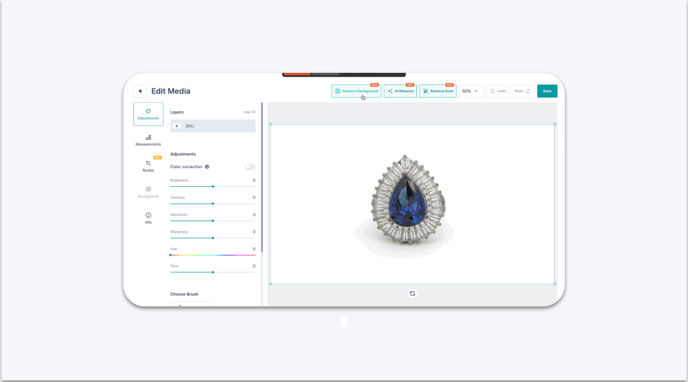
After the effect is applied, click on the jewelry item in your image. A bounding box with corner handles will appear.
To resize the jewelry, click and drag one of the corner handles inward to make it smaller or outward to make it larger.