How to Remove and Replace Image Backgrounds Using AI
Quick Answer
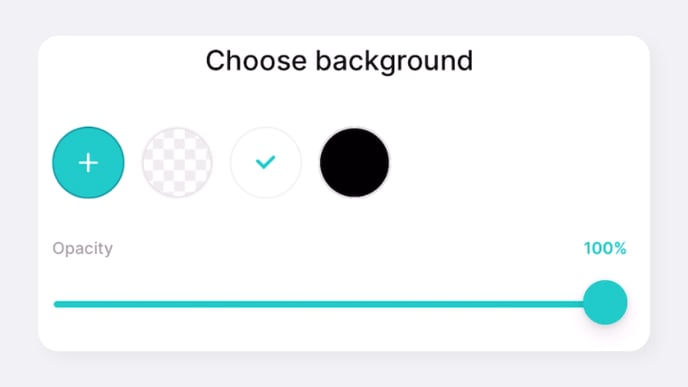
The GemHub uses AI to automatically remove the background from your jewelry photos. You can create a transparent background or replace it with a new one from our library or your own uploads. This feature works best with images shot on a clean, white background.
Before You Start
You need the GemHub installed on your device.
The image you want to edit should be a high-quality photo of a single jewelry item.
For best results, use a photo taken with a solid white background.
If you want to use a custom background, have the image file ready to upload.
Steps
Open the GemHub and navigate to your gallery.
Select the product you wish to edit, then tap on the image to open it.
Tap the pencil icon to enter Edit Mode.

An Arrow Pointing to the Pencil Icon for Editing in the GemIQ App In the editing panel, find and tap Remove Background.
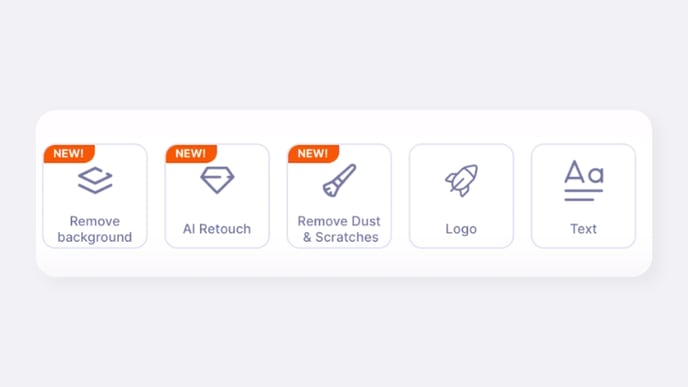
An Arrow Pointing to the Remove Background Button in the Editing Panel