How to Print a Collection from the GemHub
Quick Answer
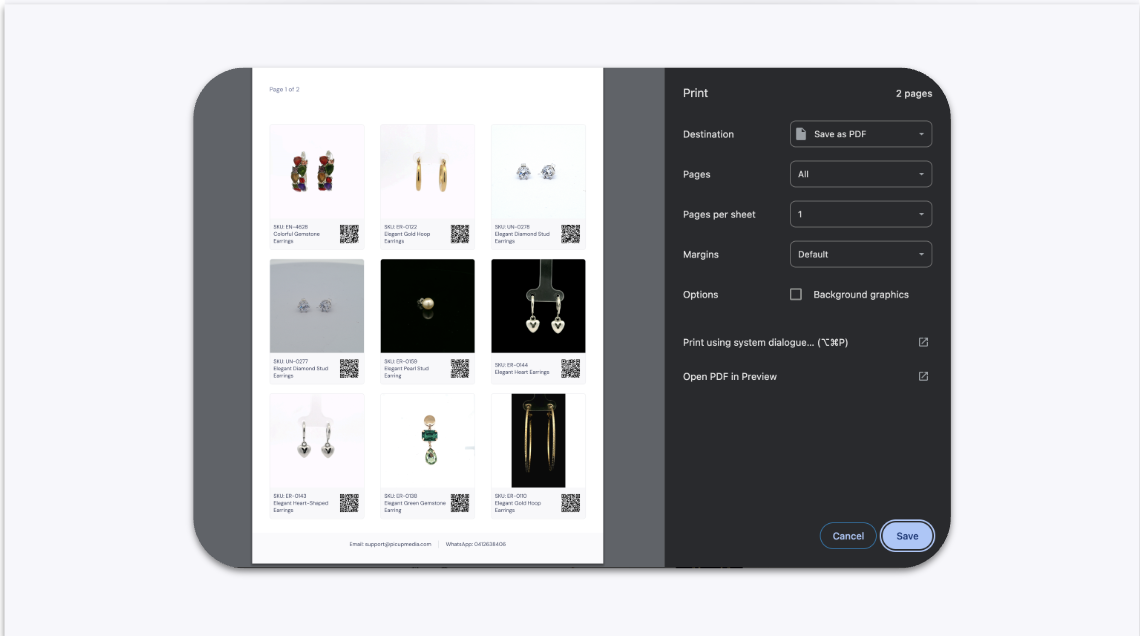
To print a catalog of your jewelry, open the GemHub on your desktop, navigate to the "Collections" section, and select "Print" from the menu on the collection you wish to export. You can then customize the information included before generating a printable PDF file.
Before You Start
Ensure you have the GemHub installed on your Mac or Windows computer.
You must have at least one collection created in your GemIQ account.
Make sure your computer is connected to a printer or has a "Print to PDF" function enabled.
Steps
Open the GemHub and navigate to the Collections section.
Find the collection you want to print. Click the ellipsis icon (
⋯) to open the menu.Select Print from the dropdown menu.
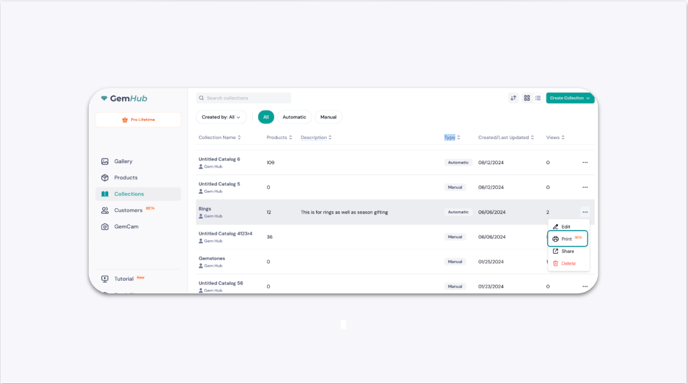
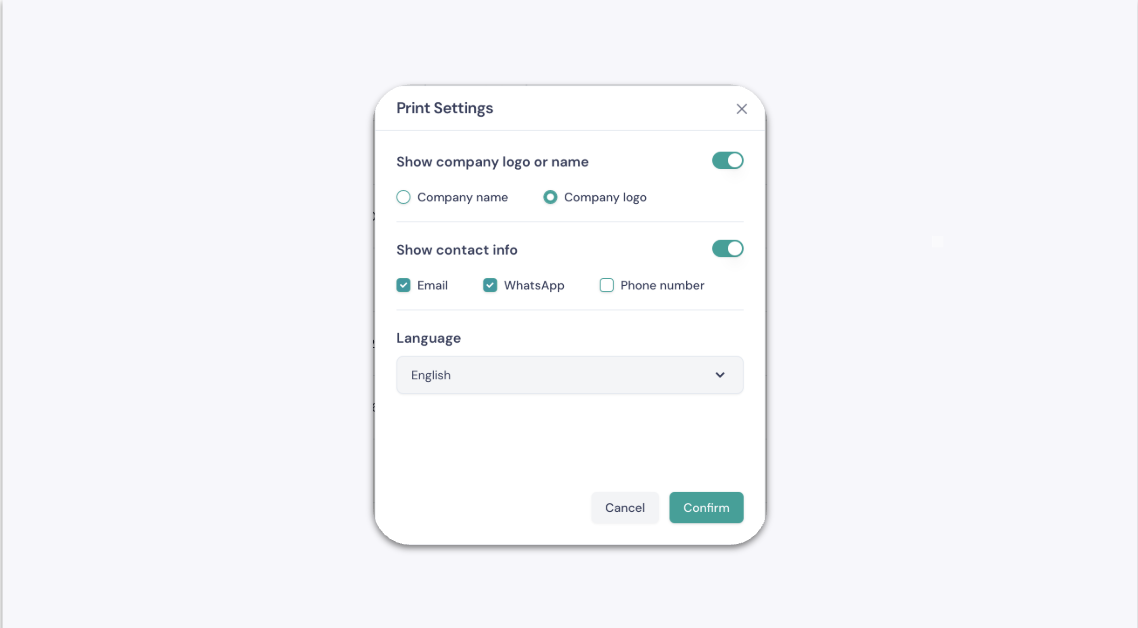
The Print Option in the Collections Menu of the GemIQ App A dialog box will appear, allowing you to customize the information that will be displayed in your printed catalog. Check the boxes for the details you want to include, such as SKU, price, or descriptions.
Click Confirm to proceed.